
Get Ticket Alerts in Grok Bot with Site Agent
Most support owners already keep an AI assistant open all day. The help desk is the tab they forget. A customer reply can sit for hours because nobody looked at wp-admin, even though you were chatting with Grok the whole time.
Grok Bot can watch Core Support for you. Once it is connected to your site, it checks for new tickets, customer replies and feature requests on a schedule and messages you in the same chat when something arrives. It stays quiet when nothing is new.
What You Need
- Core Support on a site served over HTTPS.
- Site Agent, a free plugin that lets AI assistants connect to WordPress. Core Support installs it for you in the next section.
- A site administrator account. Grok Bot signs in as you, so it sees what your account sees.
- Grok Bot with its connectors and routines available on your account.
Install Site Agent
Site Agent is the bridge between Grok Bot and your site. It serves Core Support’s tools to the assistant and keeps a record of every call.
- Open Core Support → Settings → Team alerts and scroll to Alerts from your AI assistant.
- Choose Install Site Agent. Core Support downloads its latest release and activates it. If Site Agent is already installed but switched off, the button reads Activate Site Agent.
- Open Tools → Site Agent and tick Enable Site Agent. OAuth connections (recommended) is on by default, so Grok Bot can sign in without a password.
- Tick Core Support tools and save.
The Core Support tools switch is what lets the assistant see your tickets. Without it, Grok Bot can connect but can’t read the help desk.
If WordPress can’t write to the plugins folder on your host, the install button says so. Download Site Agent from its product page instead and upload it under Plugins → Add New.
Ask Grok Bot to Watch Your Help Desk
Start a chat with Grok Bot and tell it what you want in plain words. A request like this one works, and mine named gauravtiwari.org:
Make use of Site Agent and create a workflow that tells me whenever a new ticket
is created or replied to on example.com.
Grok Bot works out that it needs Site Agent connected first, and says so. It then asks to connect Site Agent for your site.
Connect Site Agent
- Choose Yes, connect it when Grok Bot asks. A WordPress sign-in opens.
- Sign in with your administrator account, if you aren’t already.
- Read the Connect to Site Agent screen. It names the app that asked and the site it wants to reach.
- Under Allow it to also, tick Check Core Support tickets and feature requests, send team alerts and work the roadmap. Leave the rest unticked unless you want Grok Bot to do more on the site.
- Choose Allow. You land back in Grok.
A watch needs only the Core Support line. Running PHP, running WP-CLI and changing plugin files are full-power permissions, and a ticket alert has no use for them. Grok Bot can always read site details and content on top of what you tick.
The screen also says when access ends: when you revoke it in Tools → Site Agent, or after 30 days without use. Only approve a connection you started yourself.
Back in the chat, the Site Agent card reads Connected · 1 Account. Grok Bot notes that it always asks before making changes, and you can disconnect at any time from Manage.
Let Grok Bot Create the Routine
With Site Agent connected, Grok Bot tests the connection and creates a routine. Mine was called Core Support ticket watch, and it runs every 15 minutes from 8:00 AM to 9:45 PM in my time zone.
On its first run the routine records where things stand, so you don’t get a dump of every old ticket. After that, each run asks Core Support what happened since the last check:
- New tickets, with the subject, the customer and a link to the ticket.
- Customer replies on existing tickets.
- Feature requests from your roadmap pages, while the Roadmaps module is on.
Grok Bot messages you only when one of these comes back. A quiet help desk means a quiet chat.
Ask Grok Bot to change the schedule whenever you like. “Check overnight too” or “only check every hour” in the same chat updates the routine.
What a Message Contains
Each alert names the ticket or request and links to it in wp-admin. The customer’s message text comes along only when Include a message preview is on under Core Support → Settings → Team alerts. It’s the same switch the app alerts use, so one setting covers both.
Here’s a real one from my help desk, sent 7 minutes after a customer replied through Chat. The preview was on, so Grok Bot could say in a sentence what the customer wanted, which is usually enough to decide whether it needs you right now. The link at the end opens the ticket.
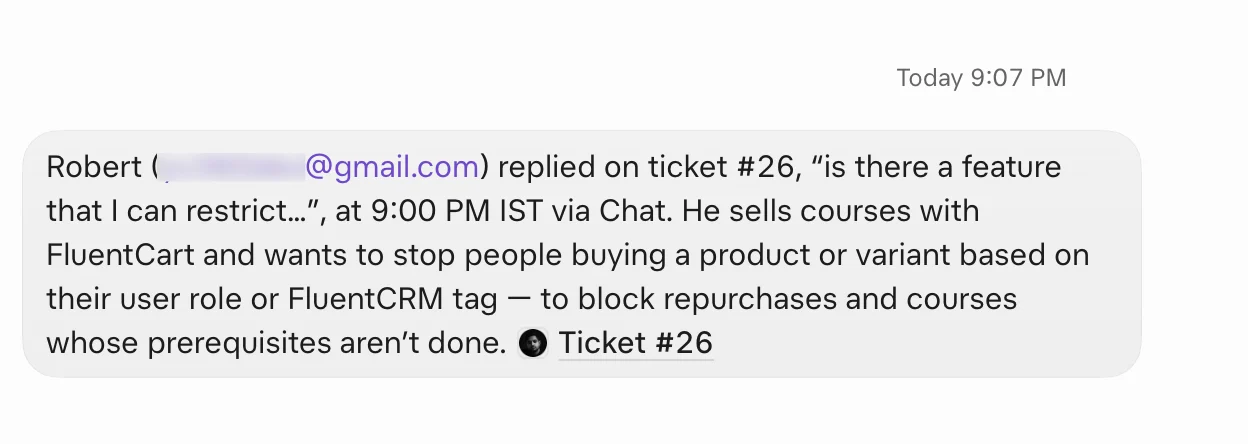
I’d leave the preview off at first. Grok Bot passes the text through xAI’s servers, and customer messages can hold order details or personal information. With the preview off, you still get the subject, the customer and the link.
Other Things You Can Ask
The same connection lets Grok Bot help with more than the watch. Each request runs as your account, with your permissions:
- “Summarize ticket #123 and suggest a reply.” Grok Bot reads the ticket and drafts text for you to send yourself.
- “Which open tickets are unassigned?”
- “Send a team alert that the payment gateway is down.” It goes to your Telegram, Pushover, Discord, Slack or webhook channels.
- “Move the CSV export item to Planned on the Core Support roadmap.”
- “Show me the feature requests waiting for review.”
Nothing here replies to a customer. A draft stays in the chat until you paste it into the ticket.
Good to Know
- It isn’t instant. A routine that runs every 15 minutes can take up to 15 minutes to tell you. For an alert within seconds, set up team alerts on Telegram, Pushover, Discord, Slack or a webhook as well.
- The schedule is Grok’s. Grok runs the routine on its side. If the routine is paused or deleted in Grok, the checks stop.
- Unused connections expire. After 30 days without a call, Site Agent ends the access. Ask Grok Bot to reconnect, and approve the screen again.
- You can see every change. Tools → Site Agent keeps an audit history of the last 100 records, with the tool, the time and the result. Successful read-only checks stay out of it, so a watch doesn’t crowd it.
- Disconnecting is one click. Revoke the connection in Tools → Site Agent, or remove it from Manage in Grok. Either one stops the watch.
ChatGPT dots and Claude Duet connect the same way. See Get Ticket Alerts in ChatGPT Dots and Get Ticket Alerts in Claude Duet.