
Store Attachments in the Database, Private Files, R2, S3 or Bunny
Every support email Core Support receives is kept twice: the original message and each attachment inside it. On a busy help desk, those screenshots, PDFs and log files pile up in the WordPress database. Backups grow, restores slow down and the database carries files it was never meant to hold.
Core Support lets you move new files out of the database to private files on the server, Cloudflare R2, an S3-compatible bucket or Bunny Storage. Files are encrypted on your server before they leave it. Downloads still go through WordPress, which checks access to the ticket first.
The Storage Choices
Go to Core Support → Connections and scroll to Attachment storage. Store new files in offers 5 choices:
- Database: the default, with nothing to set up. Files are encrypted in the database.
- Private files: in
wp-content/uploads/core-support-private, with web access denied. These files are always encrypted. - Cloudflare R2: a bucket with no egress fees.
- S3-compatible: Amazon S3, Wasabi, DigitalOcean Spaces, MinIO or another S3-compatible service.
- Bunny Storage: a Bunny.net storage zone through its own API.
The choice also sets the largest email a mailbox can accept. That’s 10 MB while files are stored in the database and 25 MB with any other choice.
I’d move to external storage once attachments make up a real share of your database backups. Private files is the quickest step, because it needs no account anywhere.
Connect a Bucket or Zone
- Create a private bucket or storage zone with your provider, plus an access key for it.
- Go to Core Support → Connections → Attachment storage and pick the provider.
- Fill in the fields below.
- Click Test and save storage.
Core Support writes a test file, reads it back and deletes it before anything is saved. If the test fails, nothing changes and the error says why.
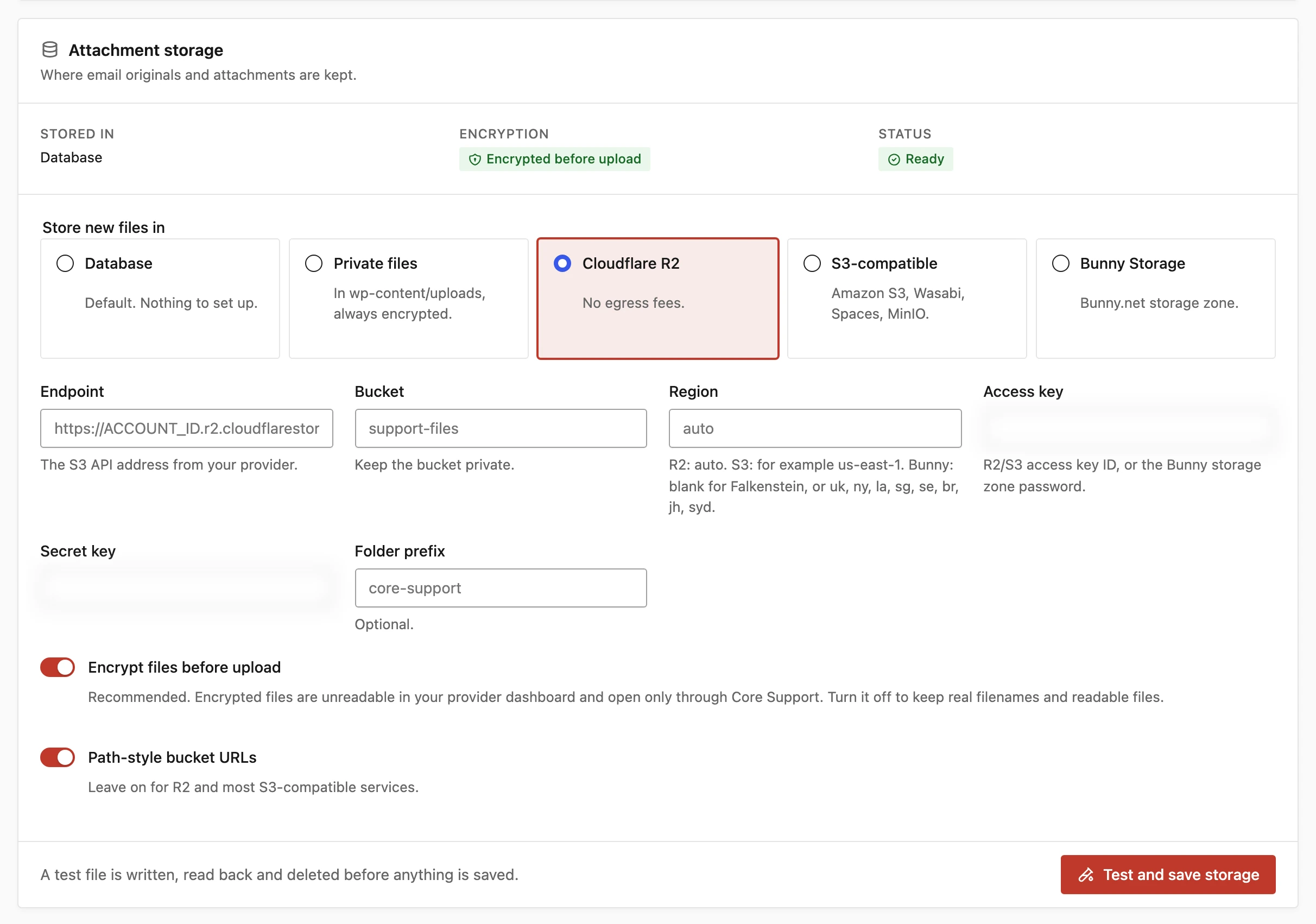
Storage Settings
The fields change with the provider:
- Endpoint: R2 and S3. The S3 API address from your provider, such as
https://<account-id>.r2.cloudflarestorage.com. It must start withhttps://. - Bucket: R2 and S3. Keep the bucket private.
- Storage zone: Bunny. Don’t connect a pull zone to it, so files stay private.
- Region: R2 uses
autoand S3 defaults tous-east-1. For Bunny, leave it blank for Falkenstein, or useuk,ny,la,sg,se,br,jhorsyd. - Access key: the R2 or S3 access key ID, or the Bunny storage zone password.
- Secret key: R2 and S3 only.
- Folder prefix: optional. Files go under
core-support/by default, inside a folder for each site, such ascore-support/site-1/. - Encrypt files before upload: on by default, for R2, S3 and Bunny.
- Path-style bucket URLs: on by default. Leave it on for R2 and most S3-compatible services.
Keys are saved encrypted and never shown again. Leave a key field blank to keep the saved one.
Encrypted or Normal Files
With Encrypt files before upload on, Core Support encrypts each file with a key derived from the site’s WordPress salts. The provider only holds unreadable data. A file downloaded from the R2, S3 or Bunny dashboard is a random-named .bin file that won’t open, so open files through Core Support instead.
With it off, each file keeps its real name and type, such as core-support/site-1/attachment/2026/10/<random folder>/invoice.pdf. Those files open from the provider’s dashboard. The random folder keeps paths hard to guess, but anyone with access to the bucket can read them, so keep it private.
The status at the top of the card shows Encrypted before upload or Normal files. Changing this setting applies to new files only.
Changing the WordPress salts makes earlier encrypted files unreadable. That applies to originals in the database too, so treat the salts as part of your support data.
Move Older Files out of the Database
A new storage choice applies to new mail. Older files in the database stay readable where they are.
To move older email originals out of the database, run:
wp core-support storage migrate --limit=500--limit sets how many originals move in one run, default 500 and at most 10000. The command is safe to stop and rerun. Add --dry-run to count what would move first. It moves originals only, from the database to external storage, and never between 2 external providers.
Why the Destination Locks
Once an external destination holds files, Connections won’t let you switch its provider, endpoint, bucket or zone, or go back to database storage. Every stored file is referenced by that exact destination, so a switch would strand them.
What you can still change:
- Keys: rotate the access key and secret key for the same location.
- Folder prefix: applies to new files.
- Encryption: applies to new files.
A failed upload also keeps the lock, because the provider may have accepted the file before the error.
Use wp-config.php Instead
Storage can be set with a CORE_SUPPORT_STORAGE constant in wp-config.php, which keeps the keys out of database backups. The constant wins, and Connections then shows the storage read-only. This example uses R2:
define('CORE_SUPPORT_STORAGE', [
    'driver' => 'r2',
    'endpoint' => 'https://<account-id>.r2.cloudflarestorage.com',
    'bucket' => 'support-files',
    'access_key' => '<R2 access key ID>',
    'secret_key' => '<R2 secret access key>',
]);
The drivers are local, r2, s3 and bunny, and the wp-config constants reference covers the constant in full. Keep the old destination in the constant until any move between providers is finished.
Attachments in the Conversation
Images pasted into an email, such as screenshots, are shown in the conversation for agents and customers. Other files are listed under the message as downloads.
- Images shown inline: PNG, JPEG, GIF, WebP and AVIF only.
- Always downloaded: every other type, including SVG and HTML.
- Left in the original: inline images under 1 KB, usually tracking pixels and spacers.
- Per email: up to 25 files are stored separately. The original email keeps every part.
Customers can’t upload files from the portal. Attachments arrive by email, an automation tool or a server request.
Test Storage and Handle Outages
wp core-support storage test writes, reads back and deletes a probe file. Core Support → Diagnostics → Attachment storage runs the same check.
When the storage setting itself is broken, new files go to the database until it’s fixed. Support Managers and administrators then see “Attachment storage needs attention.” on Core Support screens, with the reason and an Open Connections link.
If the storage service is unreachable, new mail is refused with a retryable error instead of being half stored. The relay and IMAP retry it later, and automation tools should retry on 503. Review Incoming Mail shows any storage problem under Connection details.