
Run One Help Desk for Many Websites
Most people who sell more than one product end up with more than one website. Each site grows its own contact form, and each form sends mail to a different inbox. Questions get missed, and nobody can see the whole support load in one place.
Core Support fixes this with connected sites. Another website pastes a small snippet or calls one endpoint from its server, and every request lands as a ticket in the same help desk. The other site doesn’t need Core Support installed. It can be a static site, a site builder page or another WordPress install.
What a Connected Site Can Do
Each connected site gets its own settings under Core Support → Connected sites. From there, a site can:
- show a contact form that opens tickets here
- send tickets from its own server with a secret site key
- host a customer portal of its own, covered in Host the Customer Portal on a Connected Site
- show your docs collections in a frame, covered in Show Your Docs on Another Website
Administrators and Support Managers can manage connected sites. Up to 100 websites can be connected to one help desk.
Connect a Website
- Go to Core Support → Connected sites.
- Fill in the Connect a website card. The fields are explained below.
- Click Connect website.
- Copy the site key from the yellow notice. It says “Copy this site key now. It will not be shown again.”
- Open the site from the Websites list to get its form code, server example and other snippets.
Core Support stores only a keyed hash of the site key, so nobody can read it back later. If you lose it, create a new one.
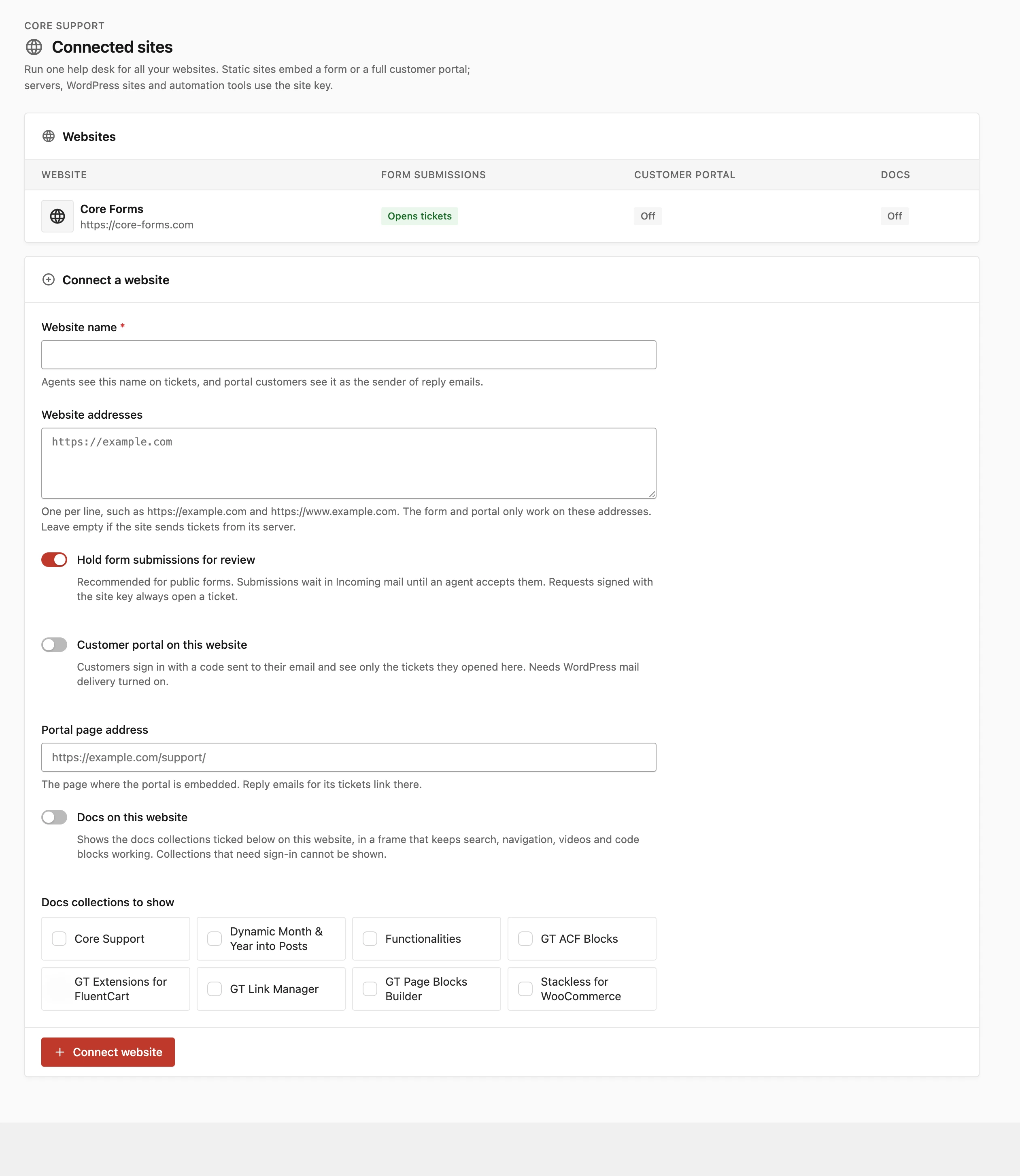
Website Settings
- Website name: up to 80 characters. Agents see this name on tickets, and portal customers see it as the sender of reply emails.
- Website addresses: one per line, such as
https://example.comandhttps://www.example.com. The form and portal only work on these addresses. Leave it empty if the site sends tickets from its server only. - Hold form submissions for review: on by default. Form submissions wait in Incoming mail until an agent accepts them. Requests signed with the site key always open a ticket.
- Customer portal on this website: off by default. Lets customers sign in on that site and see their tickets.
- Portal page address: the page where the portal is embedded. Reply emails for its tickets link there.
- Docs on this website: off by default. Shows the docs collections you tick in Docs collections to show.
An address is a scheme and a host, with a port when it isn’t the default. Paths and wildcards are not accepted, so https://example.com/contact/ and https://*.example.com are both refused. Each www or subdomain version needs its own line, up to 20 addresses per site.
Add the Contact Form
The site’s page shows the form code in the Contact form card. Paste it where the form should appear. On a WordPress site, a Custom HTML block works.
<div data-core-support-form></div>
<script src="https://desk.example.com/wp-content/plugins/core-support/assets/widget.min.js"
        data-endpoint="https://desk.example.com/wp-json/core-support/v1/sites/<site-id>/tickets" defer></script>
<site-id> is the site’s 12-character ID, already filled in on the copied code. Snippets copied before 0.8.4 point at widget.js and keep working.
The form asks for Your name, Email address, Subject and Message. Email and message are required. It draws inside its own shadow root, so the site’s CSS can’t break it.
These optional attributes go on the <script> tag:
data-heading: the form’s heading, “Contact support” by default.data-button: the button text, “Send message” by default.data-accent: a hex color such as#066fd1, the default.data-target: a CSS selector for the elements that should hold the form, in place of[data-core-support-form].
After sending, the visitor sees “Thanks. We received your message and will reply by email.”
How the Form Is Protected
- It only works from the site’s listed addresses. Any other origin gets a 403 error.
- Each site accepts 10 messages per visitor per hour.
- A hidden honeypot field catches bots. A submission that fills it gets a normal thank-you and goes nowhere.
- The same message sent twice on the same day, such as after a double click, becomes one receipt.
- Form requests are limited to 64 KB, and the form can’t send attachments.
I’d keep Hold form submissions for review on for any public form. A public form is the first thing spam bots find, and review costs an agent one click per real message.
Review Held Submissions
Held submissions wait in Core Support → Incoming mail, with the reason “Website form” and the site’s name as the source. Each one has two buttons:
- Accept as new ticket opens the ticket.
- Discard drops it.
The full review screen is explained in Review Incoming Mail. Turning review off for a site opens form tickets directly.
Send Tickets from a Server
A server, another WordPress site or an automation tool can open tickets with the site key. The site’s page shows a ready example in the Send tickets from a server card.
- Endpoint:
POST https://desk.example.com/wp-json/core-support/v1/sites/<site-id>/tickets - Auth:
Authorization: Bearer <site key>. The key starts withcssk_. AnX-Core-Support-Keyheader works too. - Body: JSON, up to 8 MB.
- Retries: an
Idempotency-Keyheader makes them safe. The same key on the same site never opens a second ticket.
curl -X POST 'https://desk.example.com/wp-json/core-support/v1/sites/<site-id>/tickets' \
  -H 'Authorization: Bearer <site key>' \
  -H 'Content-Type: application/json' \
  -H 'Idempotency-Key: order-1234-question' \
  -d '{"email":"customer@example.com","name":"Ada","subject":"License question","message":"Hello","metadata":{"Order":"1234"}}'
The fields:
email: required, the customer’s address. Replies go here.message: required, plain text.name: optional, up to 100 characters.subject: optional, up to 180 characters. Without one, the subject is “Message from” and the site name.page_url: optional, the page the request came from.metadata: optional, up to 20 label and value pairs, such as an order number. Labels are cut at 60 characters and values at 300.attachments: optional, up to 5 objects withfilename,content_typeandcontent_b64(the file as base64).
Signed requests skip review and the hourly form limit. metadata and attachments work only on signed requests, never from the browser form.
A success returns 202 with {"accepted": true, "message": "..."}. Common errors:
401 invalid_key: the site key is wrong.403 origin_not_allowed: an unsigned request came from an unlisted address.403 intake_closed: Accept new customer tickets is off. The message is your Intake paused message.422: a missing email or message, or a message over the length limit.429 rate_limited: too many form messages from one visitor this hour.
How Tickets Show Up for Agents
Agents see “via” and the site’s name beside the customer on every ticket from that site. The message itself ends with a short footer that starts “Sent from” and the site name. Under it come the page address and any metadata lines.
That footer counts toward Maximum message length, which is 10,000 characters by default. When a message runs over, the error says how long the customer’s own text may be. If a site is later removed, its old tickets show “A removed website”.
A ticket from a connected site belongs to the WordPress account on the help desk with the same email address, if one exists. Those customers also see it in the main portal, labeled “Sent from” and the site name, because a form sender’s address isn’t verified.
Replies Go by Email
Customers who used the form or a server request get your replies by email and answer by email. That needs a mailbox with a working reply route: the Cloudflare relay, IMAP or an automation tool. How Email Reaches Core Support explains each route.
A site with its own customer portal goes one step further. Reply emails for its tickets carry the site’s name and link to its portal page instead of the help desk.
Replace or Remove a Site Key
The Site key and removal card at the bottom of a site’s page has two buttons:
- Create new site key makes a new key and shows it once. The old key stops working immediately, so the new one should go on your server right away.
- Remove website stops the site’s form, portal and key. Existing tickets stay.
A new key should be created whenever the old one may have been exposed, such as in a public repository or a shared log. A site key belongs in server code only, never in a page’s HTML.
Good to Know
- The form and the server API both need Accept new customer tickets on.
- Customers can’t upload files from the form. Attachments come by email or a signed server request.
- Chat can run on a connected site too. It uses the same listed addresses, and its embed line is under Core Support → Chat → Embed.