
Show Customer and Order Details Beside Each Ticket
A customer writes in about a download that stopped working. Before you can answer, you need to know what they bought, whether their license is still active and how many sites it’s on. That usually means a second tab, a search in the store and some guessing when the email doesn’t match.
Core Support puts those details beside the conversation. When WooCommerce, FluentCart, Easy Digital Downloads or FluentCRM is active, the agent workspace shows a panel for the ticket’s customer. Each panel links straight to the order, license or contact. Agents see these panels and customers never do.
Turn the Panels On or Off
Each panel switches on by itself when its plugin is active. You can turn any of them off under Core Support → Integrations, in the Customer details beside each ticket section.
- Go to Core Support → Integrations.
- Find the card for the plugin. It shows Active when the plugin is running and Not active when it isn’t.
- Turn Show in tickets on or off.
- Choose Save integrations.
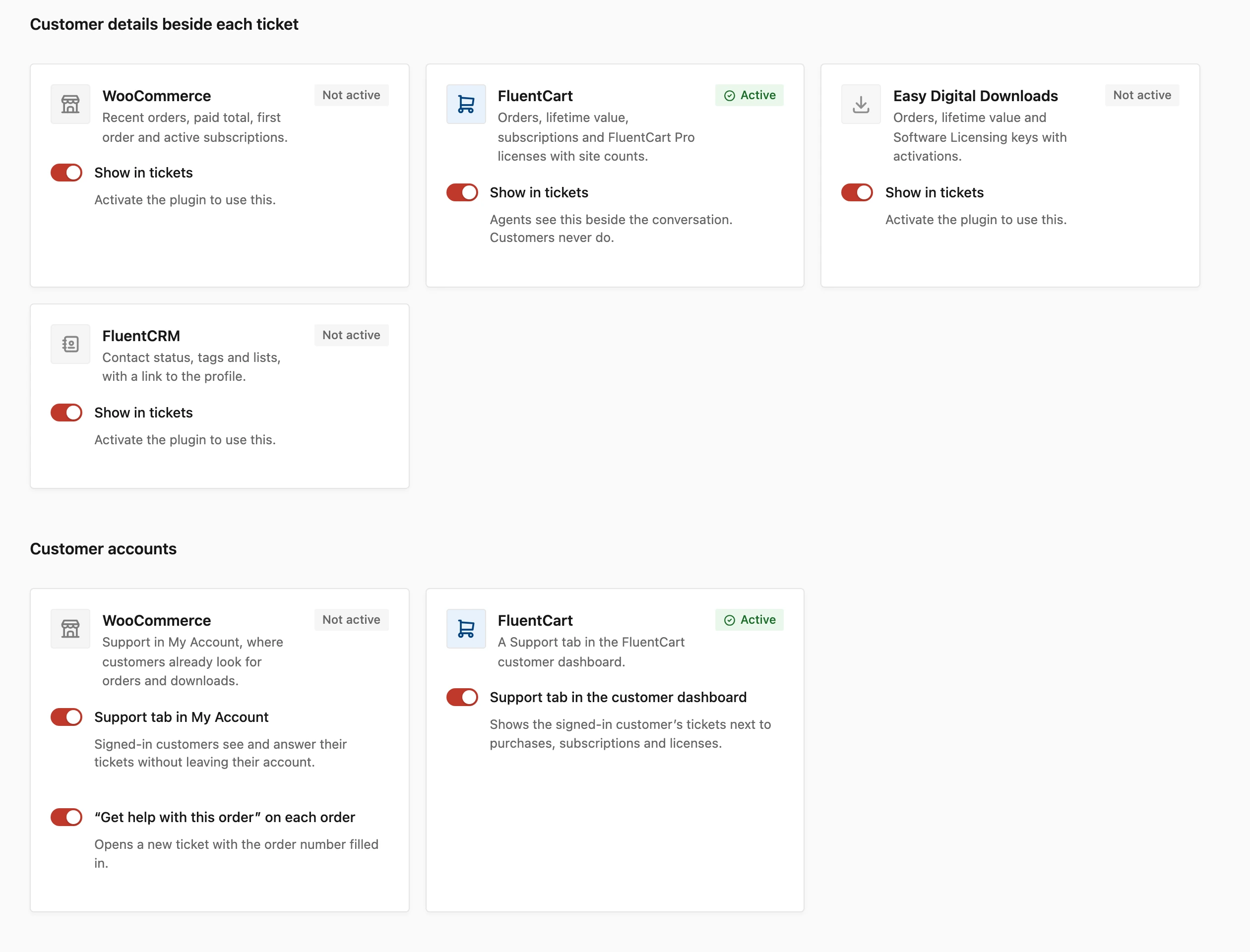
The change shows the next time an agent opens a ticket. A card for an inactive plugin stays on the screen with the note “Activate the plugin to use this.”
How Customers Are Matched
Each panel is looked up from the ticket’s customer email and, when the ticket belongs to a WordPress account, that account:
- WooCommerce: orders with that billing email or that customer account.
- FluentCart: the FluentCart customer with that email or that WordPress user.
- Easy Digital Downloads: the customer with that email, then the customer linked to that account.
- FluentCRM: the contact with that email.
A plugin that knows nothing about the customer doesn’t get a panel. Those plugins are summed up in one line under the others, such as “No match in FluentCRM.”
If another plugin throws an error while its panel is built, Core Support skips that panel. The conversation still opens.
What Each Panel Shows
WooCommerce
- Orders: the total number of orders for the customer.
- Paid total: what their paid orders add up to, in the currency of their latest order.
- First paid order: the date of the oldest paid order.
- Active subscriptions: shown when WooCommerce Subscriptions is active and the ticket belongs to an account.
- Recent orders: the 5 latest, each with its number, date, total, first 2 products and status.
Each order links to its edit screen. All orders opens the WooCommerce orders list searched by the customer’s email, on both HPOS and the older posts storage.
FluentCart
- Orders and Lifetime value, from FluentCart’s customer record.
- Active subscriptions: subscriptions that are active or in a trial.
- Customer since: the first purchase date, or the date the customer was created.
- Recent orders: the 5 latest, with renewal orders left out, each with its date, total, products and payment status.
- Licenses: the 5 latest FluentCart Pro licenses, each with its product and the last 4 characters of the key. Each also shows sites in use against the site limit and the expiry date or “lifetime”.
Orders, licenses and Open customer link to the matching screen in FluentCart. The Licenses group appears only when FluentCart Pro’s licensing is installed.
Easy Digital Downloads
This panel needs Easy Digital Downloads 3.
- Orders, Lifetime value and Customer since, from the EDD customer record.
- Recent orders: the 5 latest sales, each with its date, total, first 2 products and status.
- Licenses: with Software Licensing active, the 5 latest keys, each showing activations against the site limit and the expiry date or “lifetime”.
Open customer opens the customer in Easy Digital Downloads. Orders and licenses link to their own screens.
FluentCRM
- Status: the contact’s status, such as Subscribed or Transactional.
- Tags and Lists.
- Contact since: when the contact was created.
Open contact opens the profile in FluentCRM. If you also want ticket customers added to FluentCRM, sync customers to FluentCRM covers that setting.
Add Support to WooCommerce My Account and FluentCart
The same Integrations screen has a Customer accounts section. It puts the customer portal inside the account area your customers already use, so they don’t need a separate support page to find their tickets.
For WooCommerce, there are 2 switches, both on by default:
- Support tab in My Account: adds a Support tab before Log out. Signed-in customers see and answer their tickets there.
- “Get help with this order” on each order: adds a button below the order details. It opens a new ticket with the subject filled in as “Order #1234”. With the Support tab off, the button opens your support page instead.
For FluentCart, Support tab in the customer dashboard adds a Support tab next to purchases, subscriptions and licenses. It’s on by default.
Both tabs show the tickets that belong to the signed-in customer’s account. That includes email tickets sent from the same address before the customer had an account. A ticket that arrived by email or a website form carries a small label with its source. That way the customer can tell it apart from one they opened themselves.
If the WooCommerce Support tab shows a 404 after you switch it on, choose Save integrations once more. Saving refreshes WordPress’s links for the new tab.
Good to Know
- The WooCommerce paid total and first paid order are worked out from up to 200 paid orders. A customer with more paid orders than that can show a lower total and a later first order.
- Orders in another currency are left out of the WooCommerce paid total.
- The WooCommerce Active subscriptions count comes from WooCommerce Subscriptions. Without that plugin, the panel shows no subscription count.
- Panels are read live from each plugin every time an agent opens a ticket.
How agents use these panels while they answer is covered in work tickets in the agent workspace.