
Reply to Customers and Add Private Notes
A support team writes two kinds of messages on one ticket. One is the answer the customer reads, and the other is context only the team should see, such as “refund approved by billing”. When both go through the same box, one wrong click puts an internal remark in a customer’s inbox.
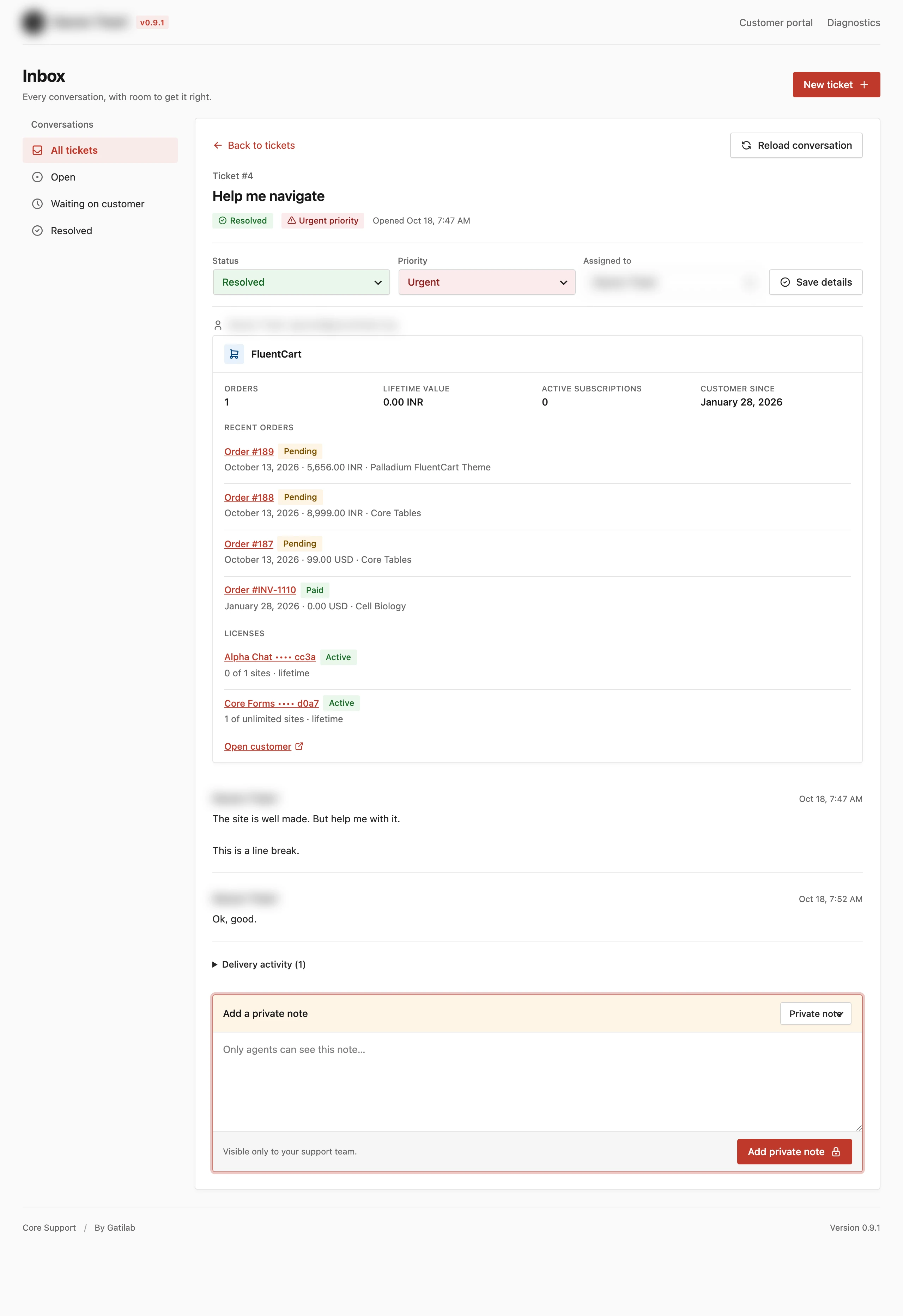
Core Support’s composer keeps the two apart. Every message is either a Public reply or a Private note, the composer looks different for each and private notes never leave the agent workspace.
Public Reply or Private Note
The visibility menu at the top of the composer has 2 choices:
- Public reply: the customer sees it in the portal and gets it by email. The composer says “Reply to this conversation”, the button says Send reply and the hint reads “Visible to the customer and support team.”
- Private note: only agents see it. The composer’s top bar turns yellow and says “Add a private note”, the button says Add private note and the hint reads “Visible only to your support team.”
In the conversation, a private note carries a lock and the label “Private note · agents only”. Switching the menu keeps a separate draft for each mode, so a half-written note never turns into a reply.
Send a Public Reply
- Open the ticket in Core Support.
- Check that the visibility menu shows Public reply.
- Write the reply.
- Choose Send reply.
The workspace confirms with “Reply saved.” and the reply appears at the end of the conversation.
Add a Private Note
- Open the ticket.
- Switch the visibility menu to Private note.
- Write the note.
- Choose Add private note.
The workspace confirms with “Private note saved.” A note doesn’t change the ticket’s status and doesn’t send any email.
What a Public Reply Does
A public reply does 2 things beyond adding a message:
- It sets the ticket’s status to the one chosen in Status after an agent reply, Waiting on customer by default. That applies to a resolved ticket too, so a public reply moves a resolved ticket to that status.
- It queues an email to the customer’s address, unless email is off or captured, as described below.
When the customer answers, from the portal or by email, the ticket moves back to Open. Customer replies are always public.
Follow the Reply Email
Each public reply gets an entry under Delivery activity on the ticket. The entry shows the message number, a status and how many attempts were made. The statuses are:
- Captured · no email sent: Mail delivery is set to Capture only, or the site is in demo mode.
- Email notifications disabled: Email customers about agent replies is off.
- Queued: waiting for the mail run, which happens every minute.
- Sending: being handed to the mail service right now.
- Handed to WordPress mail · delivery unconfirmed: Core Support passed the email on. The entry names the service set under Mail delivery, such as “Handed to Resend”. A handoff isn’t proof the message reached the inbox.
- Mail handoff failed: the mail service refused the email.
- Notification cancelled: an agent cancelled it. The reply stays in the conversation.
- Delivery unknown · do not resend: the handoff started but its result never came back, for example when a send stalled for more than 10 minutes.
Two buttons recover a stuck email:
- Retry notification appears on a failed email with fewer than 5 attempts. It needs mail delivery and reply emails switched on.
- Cancel notification appears on a queued or failed email.
A rate limit or a server error from a provider API puts the email back in the queue on its own, up to the 5th attempt. Delivery unknown has no retry button on purpose, because the customer may already have the email. It is wise to check with the customer before writing the same reply again.
The sender, subject and footer of these emails are set under Core Support → Settings → Notifications. Send Replies through WordPress Mail or a Provider API covers each way to send them.
What Customers See
- Customers see public replies and their own messages. Private notes are filtered out before the conversation leaves the server, along with any files attached to them.
- Attachments on public messages show as downloads, and images also show as previews.
- Agents’ names appear on their replies, so the customer knows who answered.
Set the Composer Defaults
Two settings under Core Support → Settings → Agent workspace shape replies:
- Status after an agent reply: the status a public reply sets. Waiting on customer (default), Open or Resolved. Private notes never change the status.
- Agent composer starts with: which mode the composer opens in, Public reply (default) or Private note. Agents can switch before saving.
I’d keep the composer on Public reply for most teams. Starting on Private note suits a team that writes notes far more often than replies, and an agent then has to switch on purpose before anything reaches the customer.
The rest of the ticket settings are in Ticket Intake, Priorities and New Senders.
Limits
- Replies and notes are plain text. Line breaks show as typed, and HTML shows as text, not formatting.
- The composer has no attachment button. Files reach a ticket only with an email or a connected-site form.
- A message can be up to Maximum message length characters, 10,000 by default.
- A ticket holds up to 500 messages, replies and notes together.
- Each person can save up to 120 replies and notes an hour. Past that, the save stops with “You have reached the hourly limit. Please try again in a little while.”