
Keep One Record for Each Customer
The same person writes in from their work address, buys with their personal one and opens a third ticket from a contact form. To your team that’s three strangers. Nobody sees that the angry ticket comes from someone with 5 orders and 2 earlier conversations about the same license.
Core Support keeps one customer record for each person, under Core Support → Customers. Every ticket and every buying order lands on that record, found by any of the person’s email addresses. Agents see who they’re talking to beside each ticket, and the record carries its own customer number.
What a Customer Record Is
A customer is one person with a numeric ID, shown as #42. The record holds:
- one primary email address and any number of other addresses
- name, company, phone and postal address
- your own custom fields
- every ticket from any of their addresses
- the orders linked to them from your store
Addresses are compared without regard to letter case and otherwise exactly as written. One address belongs to one customer, so a ticket, a sync and an import from the same address always land on the same record. A store’s WordPress account finds the customer too, and adds its address to that record.
Customer records never change who can see a ticket. The customer portal still shows tickets by the ticket’s own owner and the address it was sent from.
Who Becomes a Customer
- Everyone who opens a ticket, by any route: the portal, email, a website form, a connected site or a Chat handover.
- Everyone who buys in FluentCart, WooCommerce or Easy Digital Downloads, with guest checkouts included. You choose which order statuses count as buying.
- Requesters in an import from Zendesk, Freshdesk, Intercom or a CSV file.
FluentCRM only fills in details for people who are already customers. A newsletter subscriber alone never becomes one.
After you update to 1.3.0, a background job goes through your existing tickets once. It creates a customer for each requester and links every ticket to them. The Customers screen shows “Adding customers from existing tickets. This page updates when it is done.” while it runs. Stores are different: their existing buyers wait until you choose Sync now, as Sync Customers from FluentCart, WooCommerce, EDD and FluentCRM explains.
Find a Customer
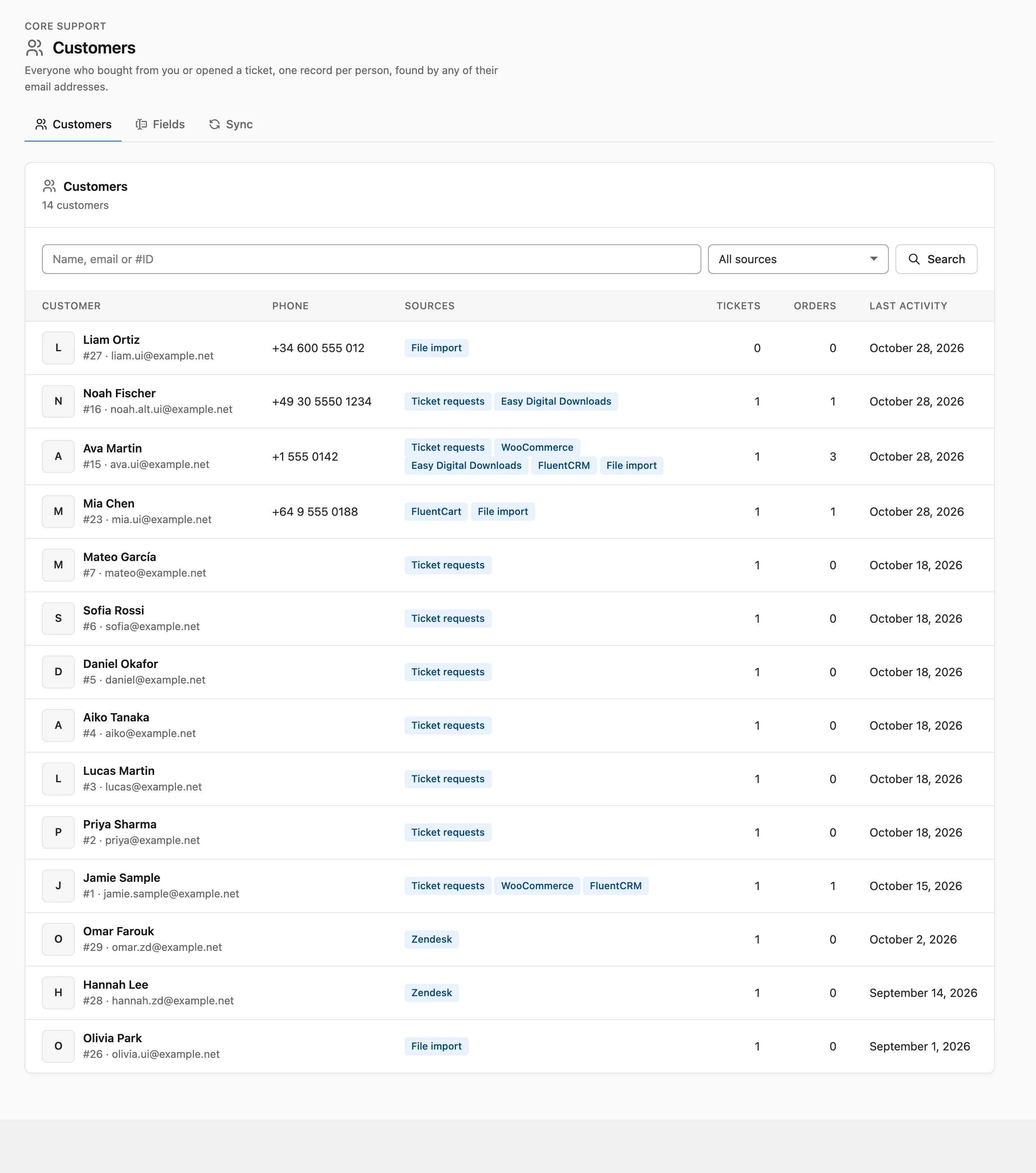
Core Support → Customers sits in the menu beside Incoming mail. The list shows 25 customers a page, the most recently active first:
- Customer: name, customer number and primary address
- Phone and Sources, such as WooCommerce or Ticket requests
- Tickets and Orders, as counts
- Last activity: the latest ticket or order
The search box (Name, email or #ID) matches the start of a first, last or full name, or of any of the customer’s addresses. It also finds a customer number typed as 42 or #42. The source menu narrows the list to one source, such as FluentCart, FluentCRM, Ticket requests, Zendesk or File import.
The Customer Page
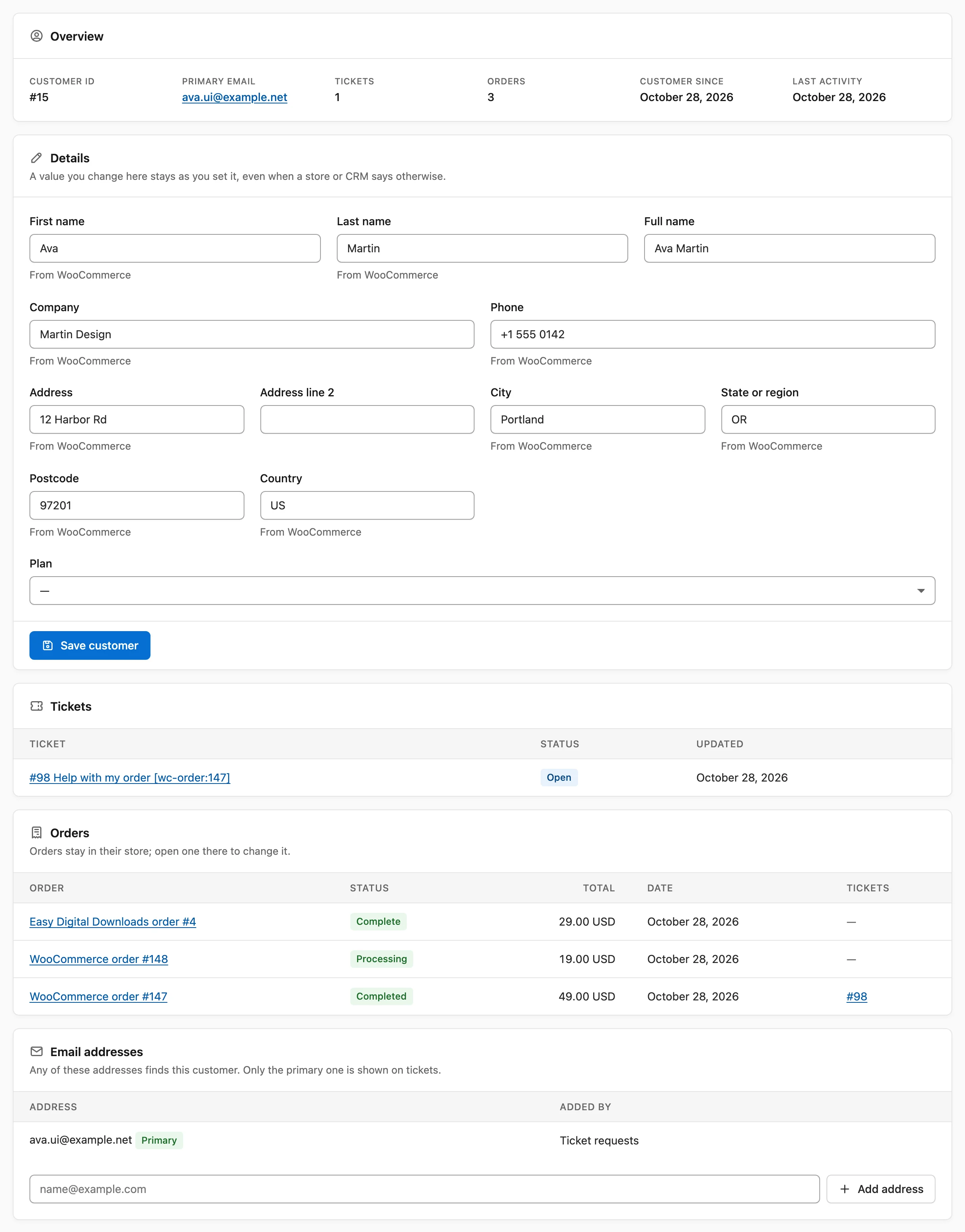
Choose a name to open the customer’s page. It has these cards:
- Overview: customer ID, primary email, ticket and order counts, Customer since, Last activity and the linked WordPress account.
- Details: name, company, phone, postal address and custom fields, each with where its value came from.
- Tickets: up to 50, newest first, with status and last update.
- Orders: up to 50, each linking to its store, with status, total, date and the tickets about it.
- Email addresses: every address, the primary one marked, with what added each.
- Where these details come from: each source record, such as “Customer #12” in FluentCart or “Tickets from this address”, with when it last updated.
Orders stay in their store. Core Support keeps each one’s number, status, total and date, and you open the order in the store to change it.
Correct a Detail
Stores and the CRM sometimes hold an old phone number or a misspelled name. Any agent can fix it on the customer page.
- Open the customer.
- Change the value in the Details card.
- Choose Save customer.
A value you change stays as you set it, even when a store or CRM says otherwise later. The field then shows a checkbox, “Edited here. Tick to use the synced value again.” Tick it and choose Save customer to hand that field back to the sources.
Fields you didn’t change keep following the sources. Each one shows “From WooCommerce” or similar under it, so you can see which source won.
Manage Email Addresses
Managers manage addresses in the Email addresses card:
- Add address: gives the customer another address. Any of these addresses finds this customer.
- Make primary: the primary address is the one shown on tickets.
- Remove: removes another address. The primary address can’t be removed, so make another one primary first.
An address that already belongs to another customer can’t be added. Core Support says “That address is not valid or belongs to another customer. Merge the two customers instead.”
Possible Duplicates and Merging
Two records are never merged automatically. A store sometimes lists one customer’s address for another record, as Easy Digital Downloads does for a customer’s other addresses. Both customer pages then show a notice that starts “Possibly the same person as”, naming the other customer, the store and the shared address.
The notice links to Open the other customer, and managers also get Merge into this customer. Managers can merge any 2 records from the Merge or delete card too:
- Open the customer you want to close.
- Type the other customer’s
#IDor email address in Merge into. - Choose Merge.
The addresses, tickets, orders and sources move to the other customer, and this record closes. Its old ID still opens the customer it joined. Where both records had hand edits, the kept customer’s own edits win and the other’s fill the gaps.
Delete a Customer
Delete customer in the Merge or delete card removes the record and its links, for managers only. Tickets are kept, without a customer. A later store sync or a new ticket from the same address can add the person again.
To forget someone for good, use Tools → Erase Personal Data instead.
Privacy Export and Erase
The customer record takes part in WordPress’s own privacy tools, as “Support customer record”:
- Tools → Export Personal Data includes the customer ID, every address and the details and custom fields. It also lists what each source said, and each linked order with its number, status, total and date.
- Tools → Erase Personal Data deletes the record. Core Support then keeps only a hash of each address it had, so data from before the erasure never adds the person again.
A new ticket or order after the erasure makes them a customer again. Data, Privacy and Uninstall covers what the ticket eraser removes.
The Customer Card Beside Each Ticket
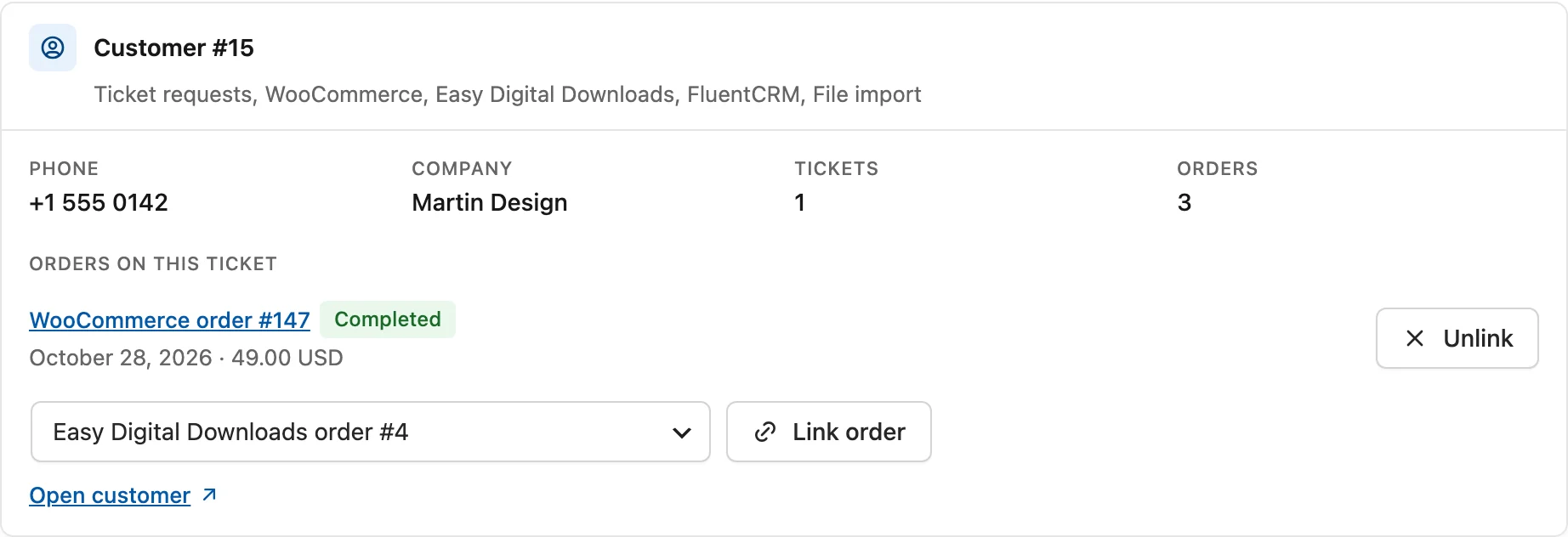
Agents see a card for the ticket’s customer in the agent workspace, above the order and CRM panels. Customers never see it. It shows:
- Customer #42, with the sources it came from
- Phone and Company, when known
- Tickets and Orders, as counts
- the custom fields you marked Show beside tickets
- Orders on this ticket, each linking to its store, with status, date and total
- Open customer, which opens the customer page
To link another order, pick it in the list, which holds the customer’s 25 newest orders, and choose Link order. Unlink removes a link. A ticket opened from a “Get help with this order” button links that order by itself when it belongs to the person who opened it.
Who Can Do What
- Agents (anyone who can work tickets): open Customers and every customer page, search and filter, correct details and link or unlink orders on tickets.
- Managers (Support Managers and administrators): everything agents do, plus adding and removing addresses, changing the primary address, merging and deleting customers. They also get the Fields and Sync tabs.
The details a store or CRM fills in come from the Sync tab, and the fields you add come from Fields. Set those up next, starting with Add Custom Fields to Customers if your store keeps data you want beside tickets.