
How to Hand an AI Chat Over to a Person Without Losing Context
An AI chat that can’t step aside is worse than no chat at all. The visitor asks about a double charge, gets a polite answer about the docs, asks again and leaves with nothing except a worse opinion of your business.
To hand an AI chat over to a person, Core Support turns the conversation into an ordinary ticket. The visitor clicks Talk to a person, leaves an email address and your team gets the whole transcript, the page it started on and the visitor’s note. Nobody has to ask the visitor to repeat themselves.
Core Support is my help desk plugin for WordPress. This guide assumes Chat is already answering from your docs, as How to Add an AI Chat That Answers from Your Docs sets up. Here I focus on the handover itself and on your team’s side of it.
Before You Start
- Chat turned on, with Offer “Talk to a person” switched on under Core Support → Chat → Settings.
- A default mailbox under Core Support → Connections, with working mail delivery. The handed-over ticket opens in it, and the reply goes out by email.
- Team alerts, if you want to know about a handover the moment it happens.
Decide When Chat Suggests a Person
Chat can suggest a person on its own. Suggest a person when it matters is on by default, and it covers these cases:
- accounts, orders, billing and refunds
- bug reports
- a question about your site that the docs don’t cover
For anything else, the visitor can still click Talk to a person in the footer once they’ve asked one question.
Your own rules can push this further. Add one plain instruction per line under Your rules, such as:
Suggest Talk to a person for any question about a license transfer.
Suggest Talk to a person when someone mentions a refund.
Your rules win over the built-in ones, apart from the rules on passwords and keys and the one that keeps Chat’s instructions private. Keep each rule to one instruction.
What the Visitor Does
- The visitor clicks Talk to a person in the chat panel.
- They fill in Email for the reply, and optionally Name and Anything to add?.
- They click Open a ticket.
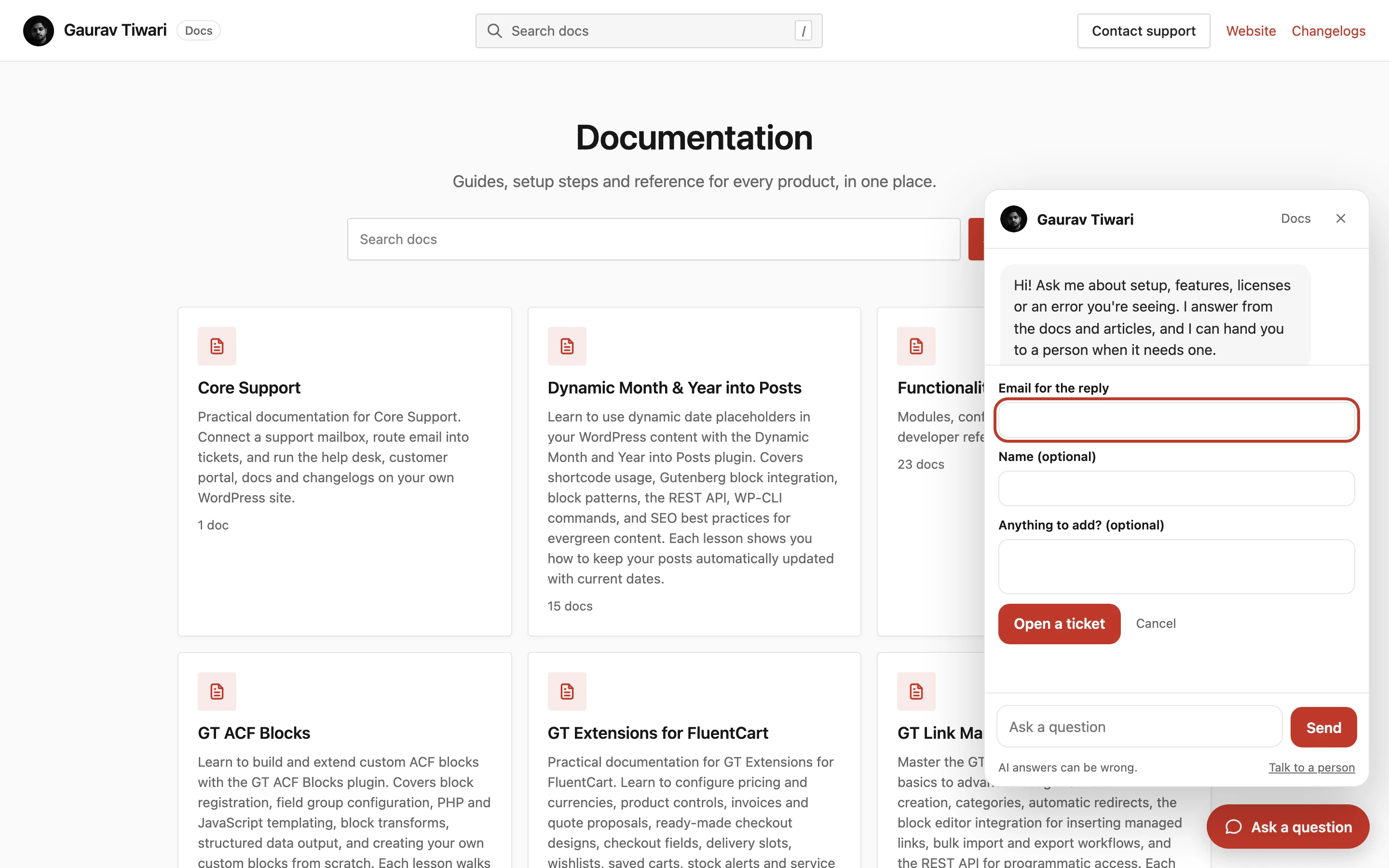
The panel then says: “Ticket opened. A person will reply by email, and you can follow it in the support portal.” Each conversation opens 1 ticket. A visitor who clicks again gets the same ticket instead of a duplicate.
What Your Team Receives
The handover opens an ordinary ticket in your default mailbox, so agents work it like any other:
- Subject: the conversation’s title, or “Question from the chat”.
- Message: the visitor’s note first, then the whole transcript as Visitor and Assistant lines, then the page the chat started on.
- Origin: “Sent from the chat”, or “Sent from the chat on” a connected website’s name.
Team alerts fire as they do for any new ticket, with “via” the chat as the source. The transcript is the part that saves time. The agent sees what Chat already tried, which docs it linked and where the visitor got stuck, so the first reply can start from there.
Answer the Ticket
Reply from the agent workspace as usual. The reply goes to the visitor by email, and their answer comes back to the same ticket through your mailbox’s reply route.
The reply never appears inside the chat widget. Core Support doesn’t verify the email address a visitor types into the chat, so it won’t push a person’s reply into an anonymous chat session. If the visitor has an account on your site with that email address, the ticket also shows in their portal.
I’d answer a handed-over ticket within the hour while Chat is new. A visitor who just asked for a person is the one most likely to give up if nobody answers.
Learn from Each Handover
Every handover is a signal. Open Core Support → Chat → Conversations and look at the conversations that show a ticket number:
- The docs had the answer, but Chat missed it. The doc probably uses different words from the visitor. Rewrite its first paragraph in the visitor’s terms.
- The docs didn’t have the answer. Write the doc, and Chat learns it on the next check.
- Only a person could answer, such as a billing question. The handover worked as intended.
Over a few weeks, the first 2 kinds shrink and the handovers that remain are the ones that need a person.
Check It Works
- Ask the chat a question, then click Talk to a person and open a ticket with your own email address.
- Confirm the ticket shows in the agent workspace with the transcript and the page address.
- Confirm the team alert arrived, if you set one up.
- Reply to the ticket and check that the email reaches your inbox with a Reply-To that brings your answer back to the ticket.
What It Won’t Do
- It doesn’t offer live chat with a person. The handover opens a ticket, and the conversation continues by email.
- It doesn’t verify the visitor’s email address, so replies go by email only, never back into the widget.
- It allows 5 handover tickets an hour per IP address, so a bot can’t flood your inbox through the chat.
- The visitor has to ask at least one question first, before the button appears.
If the chat runs on your other websites too, How to Run Support for Several Product Sites from One WordPress Install covers connecting them.