
Install Core Support and Activate Your License
A help desk plugin has to run before it can take a single ticket. If the server is too old or the wrong file gets uploaded, Core Support stays installed but switched off, and the reason only shows as an admin notice.
The setup itself is short. You upload the release ZIP, activate the plugin and paste your license key under Core Support → License. The license only brings updates, so your tickets never depend on it.
Requirements
- WordPress 7.0 or newer.
- PHP 8.2 or newer.
- The PHP sodium extension. Core Support uses it to encrypt your license and every saved password, secret and token. It ships with PHP, but some hosts switch it off.
- Activation on a single site. On multisite, activate Core Support on each site that needs it. Network activation stops with “Activate Core Support on an individual site, not network-wide.”
On an older WordPress or PHP version, the Plugins screen shows “Core Support requires WordPress 7.0 and PHP 8.2 or newer. It is installed but not running.” Nothing else loads until the server is upgraded.
Install the Plugin
- Download the Core Support ZIP from your purchase account on GauravTiwari.org.
- In wp-admin, go to Plugins → Add New Plugin and select Upload Plugin.
- Choose the ZIP file and select Install Now.
- Select Activate Plugin.
Always install the release ZIP. If WordPress shows “Core Support is missing its bundled libraries. Reinstall the plugin from its release package.”, the upload was a different package. Delete the plugin and install the ZIP from your purchase account again. Deleting keeps your help desk data unless Delete all Core Support data when the plugin is deleted is on under Core Support → Settings → Data.
What Activation Sets Up
- Help desk tables for tickets and messages.
- A Support page with the Customer Portal block, normally at
/support/. Your homepage stays as it is. - The Support Agent and Support Manager roles, and help desk access for administrators.
- A Core Support menu in wp-admin, which opens the agent workspace.
Setting up the Support page explains what that page does and how to move it.
Activate Your License
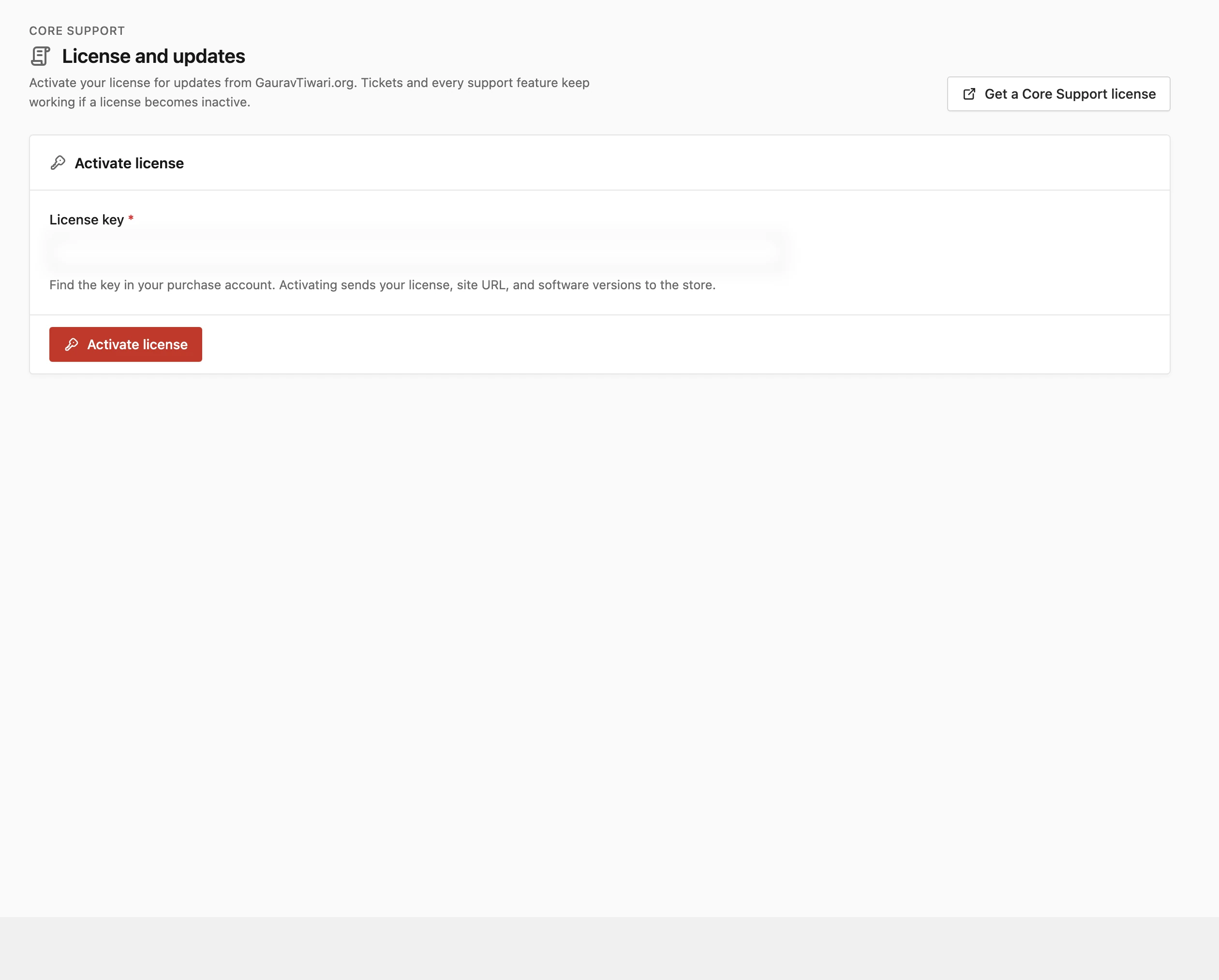
- Go to Core Support → License.
- Paste your key into License key. You’ll find it in your purchase account.
- Select Activate license.
Only site administrators can open this screen. Activation sends your license key, site URL, Core Support version, WordPress version and PHP version to the store. Core Support sends nothing to the store before you activate.
Once the license is active, the License card shows:
- Status: Active, Inactive or Reconnect required.
- License: the last 4 characters of your key. The full key is never shown again.
- Plan: the plan from your purchase.
- Valid until: Lifetime for a lifetime license.
The card also lists the installed version. Check license asks the store for the current status, and Disconnect license ends the activation for this site.
How Updates Arrive
With an active license, Core Support updates show up like any other plugin update, on Plugins and Dashboard → Updates. View details shows the description and changelog for the new version.
- WordPress offers a new version only when it’s newer than the installed one and the license is valid.
- Core Support asks the store about updates at most once every 3 hours. Selecting Check license clears that wait, so WordPress asks the store again on its next update check.
- Packages download only over HTTPS from GauravTiwari.org or its private download storage.
- Before installing, Core Support checks that the package contains Core Support at the exact version offered.
The plugin’s Update URI also stops WordPress.org from ever replacing it with an unrelated plugin of the same name.
When a License Is Inactive or Expired
Your help desk keeps working. Tickets, the portal, email, docs, changelogs and Chat all stay available. Only updates pause.
Check license reports “The license is inactive or expired. Support features remain available.” until the license is valid again. A lifetime license shows Lifetime under Valid until, so it doesn’t run out.
Staging Copies, Clones and New Keys
Core Support ties the stored license to this site’s URL and encrypts it with the site’s WordPress authentication salts. That decides what happens when a site is copied.
- A staging copy or clone shows Reconnect required and asks you to remove the local copy. Select Remove local license copy, then activate the license for that site. The original site’s activation stays untouched.
- New salts have the same effect, because the stored license can’t be read anymore. Activate again, and keep your salts with your backups.
- Another key needs the current one disconnected first. Core Support shows “Disconnect the current license before activating another.” until you do.
- Multisite subsites each activate their own license.
A network failure never removes your license. Core Support shows “The license server could not be reached. Try again.” and keeps the saved activation.
If Activation Fails
- “This license is not valid for Core Support.” The key belongs to another product, such as Core Bookings. Use the Core Support key from your purchase account.
- “The license request was rejected. Check the key, validity, and available site activations.” The store refused the key. Copy it again from your purchase account without extra spaces.
- “The site encryption key needs attention before activation.” The PHP sodium extension is missing. Ask your host to turn it on.
Before Your First Ticket
- Open Core Support → Diagnostics. It checks your PHP and WordPress versions, the activation scope, the ticket tables, mail delivery and attachment storage.
- Go to Core Support → Settings → Notifications and pick a Mail delivery method. New installs start on Capture only, so no customer email goes out until you change it.
Sending replies through WordPress mail or a provider API covers each delivery option.