
Set Up the Support Page and Customer Portal
Customers need one obvious place to open a ticket and come back for the reply. If they can’t find it, they write to whatever address they can find, and the conversation starts outside your help desk.
Core Support creates that place when you activate it: a Support page holding the customer portal. You can keep it as it is, give it another URL or swap it for a page of your own that sits inside your theme’s layout.
The Support Page Core Support Creates
On activation, Core Support looks for a support page before it makes one.
- No support page yet: it publishes a page titled Support at
/support/, holding a wide Customer Portal block, with comments closed. - A published
/support/page that already has a Core Support block: it uses that page and creates nothing. - An unrelated page already at
/support/: it leaves that page alone, and WordPress gives the new page a unique address, such as/support-2/.
Your homepage never changes during setup. Core Support only touches it if you turn on the homepage option described below.
What Customers See
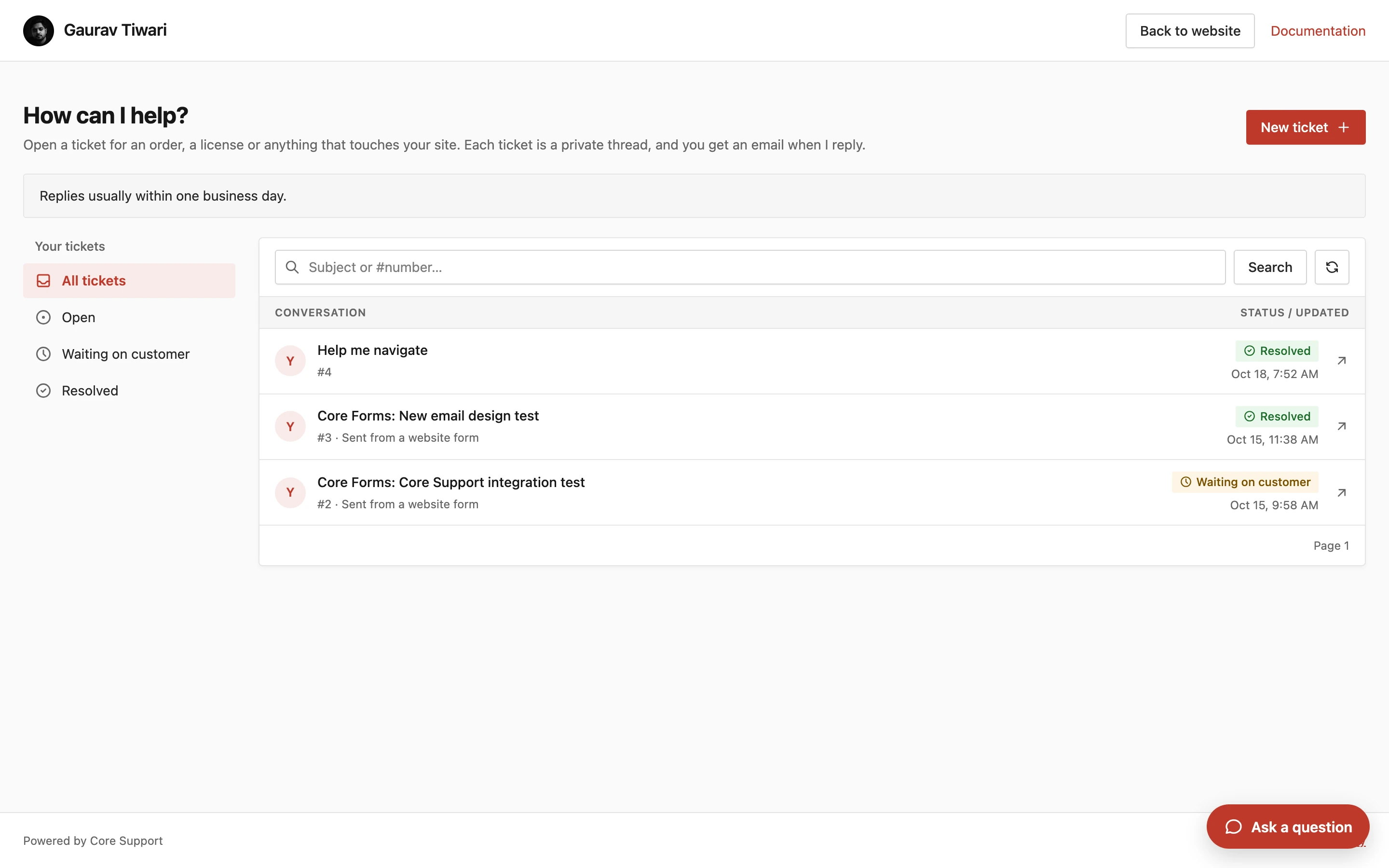
A signed-out visitor sees “Your conversations live here.” and a Sign in button. That button opens the WordPress login page and returns the customer to the portal afterward.
Once signed in, a customer can:
- see a list of their own tickets
- open a new ticket with the New ticket button
- read your replies and answer them
- resolve or reopen a ticket, when your ticket settings allow it
Tickets sent by email, a website form or another integration from the account’s email address show up in the same list. Private notes never appear.
The portal needs a WordPress account on your site. Customers without one still get your replies by email and answer by email.
Change the Page, URL or Homepage
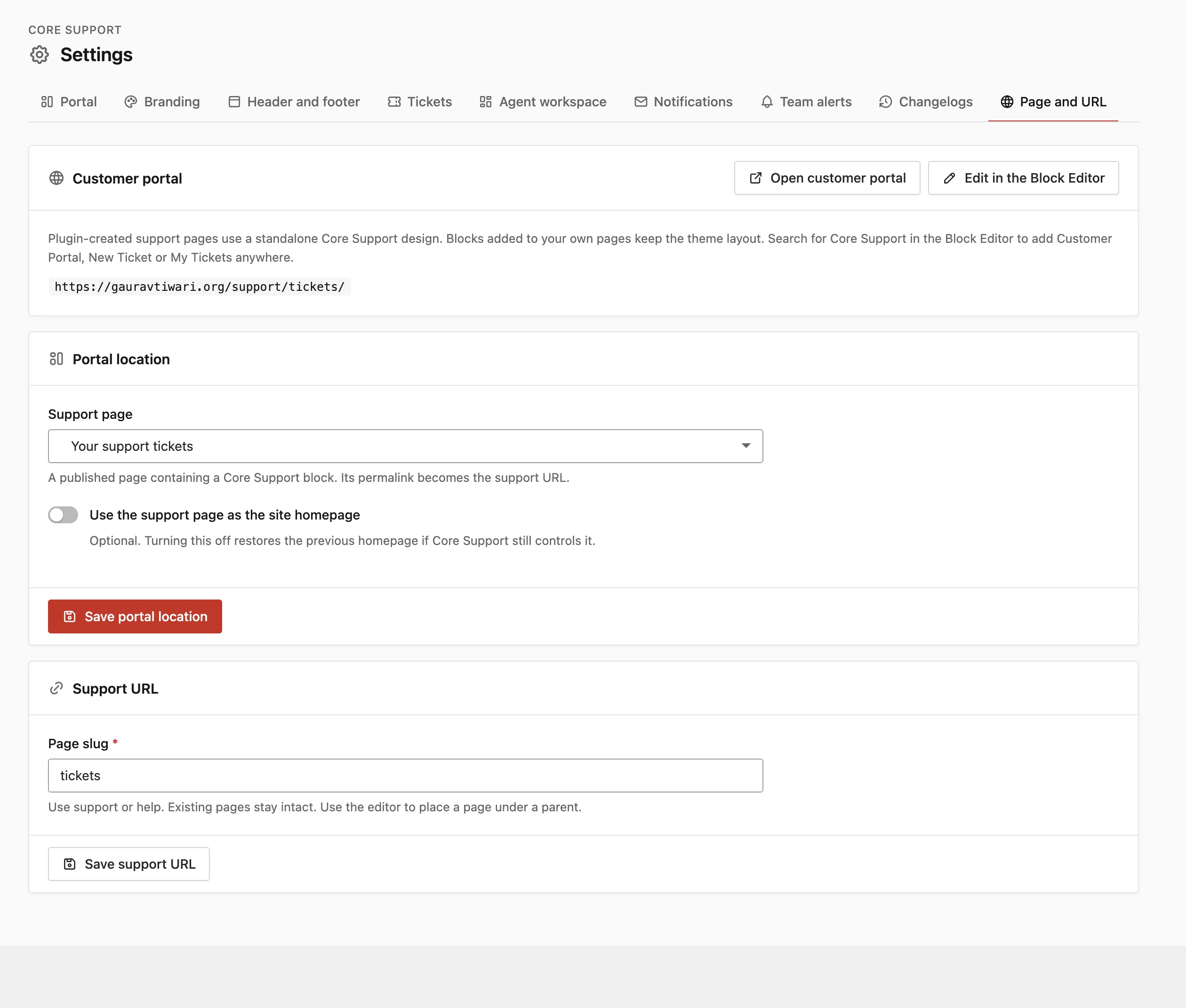
Go to Core Support → Settings → Page and URL. The Customer portal card shows the current support URL, with Open customer portal and Edit in the Block Editor links.
The Portal location card has 2 settings:
- Support page: a published page containing a Core Support block. Its permalink becomes the support URL. Pages with the Customer Portal, New Ticket or My Tickets block qualify, including blocks inside a synced pattern.
- Use the support page as the site homepage: optional, and off by default. Turning it off restores the previous homepage if Core Support still controls it. Only site administrators see this switch.
Select Save portal location after changing either one.
To give the support page a different address:
- In the Support URL card, enter a new Page slug, such as
help. - Select Save support URL.
The slug can use only lowercase letters, numbers and hyphens, with no slashes. If another page already uses it, Core Support shows “That URL is already in use. Choose another slug.” and changes nothing. To put the support page under a parent page, set the parent in the Block Editor instead.
Reply emails link to the current support URL, so they follow the change. Menu items and links you added by hand still point to the old address, so update those.
Standalone Design or Your Theme’s Layout
The portal can look 2 ways, depending on which page holds it.
| What changes | The page Core Support created | A page of your own |
|---|---|---|
| Layout | Standalone Core Support design | Your theme’s header, footer and layout |
| Header and footer | Settings → Header and footer → Support portal | Your theme’s |
| Styles and scripts | Core Support’s only | Your theme’s and plugins’ as usual |
| Admin bar | Hidden | Shown as usual |
On the standalone page, Core Support removes the theme’s and other plugins’ CSS and JavaScript. Titles, meta tags, canonical links and structured data from SEO plugins stay. Your branding from Settings → Branding applies on both kinds of page.
The standalone design only applies to the page Core Support created, and only while that page still holds a Core Support block. Other blocks you add to it lose their usual styling, because only Core Support’s styles load there. If you want text, images or an FAQ around the portal, I’d build a page of your own instead.
To move the portal into your theme’s layout:
- Create a page and add the Customer Portal block. Search for Core Support in the block inserter to find it.
- Publish the page.
- Go to Core Support → Settings → Page and URL and choose that page as the Support page.
- Select Save portal location.
Adding the Customer Portal, New Ticket and My Tickets blocks covers what each block shows and where it fits.
Make It Look Like Your Brand
The standalone page uses your brand name, logo, accent color, font and color mode. Portal and docs color mode is Light by default, with Dark and Automatic as options. Branding the help desk explains each setting.
The heading, introduction and button labels are separate settings. By default the portal heading is “How can we help?”, and portal settings and wording lists every line you can change.
Good to Know
- Customers can’t upload files from the portal. Attachments arrive by email, an automation tool or a server request.
- WooCommerce and FluentCart customers also see their tickets in a Support tab of their account area.
- To keep one script on the standalone page, such as analytics, a developer can add its handle with the
core_support_standalone_handlesfilter. - Another website can host its own branded portal through Connected sites, so its customers never see this site’s address.