
Diagnostics and WP-CLI Commands
Mail stops turning into tickets, a reply never reaches the customer or a storage bucket starts refusing files. From the outside these all look the same: support goes quiet, and you don’t know which part broke.
Core Support checks its own moving parts for you. The Diagnostics screen runs 14 health checks and lets you test a real email without storing it. The wp core-support commands run the same checks and the mail jobs from a terminal. Nothing on the Diagnostics screen stores data or sends email.
Open the Diagnostics Screen
Go to Core Support → Diagnostics. Administrators and Support Managers can open it, because both roles hold the core_support_manage capability.
The screen has 2 tabs:
- Health checks: every check with a Pass or Fail badge and one line of detail.
- Email triage lab: paste an email and see how Core Support would classify and route it.
The top of the screen shows the plugin version. When everything passes, it says “All 14 checks passed.” Otherwise it counts the checks that need attention.
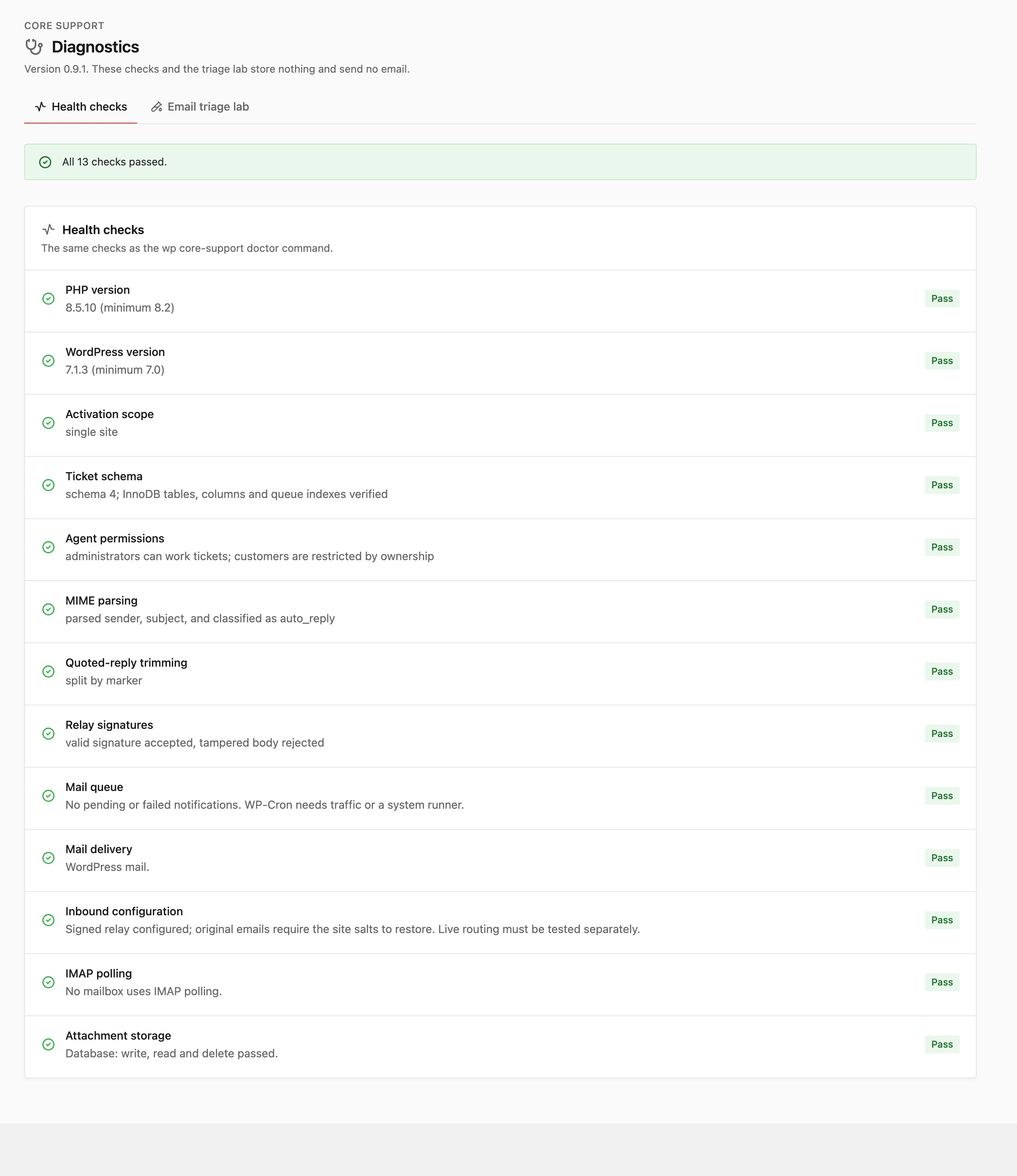
What Each Health Check Tests
The mail checks run the bundled libraries against built-in sample data, so they never touch your real mailboxes or customers.
- PHP version: PHP 8.2 or newer.
- WordPress version: WordPress 7.0 or newer.
- Activation scope: passes on a single site, or on multisite when the plugin is activated on that site only. Network activation fails this check.
- Ticket schema: the database tables are at the current schema version, with their columns and queue indexes in place. “Ticket schema upgrade required.” means the upgrade hasn’t run yet.
- Agent permissions: administrators hold the capability to work tickets.
- MIME parsing: a sample auto-reply is parsed and classified correctly.
- Quoted-reply trimming: quoted history is split from a sample reply.
- Relay signatures: a valid relay signature is accepted and a tampered body is rejected.
- Mail queue: fails when a customer email has failed or has an unknown delivery state. It also fails when outgoing mail has waited more than 10 minutes, or incoming mail has been stuck that long (“Inbound mail needs worker recovery”).
- Mail delivery: names the delivery method. With a provider API, it fails in 3 cases: – no API key is saved – a mailbox uses header reply tracking with any provider other than SendGrid – the provider returned an error in the last day
- Inbound configuration: reports whether any mailbox is set up. It fails when a mailbox exists but the PHP sodium extension is missing.
- IMAP polling: for each IMAP mailbox, the last error or when it was last checked.
- Attachment storage: writes, reads back and deletes a test file in the configured storage.
The Mail delivery check passes on Capture only, because that is a valid choice. Its detail line still says “Capture only: customer email is not sent.” so it’s worth reading the text, not only the badge.
Test an Email in the Triage Lab
The triage lab answers one question: what would Core Support do with this exact message? It parses the email and runs it through the same classification and threading rules as real mail, against a fixed set of sample tickets.
- Go to Core Support → Diagnostics → Email triage lab.
- Paste the full source into Raw email: headers, a blank line, then the body. In Gmail, that’s More > Show original. Up to 1 MB.
- Set Mailbox addresses, the addresses that deliver into the sample mailbox, separated by commas. The default is
support@example.com, help@example.com. - Set Trusted receivers, the servers whose
Authentication-Resultsheader you trust. The default ismx.google.com. Leave it empty to trust none. - Choose Analyze.
The result opens with the decision in one line, for example:
- “Opens a new ticket”
- “Adds a reply to ticket #…”
- “Holds the message for agent review (quarantine)”
- “Drops the message: this installation sent it”
Below it you get:
- Message type and the reason for it
- Automatic acknowledgement: Allowed, or Suppressed (RFC 3834)
- Sender authentication, when the message carries authentication results
- Thread decision and Shown to agents as (Verified sender or Unverified sender)
- What the agent sees, with the trimmed quoted text behind Show trimmed quoted text
- Parsed message: From, To and Cc, Subject, Message-ID, In-Reply-To and References, Size and Attachments
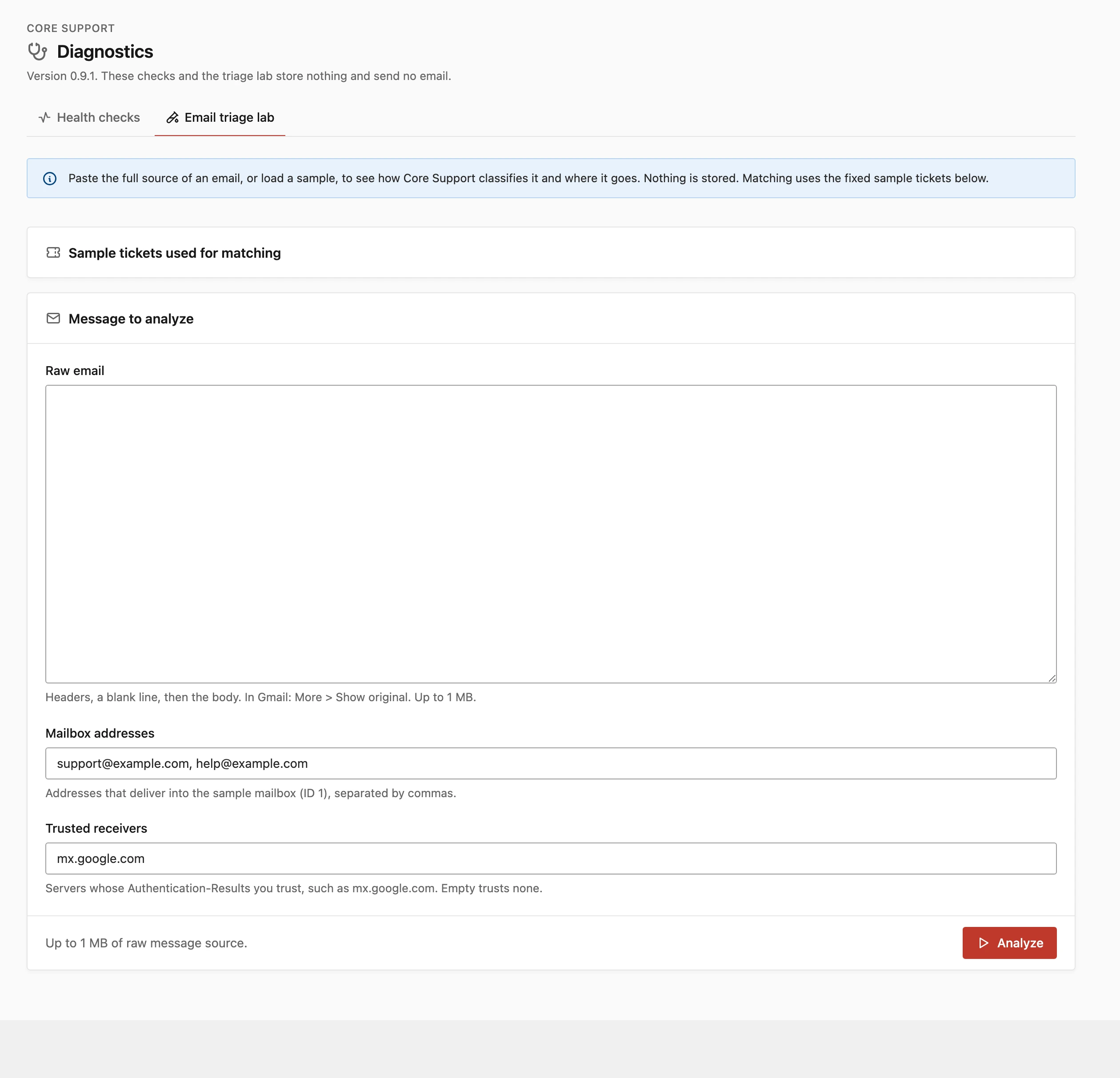
Matching uses the sample tickets listed under Sample tickets used for matching, never your real tickets. Mail carrying the header X-Core-Support-Origin: origin-test-123 is treated as the installation’s own mail, which is how you can test loop detection. The Sample message menu appears only in development builds.
WP-CLI Commands
Every command lives under wp core-support. On multisite, add --url= with the site’s address so the command runs against the right site.
doctor
wp core-support doctorRuns the same 14 checks as the Health checks tab. Each prints as PASS Name: detail or FAIL Name: detail. It ends with “Core Support 0.9.2: all checks passed.” or exits with an error such as “2 check(s) failed.”, so it works in a deploy script.
mail-poll
wp core-support mail-poll
wp core-support mail-poll --mailbox=support
Checks IMAP mailboxes right away, ignoring each mailbox’s interval.
--mailbox=<key>: poll only this mailbox key.
Each mailbox prints one line: “3 imported”, “already running” or “error: ” followed by the reason. A run reads up to 25 messages per mailbox and stops after 40 seconds; the rest waits for the next run. Polling only stores receipts, so run mail-run next to turn them into tickets now.
mail-run
wp core-support mail-runRuns one full mail cycle, the same job WP-Cron runs every minute:
- Polls IMAP mailboxes that are due.
- Processes up to 25 queued incoming messages into tickets or replies.
- Sends up to 25 queued customer emails.
It does nothing while the “Core Support setup failed” notice is showing.
deliver
wp core-support deliverSends queued customer email now, without polling or processing incoming mail. It sends nothing while Mail delivery is Capture only or Email customers about agent replies is off. Each email gets at most 5 attempts.
storage test
wp core-support storage testWrites a small encrypted test file to the configured attachment storage, reads it back and deletes it. It prints “Database is working.” or the storage name with the problem.
storage migrate
wp core-support storage migrate --dry-run
wp core-support storage migrate --limit=1000
Moves email originals that are still in the database to the external storage you configured.
--limit=<number>: most originals to move in this run. Default 500, capped at 10,000.--dry-run: count what would move without changing anything.
Each row switches only after its file has been stored and read back, so it’s safe to stop and rerun. It needs an external driver first, and it never moves files between two external providers. Run OPTIMIZE TABLE on the csp_receipts table afterwards to give the space back to the database server.
docs import
wp core-support docs import sitemap https://example.com/sitemap.xml --prefix=https://example.com/docs/ --collection=my-product
wp core-support docs import web https://example.com/guide/ https://example.com/faq/ --collection=my-product --section="Guides"
wp core-support docs import markdown ./my-product.wiki --source-base=https://github.com/owner/my-product/wiki --collection=my-product
wp core-support docs import wporg my-plugin --collection=my-product --section="Getting started"
wp core-support docs import fluentcommunity my-product-training --collection=my-product --publish --no-images --retire
Imports documentation into a collection, as drafts unless you add --publish. The first argument is the source type: sitemap, web, markdown, wporg or fluentcommunity.
--collection=<slug>: required. Create the collection first under Core Support → Collections.--prefix=<url>: sitemap and web only. Import only pages under this address; folders below it become sections.--selector=<selector>: sitemap and web only. The element that holds the article, such asmain.--source-base=<url>: markdown only. The address the files were published at.--section=<title>: put every imported page under this section.--publish: publish instead of saving drafts.--[no-]images: copy images into the media library (the default), or leave image addresses alone.--retire: fluentcommunity only. Set the course to draft, redirect its lesson addresses to the new docs and the course address to the collection.--dry-run: list what would be imported without saving anything.
The run ends with a count of docs created, updated, unchanged and kept. Import Existing Documentation covers what each source keeps and how reruns behave.
changelog sync
wp core-support changelog sync
wp core-support changelog sync my-plugin --force
Checks synced changelogs for new releases now. Without arguments, it checks every changelog set to sync from a file.
<changelog>...: changelog slugs or IDs.--force: read the file again even when it has not changed.
changelog import
wp core-support changelog import ./readme.txt --changelog=my-plugin --dry-runReplaces the text of a changelog written in wp-admin with a readme.txt, CHANGELOG.md or changelog.txt file.
--changelog=<changelog>: required. The changelog slug or ID.--dry-run: list the versions found without writing anything.
It refuses a changelog that syncs from a file. Switch that changelog to “Write releases here” first.
changelog history
wp core-support changelog history https://example.com/changelogs/my-product/ --changelog=my-product --dry-runKeeps the releases from a published changelog page as history beside the changelog’s own text. The page must list releases as <article class="release">, and its /page/N/ pages are read too.
--changelog=<changelog>: required. The changelog slug or ID.--dry-run: list the releases found without saving them.
Syncing never removes history, and where a version is in both, the history’s notes show. Publish Changelogs by Hand or from a Repository explains the two changelog modes.
Run the Schedule from a Real Cron
Core Support’s background work runs on WP-Cron, and WP-Cron only runs when someone visits the site. On a quiet site, mail can sit for hours.
These are the recurring events Core Support schedules:
core_support_deliver: every minute (core_support_minute). Polls, processes incoming mail and sends customer email.core_support_changelog_sync: hourly. Syncs changelogs that are due.core_support_chat_sweep: every 30 minutes (core_support_chat_30min). Learns changed posts for Chat.core_support_chat_models_refresh: daily. Refreshes the provider model lists.core_support_chat_refresh_products: daily. Checks store products for changes.core_support_chat_prune: daily. Deletes Chat conversations past their retention period.
Deactivating the plugin clears all 6, plus the one-off core_support_mail_wakeup event. On a support site, I’d always add a server cron that runs due events every minute:
* * * * * cd /path/to/wordpress && wp cron event run --due-now --quietIf a health check fails and the cause isn’t obvious, Troubleshooting walks through the common failures in the order I’d check them.