
How to Automate Your Changelogs from a Text File
Your release notes already exist in a plain file: a readme.txt on wordpress.org, a CHANGELOG.md on your update server or a changelog.txt next to the download. The changelog page on your site is a second copy, and the second copy is the one people forget to update.
To publish a changelog from a text file, you give Core Support the file’s address once. It checks the file on a schedule, reads every version in it and replaces the changelog page’s releases whenever the file changes. You keep writing in the file, and the page follows.
Core Support is my help desk plugin for WordPress, and changelogs are one of its modules. This guide is for files outside a Git repository. If your notes live on GitHub, How to Automate Your Changelogs from GitHub is the better route, because it also handles private repositories and release dates.
Files That Work
Core Support needs an address that returns the file itself as plain text. These all work:
- A wordpress.org plugin page, such as
https://wordpress.org/plugins/your-plugin/. Core Support reads the changelog in the plugin’s readme.txt. - A file on your own server, such as
https://example.com/updates/my-plugin/readme.txt. An update server or a downloads folder is a common home for one. - A file on any other public address, as long as the address serves the raw text: a CDN, an object storage bucket or a static site.
Two kinds of address don’t work:
- A share page that shows the file inside a web page, which is how most cloud drive share links behave. Use the direct download address instead.
- An address on a private network, such as
localhostor an internal IP. WordPress refuses those requests for safety, so the file has to be on the public internet.
If the file sits on your computer and you only need it once, skip the sync. The one-time import near the end of this guide is quicker.
Format the File
Core Support reads the 3 changelog formats WordPress developers already use. In each one, the newest version goes first and the date is optional.
A readme.txt in WordPress style, where only the == Changelog == section is read:
== Changelog ==

= 2.1.0 - 2026-10-18 =
Reports load in half the clicks.

* [NEW] Export reports as CSV
* [BUG FIX] Dates respect the site's time zone
A CHANGELOG.md in Markdown, with optional groups:
## [2.1.0] - 2026-10-18

### Added
- Export reports as CSV

### Fixed
- Dates respect the site's time zone
A WooCommerce-style changelog.txt:
2026-10-18 - version 2.1.0
* New - Export reports as CSV
* Fix - Dates respect the site's time zone
These rules hold for all 3:
- Labels become badges.
[NEW],[BUG FIX], “Fix -“, “Added:” and the other words in Badges in Docs and Changelogs turn into colored badges. - Text between the version heading and the list becomes the release summary, the line readers see first.
- A heading without a version, such as
## Unreleased, ends the release above it and its items stay hidden. You can draft the next release at the top of the file safely. - A readme.txt without a
== Changelog ==section gives nothing, because its FAQ and upgrade notes use the same= ... =headings.
Connect the File
The connection lives on the changelog’s edit screen.
- Go to Core Support → Changelogs and open the changelog, or click Add changelog and give it the product’s name.
- In the Releases box, choose Sync from a repository or a file.
- Paste the full address, starting with
https://, into Repository or file address. The line under the field confirms what Core Support sees, such as “wordpress.org plugin. Reads the readme.txt changelog.” or “A changelog file at this address.” - Click Check source. It reads the file without saving anything and reports what it found.
- Choose how often to look for changes under Check for changes. Once a day is the default.
- Click Sync now to pull the releases, then Update to save the schedule.
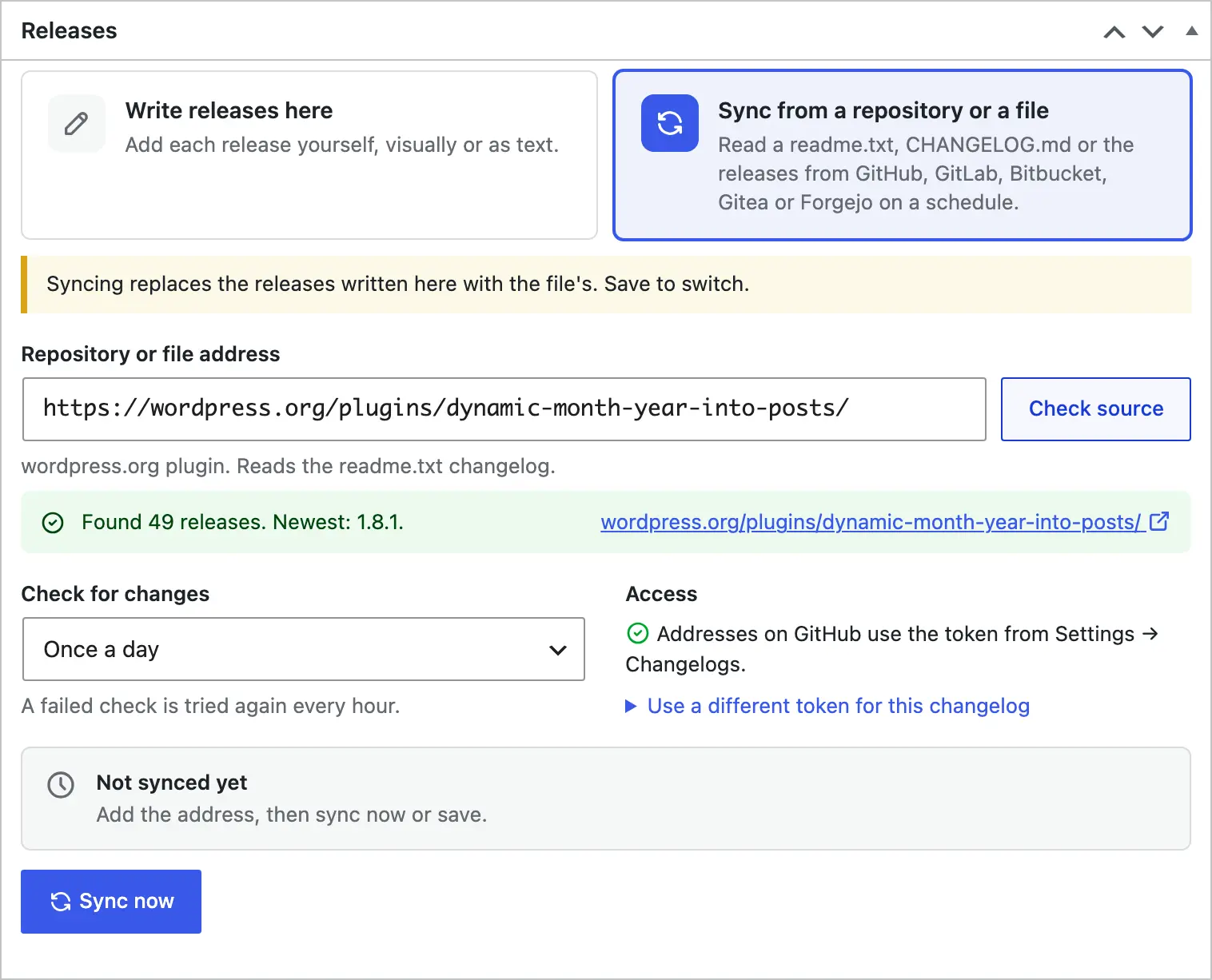
From then on, Core Support asks the server whether the file changed since the last check. An unchanged file costs one small response, and a changed one replaces the releases on the page.
Sync a wordpress.org Plugin
A wordpress.org plugin page is the easiest source there is, because the readme.txt already has to exist. There is one detail to know before you rely on it.
Core Support reads the readme.txt in the plugin’s trunk, not the copy in the latest tag. A changelog entry you commit to trunk shows on your page at the next check, even if you haven’t tagged the release yet.
Two habits keep the page honest:
- Commit the changelog entry with the release, in the same commit that bumps the Stable tag.
- Or draft under an
= Unreleased =heading and rename it to the version number when you ship. Items under a heading without a version stay hidden.
Files Behind a Login
Some update servers put the changelog behind a token. Core Support can send one with the request.
Open Use a different token for this changelog under Access and paste the token into Access token. Core Support sends it as an Authorization: Bearer header, only to this address, and stores it encrypted. With a token set, it doesn’t follow redirects, so the token never reaches another server.
A server that wants a different kind of login, such as a username and password, won’t work this way. Serve the file from an address the token can open, or keep it public. A changelog rarely holds anything secret.
Dates on Undated Versions
Many readme files list versions without dates. Core Support handles that in 2 ways:
- A version added after the first sync gets the date Core Support first sees it. On a daily check, that is usually the release day or the day after.
- Versions in the file’s very first sync stay undated, because Core Support can’t know when they shipped.
If dates matter to your readers, add them to the version headings, such as = 2.1.0 - 2026-10-18 =. A heading date always wins.
Import a File Once
Sometimes you want the file’s history once and then edit releases in wp-admin from then on. A sync would keep overwriting those edits, so use an import instead.
With WP-CLI on the server, preview first and then write:
wp core-support changelog import ./readme.txt --changelog=my-plugin --dry-run
wp core-support changelog import ./readme.txt --changelog=my-plugin
The import replaces the text of a changelog set to Write releases here and refuses a synced one. Without WP-CLI, you can paste the file’s changelog section into the Text tab of the same box and save. The Visual tab then shows each release as a card you can edit.
Check It Works
Open /changelogs/my-plugin/ after the first sync. The newest version should sit at the top with its summary, badges on labeled changes and the Latest version and release count beside the product name.
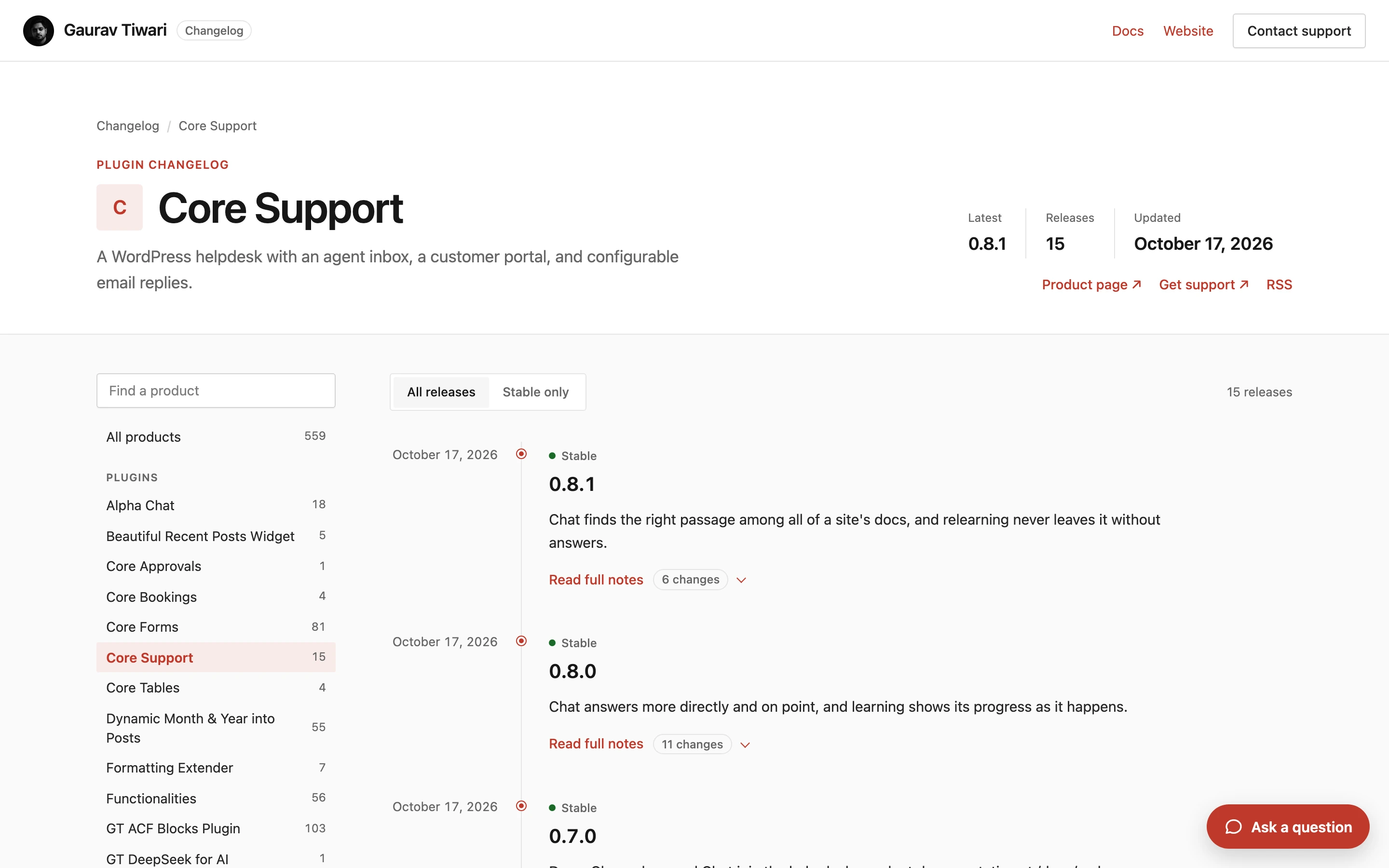
Readers can switch between All releases and Stable only. Versions ending in -beta, -rc or -alpha count as pre-releases. The Latest number shows the newest stable release, or the newest of any kind when no stable one exists yet.
When the Sync Fails
The status card on the edit screen shows the last result in plain words:
| Message | What it means | Fix |
|---|---|---|
| Enter a full address starting with https://. | The field holds a partial address | Paste the whole address, including https:// |
| The address answered with HTTP 404. | Nothing exists at that address | Open the address in a browser and copy the direct link to the file |
| The file has no releases in a format Core Support reads. | The address returned a web page, or the headings don’t look like versions | Use the raw file address, with = 1.2.0 = or ## 1.2.0 headings and * list items |
| The file needs an access token, or the token cannot read it. | The server refused the request | Add a token under Access, or check the one you added |
“Checked. The file has not changed.” means the check worked and nothing was new. A failed check is tried again every hour until it succeeds.
What It Won’t Do
A file sync is simple on purpose, and the limits follow from that:
- Edits happen in the file, not in wp-admin. Switching to Write releases here makes the releases yours and stops the sync.
- Each sync replaces the whole changelog text. Keep the full history in the file, not only the latest release.
- The schedule runs on WP-Cron, so a quiet site without a real server cron may check late. Sync now and
wp core-support changelog sync my-pluginrun a check immediately. - Size is capped at 2 MB read and 500 KB of saved text, far more than most changelogs ever reach.
A file is the quickest setup when the readme already exists, and on wordpress.org it always does. Move to the GitHub route when you want dates from GitHub releases or a changelog in a private repository.