
Connect a Mailbox over IMAP
Your support address already lives in Google Workspace or on your host, and moving its mail records isn’t an option. Forwarding rules lose the original headers, and most import scripts pull years of old mail into the help desk on the first run.
Core Support’s built-in IMAP polling signs in to that mailbox, imports only new mail and leaves every message where it is. The mailbox keeps working in Gmail or Outlook as before, and each new email shows up in Core Support within a few minutes.
Before You Start
- An app password. Most providers want one for IMAP. With Google Workspace and Gmail, turn on 2-Step Verification first, then create the app password.
- The IMAP server details. For Google, that’s
imap.gmail.com, port 993 and SSL/TLS. Fastmail, Zoho, iCloud and most hosting control panels list their own IMAP host. - A provider that allows password sign-in. Microsoft has turned off password sign-in for IMAP in Exchange Online, and Core Support doesn’t include OAuth yet. For Microsoft 365, use the Cloudflare relay or an automation tool for now.
- A cron that runs. Polling runs on WP-Cron, which only fires when the site gets visits. A quiet site needs a server cron, shown further down.
Turn On IMAP for a Mailbox
- Go to Core Support → Connections.
- Open an existing mailbox, or choose Add mailbox and fill in the Key and Support address.
- In the IMAP card, switch on Check this mailbox over IMAP.
- Fill in the fields below.
- Click Save mailbox, or Add mailbox for a new one.
Core Support checks the fields when you save. A missing server name, username or password stops the save with a message naming the field.
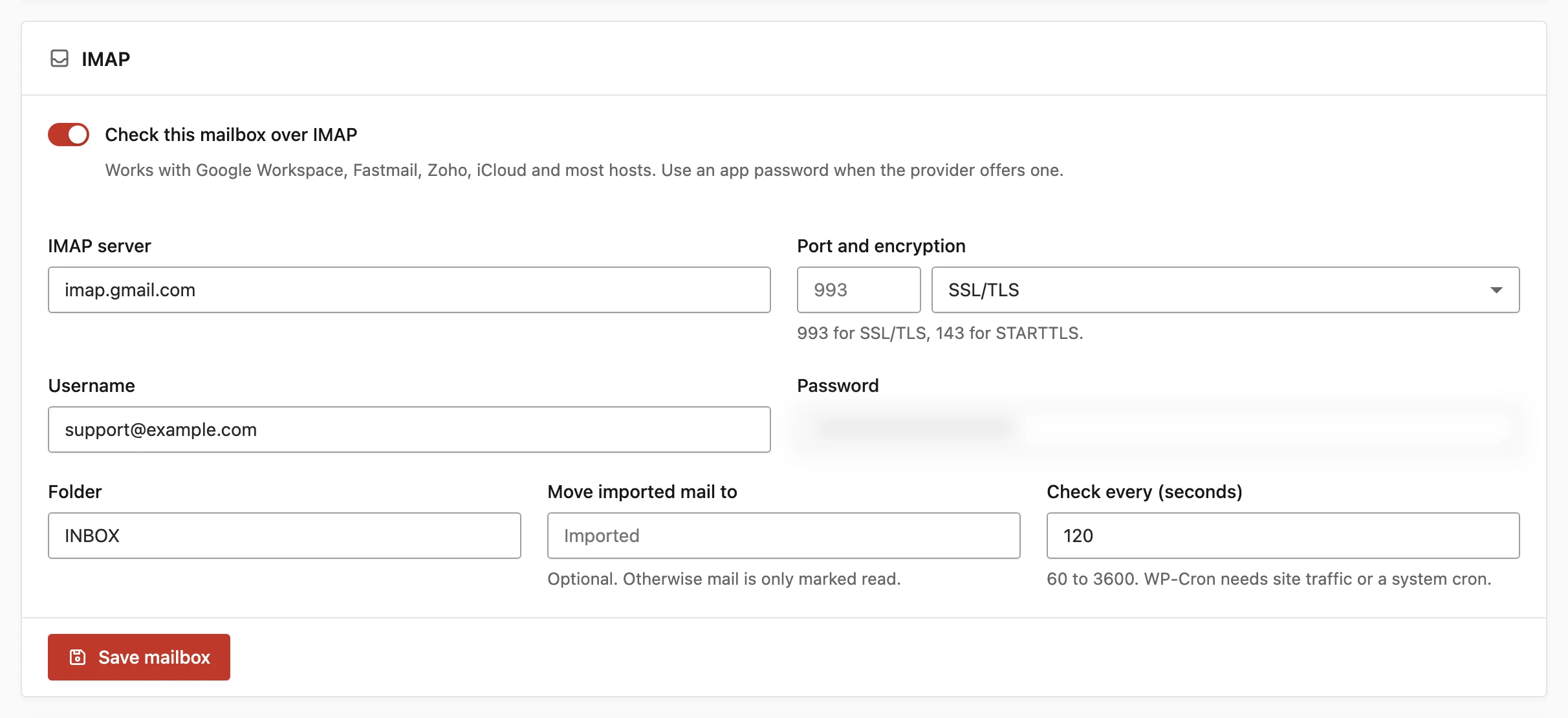
IMAP Settings
- IMAP server: the host name, such as
imap.gmail.com. - Port and encryption: SSL/TLS on port 993 or STARTTLS on port 143. Left blank, the port follows the encryption. None (localhost only) works only for a test server on the same machine, at
localhostor127.0.0.1. - Username: usually the full email address.
- Password: the app password. It’s saved encrypted and never shown again, so leave it blank to keep the saved one.
- Folder: the folder to watch, default
INBOX. - Move imported mail to: optional. A folder such as
Importedthat takes each message after import. Otherwise mail is only marked read. - Check every (seconds): how often this mailbox is checked, default 120, from 60 to 3600.
For Google, plus addressing works, so the Reply address can stay empty and Reply tracking can stay on Plus address.
What Gets Imported
- First connection: only unread mail is imported, so old conversations don’t become tickets.
- After that: every new message is imported by its IMAP UID, including mail someone already read in Gmail or Outlook.
- Marked read after it’s safe: a message is marked read, or moved, only after Core Support has stored its copy.
- Nothing is deleted. Mail stays in the mailbox unless you set a folder to move it to.
- Batches: each check imports up to 25 messages, so a backlog clears over the next few checks.
If the server renumbers the folder, Core Support starts again from unread mail, the same way it did on the first connection.
Check the Status and Check Mail Now
Once IMAP is on, the mailbox page shows a How mail reaches this mailbox card. It reads Waiting for the first check. at first, then the time of the last check and how many messages were imported in total. A failed check shows IMAP check failed with the server’s error.
The Check mail now button runs a check straight away, without waiting for the schedule. The Connections list also marks each mailbox with an IMAP badge, or IMAP error when the last check failed.
From WP-CLI, the same check runs with:
wp core-support mail-poll --mailbox=support
wp core-support mail-run
The first command checks the mailbox, and the second processes the queue so new mail becomes tickets right away. Leave out --mailbox to check every IMAP mailbox.
On a quiet site, run the schedule from the server’s cron every minute:
* * * * * cd /path/to/wordpress && wp cron event run --due-now --quietWhen a Message Isn’t Imported
Core Support never lets one bad message stop the whole mailbox. Skipped messages stay unread in the mailbox. Core Support → Incoming mail → Connection details lists the latest ones as “Left unread in the mailbox”, with the UID and one of these reasons:
- Larger than the mailbox limit: the email is bigger than Largest message. Raise the limit or handle it in your mail app.
- Deleted from the mailbox before import: someone removed it before its turn.
- Temporarily unavailable: storing it kept failing. Core Support retries a message up to 5 times before it skips it.
A message can also be imported but fail to be marked read or moved, usually because of folder permissions or a misspelled folder name. Core Support records a warning as an IMAP error and keeps importing later mail. Fix the folder setting, then move that message by hand.
A wrong password or server name shows under IMAP check failed and in Core Support → Diagnostics → IMAP polling.
Limits
- Microsoft 365 needs OAuth, which isn’t included yet.
- The shortest interval is 60 seconds, and WP-Cron adds its own delay on a quiet site. The relay delivers mail as it arrives.
- IMAP reads one folder per mailbox. Mail filtered into other folders isn’t imported.
Every imported message lands in Incoming mail like mail from any other route, and How Email Reaches Core Support explains what happens to it next.