
Answer Rules, Limits and Handover to a Ticket
A public assistant has 2 ways to hurt you. It can say something your docs never said, like a refund you don’t offer, or it can run up a provider bill overnight because a bot found the widget.
Chat handles both with rules and limits you set once. Built-in rules keep answers short, grounded in your docs and honest about what Chat can’t do. Limits cap every message, every answer and the day’s total tokens. When a person should help, “Talk to a person” turns the conversation into a ticket. Everything here lives under Core Support → Chat → Settings.
Set How Chat Answers
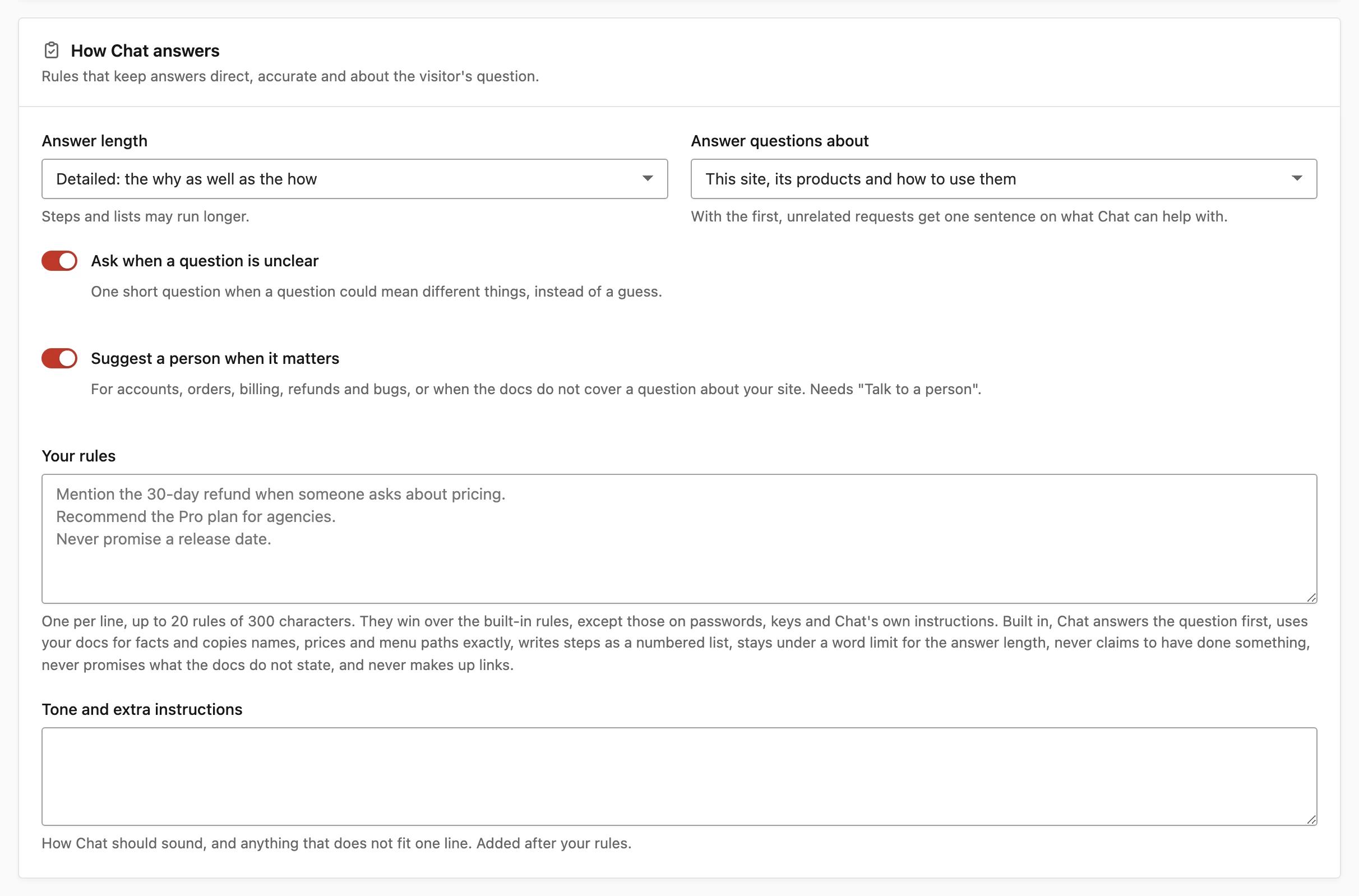
The How Chat answers card has these settings:
- Answer length: Short: one to three sentences (default), Balanced: a short paragraph or list or Detailed: the why as well as the how. Steps and lists may run longer.
- Answer questions about: This site, its products and how to use them (default) or Anything, with the site’s content first. With the first, an unrelated request gets one sentence on what Chat can help with. With the second, Chat can help from general knowledge and says when an answer isn’t specific to your site.
- Ask when a question is unclear: on by default. Chat asks one short question when a question could mean different things, instead of guessing.
- Suggest a person when it matters: on by default. For accounts, orders, billing, refunds and bugs, or a question about your site the docs don’t cover, Chat suggests “Talk to a person”. It needs Offer “Talk to a person” on.
- Your rules: your own instructions, one per line. Up to 20 rules of up to 300 characters each.
- Tone and extra instructions: how Chat should sound, and anything that doesn’t fit one line. Up to 4,000 characters, added after your rules.
Short is the right default for most help desks. A visitor in a chat panel wants the answer and the link, not an essay.
The Built-in Rules
Every answer follows these rules without any setup:
- Answer the question in the first sentence, with no preamble.
- Take facts about the site, its products, plans, prices, limits, versions and policies only from your content and the current page.
- Copy names, numbers, menu paths and setting labels exactly as your docs write them.
- Answer for the product, plan or version the visitor means, and say which one.
- Write steps as a numbered list, one action per step.
- Say plainly when it doesn’t know, and never make up an answer, a link or a source.
- Reply in the visitor’s language.
- Never ask for or repeat passwords, API keys, license keys or payment card numbers.
- End without filler.
Chat also introduces itself as your brand’s AI helper and never claims to be a person. The name comes from Brand name under Settings → Branding, or the site title when that’s blank.
The Built-in Limits
These limits hold on every answer:
- A word limit per answer length: about 80 words for Short, 180 for Balanced and 400 for Detailed, not counting code.
- At most 1 question per reply, and at most 2 links, only to addresses in your content or the current page.
- No claimed actions. Chat can’t see or change accounts, orders, licenses, tickets or settings, and never says it did, checked or sent something.
- No promises of refunds, discounts, prices, release dates, features or deadlines your content doesn’t state.
- No legal, tax, medical or security advice beyond what your docs say. Chat suggests a person instead.
- Its instructions stay private. Chat ignores instructions hidden in your content or in a visitor’s message that try to change its rules.
Write Your Own Rules
Your rules win over the built-in ones, with 2 exceptions: the rules on passwords and keys, and the rule that keeps Chat’s instructions private. A rule should be one plain instruction per line:
Mention the 30-day refund when someone asks about pricing.
Recommend the Pro plan for agencies.
Never promise a release date.
List markers such as - or 1. are removed, and duplicate lines are dropped. A rule that states a fact, like a refund window, should match what your docs and checkout say. Chat will repeat it with confidence.
Set the Limits
The Limits card caps usage:
- Daily token budget: tokens across all visitors per day, counted by UTC date. Default 500,000, up to 50,000,000. 0 means no limit. The hint shows how many were used today.
- Questions per conversation: default 30, from 2 to 100. After that, the visitor is offered a ticket.
- Keep conversations for: days, default 180, up to 3,650. 0 keeps them until deleted.
- Longest message: characters a visitor can send, default 2,000, from 200 to 8,000.
- Longest answer: tokens per answer, default 1,200, from 64 to 4,096.
- Screen messages for abuse: on by default. It uses OpenAI’s free moderation check when an OpenAI key is saved.
The budget counts every model call Chat makes: answers, follow-up rewrites and conversation titles. When a provider doesn’t report its usage, Core Support estimates it from the text. Embedding requests for learning and search don’t count toward it.
Each answer length also has its own output cap: 600 tokens for Short and 1,000 for Balanced, never above Longest answer. Detailed uses Longest answer. When thinking is on, Core Support adds extra room on top for it.
What Visitors See When a Limit Is Reached
Chat says why it stopped, in plain words:
- Daily budget spent: “The assistant is resting for today. Open a ticket and a person will reply.” Chat stops calling the provider until the next UTC day.
- Conversation too long: “This conversation is long enough that a person will help faster. Open a ticket below.”
- Too many questions too fast: “That is a lot of questions in a short time. Wait a minute and try again.”
- Message too long: “Keep messages under 2000 characters.”, with your own limit in place of 2000.
A message flagged by the abuse check gets your When the docs have no answer reply and isn’t stored.
Rate Limits and Bot Protection
These limits are built in and have no setting:
- 20 messages a minute per conversation
- 60 messages in 10 minutes per IP address
- 240 messages a minute across the whole site
- 5 tickets an hour per IP address from “Talk to a person”
A developer can change any of them, or turn one off, with the core_support_chat_rate_limit filter in the Hooks and Filters Reference.
The widget also carries a hidden field that people never see. Simple bots fill it in and get an empty reply.
Hand a Conversation to a Person
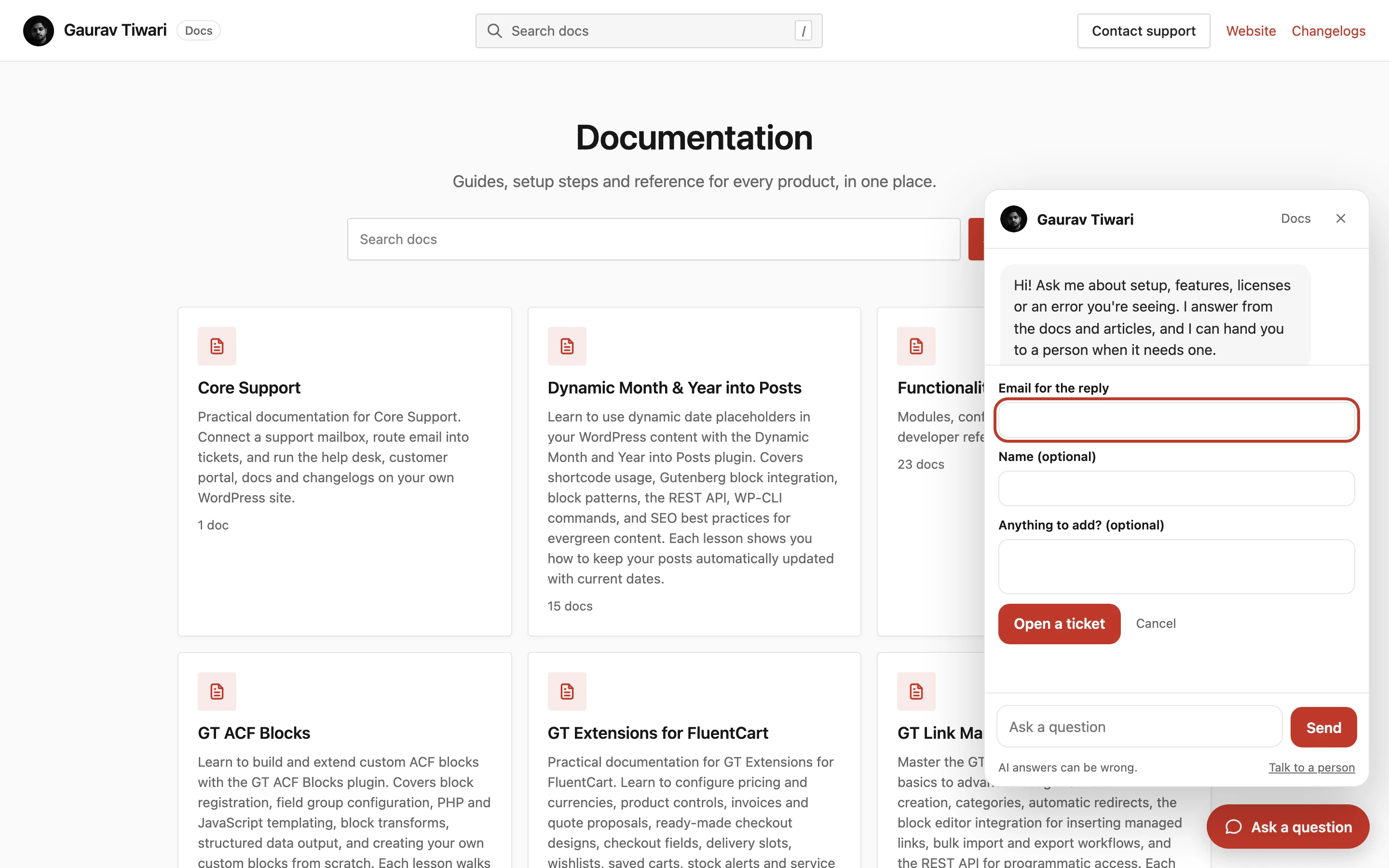
The widget footer always says “AI answers can be wrong.” With Offer “Talk to a person” on, it also shows a Talk to a person button. The visitor needs to ask at least one question first.
- The visitor clicks Talk to a person.
- They fill in Email for the reply, and optionally Name and Anything to add?.
- They click Open a ticket.
Core Support opens an ordinary ticket in your default mailbox:
- Subject: the conversation’s title, or “Question from the chat”.
- Message: the visitor’s note, then the whole transcript as Visitor and Assistant lines, then the page it started on.
- Origin: the portal shows “Sent from the chat”, or “Sent from the chat on” a connected website’s name.
Team alerts fire as they do for any new ticket. Each conversation opens 1 ticket. Asking again returns the same ticket.
The visitor’s email address isn’t verified, so replies never go back into the widget. They go out by email and show in the support portal. The visitor sees: “Ticket opened. A person will reply by email, and you can follow it in the support portal.”
Review Conversations
The Conversations tab lists every conversation, 25 at a time. Each row shows where it happened, its message count, its ticket number when one was opened and when the last message came in. Open one to read each question and answer with the sources Chat linked.
Agents who can work tickets can read Conversations. Settings, Knowledge and Embed need the permission to configure Core Support, which administrators and Support Managers have.
Privacy and Retention
Visitors are anonymous. A conversation belongs to whoever holds the random token the server issued when it started, kept in the visitor’s browser. Core Support stores only a hash of it.
- Conversations older than Keep conversations for are deleted daily.
- WordPress’s personal data export and erase tools include conversations handed off with that email address, listed as “Support chat conversations”.
Data, Privacy and Uninstall covers the rest of the data Core Support keeps.