
Review Incoming Mail
A customer says they emailed support yesterday, and there’s no ticket. The email may be waiting for review, sitting with the automatic mail or held because its reply token didn’t match. Without one place to look, you end up checking the mailbox, the server logs and the ticket list one by one.
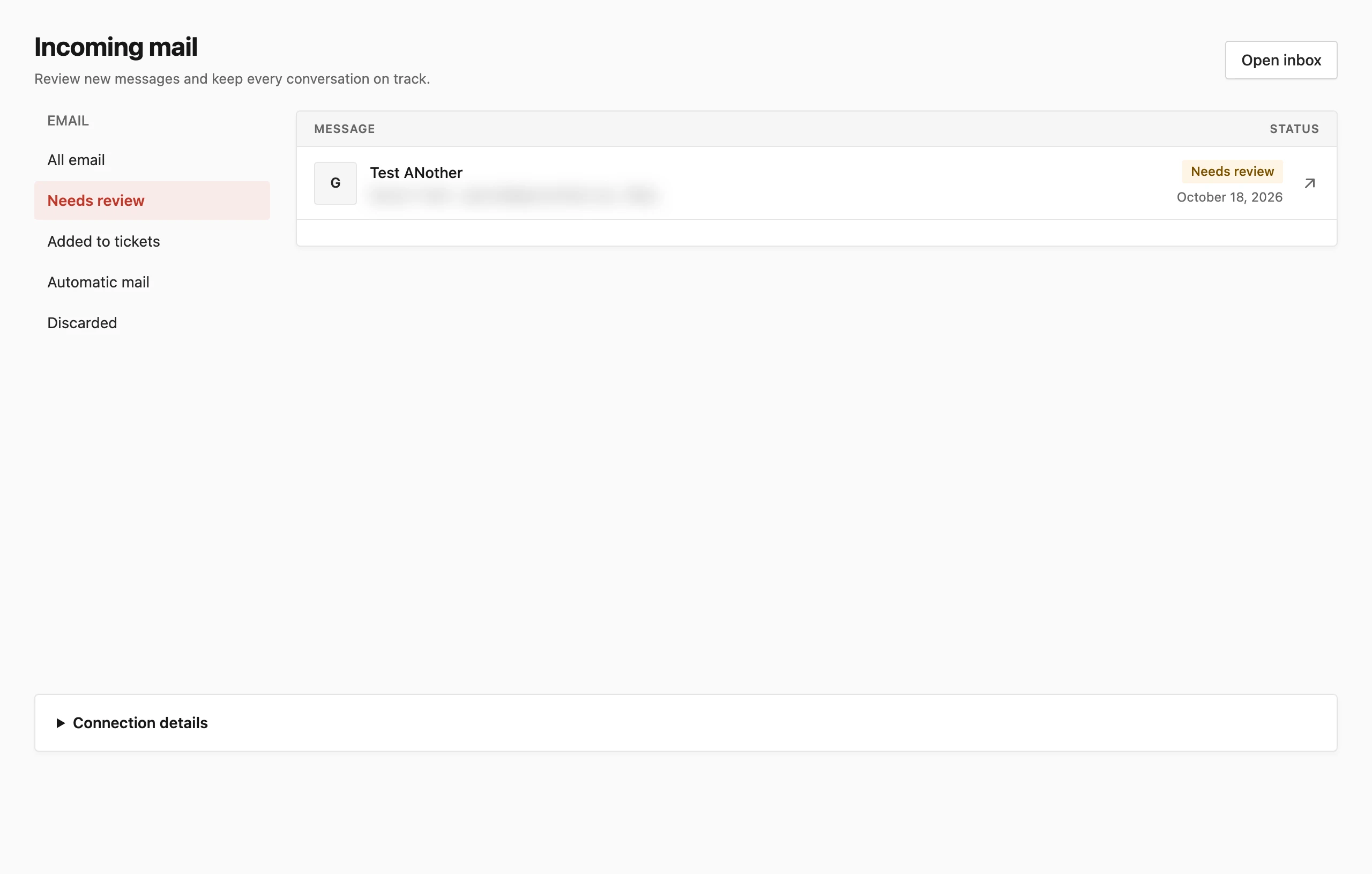
Core Support → Incoming mail is that place. Every email from every route lands there first, with a status and a plain reason, before it becomes a ticket or joins one. Agents review new senders there, and administrators find the connection details for each mailbox.
Who Can Open It
Incoming mail is available to anyone who can work tickets, which means administrators and users with the Support Agent or Support Manager role. Every download from the screen checks that permission first. Managing mailboxes and storage under Core Support → Connections needs the higher manage permission.
Read the List
The list shows 50 emails per page, newest first. Each row shows the subject, the sender, the route it came by and a status badge. The route reads Relay, IMAP, Automation or the name of a website form.
The filters down the side narrow the list:
- All email: everything received.
- Needs review: emails waiting for an agent.
- Added to tickets: emails that opened a ticket or joined one.
- Automatic mail: auto-replies, bounces, bulk mail and loops, set aside without a ticket.
- Discarded: emails an agent discarded.
Two short-lived statuses also appear. Queued means the email is stored and waiting for the next processing run, and Processing means that run is working on it now.
Why an Email Needs Review
Open an email to see its reason next to the status. These are the reasons you’ll see most:
- New sender: an email that isn’t a reply to a ticket. It waits here while Settings → Tickets → Email from new senders is set to review, the default.
- Conversation not matched: a reply whose token didn’t match, or expired after 90 days. It can also be a reply sent from a different address than the email went to.
- Possible duplicate message: another email from the same sender with the same Message-ID was already received.
- Sender needs checking: the email has no usable sender address.
- Message length needs checking: the text is empty or longer than Maximum message length under Settings → Tickets.
Some emails are held after Core Support tried to add them to a ticket:
- New tickets are paused: Accept new customer tickets is off under Settings → Tickets.
- This ticket is closed: the reply went to a resolved ticket, and customers can’t reopen tickets.
- Conversation limit reached: the ticket already holds 500 messages.
- Customer details changed: the ticket’s customer or mailbox changed after the email arrived.
Accept or Discard an Email
An email marked Needs review shows the sender, the text and its attachments, with 2 buttons:
- Check the sender and the message. Download original email gives you the full
.emlfile if you need the headers. - Click Accept as new ticket to open a ticket from it, or Discard to set it aside.
Accepting always opens a new ticket. It doesn’t join an earlier conversation, even when the email was a reply that didn’t match. The ticket number then shows on the email as Added to ticket.
An email without a sender, without text or over the length limit can’t be accepted unchanged. Download the original and handle it from your mail app instead.
What Counts as Automatic Mail
Core Support sets these aside as Automatic mail before any ticket is touched:
- Automatic reply: out-of-office and auto-responder messages, recognized by headers such as
Auto-Submitted. - Delivery report: bounces and delivery status notifications.
- Bulk email: mail marked
Precedence: bulkorjunk. - Repeated automated message: mail that Core Support itself sent, coming back in a loop.
Mailing list headers alone don’t count. A support address run as a Google Group or distribution list adds those headers to every customer email, so treating them as bulk mail would discard real customers.
Attachments of automatic mail aren’t stored separately, but the original email is kept and can be downloaded.
Connection Details
The Connection details panel at the foot of the screen lists every mailbox with its limits and routes:
- the largest message it accepts and its reply address
- its Cloudflare relay URL and automation tool URL
- its IMAP account, the last check and messages left unread in the mailbox
- where originals and attachments are stored, and any storage problem
Administrators and Support Managers also get links from there to Manage mailboxes and storage and Connected sites. When no mailbox exists yet, the panel opens on its own and points to Connections.
When an Email Never Shows Up
If an email isn’t here at all, it never reached your site. Check the route it should have taken:
- Relay: the Worker’s logs in Cloudflare, as covered in Receive Support Email with Cloudflare Email Routing.
- IMAP: the mailbox’s last check in Connection details, and the skipped messages listed there.
- Automation tools: the HTTP response in your tool’s run history.
Core Support → Diagnostics also flags mail that stays queued for more than 10 minutes, which usually means WP-Cron isn’t running. How Email Reaches Core Support explains each route and the new-sender setting in full.