
Host the Customer Portal on a Connected Site
A customer buys from your product site, asks a question and then has to visit a different domain to follow the answer. The help desk there carries another name and another login. A customer can easily think they landed on the wrong site, or just open a second ticket by email.
Core Support can put the customer portal on the connected site itself. Customers sign in on that site with a code sent to their email, then see, open and answer their tickets without leaving it. Reply emails carry that site’s name and link back to its portal page.
What You Need First
- The website connected under Core Support → Connected sites, with the portal page’s address in Website addresses. Run One Help Desk for Many Websites covers connecting a site.
- A sending method under Core Support → Settings → Notifications → Mail delivery. The default, Capture only, sends nothing, so sign-in codes can’t go out. Choose WordPress mail or one of the provider APIs: Emailit API, Resend API, Brevo API or SendGrid API.
- A reply route on your mailbox, so customers can also answer reply emails.
Without a sending method, a customer who asks for a code sees an error asking you to choose a mail delivery method. Send Replies through WordPress Mail or a Provider API explains each option.
Turn On the Portal
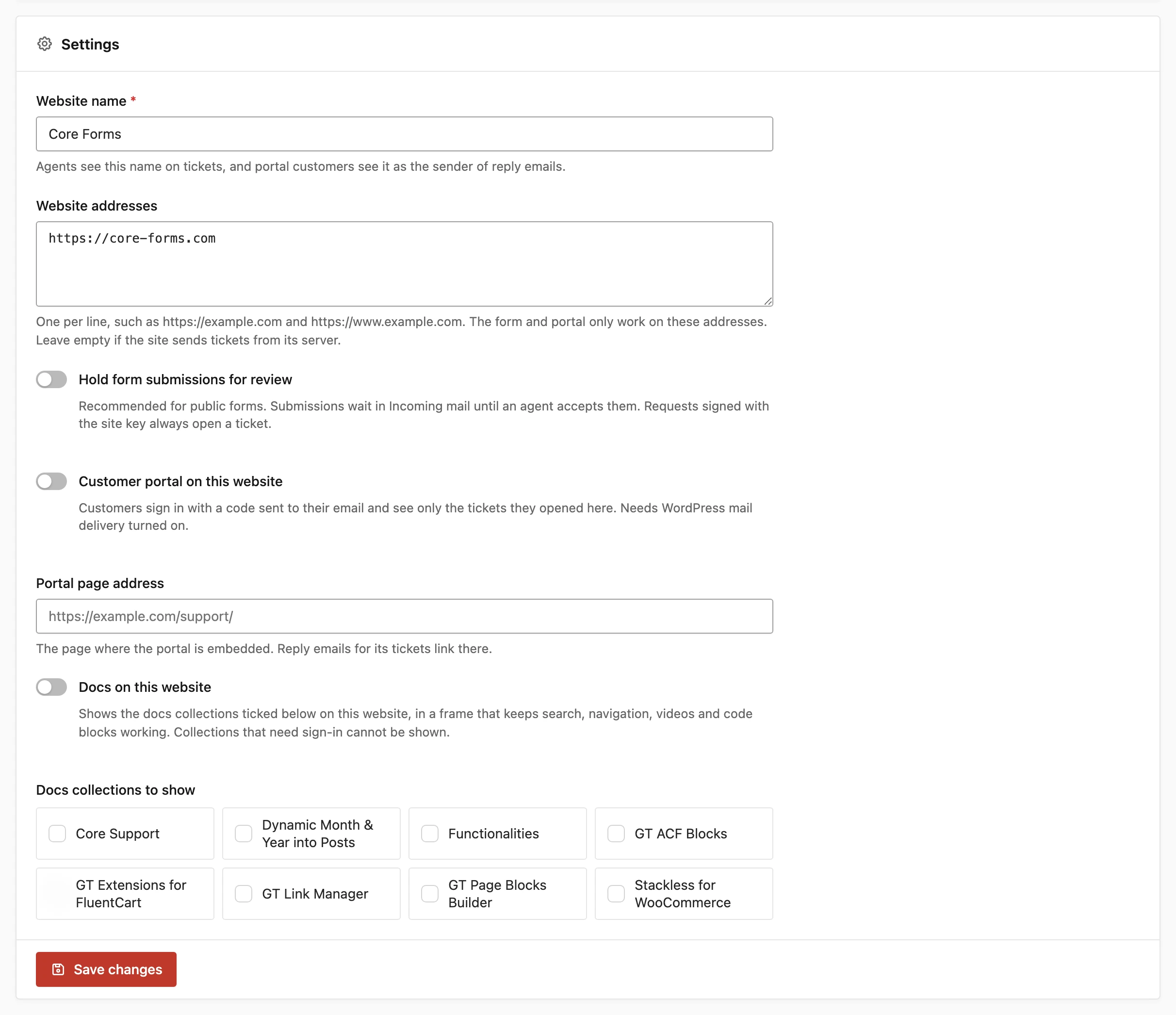
- Go to Core Support → Connected sites and open the website.
- In Settings, turn on Customer portal on this website.
- Enter the Portal page address, the full
https://address of the page that will show the portal, such ashttps://example.com/support/. - Check that Website addresses includes that page’s address, such as
https://example.com. - Click Save changes.
- Copy the code from the Customer portal card at the top of the page.
- Paste it on the portal page. On a WordPress site, a Custom HTML block works.
The Portal page address must start with https://. Reply emails link there, so a typo here sends every customer to the wrong page.
The Portal Snippet
<div data-core-support-portal></div>
<script src="https://desk.example.com/wp-content/plugins/core-support/assets/portal.min.js"
        data-endpoint="https://desk.example.com/wp-json/core-support/v1/sites/<site-id>/portal" defer></script>
The copied code already has your help desk address and the site’s ID. Snippets copied before 0.8.4 point at portal.js and keep working.
These optional attributes go on the <script> tag:
data-heading: the portal’s heading. Without it, the heading is the website name followed by “support”.data-accent: a hex color for buttons and focus rings,#066fd1by default.data-target: a CSS selector for the elements that should hold the portal, in place of[data-core-support-portal].
How Customers Sign In
- The customer enters an email address and clicks Email me a code.
- Core Support emails a 6-digit code. The sender name is the website’s name.
- The customer enters the code and clicks Sign in.
The rules behind it:
- A code is valid for 15 minutes.
- 5 wrong codes end it, and the customer asks for a new one.
- A new code replaces the previous one.
- A session lasts 30 days in that browser and works only on that site.
- Sign out ends the session at once.
Customers don’t need a WordPress account on the help desk or on the connected site. Owning the email address is the proof.
What Customers See
The portal lists every ticket opened on that site with the customer’s address. That includes tickets from the site’s contact form and its server requests, not only ones started in the portal. From there, a customer can:
- open a ticket with New ticket, giving a subject and a message
- read replies, with inline images and attachments
- reply with Send reply
- click Mark as resolved when Customers can resolve tickets is on
- click Reopen ticket, or simply reply, when Customers can reopen resolved tickets is on
Private notes never appear. The portal also follows your ticket settings, such as Maximum message length and Message field guidance. When Accept new customer tickets is off, the New ticket button is hidden and your Intake paused message shows instead.
Drafts stay on the page while customers move between tickets. They come back after a changed conversation or after signing in again with the same address. Sign out clears them, and reloading or closing the page loses them. The browser warns before a page with an unsent draft is closed.
Reply Emails for Portal Sites
Once the portal is on and the Portal page address is filled in, reply emails for that site’s tickets change in three ways:
- The sender name is the website’s name.
- A
{site_name}in your Email subject becomes the website’s name. - The footer links to the site’s portal page instead of the help desk portal.
Customers can still answer by email, and their reply joins the same ticket.
Rate Limits
- Sign-in codes: 5 per email address and 10 per visitor per hour, for each site.
- New tickets: 10 per customer per hour.
- Replies: 60 per customer per hour.
- Each request is limited to 64 KB.
A customer who hits a limit sees “Too many requests. Please try again later.”
Build Your Own Front End
The portal script is one client for a plain JSON API. A headless site or an app can call it directly, under /wp-json/core-support/v1/sites/<site-id>/portal/:
config: GET, the site name and the portal settingscode: POST withemail, sends a sign-in codesession: POST withemailandcodeto sign in, DELETE to sign outtickets: GET to list, POST withsubjectandmessageto open onetickets/<id>: GET to read, PATCH withstatusandversionto resolve or reopentickets/<id>/messages: POST withmessageandversionto replytickets/<id>/attachments/<file-id>: GET, downloads a file
Signing in returns a session token. Send it on later requests as Authorization: Bearer <session token>. Every request also needs an Origin header that matches one of the site’s listed addresses, which a browser on that site sends on its own.
Limits to Know
- Customers can’t upload files from the portal. Attachments arrive by email, an automation tool or a signed server request.
- The portal shows only tickets opened on that site. Tickets the same customer sent by email, or opened on another site, don’t appear there.
- Each connected site has its own sessions. Signing in on one site doesn’t sign the customer in anywhere else.