
Show Your Docs on Another Website
Your docs live on the help desk, but each product has its own website, and its visitors look for help there first. Copying the docs into every site means every update has to be made twice. Within a few releases, the copies start to disagree with each other.
Core Support can show the docs on the connected site instead. One script tag places your chosen collections in a frame on that site. Search, navigation, videos and code blocks keep working, and you still edit each doc in one place.
What You Need First
- The website connected under Core Support → Connected sites, with its addresses listed in Website addresses. Only those addresses may show the docs. Run One Help Desk for Many Websites covers connecting a site.
- At least one docs collection whose Who can read is set to Everyone. Write Product Docs with Collections covers collections.
Turn On Docs for a Website
- Go to Core Support → Connected sites and open the website.
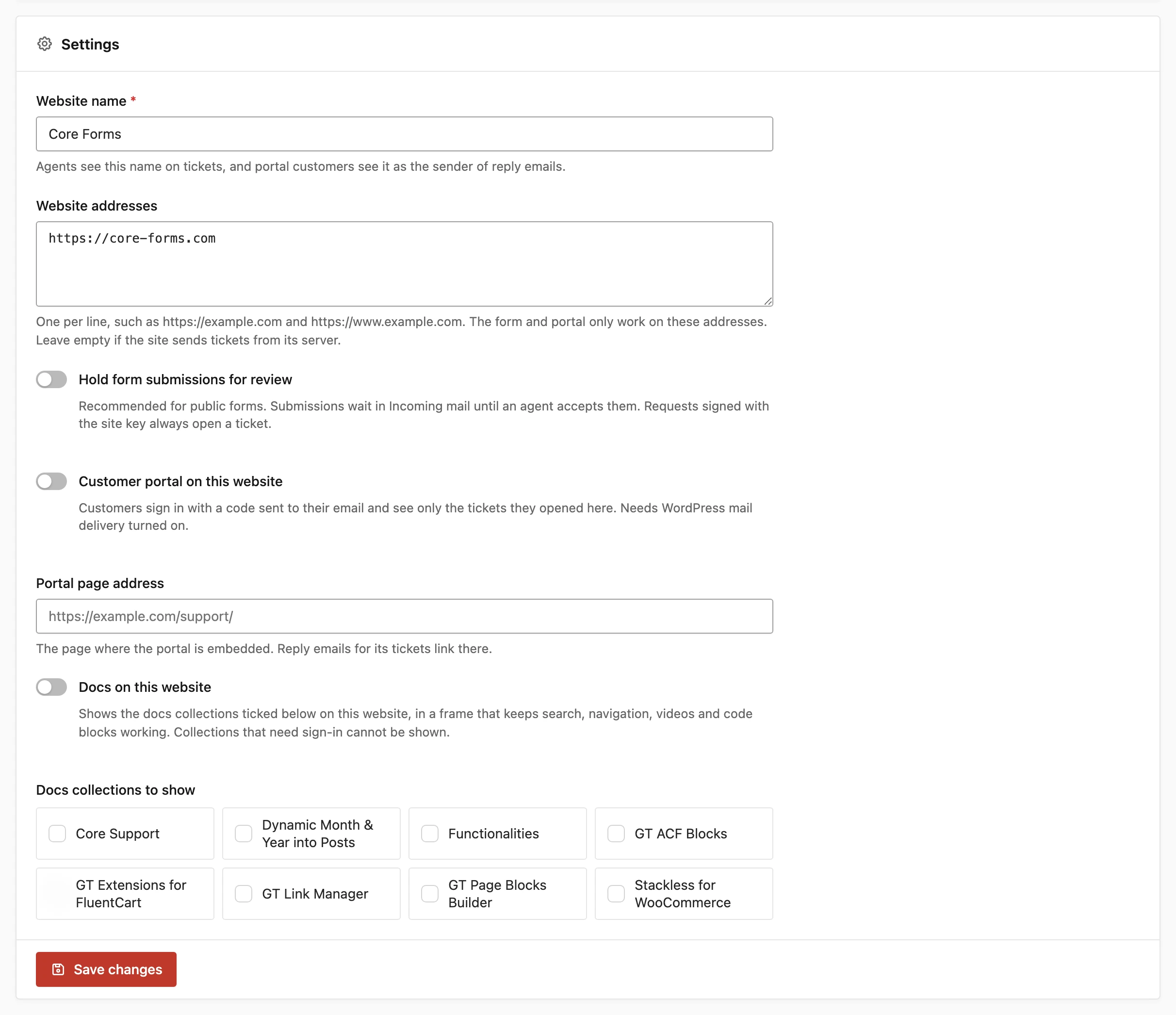
- In Settings, turn on Docs on this website.
- Under Docs collections to show, tick each collection this site should show.
- Click Save changes.
- Copy the code from the Docs card at the top of the page.
- Paste it where the docs should appear. On a WordPress site, a Custom HTML block works.
Collections set to Signed-in visitors are listed with “(sign-in only)” and can’t be ticked. Saving with docs turned on and nothing ticked shows “Choose at least one docs collection to show on this website.”
The Docs Snippet
<div data-core-support-docs></div>
<script src="https://desk.example.com/wp-content/plugins/core-support/assets/docs-embed.min.js"
        data-docs="https://desk.example.com/docs/?csp_site=<site-id>" defer></script>
The copied code also carries a ?ver= number after the file name. Keep it, because it makes connected sites fetch the new script after each update.
data-docs is the address the frame opens. The csp_site parameter tells the help desk which site is asking, so it can apply that site’s collections and addresses.
These optional attributes go on the <script> tag:
data-height: the frame’s starting height in pixels, 600 by default. The frame then grows to fit its content.data-title: the frame’s title for screen readers, “Documentation” by default.
Open on One Collection
The docs home lists every collection ticked for the site. A product’s own website usually needs only its own collection, so the Docs card also lists a start address for each one:
https://desk.example.com/docs/my-product/?csp_site=<site-id>Put that address in data-docs in place of the docs home. Search and the docs home still include the other ticked collections.
What Works Inside the Frame
- Search and the navigation work, along with “On this page”, the previous and next links and “Was this helpful?”.
- Copy buttons and video players get clipboard and fullscreen access from the page around them.
- The frame grows and shrinks with its content, so the page around it scrolls, never the frame.
- When another doc or the search opens, the page scrolls back to the frame’s top if the reader had scrolled past it.
- Links to other docs stay inside the frame. Every other link opens in a new tab.
The embedded pages leave out the docs header and footer, apart from the search box. The Chat button doesn’t show inside the frame either.
Which Collections Readers See
Inside the frame, search, the docs home and the navigation show only the collections ticked for that site. A link or typed address that leads to any other collection sends the reader back to the docs home.
The same docs open normally on the help desk without csp_site. Each doc keeps its own canonical address and share links, so readers who share a doc from the frame share the help desk address.
Allowed Origins and Frame Headers
Core Support sends a Content-Security-Policy: frame-ancestors header on every embedded page. It allows the help desk itself and the site’s listed addresses, and no other website. Core Support also removes an X-Frame-Options header that WordPress or another plugin added earlier in the request.
A server or CDN rule that sends X-Frame-Options on every page still blocks the frame, because it’s added outside WordPress. That rule needs an exception for /docs/.
If the frame stays blank, check these first:
- The embedding page’s address is listed under Website addresses, with the right
wwwor subdomain. - Docs on this website is still on and at least one collection is ticked.
- No server or CDN rule adds
X-Frame-Optionsto/docs/.
Search Engines and Caching
Embedded pages ask search engines not to index them:
- a
noindexrobots meta tag, including on sites that use Rank Math - an
X-Robots-Tag: noindexheader
The help desk’s own docs pages are the ones to index, so this keeps them from competing with the copies inside frames. Embedded pages are also never page-cached.
Limits
- Collections that need sign-in can’t be embedded. A collection changed to Signed-in visitors after it was ticked drops out of the frame at once.
- Turning off Docs on this website, or removing the website, stops the frame from loading on that site. The docs stay on the help desk as usual.
- The frame shows the help desk’s docs design. Docs pages leave out the help desk theme, as described in Docs Pages, Your Theme and Other Plugins.