
Write Product Docs with Collections
Product docs tend to live in too many places: a readme here, a course lesson there and a blog post that describes a version from two years ago. Customers can’t find the answer, so they open a ticket and ask something the docs already cover.
Core Support Docs puts every product’s documentation at /docs/ on your help-desk site. Each product gets a collection with sections and pages. Readers get search, contents, feedback and a short path to a ticket when a doc isn’t enough.
How Docs Are Organized
Docs have 3 levels:
- Collection: one product or topic, such as a plugin. You manage collections under Core Support → Collections.
- Section: a doc with no parent. It groups the pages under it and is a readable doc of its own.
- Page: a doc whose parent is a section.
Each level has its own address:
/docs/lists every collection./docs/{collection}/lists that collection’s sections and pages./docs/{collection}/{section}/{page}/opens one doc.
The /docs/ base is fixed. Two collections can each have a getting-started section, because the address always names the collection. A doc reached through an old collection or section path redirects to its current address.
Create a Collection
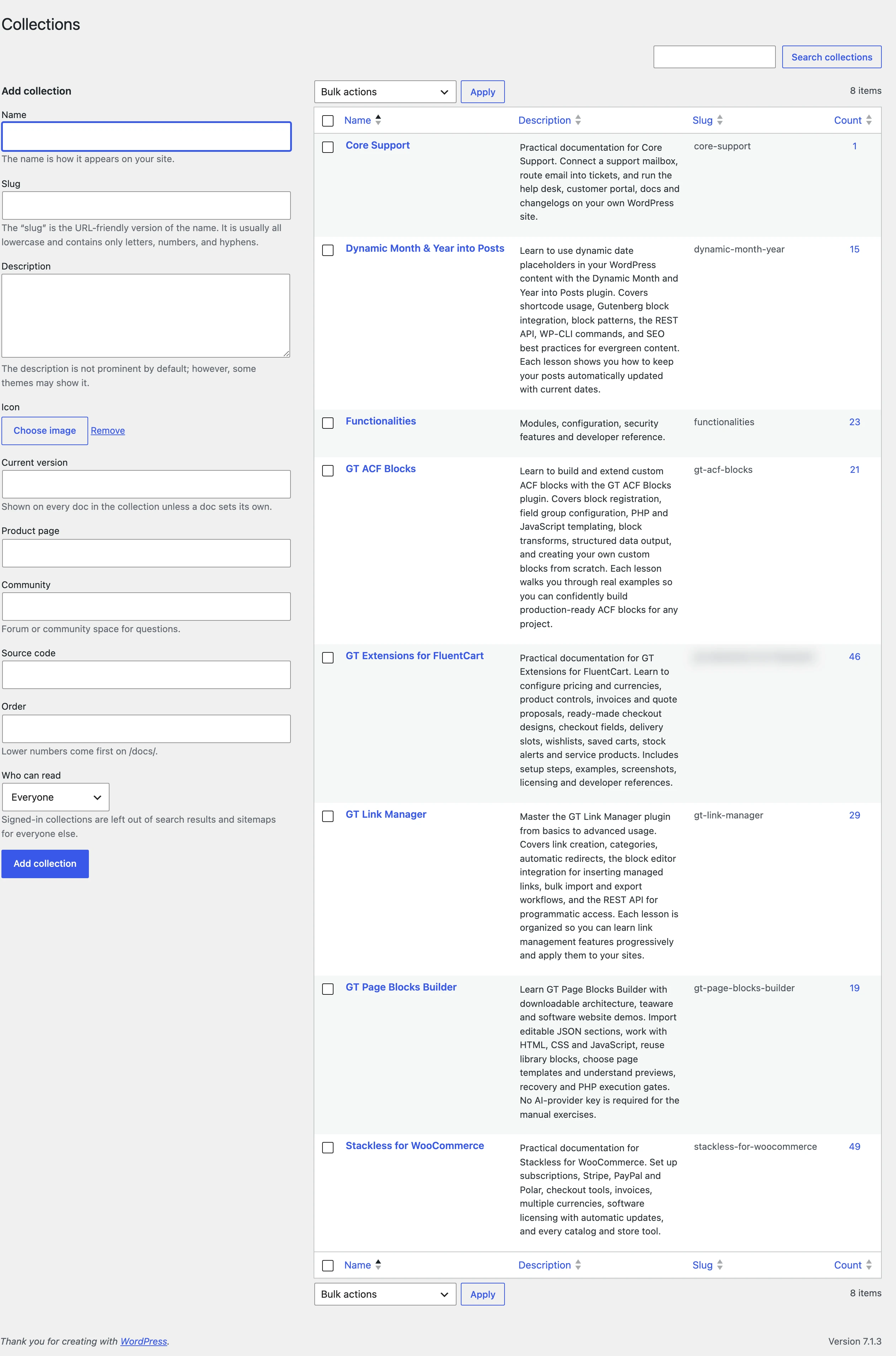
- Go to Core Support → Collections.
- Enter a Name, and a Slug and Description if you want them. The description shows on the collection’s card on
/docs/and at the top of its page. - Fill in the collection settings below.
- Click Add collection.
The collection settings:
- Icon: an image from the media library, shown on the collection’s card and header. Without one, a plain document icon shows.
- Current version: “Shown on every doc in the collection unless a doc sets its own.” Up to 40 characters.
- Product page: a button on the collection page.
- Community: “Forum or community space for questions.” It shows as a button too.
- Source code: a link to the repository, shown as a button.
- Order: “Lower numbers come first on /docs/.” Collections with the same number sort by name.
- Who can read: Everyone (the default) or Signed-in visitors.
When a changelog is linked to the collection, a Changelog button joins the others. Publish Changelogs by Hand or from a Repository covers that link.
The slugs page, feed, search and general would clash with addresses under /docs/, so Core Support adds -docs to them.
A collection shows on /docs/ once it has at least 1 published doc. People who can write docs see empty collections too, so a collection full of drafts stays out of sight until you publish.
Add Sections and Pages
- Go to Core Support → Docs and click Add doc.
- Write the title and content in the block editor.
- Under Collections in the sidebar, pick the collection. Only sections need this, since pages take their section’s collection.
- For a page, choose the section as its parent. Leave the parent empty to make the doc a section.
- Set Order to place it. Lower numbers come first, and docs with the same order sort by title.
- Publish.
Pages always follow their section. Move a section to another collection and every page under it moves with it.
A page under another page still works, but the navigation flattens it. It shows in its section’s list, in reading order, right after its parent.
A section’s excerpt shows under its heading on the collection page, and any doc’s excerpt is searched along with its content.
Write a Doc
Docs use the block editor with 4 extra block styles:
- Note, Tip and Warning on the Group block, for blue, green and yellow callouts.
- Steps on the List block. On a numbered list, it shows each item as a numbered step.
Blocks and plugins keep their styles and scripts in a doc, so video players and code blocks work as they do in posts. Docs Pages, Your Theme and Other Plugins explains what loads on docs pages and what doesn’t.
The Doc details box in the sidebar has 3 fields:
- Applies to version: “Leave blank to use the collection version.” Up to 40 characters.
- Last reviewed: a date, with a Reviewed today box that sets today’s date when you save. The doc’s “Updated” line uses this date, or the last modified date when it’s blank.
- Old addresses: “One URL per line. Addresses on this site redirect here.” Up to 50 addresses.
Old addresses redirect only once the doc is published, and only when nothing else answers at that address. If the old page still exists, unpublish it first.
What Readers Get
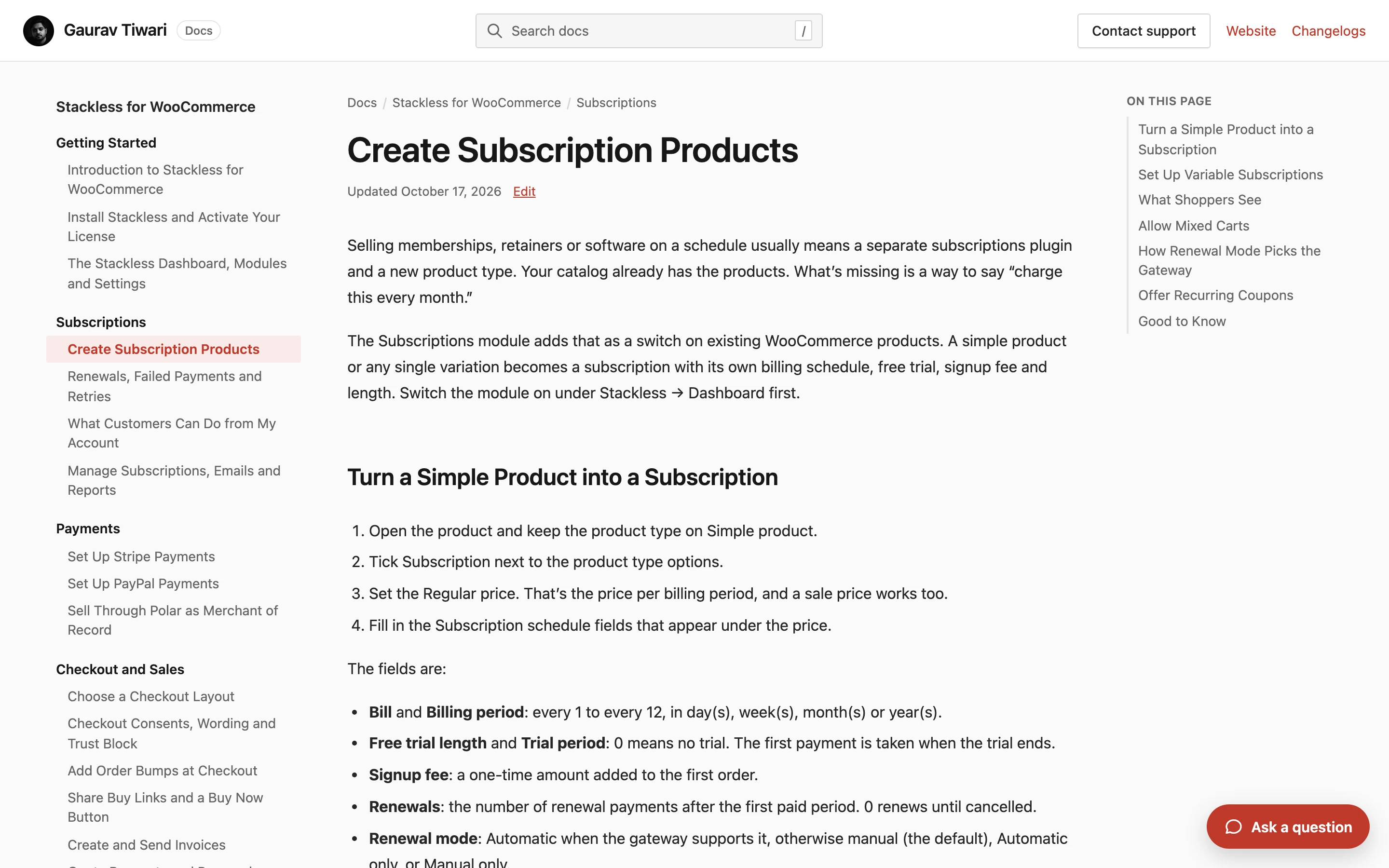
Every doc page gives readers:
- Search: the header search box, also opened with
/or Ctrl/Cmd+K, with results as they type and a full results page. A search needs at least 2 characters. - Navigation: the current collection’s sections and pages, then a list of all collections. On phones, it sits behind a Browse docs button.
- On this page: a list of the doc’s H2 and H3 headings, when it has more than one.
- Previous and Next: the neighboring docs in the collection’s reading order.
- Version and date: the version badge and the “Updated” date under the title.
- Copy buttons: on code blocks, unless a code block plugin brings its own.
- Was this helpful?: Yes or No, then an optional comment of up to 1,000 characters.
- Still stuck?: an Open a support ticket link to your customer portal.
People who can edit a doc see an Edit link beside its date. The WordPress admin bar doesn’t show on docs pages.
Docs pages are standalone pages in the branding set under Core Support → Settings → Branding. Titles, meta descriptions, canonical links and structured data from your SEO plugin stay.
Signed-In Collections
With Who can read set to Signed-in visitors:
- the collection page and its docs show “Sign in to read this” and a Sign in button, with nothing of the content
- signed-out visitors don’t see the collection in search results, listings, feeds or sitemaps
- locked pages ask search engines not to index them
- the collection can’t be shown on a connected website
- Chat never learns its docs, and it forgets any it learned the moment the collection is switched to Signed-in visitors
Core Support checks that the visitor is signed in, not what they bought. Any account on the site can read a signed-in collection.
Docs Insights
Core Support → Docs insights shows what readers search for and can’t find, what they found unhelpful and what needs a fresh look:
- Searches with no results: up to 25 searches from the last 30 days, the most frequent first. Each one is a doc waiting to be written or a word to add.
- Least helpful docs: up to 15 docs with the most No votes, with their Yes and No counts.
- Reader comments: the 25 latest comments left with a vote, marked Helpful or Not helpful.
- Not updated in six months: up to 20 published docs last edited more than 180 days ago, oldest first.
The six-month list goes by the doc’s last edit, not its Last reviewed date. The Docs list also has Helpful (Yes / No votes) and Reviewed columns.
Core Support keeps reader signals small:
- A visitor’s vote counts once per doc per day.
- Each visitor can send 20 votes an hour and record 30 empty searches an hour.
- Searches shorter than 3 characters aren’t recorded.
- Visitors are identified only by a keyed hash that changes daily. Raw IP addresses are never stored.
- Votes, comments and empty searches older than a year are deleted.
I’d check the empty searches first when deciding what to write next, because each row is a question a reader actually asked.
Who Can Write Docs
Administrators, editors, Support Agents and Support Managers can write, publish and delete docs and manage collections. The same permissions cover changelogs.
Good to Know
- Docs live on the help-desk site. Show Your Docs on Another Website puts chosen collections on a connected site.
- A doc with no collection gets
generalin its address. Give every section a collection before you publish it. - To bring docs over from another site, a wiki, a readme or a course, see Import Existing Documentation.