
Header, Footer and Share Buttons on Support Pages
Core Support draws its docs, changelog and support portal pages without your theme. That keeps them fast and clean, but it also drops your site’s navigation. A customer reading a doc has no obvious way back to your pricing page or your contact form unless you put one there.
Core Support → Settings → Header and footer gives each of those page types its own header and footer, and adds share buttons to docs and changelogs. The defaults match how these pages looked before the settings existed, so nothing changes until you edit them.
Which Pages These Settings Cover
The tab has a card for each page type:
- Docs pages: the docs home, every collection and every doc.
- Changelog pages: the changelog index, each product’s changelog and each release.
- Support portal: the support page Core Support set up.
Blocks you place on your own pages keep your theme’s header and footer, so these settings don’t touch them. Each card has its own Save button and saves only its own page type, and View page opens that page.
A fourth card, Other plugins on docs pages, decides which plugin scripts and styles load on docs. Docs Pages, Your Theme and Other Plugins covers it.
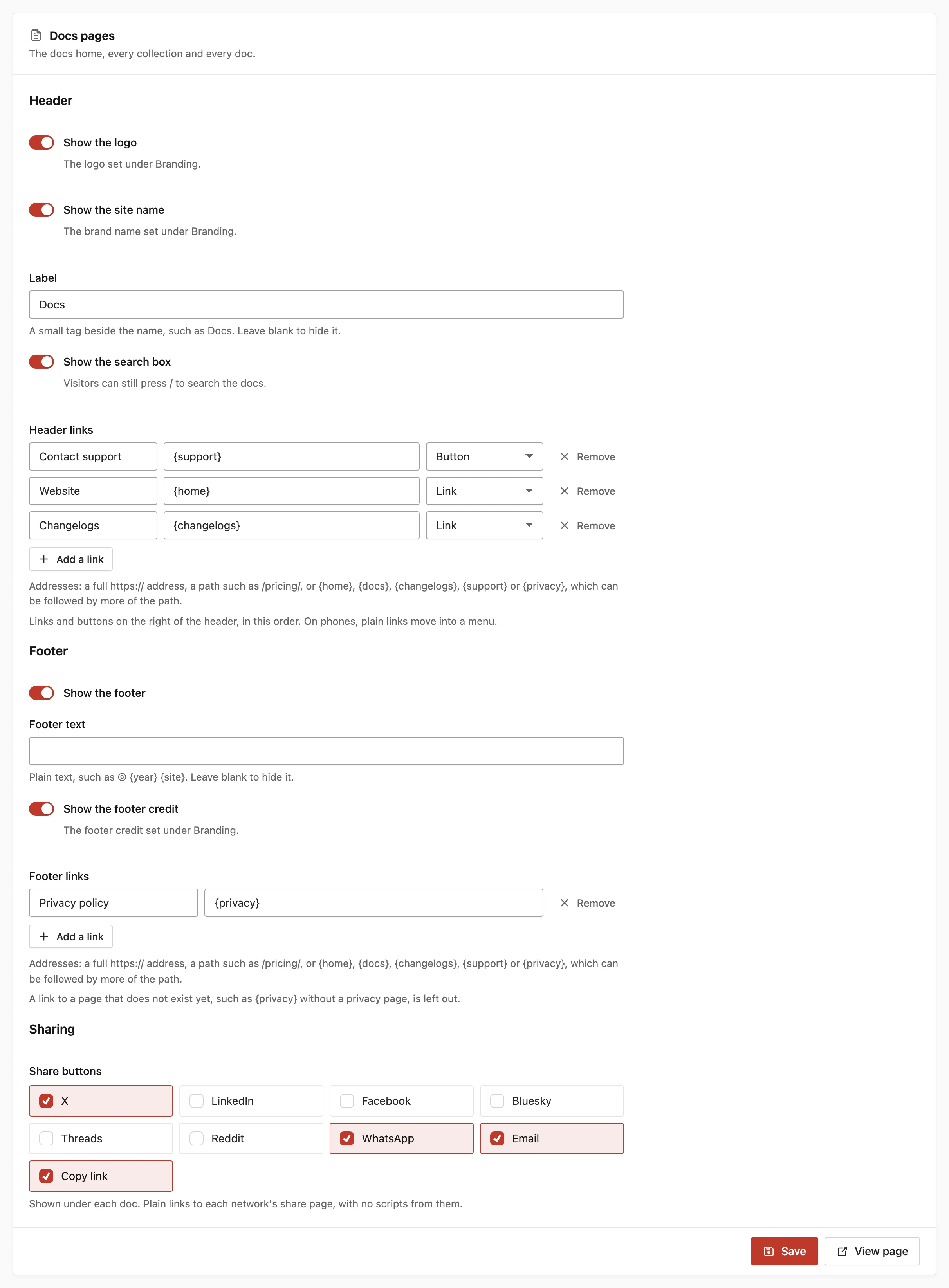
Header Settings
- Show the logo: the logo set under Branding. On by default.
- Show the site name: the brand name set under Branding. On by default. When it’s off, the name stays in the page for screen readers.
- Label: a small tag beside the name. Default “Docs” on docs pages, “Changelog” on changelog pages and empty on the support portal. Up to 30 characters. Leave it blank to hide it.
- Show the search box: docs pages only, on by default. Visitors can still press
/to search the docs when it’s hidden. - Header links: links and buttons on the right of the header, in the order you list them.
When the logo, the name and the label are all off, the left side stays empty and the links keep their place on the right. Brand the Help Desk is where the logo and name themselves are set.
Add Header Links and Buttons
Each header link has a label, an address and a style. You can add rows with Add a link, or type straight into the text box, one link per line:
Pricing | /pricing/ | link
Contact support | {support} | button
Buy now | https://example.com/checkout/ | primary- Style: Link, Button or Primary button (
link,buttonorprimaryin the text box). A missing or unknown style becomes a plain link. - Limits: up to 8 links per page type, labels up to 40 characters and addresses up to 300.
The defaults for each page type are:
- Docs pages: Contact support (
{support}, button) and Website ({home}, link) - Changelog pages: Docs (
{docs}, link), Website ({home}, link) and Contact support ({support}, button) - Support portal: Back to website (
{home}, button)
On tablets, plain links move into a menu and buttons stay in the header. On phones, a header with more than one link or button shows only the menu, while a single button stays as it is.
Addresses You Can Use
- a full address, such as
https://example.com/pricing/ - a path on this site, such as
/pricing/ - a
mailto:ortel:address, such asmailto:support@example.com - an anchor, such as
#pricing - a Core Support page, written in braces
The address field suggests the Core Support pages as you type:
{home}: your website’s home page{docs}: the docs home{changelogs}: the changelog index{support}: the support portal{privacy}: the privacy policy page
You can add more of the path after a page, so {docs}my-plugin/ points to that address under the docs home. A link to a page with nothing to show yet is left out on its own. That covers {docs} before your first docs collection, {changelogs} before your first published changelog and {privacy} while no privacy policy page is published.
Footer Settings
- Show the footer: on by default.
- Footer text: plain text, empty by default, up to 200 characters.
{year}becomes the current year and{site}becomes the brand name, so© {year} {site}stays current on its own. - Show the footer credit: the footer credit set under Branding. On by default.
- Footer links: plain links, one per line as
Label | address. DefaultPrivacy policy | {privacy}. The same address rules and the 8-link limit apply, and footer links have no style.
When there’s no text, no credit and no links to show, the page has no footer at all.
Share Buttons on Docs and Changelogs
The Docs pages and Changelog pages cards each have a Sharing section with a Share buttons list. The support portal has none.
- Go to Core Support → Settings → Header and footer.
- In the Docs pages card, tick the networks under Sharing.
- Choose Save.
- Repeat in the Changelog pages card if you want buttons there too.
The networks show in this order:
- X
- Bluesky
- Threads
- Copy link
How the buttons behave:
- None are ticked by default, so no buttons show until you choose some.
- On docs, the buttons sit under each doc and share its address and title.
- On changelogs, they sit beside each product’s changelog and share its address with the title “{Product} changelog”.
- Each one is a plain link to that network’s share page, opened in a new tab. No scripts or tracking from the networks load on your pages.
- Email opens the visitor’s mail app with the title as the subject and the address in the body.
- Copy link copies the address and confirms with “Link copied”.
For Developers
The core_support_header_links and core_support_footer_links filters change a page’s links before they’re drawn. Each receives the list of links (label, url, style) and the page type: docs, changelogs or portal. Footer links are always drawn as plain links, whatever style a filter gives them. The Hooks and Filters Reference lists the rest.