
Classic
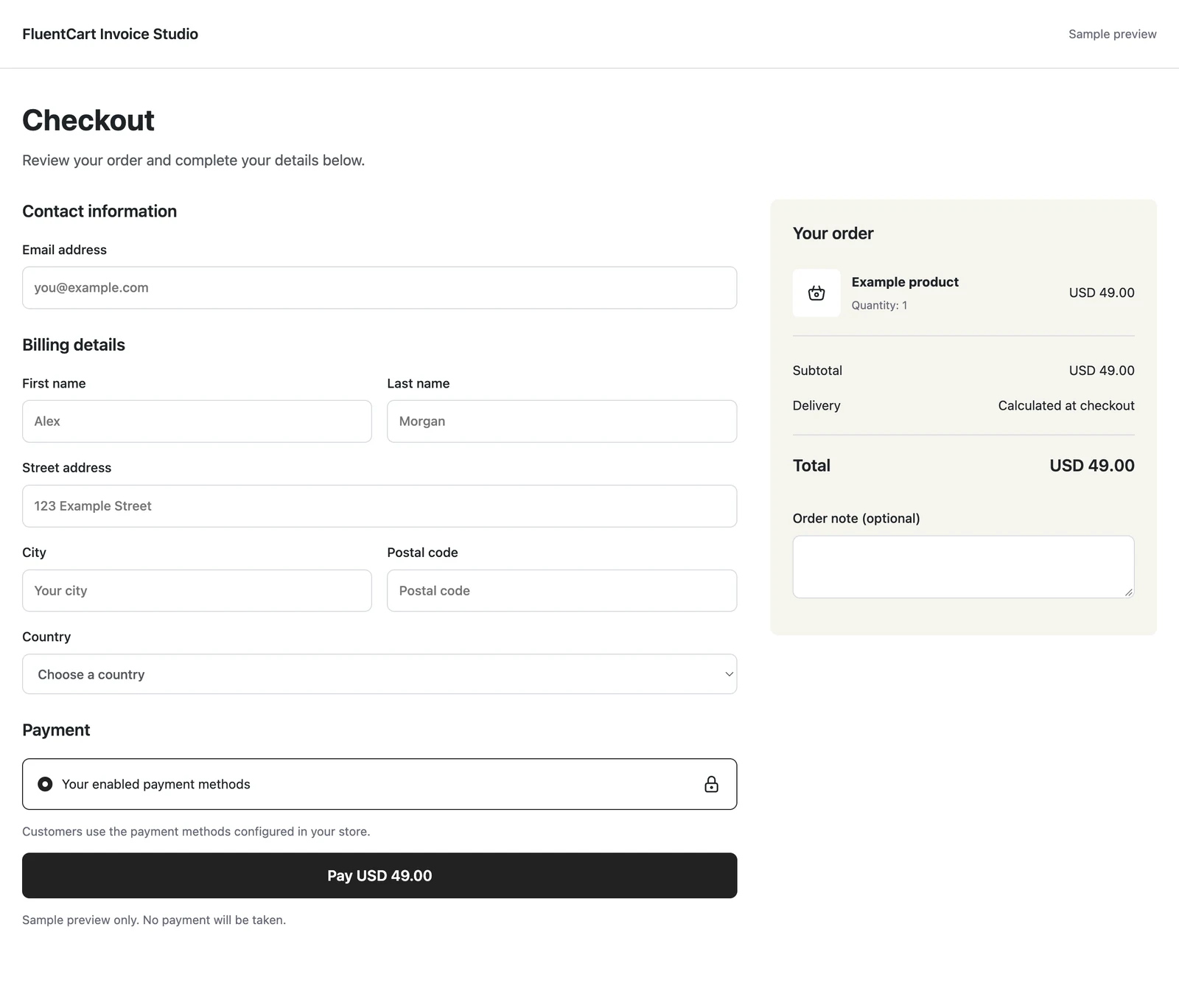
Customer details on the left, with the order summary on the right.

Add 27 optional modules for local pricing, checkout designs, on-page and modal checkout, Polar and Paddle payments, invoices, quotes, referrals and customer tools.
$99
Lifetime access.
One payment. Unlimited sites.
Or $39/year. Both licenses include updates and support for their term.
Enable only what you need. Disabled modules keep their settings.
Enable only the behavior your store uses. Settings remain stored when a module is disabled.
| Module | Purpose | Enabled | Configuration |
|---|---|---|---|
| Free Price Text | Display custom text (like "FREE") instead of 0.00 prices. Configure text in Fluent Cart → Settings → Store Setup → Free Price Display. | ||
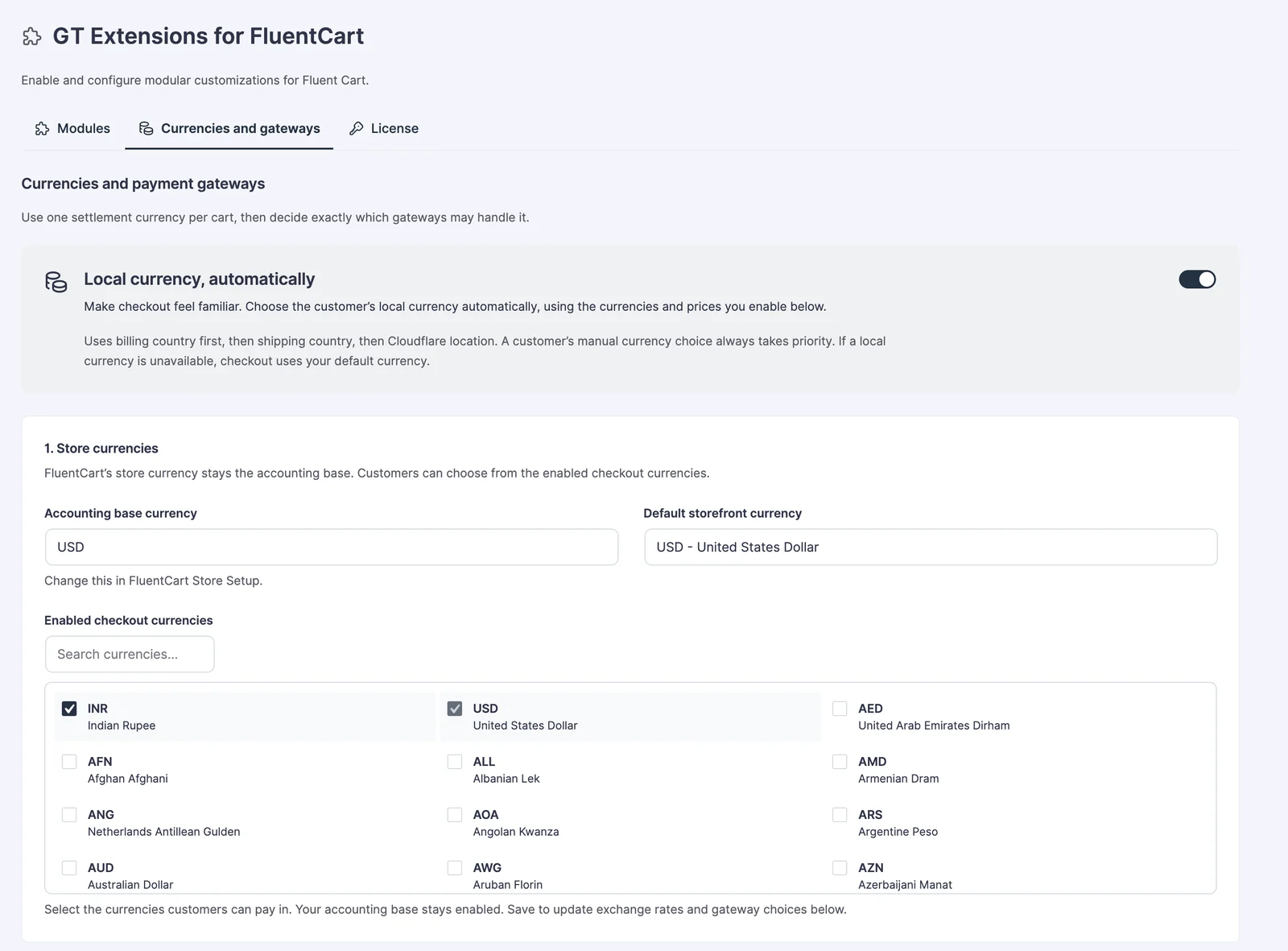
| Multi-Currency Checkout | Run one safe settlement currency per cart with price books, exchange rates, and currency-aware gateway routing. Configure currencies and payment routes here, then enter optional per-variation prices in the product editor. | ||
| External Product | Keep products in your catalog while sending purchase clicks to an external website. Enable the module, then open External Product from an individual FluentCart product menu. | ||
| Checkout Cache Buster | Give FluentCart cart requests and drawer checkout links a fresh URL to avoid stale cached guest carts. Works on FluentCart store pages and embedded product controls. Keep cart and checkout excluded from your page/CDN cache. | ||
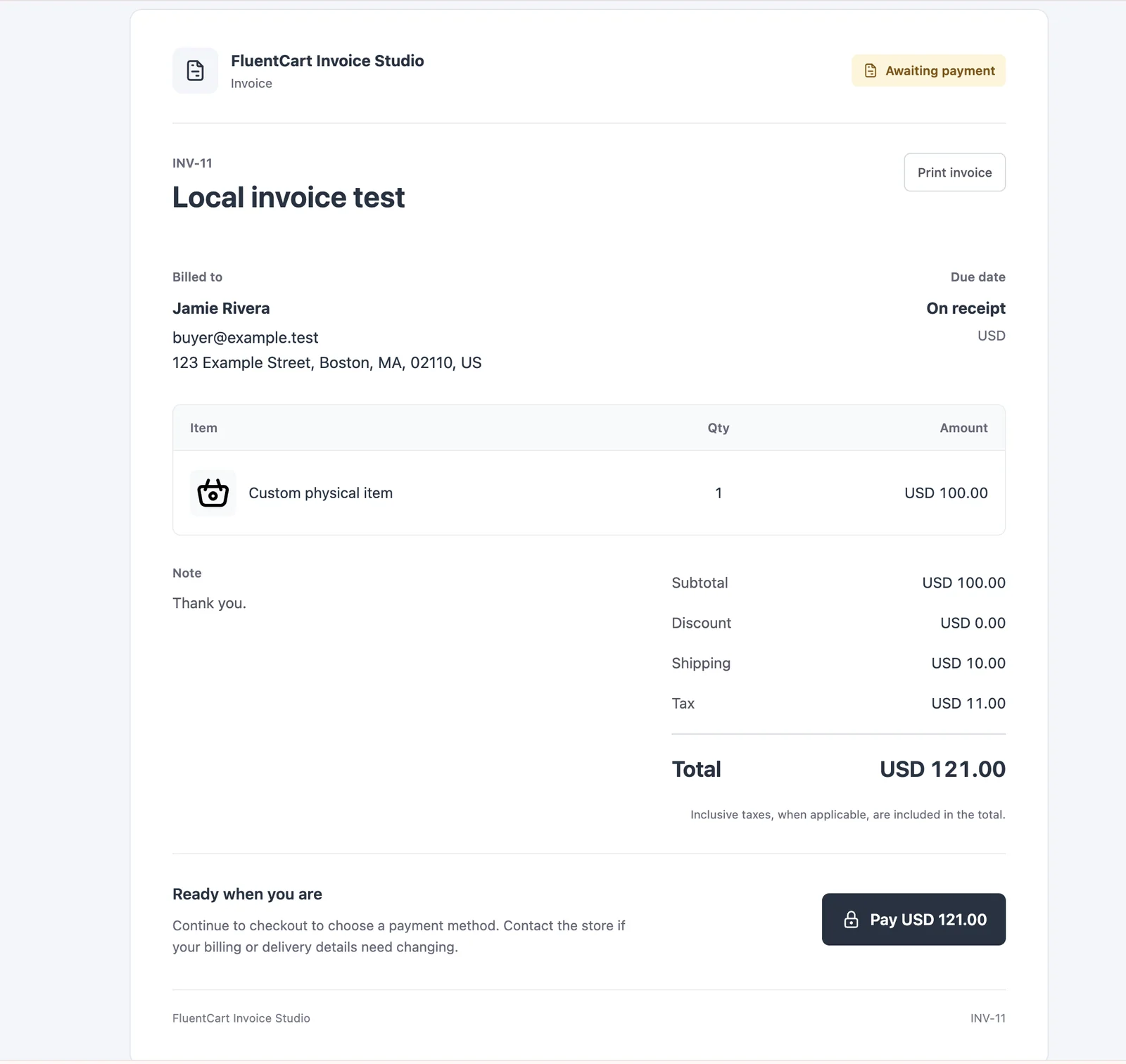
| Custom Invoices | Create customer invoices, send secure payment links, and collect payments through FluentCart. Repeat invoices on a schedule, take deposits, and remind customers before and after the due date. Open FluentCart → Invoices. Requires FluentCart 1.6.4 or newer. Required by Request a Quote. Turn off that module first to disable this one. | ||
| Checkout Builder | Choose and preview ready-made checkout designs without an editor. Preview and activate a layout under FluentCart → Checkout Builder. Your checkout stays unchanged until you choose one. | ||
| Back-in-Stock Alerts | Let shoppers request a confirmed availability email for an out-of-stock product option. Appears on out-of-stock products. View subscriptions under FluentCart → Stock alerts. | ||
| Wishlist | Save product options as a guest and keep them in the customer account after signing in. Add the Wishlist pattern to a page, or use [gtfc_wishlist]. | ||
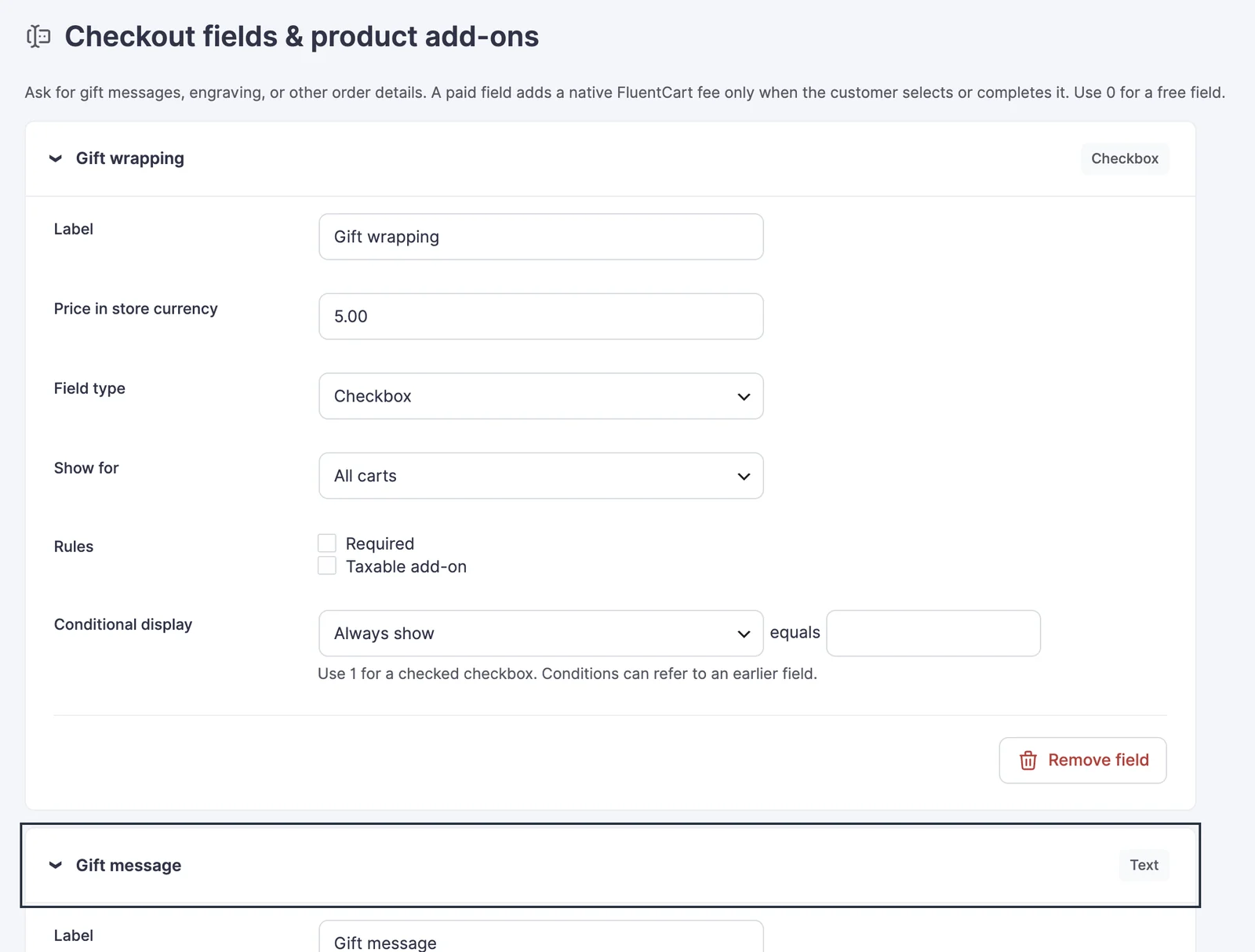
| Product Add-ons & Checkout Fields | Collect gift messages, personalization, and paid options with server-validated conditions and native fees. Configure fields under FluentCart → Fields & add-ons. | ||
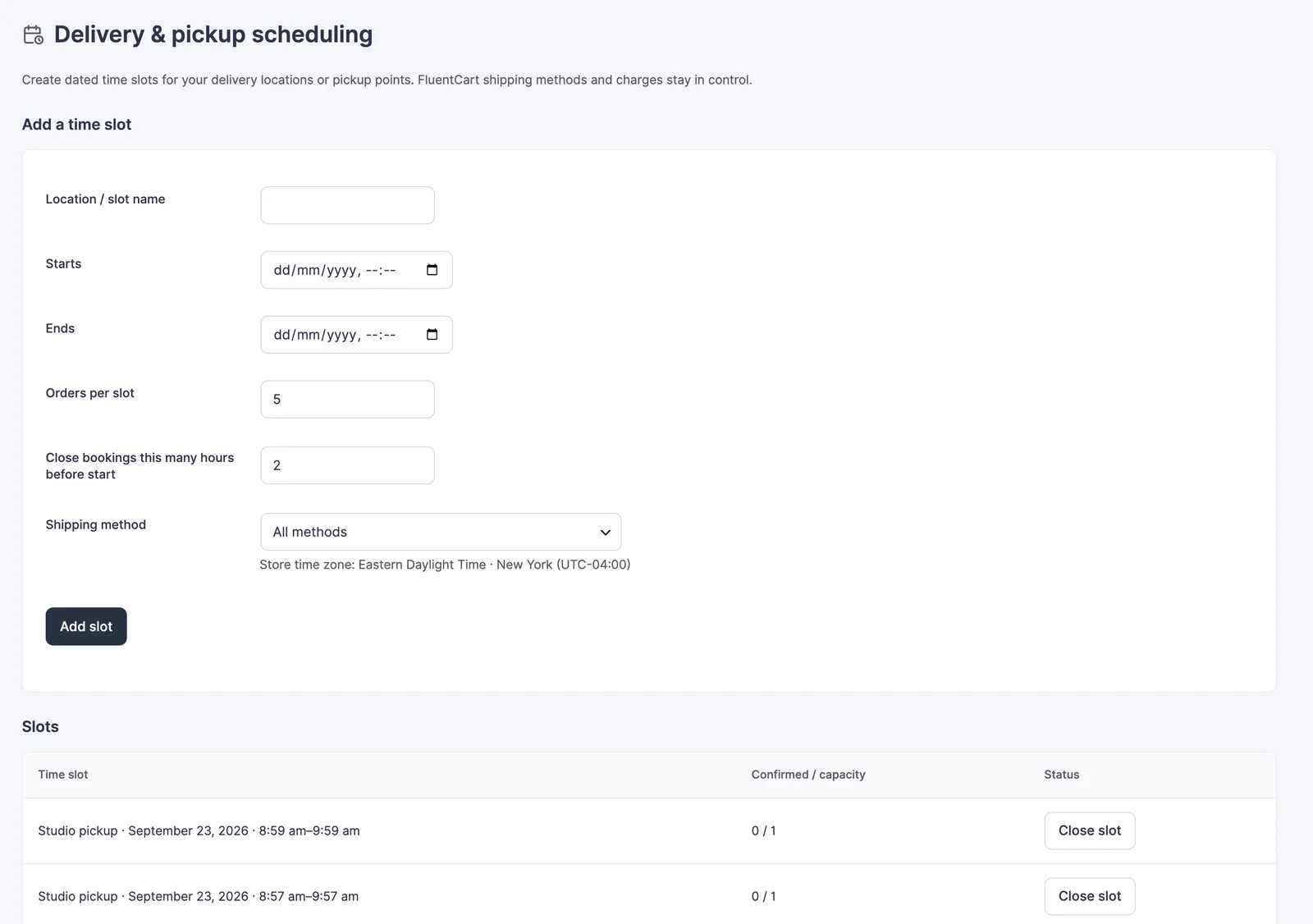
| Delivery & Pickup Scheduling | Offer dated delivery slots with capacity limits, booking cutoffs, and blackout dates. Create slots under FluentCart → Delivery scheduling. | ||
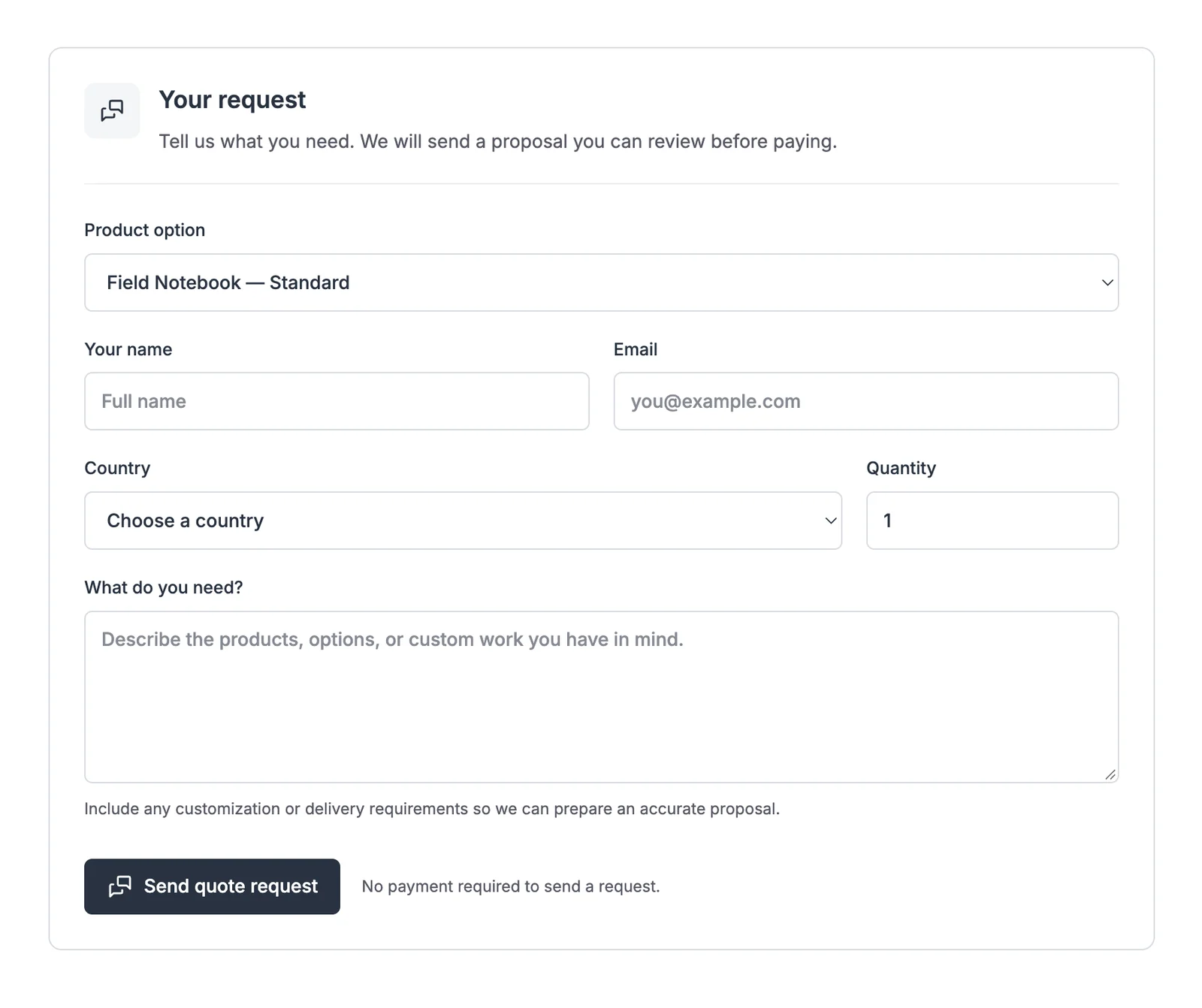
| Request a Quote | Collect requests, prepare proposals, and convert accepted proposals into payable FluentCart invoices. Custom Invoices is enabled automatically. Add the Request a Quote block or [gtfc_request_quote] to a page. | ||
| Saved Carts & Order Again | Save shopping lists and rebuild eligible past purchases with current prices and availability. Available in the customer portal, or add the Saved carts pattern to a page. | ||
| Service Products | Add services to the native product creator, skip shipping and inventory, and keep paid service orders processing until fulfilled. Choose Service Product when adding a product. Use its Service settings for after-payment instructions. | ||
| Page Access | Unlock chosen pages for customers who buy a product. Everyone else sees an access notice, or nothing at all for private pages. Open Page access from a product's menu, or use Customer access in the page editor. Buyers find their pages under My pages in their account. | ||
| Sold Count Display | Show "X sold" badge on products to build social proof. Works automatically. Badge shows after price when products have sales. | ||
| Stock Urgency Labels | Display "Only X left!" or "Low stock" badges when inventory is low. Works automatically for products with stock management enabled. | ||
| Min/Max Quantity | Enforce minimum and maximum purchase quantities per product. Set limits per product in the product editor's pricing section. | ||
| Hide Price Until Login | Show "Login to see price" to visitors for chosen products or the whole store. Works automatically. Guests see login prompt instead of prices. | ||
| Custom Add to Cart Text | Customize button text per product (e.g., "Subscribe", "Pre-Order"). Set custom button text per product in the product editor. | ||
| Checkout Enhancements | Add consent checkboxes, shorten checkout for digital orders, rename checkout fields, add a trust block, and show checkout answers after purchase. Configure under FluentCart → Checkout enhancements. Works with every Checkout Builder layout. | ||
| Product Enhancements | Add product details such as dimensions, colors, file type, pages or ISBN, filled in from FluentCart where it already knows them, and show them on product pages. Open any product in FluentCart and fill in the Product details card. Details appear after the product description, or wherever you add the Product Details block. | ||
| On-page Checkout | Put a plan picker and the FluentCart checkout form on any page, so buyers choose and pay without leaving it. Each visitor gets their own cart. Add the On-page Checkout block or the [gtfc_checkout product="ID"] shortcode to a page. Requires FluentCart 1.6.4 or newer. | ||
| Modal Checkout | Open FluentCart’s checkout in a modal from any Buy Now button, product link or checkout link, so buyers pay without leaving the page. Add the class gtfc-modal-checkout to a button or link, or switch on modal Buy Now buttons for the whole site. Requires FluentCart 1.6.4 or newer. | ||
| Payment Gateways | Add Polar and Paddle to FluentCart: merchant-of-record checkout, subscriptions, refunds and webhooks, with the gateway handling sales tax and VAT. Choose the gateways here, then connect and enable each one under FluentCart → Settings → Payments. | ||
| Coupon Affiliates | Let customers earn cash commission when friends buy with their personal FluentCart coupon, with refund holds, review, and manual payouts. Open FluentCart → Affiliates. Customers join from Refer & Earn in their account. Requires FluentCart 1.6.4 or newer. | ||
| Extra Enhancements | Handy extras for FluentCart: payment failure emails, coupon links, scheduled coupons that start on time, per-product payment methods and thank-you pages, a spam and fraud guard, and quieter test orders. Each extra has its own on/off switch in this module’s settings. | ||
| FluentCart Optimizer | Leave FluentCart’s storefront bundle off pages that sell nothing, with page overrides, a cache and script report, cart retention, and one-click restore. Open FluentCart → Optimizer. Everything starts on native behavior. Requires FluentCart 1.6.4 or newer. |
No matching modules. Try “checkout”, “price”, “cart”, or “email”.
Interactive demo. Switches and sample settings affect this preview only.
See all 5 layouts before you choose. Preview with sample content or your own cart, then make the design match your store.
These are actual sample previews from Checkout Builder. Open any screenshot at full size to inspect the layout. Colors, logo and spacing can be adjusted.
Customer details on the left, with the order summary on the right.
Order summary on the left, with customer details and payment on the right.
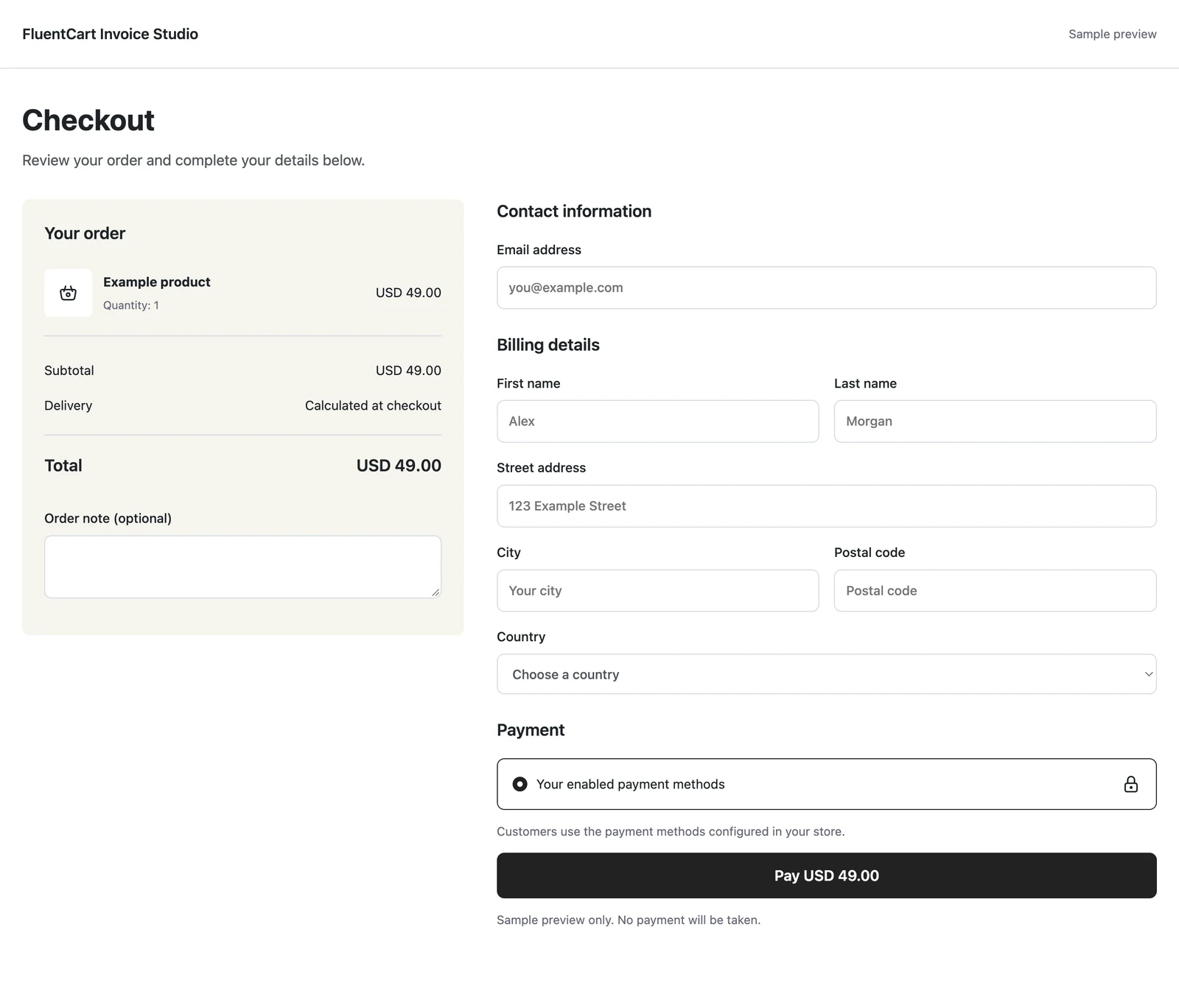
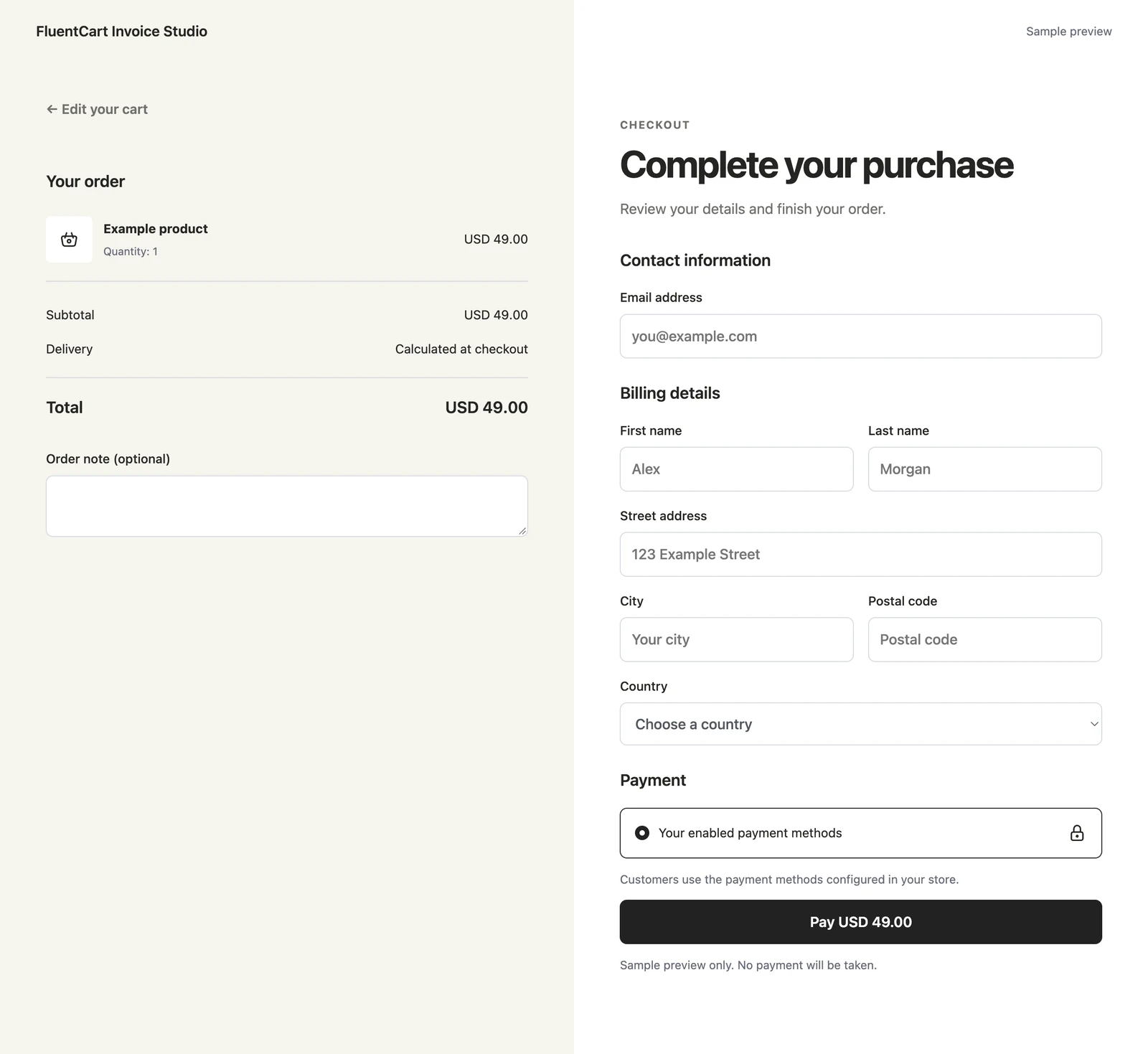
A warm order panel beside a spacious white checkout and a bold purchase button.
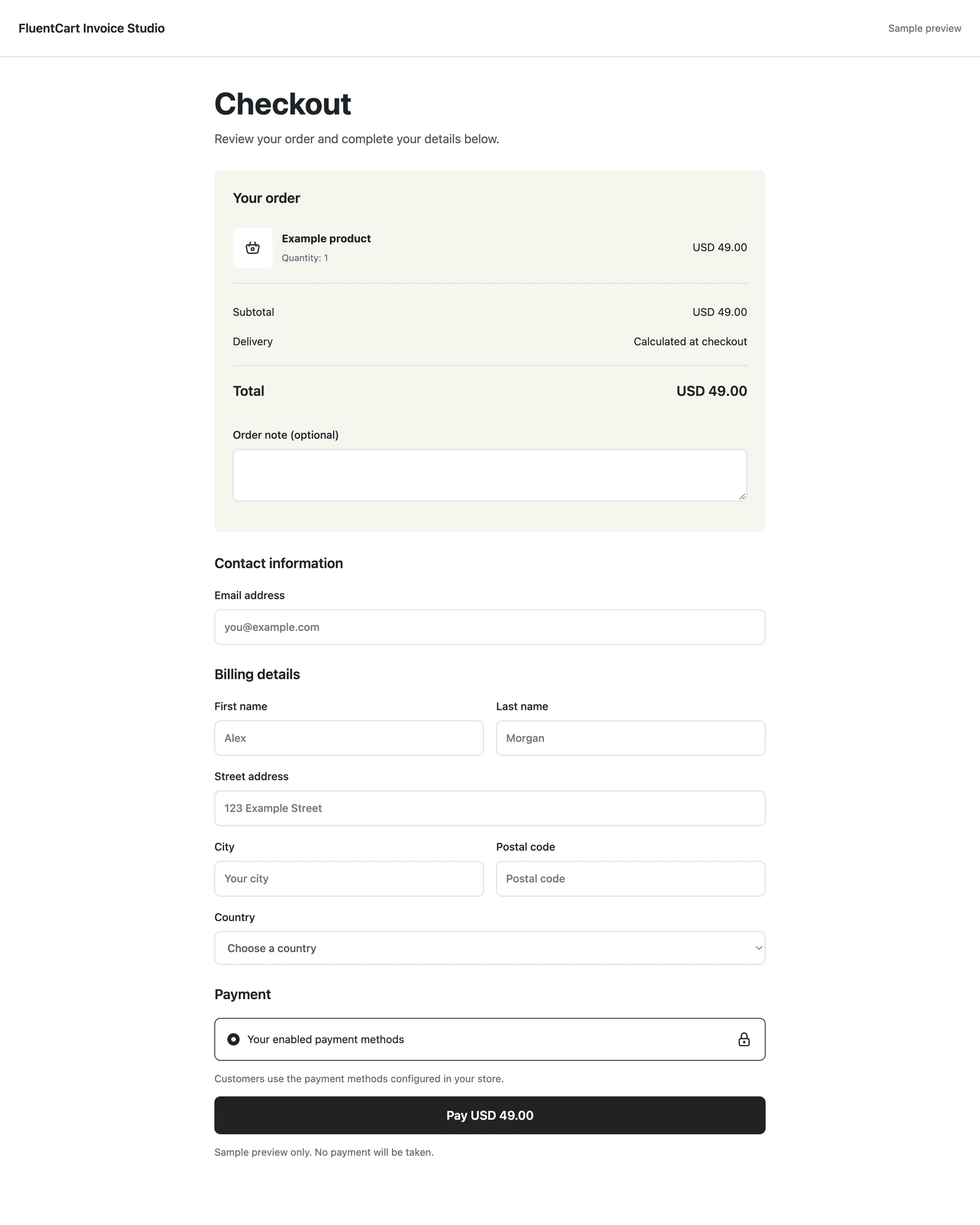
A centered single column, with the order summary above customer details and payment.
A full-width order review above customer details and payment in separate columns.
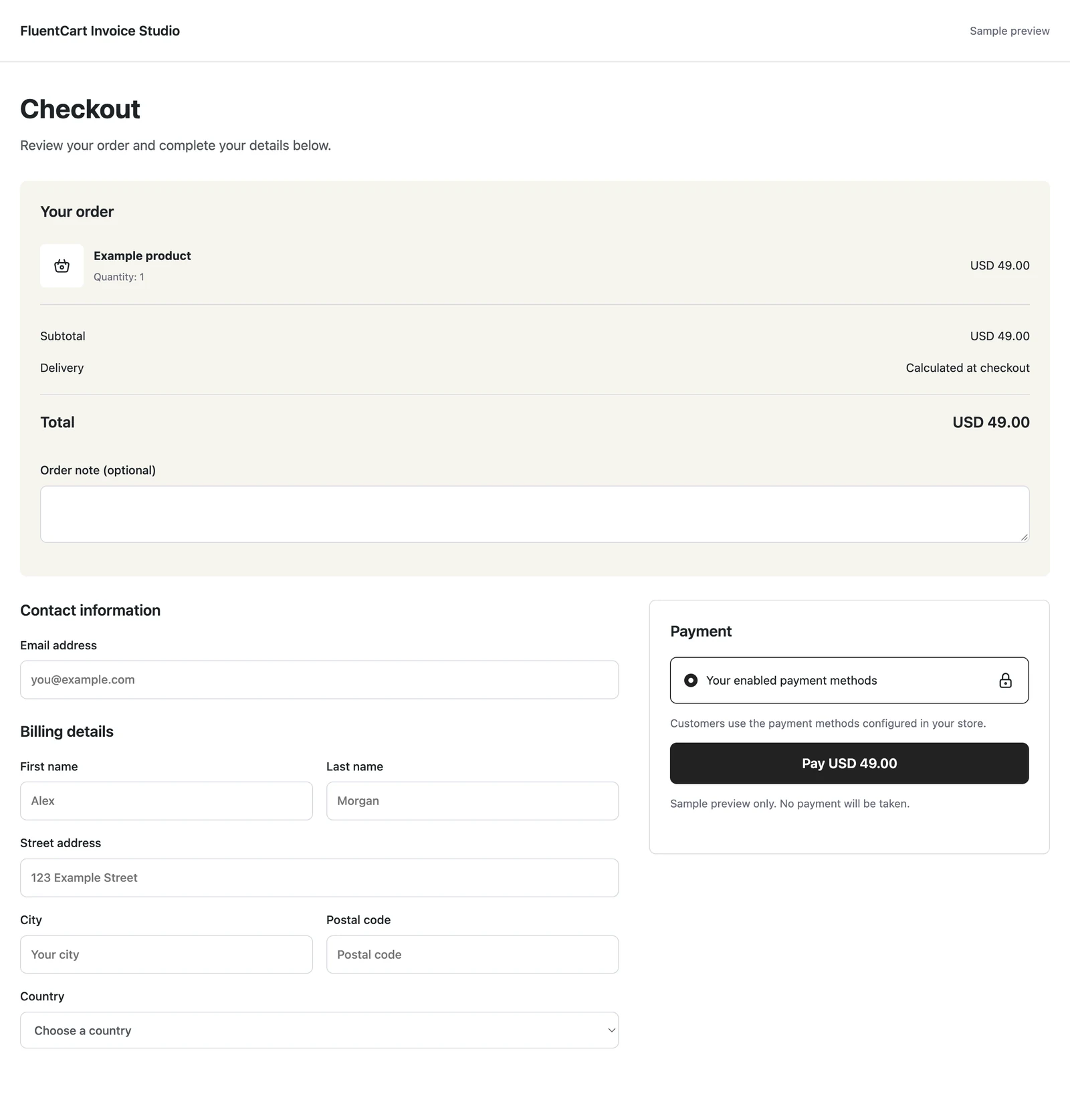
Compare desktop and mobile previews, or use Preview with my cart to see your own products. The sample preview cannot place an order. Your checkout changes only when you select Use this design.
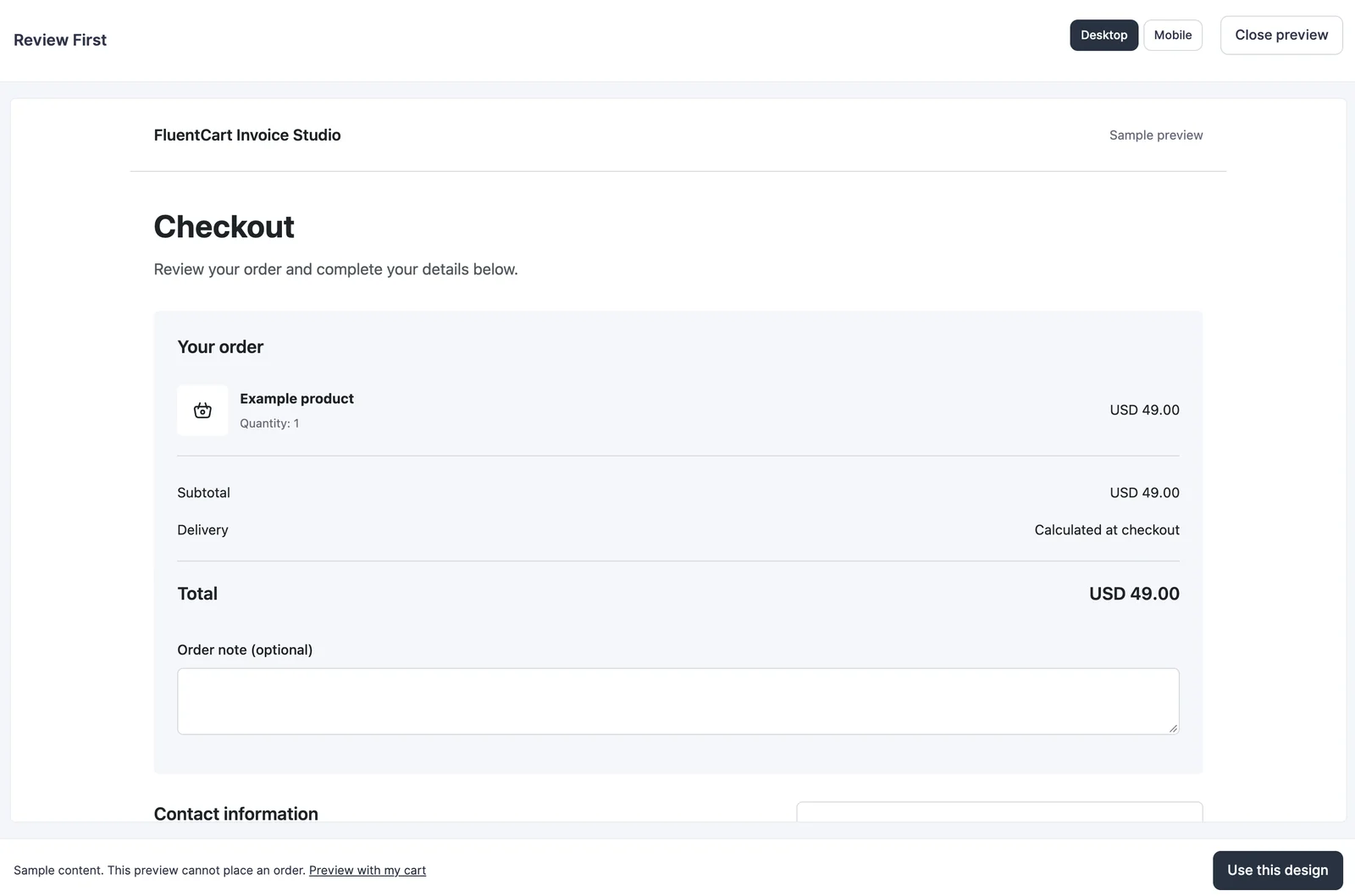
Keep a compact store header or use your theme’s header and footer. Classic themes work too; no Site Editor is required.
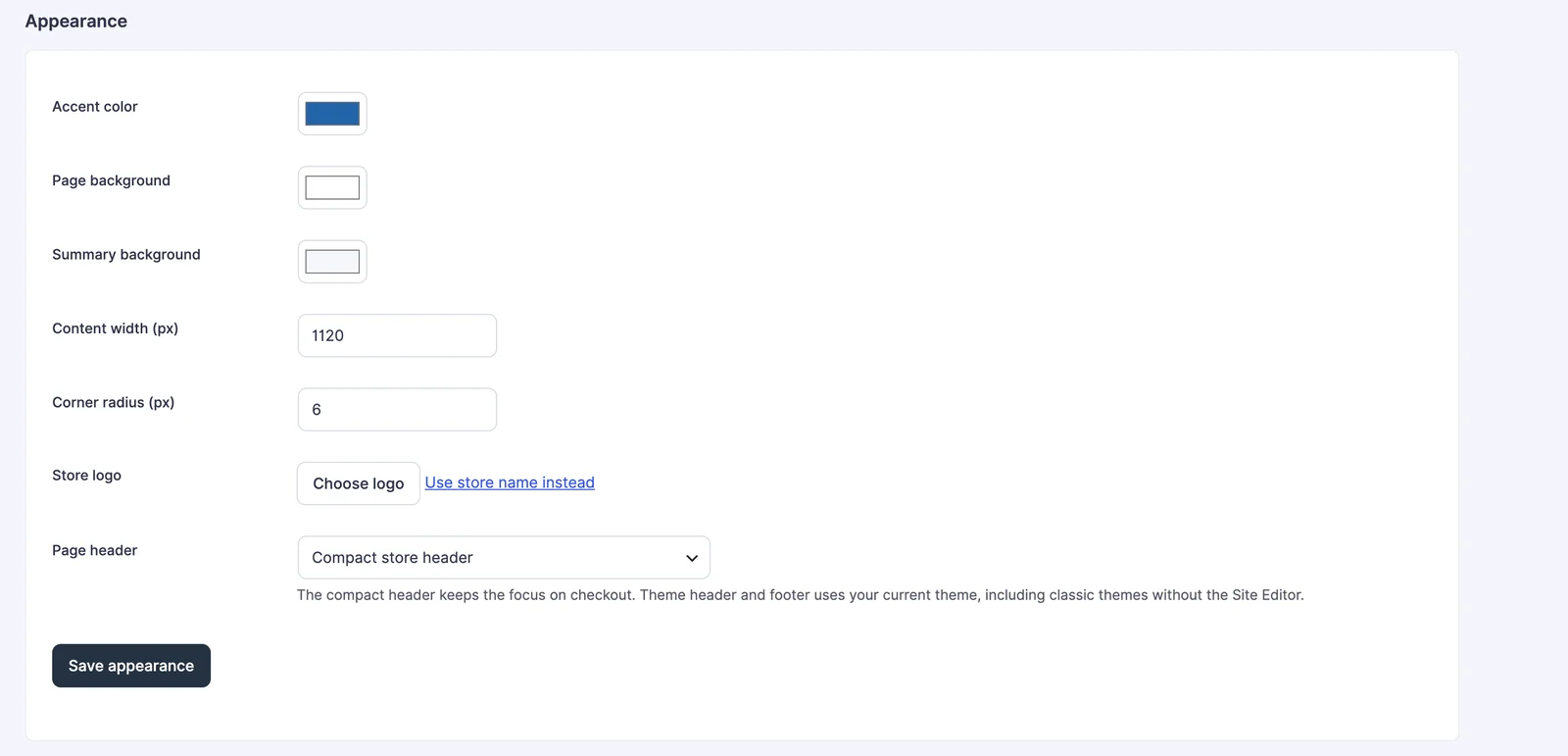
Warm Split applies its matching palette when selected. Save appearance changes afterward to customize it. Use FluentCart default to return to your original checkout.
FluentCart still handles checkout processing, shipping, taxes and payments. Add the optional fields and delivery tools your store needs.
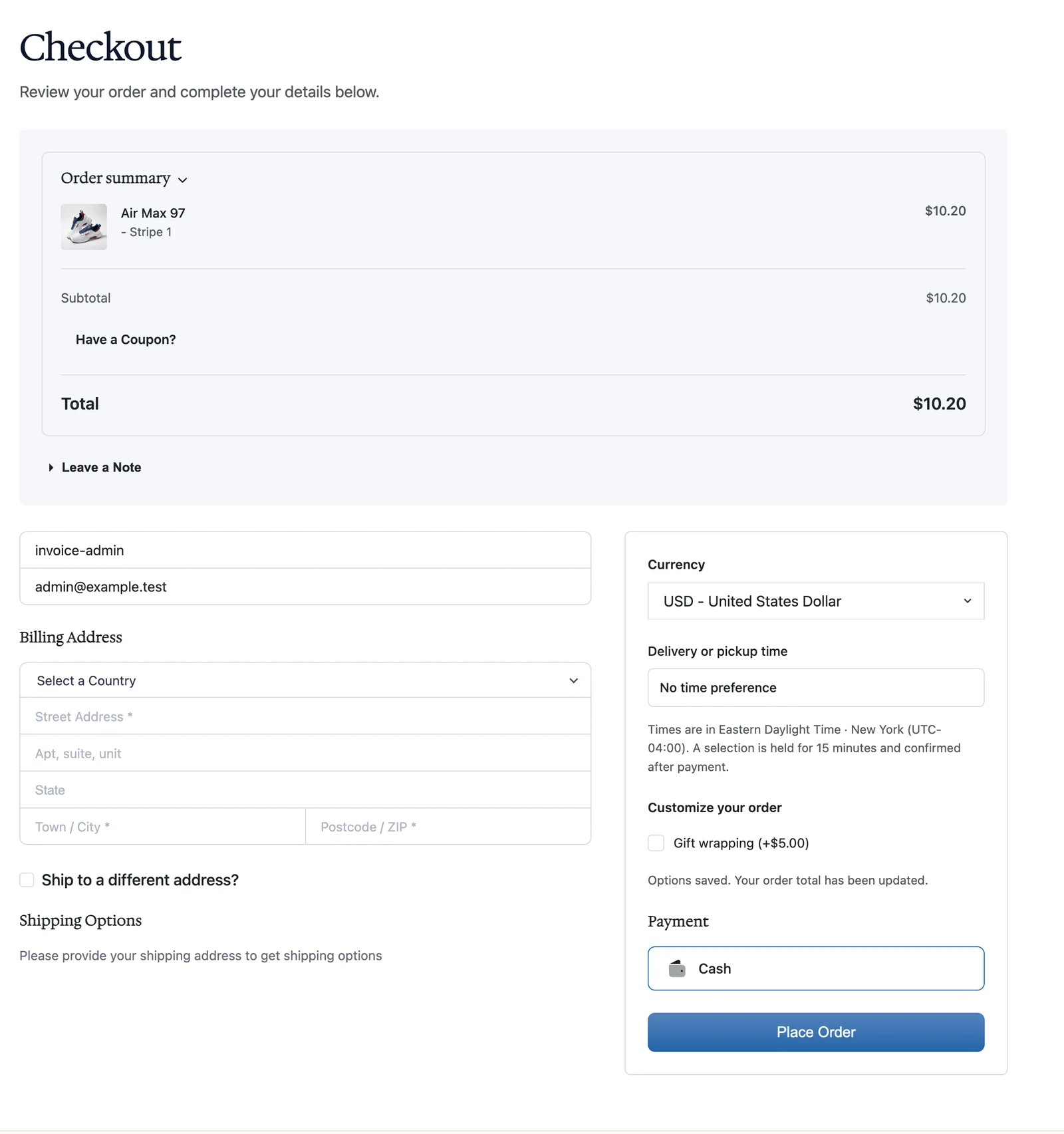
Your existing checkout stays unchanged until you explicitly choose a design.
Choose exact regional prices, automatic conversion, or a mix of both. Keep payment methods aligned with the selected currency.
Agree on the work first. Give the customer a proposal to accept, then a clear route to payment.
1
Add the quote block or shortcode. Search for a product or leave the form universal.
2
Add catalog products or custom work, agreed prices, item images and private notes.
3
Send the offer with a valid-through date. Acceptance creates the payable invoice.
4
Share a payment link, send reminders, repeat the invoice on a schedule or take a deposit first, and manage the native FluentCart order.
Create standalone invoices too. Issuing and emailing are separate actions, and paid invoices keep their preview link.
Help customers keep a product in mind, rebuild a shopping list or hear when a sold-out option returns.
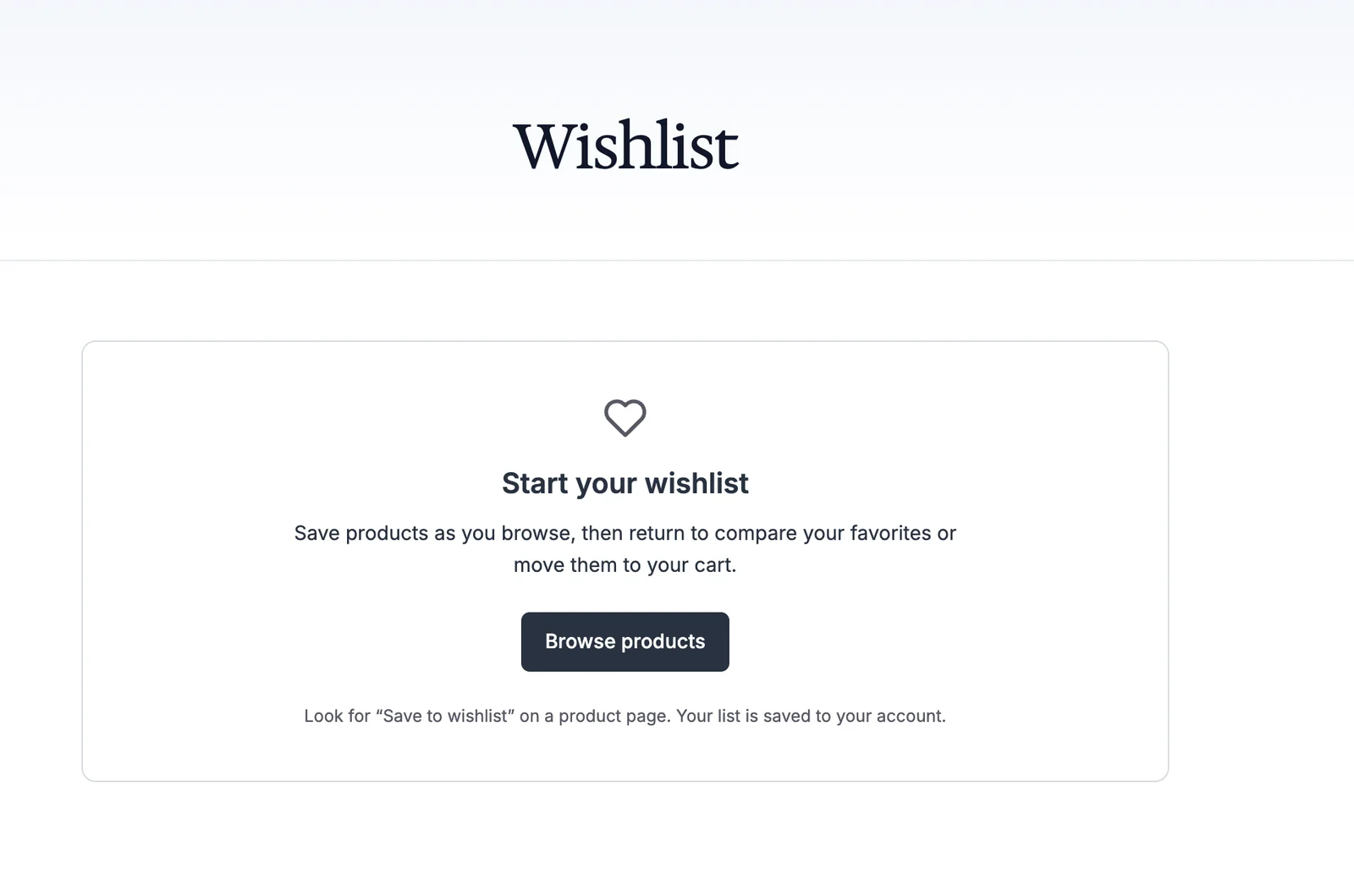
Wishlists and saved carts keep product references, not a promise of the old price or reserved stock.
Find the feature for the job. Configure it, keep its settings and leave the rest switched off.
All 27 modules are included. Use the setup guides to configure the tools that fit your store.
Exact local prices, conversion, automatic currency selection and payment gateway routes.
Feature detailsSetup guide for Multi-Currency CheckoutReplace a zero-price display with a label such as FREE or Complimentary.
Feature detailsSetup guide for Free Price TextControl price visibility and purchasing by sign-in state or WordPress role.
Feature detailsSetup guide for Hide Price Until LoginShow quantities from eligible store orders with your own text and display threshold.
Feature detailsSetup guide for Sold Count DisplayExplain actual low stock with configurable thresholds and messages.
Feature detailsSetup guide for Stock Urgency LabelsSet minimum and maximum cart quantities, with variation overrides and input increments.
Feature detailsSetup guide for Min/Max QuantityChoose purchase-button wording for products, variations and buying contexts.
Feature detailsSetup guide for Custom Add to Cart TextKeep a FluentCart product page and send the purchase to an external destination.
Feature detailsSetup guide for External ProductA product details table for dimensions, colors, file type, pages or ISBN, filled in from FluentCart where it already knows them.
Feature detailsSetup guide for Product EnhancementsBill customers once or on a schedule, take deposits, and send payment links and reminders.
Feature detailsSetup guide for Custom InvoicesCollect inquiries, send proposals and turn accepted offers into payable invoices.
Feature detailsSetup guide for Request a QuotePreview five ready-made designs and activate one without editing the checkout page.
Feature detailsSetup guide for Checkout BuilderConsent checkboxes, a shorter digital checkout, your own field names, a trust block and checkout answers after purchase.
Feature detailsSetup guide for Checkout EnhancementsA plan picker and FluentCart's checkout form on any page, with a separate cart for each visitor.
Feature detailsSetup guide for On-page CheckoutOpen FluentCart's checkout in a modal from any Buy Now button, product link or checkout link.
Feature detailsSetup guide for Modal CheckoutPolar and Paddle in FluentCart's payment settings, with the gateway handling sales tax and VAT.
Feature detailsSetup guide for Payment GatewaysAdd free or paid fields with product targeting, required answers and conditions.
Feature detailsSetup guide for Product Add-ons & Checkout FieldsOffer dated time slots with capacity, cutoffs and closed-date rules.
Feature detailsSetup guide for Delivery & Pickup SchedulingSave selected product options as a guest or signed-in customer.
Feature detailsSetup guide for WishlistKeep reusable lists and rebuild eligible purchases using current catalog data.
Feature detailsSetup guide for Saved Carts & Order AgainSend a confirmed subscriber an availability message for a sold-out option.
Feature detailsSetup guide for Back-in-Stock AlertsCustomers earn cash commission when friends buy with their personal coupon, with refund holds, review and manual payouts.
Feature detailsSetup guide for Coupon AffiliatesSell non-shipping work, show after-payment instructions and keep fulfillment in view.
Feature detailsSetup guide for Service ProductsOpen chosen pages to a product's buyers and hand them links to templates hosted elsewhere.
Feature detailsSetup guide for Page AccessGive supported cart requests and drawer checkout links fresh URLs.
Feature detailsSetup guide for Checkout Cache BusterPayment failure emails, coupon links, scheduled coupons, per-product payment methods and a spam and fraud guard.
Feature detailsSetup guide for Extra EnhancementsLeave FluentCart's storefront files off pages that sell nothing, with page overrides, a cache report and one-click restore.
Feature detailsSetup guide for FluentCart OptimizerNo matching module. Try a broader feature name.
FluentCart remains the commerce engine. GT Extensions adds focused workflows around its products, carts, orders and payment methods.
Each module solves a different store problem. Read what it changes, where it applies and the limits to check before enabling it.
Choose what each customer sees and pays. These modules affect displayed prices, eligible currencies and access to a purchase.
Sell in enabled local currencies while keeping the cart, payment method and order in one currency.
A fixed INR 799 price can replace a converted INR 800 amount for one variation without changing its USD price.
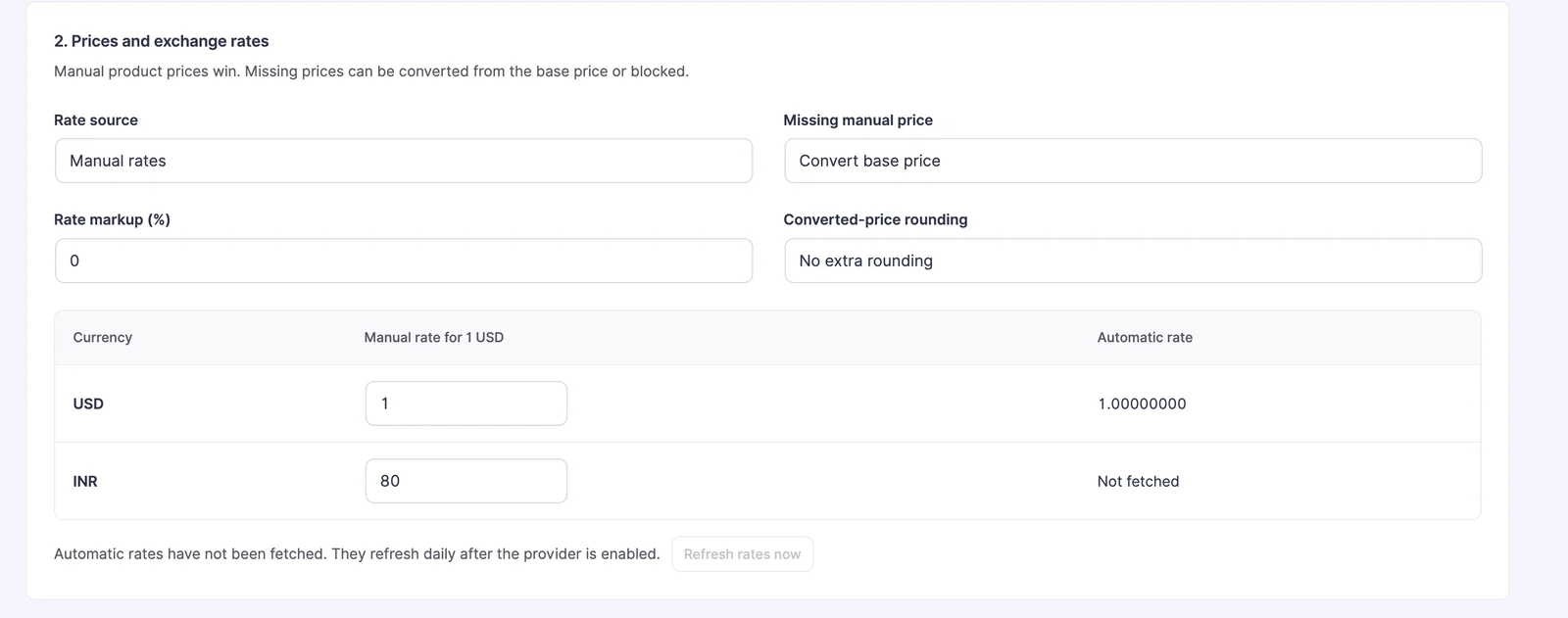
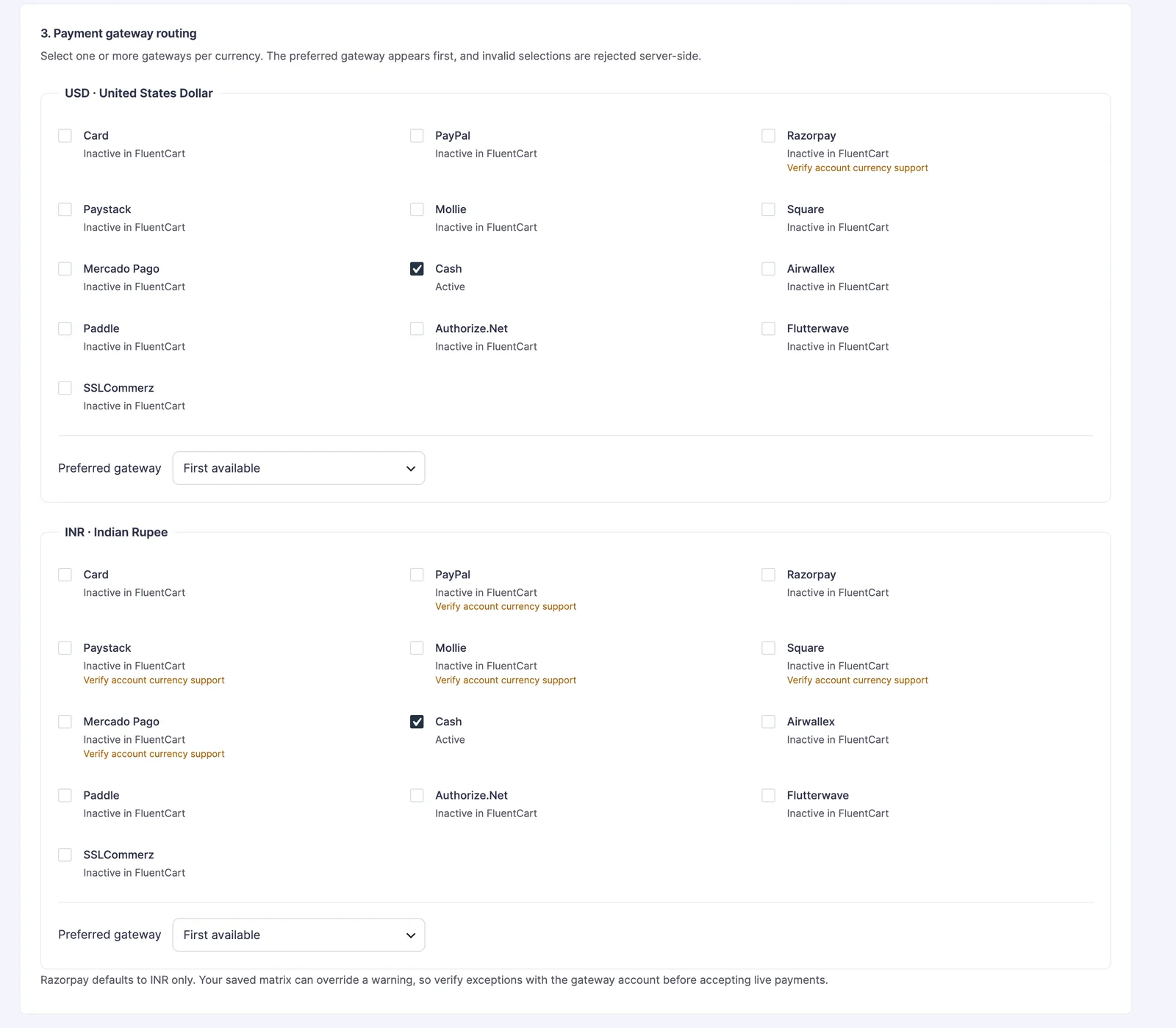
Give a genuinely zero-priced product a clearer price label.
Show prices only to the customers or WordPress roles you select.
Explain the offer on a product page, set meaningful purchase boundaries and keep the buying action accurate.
Show the quantity sold from eligible FluentCart orders.
Give shoppers a useful message when tracked inventory is running low.
Set the smallest and largest cart quantity a buyer can request.
A 10-unit minimum works for a bulk notebook pack, while a 50-unit maximum can stop a single oversized cart.
Name the next action in language that fits the product.
Keep an item in the FluentCart catalog while sending its purchase action to another site.
Use this for a marketplace or affiliate listing. Use Service Products when the customer should pay your own store for work you fulfill.
Show the specifications buyers look for before they buy.
A paperback and its ebook can show page count and ISBN for one option and file type and size for the other.
Shape the checkout, place it where buyers already are, collect the right details and manage what happens after payment.
Choose a ready-made layout without rebuilding your existing FluentCart checkout page.
Collect the consents you need and trim checkout for orders that don't ship.
An ebook store can drop the shipping address and record the EU withdrawal waiver on every digital order.
Let buyers choose a plan and pay without leaving your landing page.
A sales page can end with monthly and yearly plan cards and a working checkout form right below them.
Keep buyers on the page they were reading while they pay.
A review post can carry a Buy Now button that opens checkout in place, so the reader never leaves the article.
Ask for order details or offer optional paid extras at checkout.
Gift wrapping can add a fee and reveal a required gift message only when the buyer selects wrapping.
Let physical-order customers choose an available delivery or pickup window.
Sell work that your team completes after the customer pays.
A website audit can be sold as a service with a receipt that explains how the customer submits the site URL and brief.
Open chosen pages to the customers who buy a product.
A Notion template library can live on a private page that only its buyers can open, with the template links waiting under My pages.
Keep supported guest cart requests and cart-drawer checkout links fresh.
Take payments through merchant-of-record gateways, catch failed payments early and keep store code off pages that sell nothing.
Add merchant-of-record gateways that calculate, collect and remit sales tax and VAT for you.
A digital product store selling worldwide can hand sales tax and VAT to Polar or Paddle as the seller of record.
Read the Paddle setup guide · Connect a second Polar or Paddle account
Small fixes for everyday store problems, each with its own switch.
A holiday coupon scheduled weeks ahead starts working at midnight on its start date, with nobody opening the admin.
Load FluentCart's storefront bundle only where you sell.
On a test store, a plain content page went from 6 FluentCart files (60.6 KB) to none, while shop, product, checkout and account pages kept every file.
Turn an agreed amount into a payable FluentCart order without forcing every custom job into a public product.
Bill a customer for agreed work, once or on a schedule, with a route to payment.
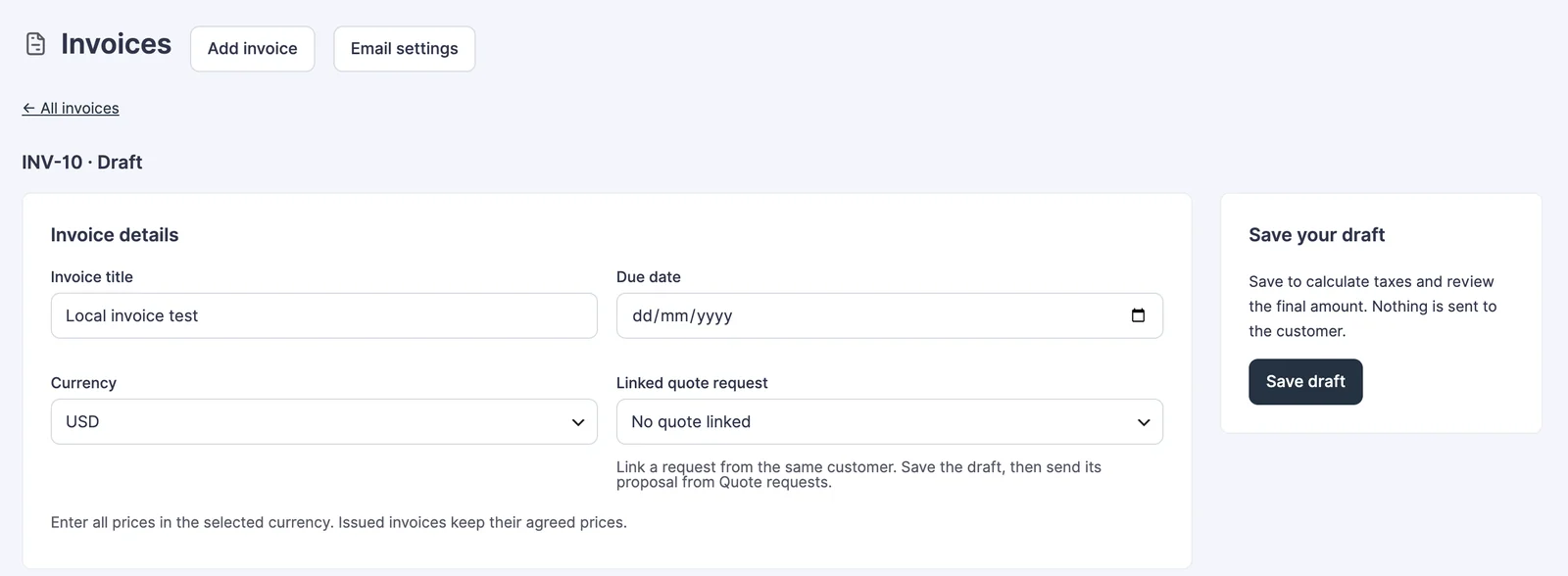
Read the Custom Invoices setup guide · Recurring invoices · Deposits
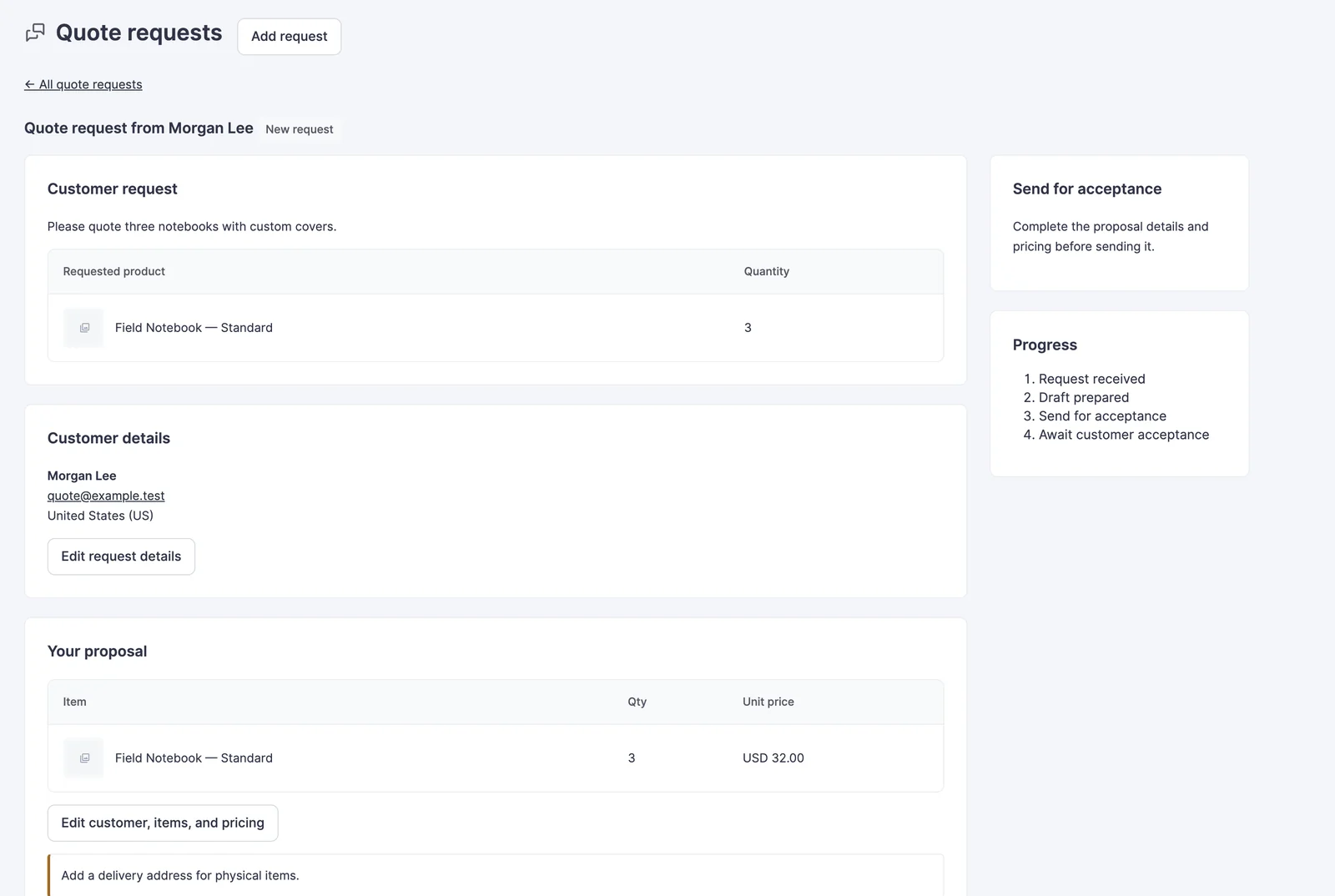
Collect a customer request, send an offer and make acceptance lead to payment.
[gtfc_request_quote] shortcode.A made-to-order product can start with a request, move to an agreed proposal and reach checkout only after acceptance.
Help people find the right item again, repeat a purchase, hear when the exact option they wanted returns or send a friend your way.
Save the selected product option for a later visit.
[gtfc_wishlist] shortcode to a page customers can find.Give signed-in customers reusable shopping lists and a way to rebuild eligible past purchases.
[gtfc_saved_carts].A repeat office-supply buyer can restore a notebook and pen list, then confirm current prices before paying.
Let a shopper request an email for one sold-out product option.
Turn happy customers into referrers with a personal coupon and a cash commission.
A customer shares their code with a colleague, who saves 10% on a license while the customer earns a commission after the refund period.
Follow the setup, understand the choices and borrow a practical example. The docs cover every module, plus licensing, hooks and API references.
Documentation links sit beside module settings and inside their workspaces, so the relevant guide is close at hand.
The video introduces the product. The docs cover the complete feature set. Watch on YouTube.
Activate the plugin and your license. Use a staging store when introducing new checkout behavior.
Search the module list, open Configure and save. Disabled modules keep their settings.
Check the product, cart and checkout together. Test gateway and email delivery in your own setup.
Start with annual access or choose a lifetime license. Both cover unlimited site activations.
Renew yearly
Updates and support while your subscription is active.
Renews yearly until cancelled.
One payment
Keep your license without a recurring renewal.
No recurring license payment.
14-day unconditional refund period. Prices shown in USD; checkout shows supported local currencies and the final amount before payment.
Your account provides the plugin download and license key. Contact product support for setup questions.
Everything here is quick to set up, light on your pages and built to do one real job well. I only charge for the tools that can make you money. The rest are free.

I design, build and support every product on this site myself. When you email me, the person reading it is the one who wrote the code.
I’d rather ship one tool you’d miss if it vanished than ten that sit in your plugin list doing nothing.
18+years building websites, plugins and stores, since 2008
Switch a feature off and it loads nothing. What does load stays small. A tool that replaces a plugin shouldn’t make your pages slower.
Clear screens, sensible defaults and settings written in plain English. If you need a tutorial for the basics, that’s my design mistake, not yours.
Full keyboard support, visible focus, proper labels and text you can actually read. When more people can use your store, more people can buy from it.
My paid tools help you sell, renew, license or convert. If one just sits in your stack, I haven’t done my job.
I won’t charge for anything that can’t make you money. The free tools get the same care as the paid ones, down to the last setting.
Clear boundaries before you add something to your store.
Yes. GT Extensions works alongside FluentCart Free or Pro. FluentCart itself is installed separately; a feature that depends on a Pro capability still needs that capability in FluentCart.
No. Checkout Builder is optional, and enabling it does not select a design. Your current checkout stays in place until you choose a ready-made layout. You can switch back to FluentCart default.
No. The ready-made designs work with classic themes and with the block editor enabled or disabled. You do not need Full Site Editing to select one.
All 27 modules are included: pricing and storefront controls, product details, invoices with schedules and deposits, quotes, checkout designs and fields, on-page and modal checkout, Polar and Paddle payments, delivery slots, wishlists, saved carts, stock alerts, service products, buyer-only pages, coupon affiliates and store-speed tools. Each module is optional, so you can enable only the features your store needs.
Every module has a setup guide in the GT Extensions docs, and its settings link to the same guide. The changelog lists what changed in each release.
No. It selects a fixed local price or converts the numeric amount, then uses the payment routes permitted for that currency. A complete cart and order use one currency. Your gateway account must support the transaction, so check each route in its test mode.
Recurring invoices, yes. Custom Invoices can repeat an issued invoice every 1 to 12 weeks, months or years, take a deposit first and send reminders around the due date. There is no appointment calendar: Service Products adds non-shipping fulfillment and receipt instructions, and delivery slots are for eligible physical-order delivery or pickup. For service appointment scheduling, see Core Bookings.
Your update and support entitlement ends unless you renew. The plugin does not disable the module code solely because the license expired. A lifetime license has no recurring license payment.
Yes. Stackless for WooCommerce is the WooCommerce counterpart. It has the same storefront, invoice, quote, checkout and currency tools, plus subscriptions, built-in Stripe, PayPal, Polar and Paddle gateways and software licensing, at $99 lifetime or $39 a year (early adopter price) on unlimited sites. The free Stackless theme styles every one of its modules.
There is a 14-day unconditional refund period. Use Product Support for help or a refund request. Test new workflows on a staging copy before introducing them to a working checkout.
Start with the feature your customers need next.
Unlimited sites. Optional modules. Your FluentCart workflow.
GT Extensions
$99 lifetime · $39/year option