
Open Checkout in a Modal from Any Button
A Buy Now button usually takes the buyer away from the page that sold them: off the sales page, onto a checkout page that looks nothing like it, and sometimes through a cart first. Every one of those jumps is a moment where the buyer can stop and think better of it.
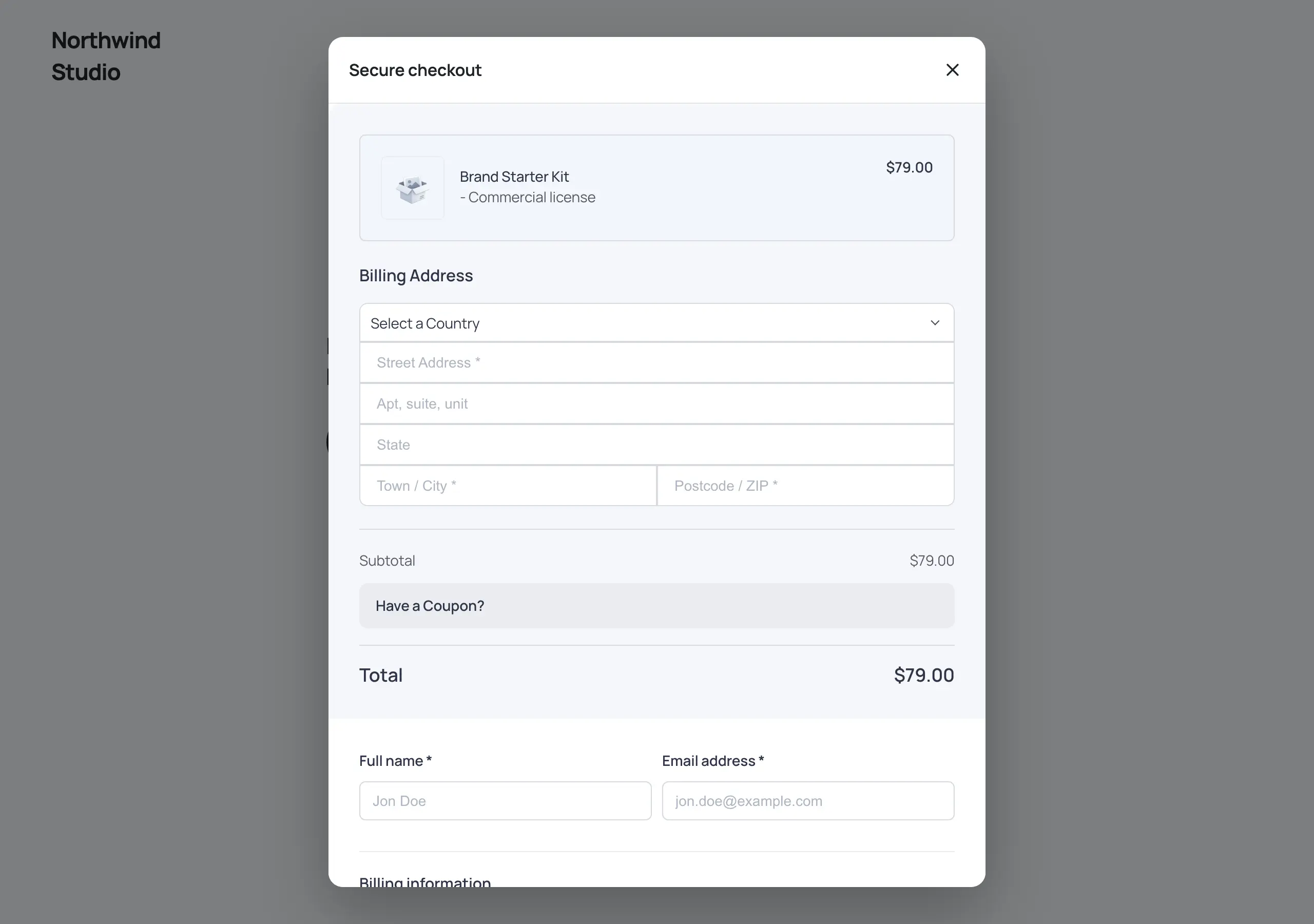
Modal Checkout keeps them where they are. Any Buy Now button, product link or checkout link opens FluentCart’s own checkout in a modal on the same page, and the buyer only leaves once they have paid. It needs FluentCart 1.6.4 or newer, and the module stays off until you turn it on.
Turn It On
- Go to FluentCart → GT Extensions, enable Modal Checkout and save.
- Pick the buttons that should open the modal: add the
gtfc-modal-checkoutclass to the ones you choose, or switch on Open every FluentCart Buy Now button in a modal in the module settings.
Nothing else changes on the page. A button keeps its look and its link; the class only changes what a click does.
Add the Class to a Button
Block editor
- Select a Button block.
- Open Advanced in the block sidebar and type
gtfc-modal-checkoutin Additional CSS class(es). - Link the button to a product page, a Buy Now link or your checkout page, then update the page.
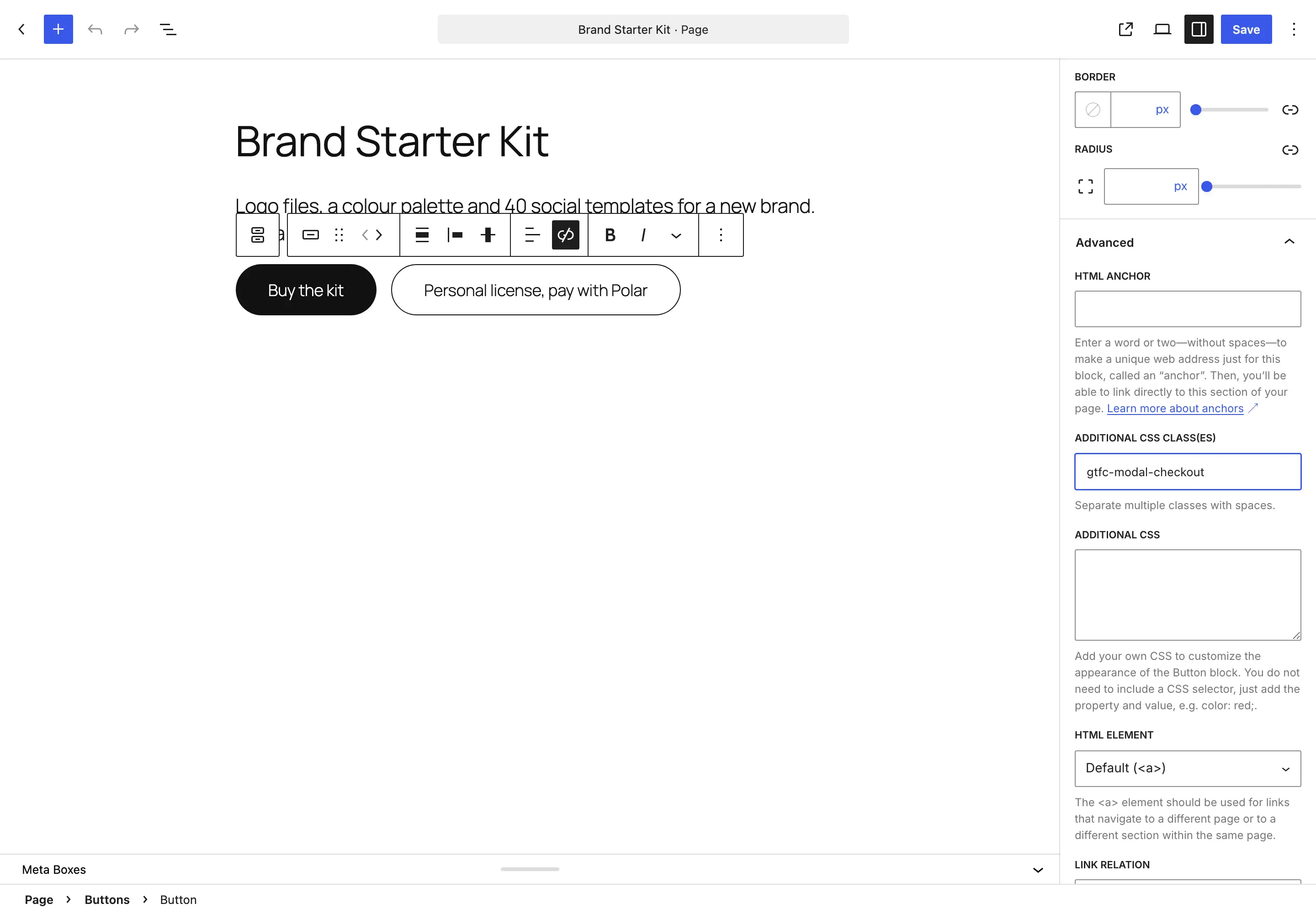
WordPress puts that class on the wrapper around the button, not on the link itself. Modal Checkout looks for it on the button and on anything around it, so this works as-is.
Elementor, Bricks, Divi and other builders
Put the same class in the button’s CSS classes field. It can sit on the button or on the widget wrapper.
Plain links and places without a class field
- Add
#gtfc-checkoutto the end of the link’s address, for example/?fluent-cart=instant_checkout&item_id=34&quantity=1#gtfc-checkout. - Link to
#gtfc-checkout=34on its own to sell variation 34. Variation IDs are in FluentCart → Products → a product → Pricing. ?gtfc_modal=1in the address works too.
What Each Button Checks Out
The modal checks out whatever the button already points to:
| The button links to | The modal checks out |
|---|---|
A Buy Now link (?fluent-cart=instant_checkout&item_id=34&quantity=2) | That variation and quantity |
| FluentCart’s own Buy Now or Add to Cart button | The variation and quantity chosen on the page |
#gtfc-checkout=34 | Variation 34 |
#gtfc-checkout on a product page | The variation and quantity chosen in that page’s buy section |
| A product page | The product’s default variation, or its first one on sale |
| The checkout page | The visitor’s own cart |
A button the modal can’t handle, like a link to another site or to a page that is not a product, keeps working as a normal link. Ctrl, Cmd and Shift clicks still open a new tab.
Open Every Buy Now Button in a Modal
If you want the modal everywhere, skip the class and switch the setting on instead:
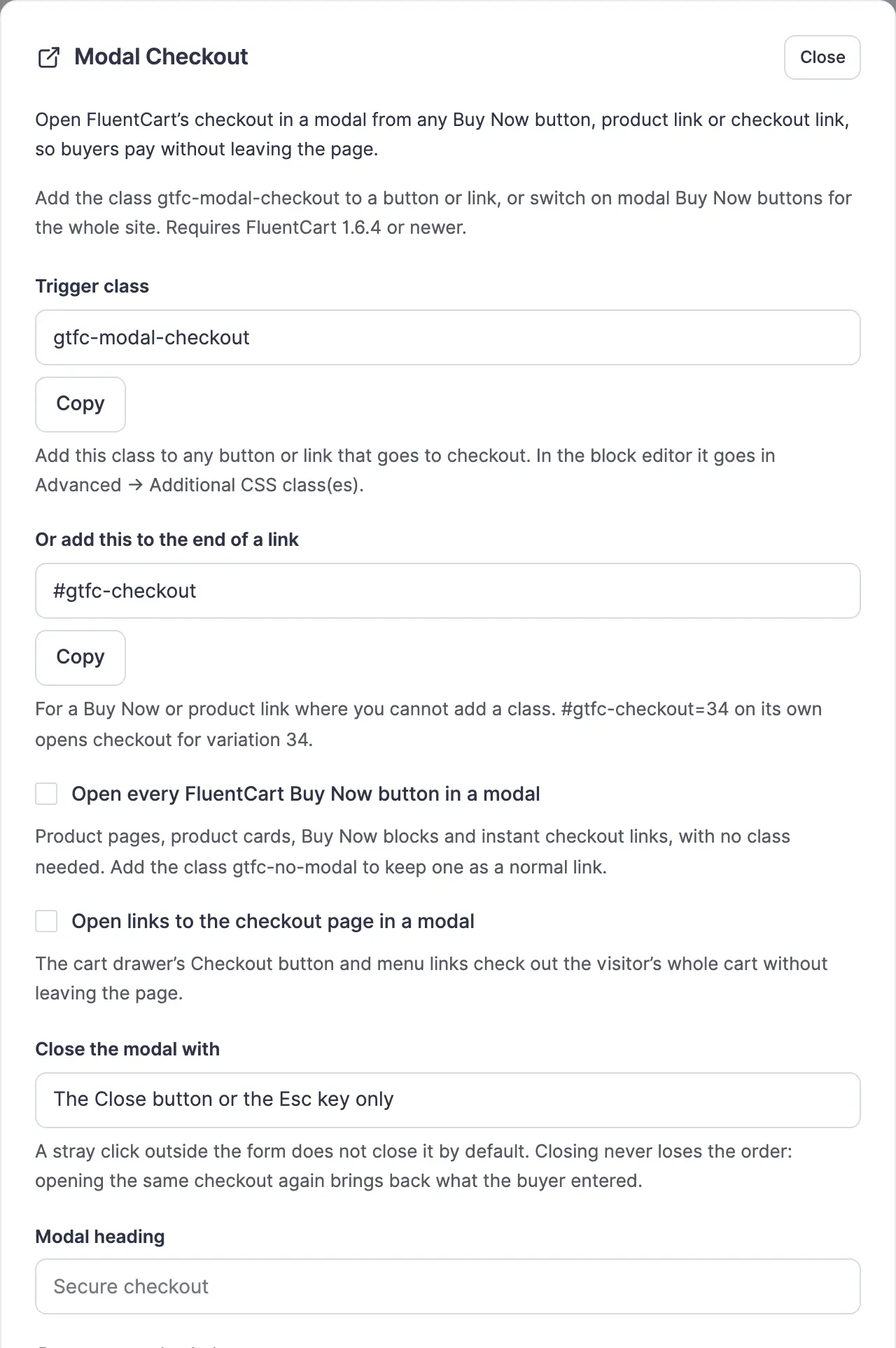
- Open every FluentCart Buy Now button in a modal covers product pages, product cards, Buy Now blocks and instant checkout links. Off by default.
- Open links to the checkout page in a modal covers the cart drawer’s Checkout button and menu links, and checks out the visitor’s whole cart. Off by default.
- To keep one button as a normal link while these are on, give it the class
gtfc-no-modal. - Close the modal with is the Close button or the Esc key by default, so a stray click outside the form doesn’t close it. You can also allow a click outside.
- Modal heading replaces “Secure checkout” at the top of the modal.
- Apply a ?coupon= code from the page address is on by default. A
couponin the button’s own link wins over the page address.
Offer Only Some Payment Methods
Sometimes a button should take one kind of payment only: a “Pay with PayPal” button, or a button for buyers in the EU that goes to your EU Polar account. Add a pay-via- class next to gtfc-modal-checkout:
gtfc-modal-checkout pay-via-stripe
gtfc-modal-checkout pay-via-stripe pay-via-paypal
The first offers only Stripe. The second offers Stripe and PayPal. A button with no pay-via class offers every payment method, as usual.
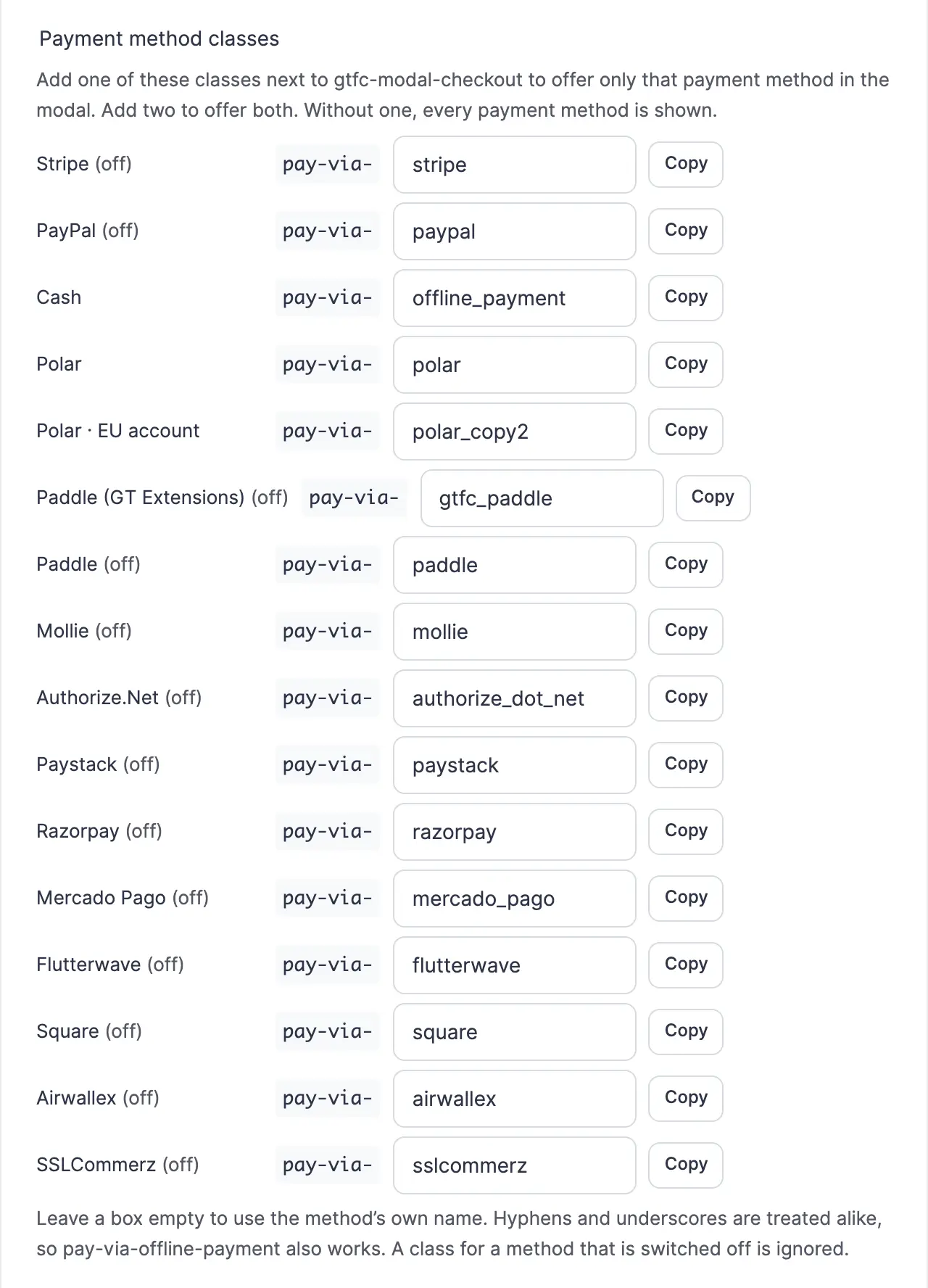
- Each class is
pay-via-plus the payment method’s name in FluentCart:pay-via-stripe,pay-via-paypal,pay-via-offline_payment,pay-via-polar,pay-via-gtfc_paddle. The module settings list every method with a Copy button. - Hyphens and underscores are treated alike, so
pay-via-offline-paymentworks too. - You can rename any class in the settings, for example
pay-via-cashfor offline payment. - Copies of Polar and Paddle (GT Extensions) each get their own class from their own name, such as
pay-via-polar_copy2, and show in the list with their label. That is how one button sends buyers to a particular Polar organization or Paddle account.pay-via-polarmeans the original Polar only, and renaming a copy’s label doesn’t change its class. - The choice holds through the whole checkout: changing the address or applying a coupon keeps it, and an order placed with a method the button didn’t offer is refused.
- When only one method is left, FluentCart hides the method picker and pays with that method, the same way its checkout works on a store with a single payment method.
- A class for a method that is switched off, or that can’t take the order (a currency it doesn’t support, for example), is ignored, and every method is shown instead.
What Buyers See
- A centered panel up to 640px wide on larger screens, and a full-screen sheet on phones.
- A short loading state, then FluentCart’s own compact checkout: order summary, address, coupon field, payment methods and Place order. Taxes, shipping and coupons work exactly as they do on your checkout page.
- After Place order, the whole page moves to the receipt, or to the gateway’s payment page for gateways that take payment on their own site.
- Closing the modal keeps the order. Opening the same checkout again in the same browser tab brings back what the buyer typed.
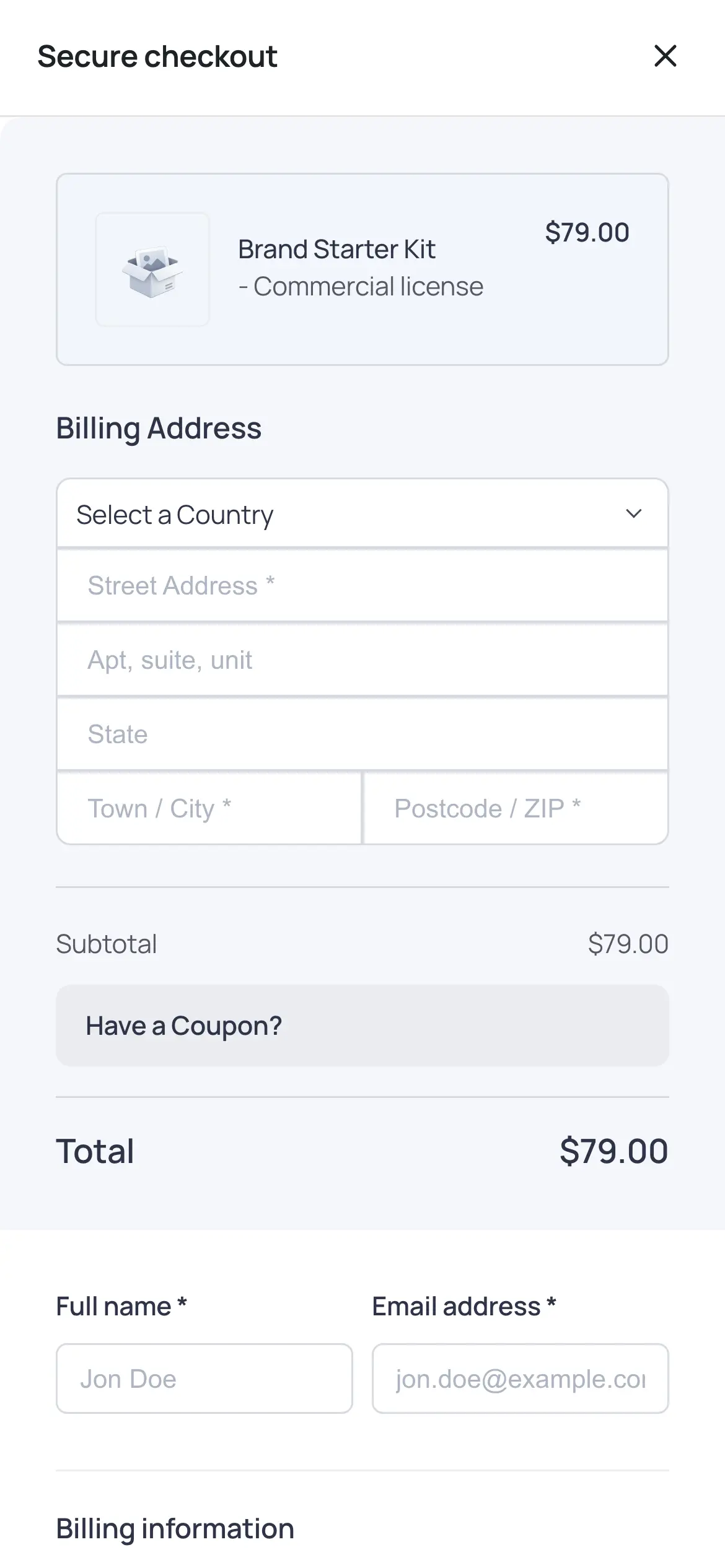
The modal works with a keyboard and screen readers: focus moves into it and stays there, Esc closes it even from inside the form, and focus goes back to the button that opened it. Visitors who prefer reduced motion get no fade.
Good to Know
- Pages stay cacheable. Nothing on the page depends on the visitor, and a cart is only made when a modal opens, never when a page loads.
- The script is small and deferred, and the modal’s stylesheet only loads the first time a modal opens.
- Each visitor gets their own cart for the plan, kept apart from their store cart, and one connection can open at most 30 new carts in 10 minutes.
- The checkout page itself never opens a modal.
- FluentCart can also open its own modal for Buy Now buttons set to instant checkout. When a button is picked by Modal Checkout too, only the GT Extensions modal opens.
- Cloudflare Turnstile and similar challenges show inside the modal, the same as in FluentCart’s own compact checkout.
- Modal Checkout uses the same embedded checkout as the On-page Checkout block, and works with either module turned on.
For Developers
Data attributes on a tagged element set the checkout directly: data-gtfc-item="34", data-gtfc-quantity="2" and data-gtfc-coupon="CODE". You can also open and close the modal from your own script:
gtfcModalCheckoutApi.open(34, 1, 'CODE', ['stripe']); // variation, quantity, coupon, payment methods
gtfcModalCheckoutApi.openCart();
gtfcModalCheckoutApi.close();
Each step fires a gtfc:modal-checkout event on document. Its detail.action is open, ready, error, close or complete, with mode, item, quantity, coupon and methods alongside:
document.addEventListener('gtfc:modal-checkout', (event) => {
  if (event.detail.action === 'open') { /* checkout started */ }
});
When Google Tag Manager’s dataLayer is on the page, the same steps are pushed as gtfc_modal_checkout events.
| Hook | Type | Use |
|---|---|---|
gtfc/modal_checkout/enabled | filter | Return false to keep the modal script off a page. |
gtfc/modal_checkout/config | filter | The settings passed to the page: triggers, close behavior, heading, payment method classes. |