
How to Give Buyers a Private Download Page
You sell a template pack, a course workbook or a bundle of resources, and after checkout the buyer gets a receipt and a download button. What they don’t get is a place to come back to: the setup notes, the bonus files, the Notion link and the update you added last month.
A private download page for buyers fixes that. It’s one page on your site that only people who bought the product can open, with everything they need in one place. Buyers sign in and find it under My pages in their account, and anyone else sees a notice with a link to buy.
GT Extensions for FluentCart is my add-on plugin for FluentCart, and its Page Access module does this. I’ll build one buyers’ page from start to finish, including the one thing about files you should know before you upload anything.
Before You Start
You need 3 things in place:
- FluentCart 1.6.4 or newer.
- Customer accounts at checkout. Buyers sign in to open the page, so check that FluentCart’s account creation setting gives a guest buyer an account. Otherwise a buyer pays for a page they can’t open.
- The product, published in FluentCart.
Decide Where the Files Live
Page Access decides who can open a page. It doesn’t protect the files linked from that page. A PDF uploaded to your Media Library keeps its normal address, and anyone who has that address can open it.
So it is wise to split the job in two:
- The files go in FluentCart’s own product downloads, which buyers get through their account.
- The page holds everything around them: setup steps, how to use the files, bonus material, videos and links to outside tools.
For a Notion template or a shared folder, the page shows the link only to buyers. The other service still decides who can open it, which the links section below covers.
Turn On Page Access
- Go to FluentCart → GT Extensions, enable Page Access and click Save Settings.
- Click Configure on the Page Access row and review the settings.
- Click Save settings.
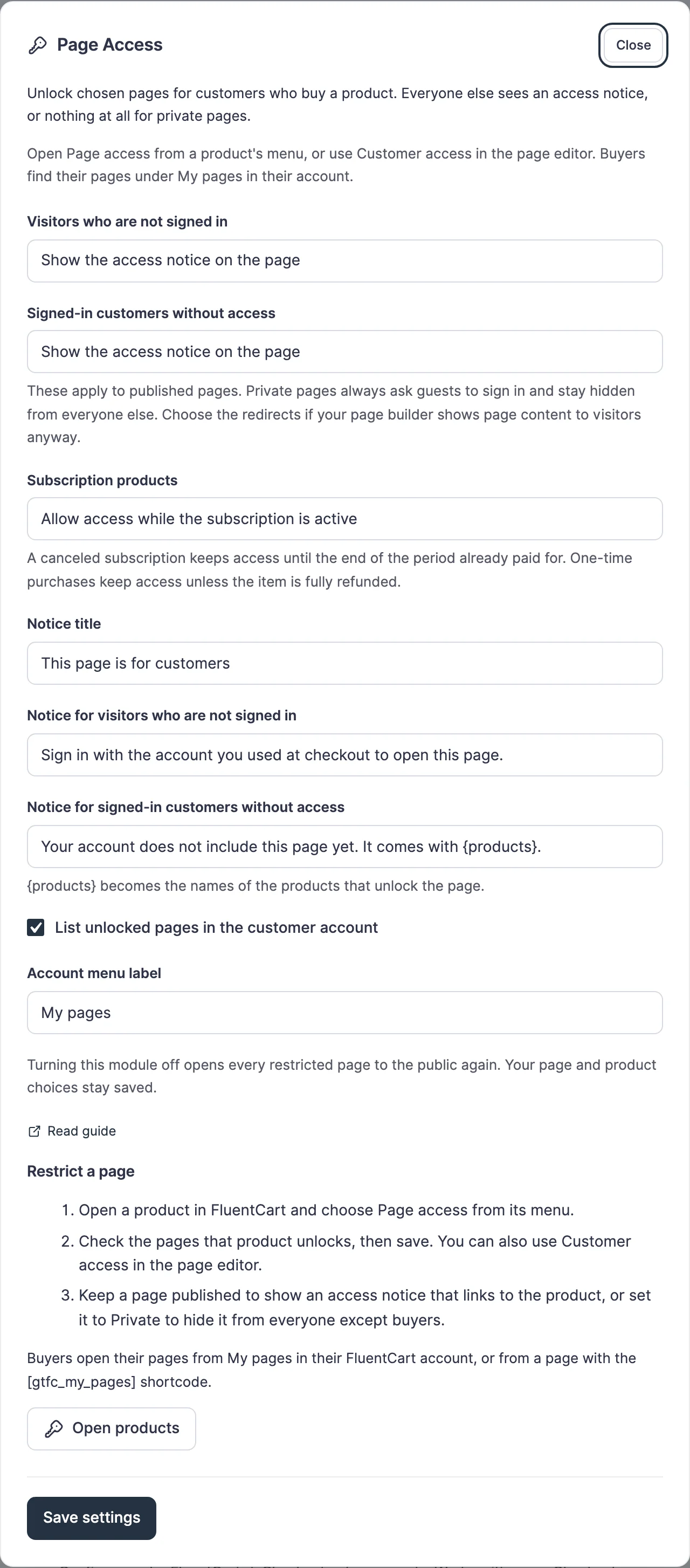
The defaults suit most stores. These are the ones worth a look:
| Setting | Default | When to change it |
|---|---|---|
| Visitors who are not signed in | Show the access notice on the page | Pick the login page if you’d rather send them to sign in |
| Signed-in customers without access | Show the access notice on the page | Pick the product page to turn the visit into a sale |
| Subscription products | Allow access while the subscription is active | Pick Keep access after the first payment for lifetime access |
| List unlocked pages in the customer account | On, labeled My pages | Rename the menu, such as “My downloads” |
Create the Buyers’ Page
Create a normal WordPress page, such as “Brand Kit Downloads”, and write it for someone who just paid: what’s included, where to start and how to get help.
Set the page to Private when it should stay out of sight completely. A private page stays out of search results, sitemaps and archives, and only buyers and your team can open it. Keep it Published when you want the title visible, because then a non-buyer sees a notice that links to the product, which works as a small sales page.
Lock It to the Product
- Open the product in FluentCart → Products.
- Choose Page access from the product’s menu.
- Under Pages on this site, check the buyers’ page. The filter above the list finds a page by its title.
- Click Save page access.
The same link works from the other side. In the page editor, the Customer access box lists your products. Checking one locks the page to its buyers. Locked pages carry a Customers only label in your Pages list.
One page can belong to several products. Buying any one of them opens it, which suits a bundle and its single items sharing one page.
Add Links to Outside Resources
The Page access screen also has Links on other sites. Add up to 20 links per product, each with a label and an address starting with https://. Buyers see these under My pages after they buy, and the links never appear on the product page.
These links can’t be locked the way your own page can. The store decides who is shown a link, but anyone who has the address can open it on the other site. A few habits keep that small:
- Use an address that isn’t posted anywhere public.
- In Notion, turn off Search engine indexing and turn on Allow duplicate as template in the Publish settings.
- If a link gets passed around, make a new one, replace it here and turn the old one off. Buyers see the new link straight away.
Where Buyers Find It
Buyers find the page and the links under My pages in their FluentCart account. The menu entry appears once they have at least one page or link to open. To show the same list on a page of its own, such as a “Downloads” page in your menu, add:
[gtfc_my_pages]Check It Works
Test 3 visitors in 3 browser windows:
- Signed out: open the page. You should see “This page is for customers” and a Sign in button, or a login page for a private page.
- Signed in without the product: you should see “Your account does not include this page yet. It comes with” and the product’s name, or a not-found page for a private page.
- Signed in as a buyer: the page opens, and it appears under My pages.
If a guest can still read the page, your page cache may be serving a copy saved before you locked it. Purge that one page in your cache plugin. Page Access never clears caches itself.
When Something Goes Wrong
| Message or symptom | What it means | Fix |
|---|---|---|
| Sign in with the account you used at checkout to open this page. | The visitor isn’t signed in | The buyer signs in with their checkout email account |
| Your account does not include this page yet. It comes with … | The signed-in account has no paid order for the product | Check the order is paid and belongs to that account |
| 1 link was not saved because it is not a web address starting with http:// or https://. | A link row has no https:// | Paste the full address |
| Guests see the content on a published page | Some page builders skip WordPress’s protected-content check | Make the page Private, or switch both visitor settings to the redirects |
What It Won’t Do
A few limits follow from locking whole pages:
- It doesn’t protect files. Media Library files keep public addresses, so use FluentCart’s product downloads for anything that must stay with buyers.
- It locks the whole page. There is no block to hide one section from non-buyers.
- Access follows the product. All variations of a product open the same pages.
- It locks pages. Posts and other content types need a developer filter.
- Turning the module off opens every locked page to the public. Your choices stay saved for when you turn it back on.
Access is checked on every page load, so a full refund, or a cancelled subscription reaching the end of its paid period, closes the page with no manual step. Unlock Pages and Links for Buyers covers those rules and a Notion template library example. To reward the buyers who share your product, see How to Start a Referral Program for Digital Products.