
GT Extensions for FluentCart Settings Dashboard
FluentCart → GT Extensions is the starting point for enabling modules and finding their settings. The screen separates module selection, currency configuration and licensing so you can work on one task at a time.
A module switch controls whether the feature runs. Configure opens its controls or setup instructions; modules with a dedicated workspace also provide a link to that workspace.
Find and Enable a Feature
Search by a feature or module name instead of scrolling through the full list.
- Open the Modules tab.
- Search for a term such as quote, shipping, stock or wishlist.
- Turn on the matching module.
- Use Configure to review its settings or setup steps.
- Click Save Settings before leaving the screen.
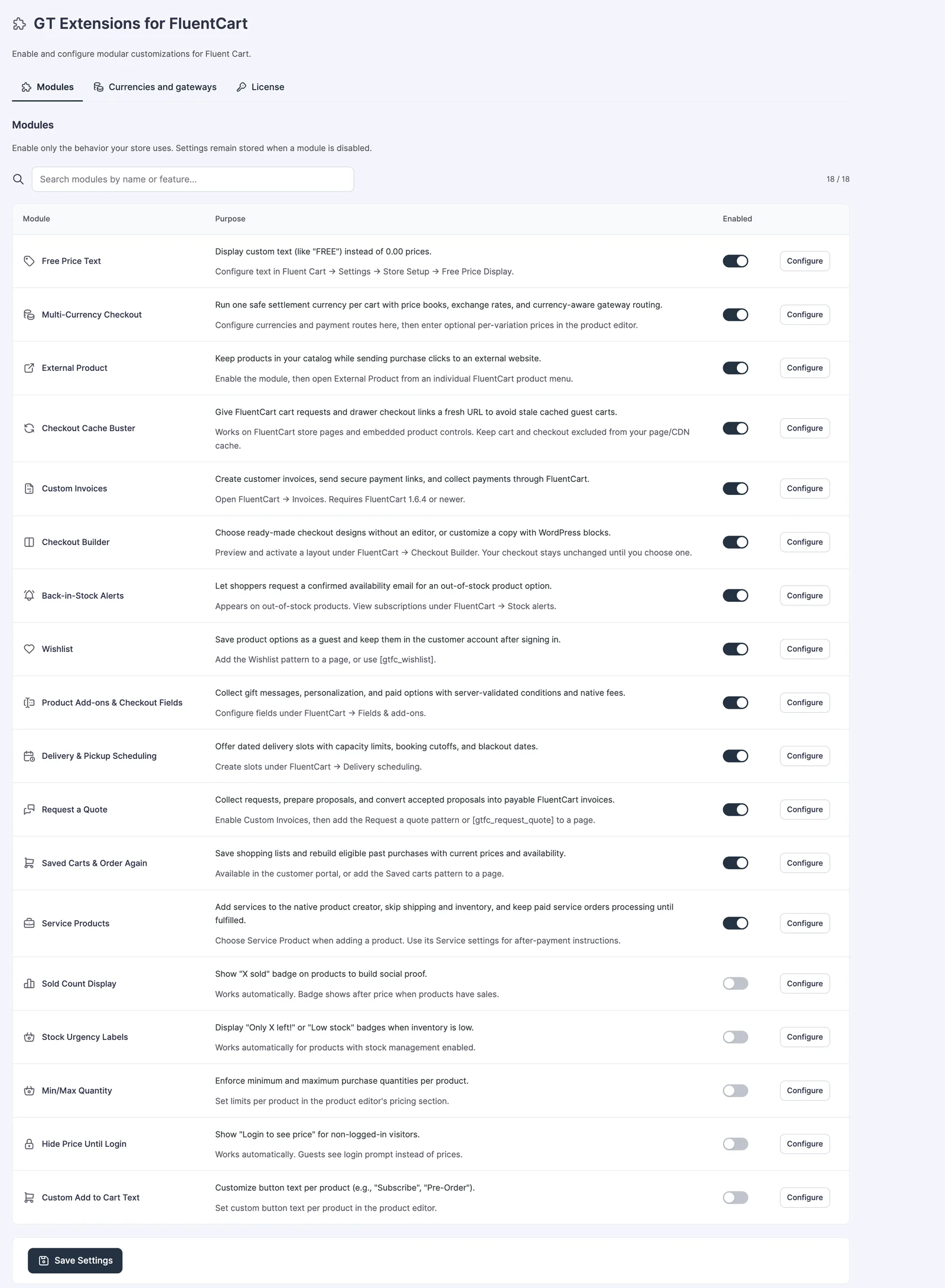
Know Where Settings Live
The feature determines the next screen.
- Currencies and gateways contains enabled currencies, automatic local currency, rates, gateway routes and selector placement.
- License contains activation and update access.
- Invoices, Quote requests, Checkout Builder, Stock alerts, Fields & add-ons and Delivery scheduling have their own admin workspaces.
- External Product and Service settings belong to individual products in FluentCart.
- Wishlist and saved-cart pages use shortcodes; Request a Quote also has a dedicated block with a product search.
- Display and quantity modules keep their common options under Configure.
Save Deliberately
The form shows feedback when settings save. A switch change that has not been saved is not your store’s stored configuration.
Disabling and re-enabling a module preserves its settings. If you want different behavior, edit the settings rather than expecting the switch to restore defaults. Request a Quote also needs Custom Invoices; enable both before building the quote workflow.
A Useful First Configuration
For a store with free resources and paid services, enable Free Price Text and Service Products first. Confirm those product pages, then add quotes and invoices when you are ready to manage custom work.
Plugin CSS and JavaScript are minified and scoped to the screens or features using them. If you deliberately put a currency selector in a site-wide header, its assets belong on every page displaying that header.
Use the course overview to find the guide for each feature.