
Sell Plans on Any Page with On-page Checkout
A pricing page usually ends in a button that sends the buyer somewhere else – a cart, then a checkout page, then the payment step. Every extra page between the plan and the payment is one more place for the buyer to stop and leave.
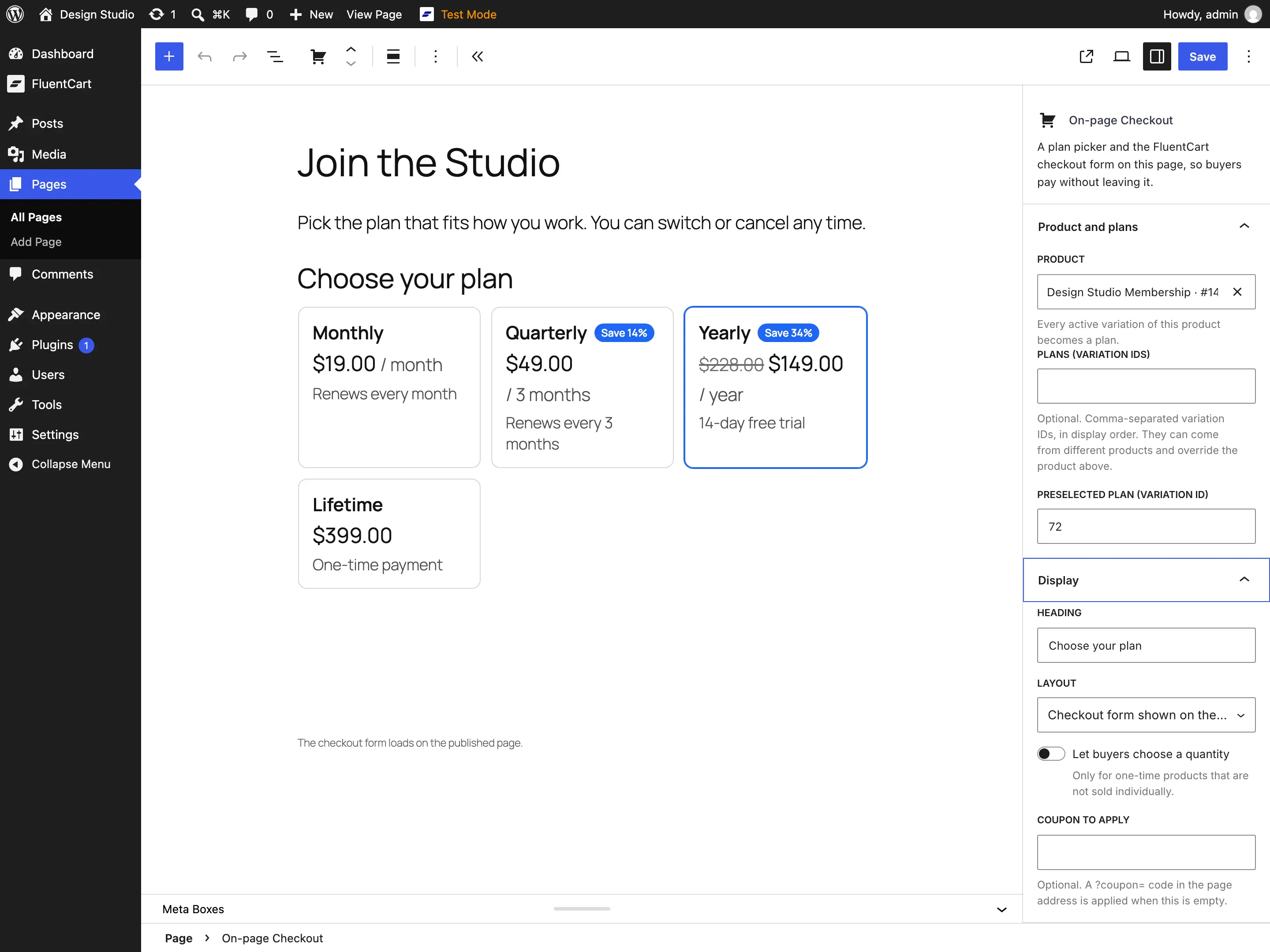
On-page Checkout puts the plan picker and FluentCart’s own checkout form on the page you already sell from. The buyer chooses a plan, fills in their details and pays without leaving that page. It needs FluentCart 1.6.4 or newer, and the module stays off until you turn it on.
Add It to a Page
- Go to FluentCart → GT Extensions, enable On-page Checkout and save.
- Edit a page and insert the On-page Checkout block.
- Choose a product. Every active variation of that product becomes a plan, in the product’s own order.
That is enough for a working checkout. The block sidebar has a few optional settings when you need more control:
- Plans (variation IDs) picks and orders the plans, and can mix variations from different products.
- Preselected plan chooses the plan that starts selected.
- Layout shows the form on the page, or shows a button that opens the form in place.
- Let buyers choose a quantity works for one-time products that are not sold individually. Subscriptions are always bought one at a time.
- Coupon to apply adds a FluentCart coupon code to the order.
Use the Shortcode
The [gtfc_checkout] shortcode does the same job as the block, for places where a shortcode is easier to drop in:
[gtfc_checkout product="12"]
[gtfc_checkout plans="34,35,36" default="35" title="Join the studio"]
[gtfc_checkout product="12" layout="button" button="Get the plan" quantity="yes" coupon="WELCOME10"]
These are the attributes it understands:
product: the product ID. Every active variation becomes a plan.plans: variation IDs, in the order you want the plans shown.default: the variation ID of the preselected plan.title: a heading shown above the plans.layout:inlinefor the form on the page (the default) orbuttonfor a button that opens it.button: the button label when the layout isbutton. It says Buy now if you leave it out.quantity:yeslets buyers choose a quantity on one-time plans.coupon: a coupon code to apply.url_coupon:nostops a?coupon=code in the page address from being applied. By default, that code is applied.
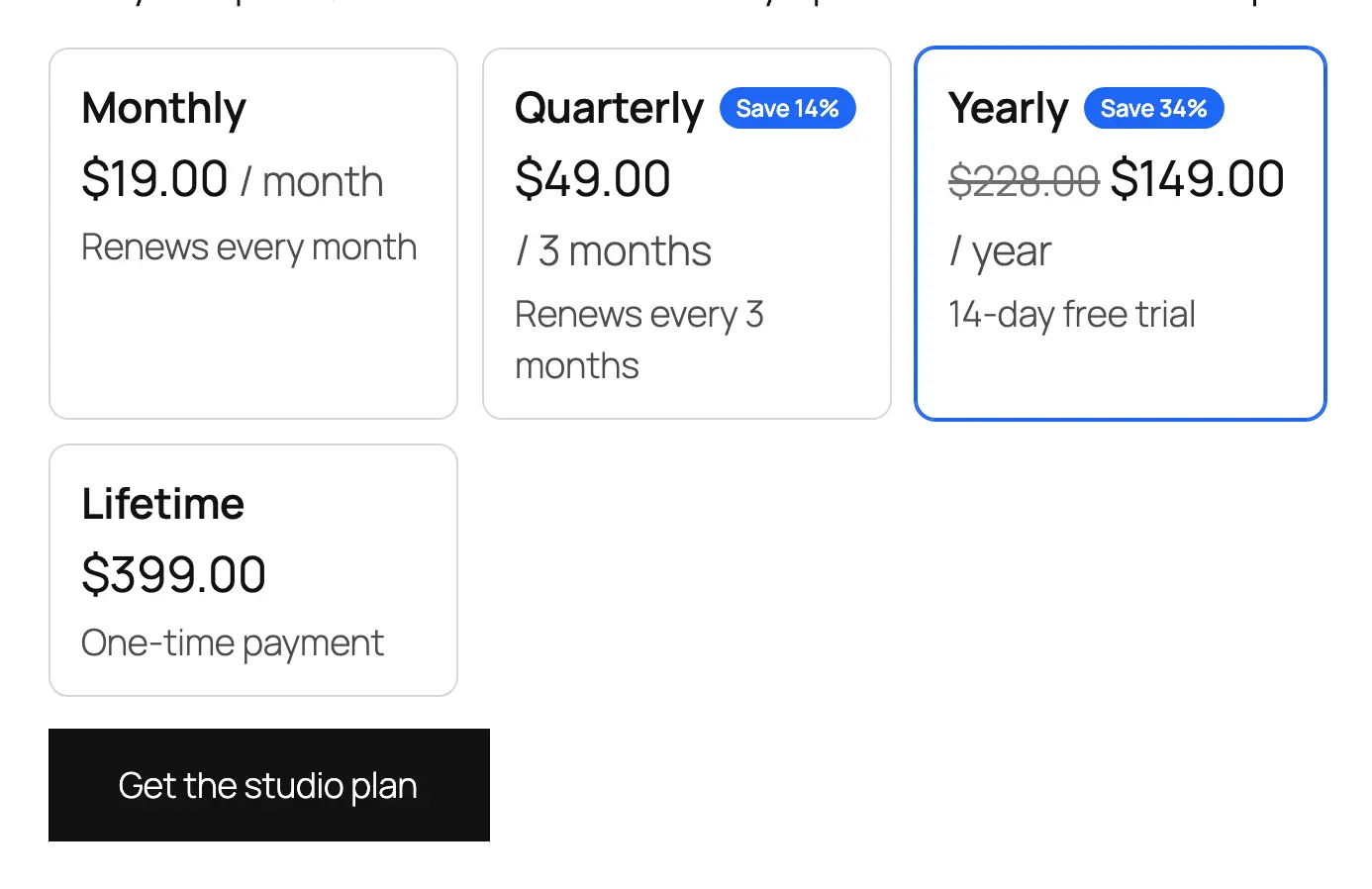
With layout="button", the plan cards show with your button below them, and the checkout form opens in place when it is clicked:
What Buyers See
The buyer sees plan cards first and the checkout form right below them. This is a 4-plan membership with the yearly plan preselected:
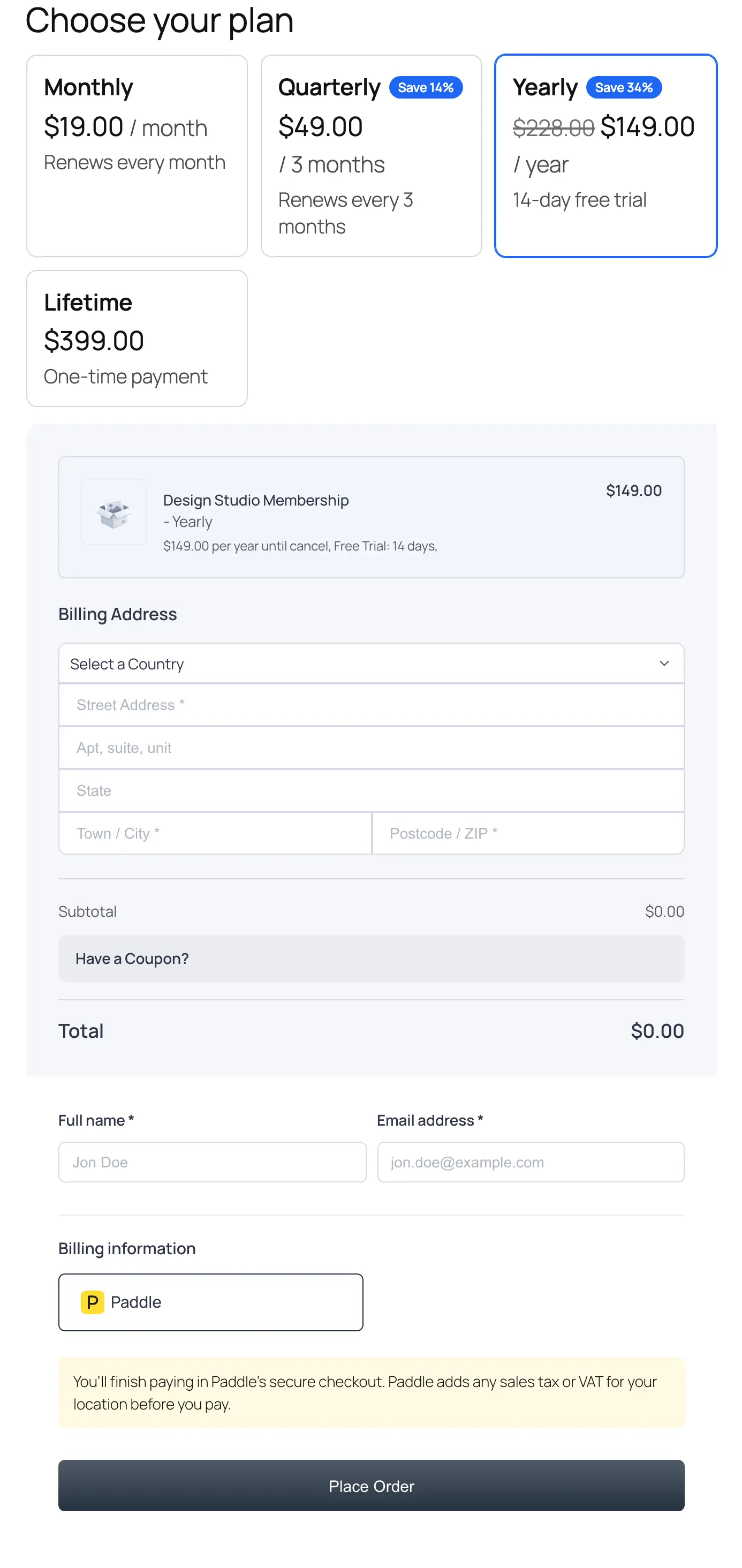
Each plan card shows whatever applies to that plan:
- the price and the compare-at price
- the billing period, a free trial or a signup fee
- “One-time payment” for plans that are not subscriptions
- a “Save N%” badge on a quarterly, half-yearly or yearly plan priced below 3, 6 or 12 months of the same product’s monthly plan
Unavailable plans stay visible but can’t be chosen. A product that is not published, or a variation that is not active, is left out of the cards entirely.
Below the cards sits FluentCart’s own compact checkout form for the chosen plan:
- address fields
- the coupon field
- the order summary
- payment methods and the Place order button
Taxes, shipping, coupons and the payment methods offered for the order all come from FluentCart, the same way they do in its own compact checkout. After Place order, the whole page moves on to the receipt or to the gateway’s payment page.
How It Handles Carts
A checkout form on a page anybody can open could easily turn into a pile of abandoned carts, and it could mess with what a customer already has in their store cart. On-page Checkout is careful on both counts:
- The form loads when it scrolls near the screen, or when the button is clicked. A page view that never reaches it creates nothing, and the host page loads no checkout scripts of its own.
- Each visitor gets their own cart for the plan they pick. It is separate from their store cart, which is never changed, so items they added elsewhere stay where they were.
- Switching plans keeps each plan’s form, so switching back keeps what was typed. A reload resumes the same cart for the rest of the browser session.
- A cart that belongs to a signed-in customer is never resumed by anyone else, and a cart for a different plan or quantity is never reused.
- One connection can open at most 30 new carts in 10 minutes.
Good to Know
- The checkout form runs inside a frame that only your own site can embed. That frame is marked
noindexand is never cached. - Without JavaScript, the block shows a link to FluentCart’s checkout for the preselected plan.
- A coupon can come from the block, from the shortcode or from a
?coupon=code in the page address.
For Developers
The host page fires a gtfc:onpage-checkout event on the block with detail = { action, plan, quantity }, where action is select, ready or error. It is the right place to hook analytics:
document.addEventListener('gtfc:onpage-checkout', (event) => {
  if (event.detail.action === 'select') { /* plan chosen */ }
});
These filters and actions are available on the PHP side:
| Hook | Type | Use |
|---|---|---|
gtfc/onpage_checkout/carts_per_window | filter | New carts one connection may open in 10 minutes (30 by default; 0 turns the limit off). |
gtfc/onpage_checkout/max_quantity | filter | Highest quantity accepted for one-time plans (100 by default). |
gtfc/onpage_checkout/cart_created | action | Runs after a cart is created: ($cart, $variation). |
The embedded checkout route is /?fluent-cart=gtfc_checkout_frame&item_id=<variation>&quantity=<n>.