
How to Charge Indian Customers in INR and Everyone Else in USD
An Indian buyer lands on your USD price, does the conversion in their head and then pays a foreign transaction fee on top. Some Indian cards decline the international charge outright. Meanwhile your US buyers would be confused by a rupee price.
To charge Indian customers in INR and everyone else in USD, you enable both currencies and keep USD as the default. Checkout then switches to INR when the buyer’s country is India. Each product gets a fixed rupee price, and INR orders go to a gateway that settles in rupees, such as Razorpay.
GT Extensions for FluentCart is my add-on plugin for FluentCart, and its Multi-Currency Checkout module does this. Every cart and order runs in one currency, so the price, the gateway and the payment record always agree. I’ll set up the INR and USD split from start to finish.
Before You Start
You need 4 things in place:
- USD as your FluentCart store currency. Check it in FluentCart Store Setup. It stays the accounting base, and the module reads it from there.
- An INR gateway active in FluentCart, such as Razorpay. Stripe can also take INR when your Stripe account supports it.
- A USD gateway active in FluentCart, such as Stripe or PayPal.
- FluentCart 1.5.5 or newer. Older versions pause the module with a notice.
Cloudflare in front of the site is optional but useful. Without it, a first-time visitor sees USD until they enter a billing country at checkout or pick a currency.
Turn On INR and USD
- Go to FluentCart → GT Extensions, enable Multi-Currency Checkout and click Save Settings.
- Open Currencies and gateways.
- Under 1. Store currencies, set Default storefront currency to USD – US Dollar.
- In Enabled checkout currencies, keep INR ticked and untick EUR and GBP. A fresh install enables INR, USD, EUR and GBP.
- Keep Local currency, automatically switched on. It’s on by default.
- Click Save Settings. The rate table and gateway cards below now show only USD and INR.
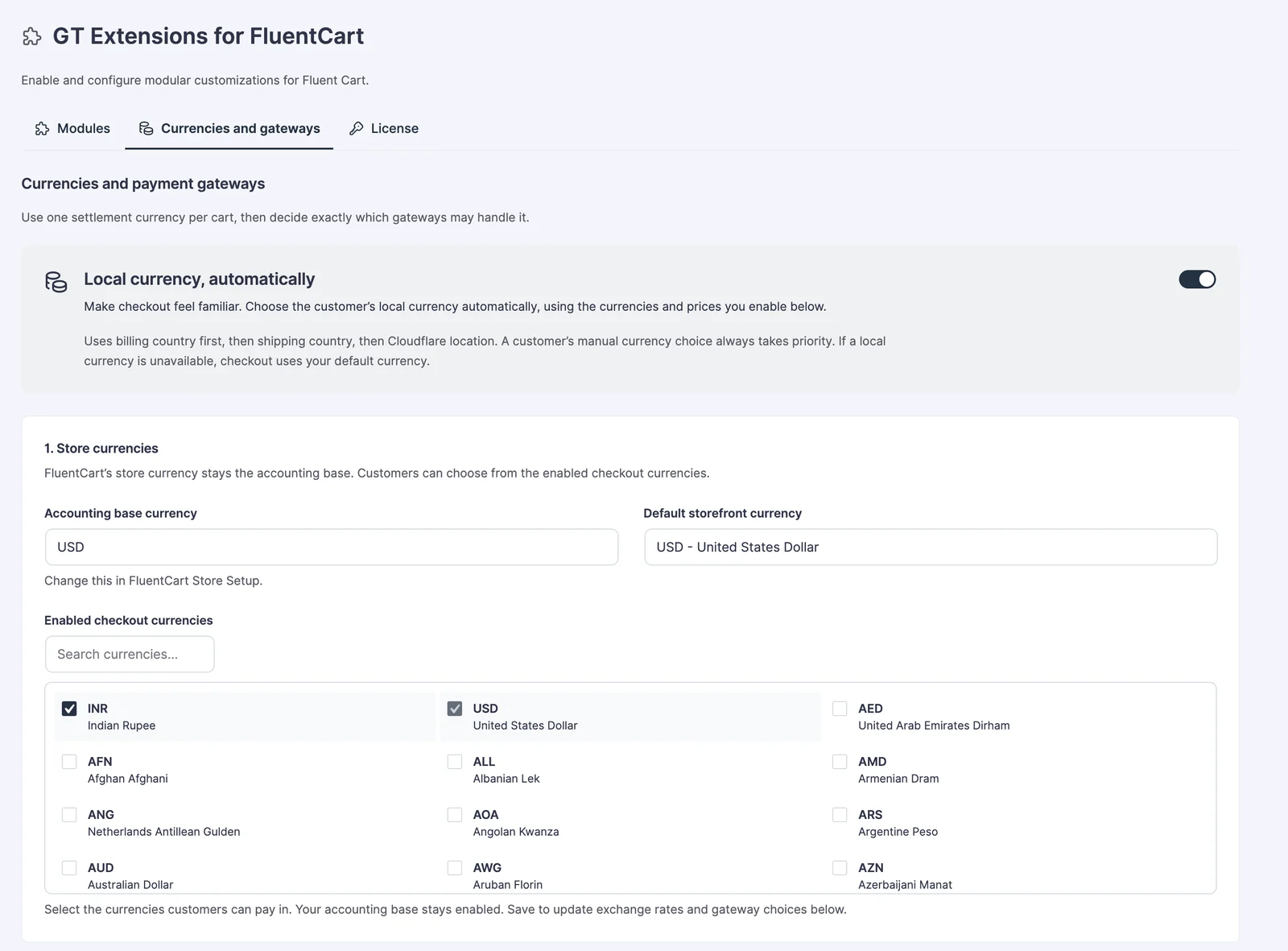
The default storefront currency is the catch-all. A buyer from any country whose currency you haven’t enabled, such as Germany or Japan, pays in USD.
How Checkout Picks the Currency
Checkout picks the buyer’s currency once there’s something in their cart. It looks at the country in this order:
- The billing country on the checkout form
- The shipping country
- The country Cloudflare reports for the visitor
India maps to INR, and every other country falls back to USD. A buyer who picks a currency by hand always wins over the country, and that choice is remembered for Remember selection (days), 30 by default.
Set Rupee Prices
A converted price works, but a rupee price you choose reads better. USD 29 at an example rate of 83 becomes INR 2,407, while a price you set, such as INR 1,999, looks like it was meant for India. Fixed prices always win over conversion.
- Open the product in FluentCart.
- Find the Currency price book card beside the product form.
- If the product has several options, pick one under Product option.
- Under INR, change Pricing method to Set a fixed price and enter the rupee amount.
- Click Save price. The card saves separately from the product, so the product’s own save button doesn’t save it.
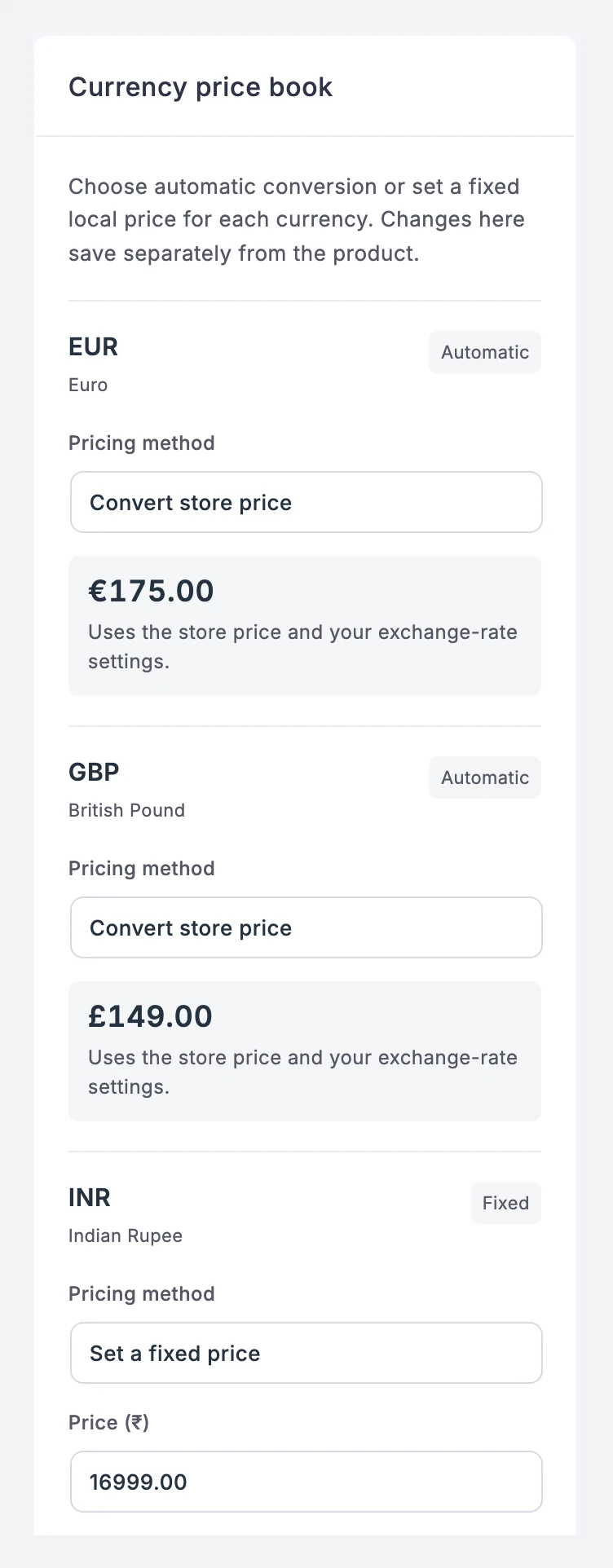
Repeat for each option, such as the monthly and yearly plans. For a subscription option, Compare price and fees also holds a rupee Sign-up fee.
Products you don’t price by hand follow 2. Prices and exchange rates:
- Missing manual price: Convert base price uses the rate below. Block purchase refuses INR for any product without a fixed rupee price.
- Rate source: Manual rates, or Frankfurter daily reference rates refreshed once a day.
- Manual rate for 1 USD: the rupees you want per dollar.
- Converted-price rounding: Nearest whole unit suits rupee prices.
It is wise to pick Block purchase if you plan to set every rupee price yourself. A product you forgot then can’t sell at an odd converted amount.
Send INR to an INR Gateway
Under 3. Payment gateway routing, each currency has its own card:
| Currency | Gateways to tick | Preferred gateway |
|---|---|---|
| INR · Indian Rupee | Razorpay, and Stripe if your account takes INR | Razorpay |
| USD · US Dollar | Stripe, PayPal | Stripe |
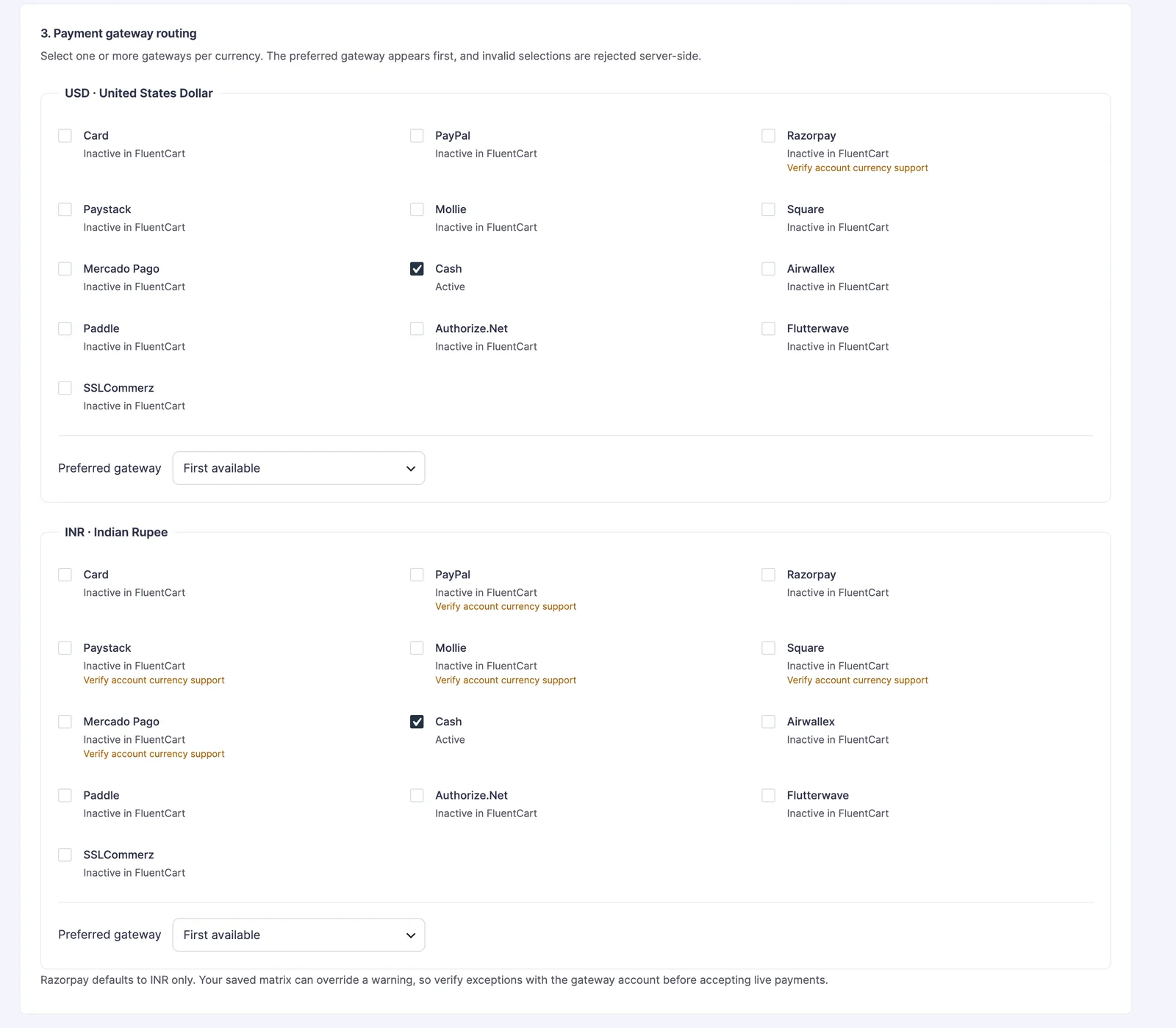
Checkout shows only the gateways ticked for the cart’s currency, with the preferred one first. A gateway marked Verify account currency support may still work, but check it with your gateway account before you take live payments. PayPal doesn’t list INR among its currencies.
Let Buyers Switch
Under 4. Storefront selector, Show above checkout payment methods adds a small Currency menu to checkout. It’s on by default. An NRI buyer paying with a US card can switch to USD there.
To show the menu elsewhere, such as in your header, add a Shortcode block with:
[gtfc_currency_selector]The menu lists currency codes, INR and USD. Switching reprices the cart, clears the old tax and shipping figures and reloads the page.
Keep Page Caching From Mixing Currencies
Product pages show prices in the visitor’s chosen currency, which is stored in a cookie called gtfc_currency. A page cache that ignores that cookie can serve one visitor’s rupee page to the next visitor. Set your cache to skip pages when the gtfc_currency cookie is present, and never cache the cart and checkout pages.
Check It Works
Use a private browser window so no earlier choice gets in the way:
- Add a product to the cart and open checkout. With no country entered, you should see USD, unless Cloudflare reports India.
- Set the billing country to India. The prices should change to your rupee prices, and Razorpay should appear first.
- Set the billing country to United States. Prices go back to USD, with Stripe first.
- Run one test payment in each currency with each gateway in test mode.
The receipt and the FluentCart order always show the currency the buyer actually paid in. Tax and GST still come from your FluentCart tax settings, worked out again on the rupee amounts.
When Something Goes Wrong
These are the messages buyers and you are most likely to see:
| Message | What it means | Fix |
|---|---|---|
| This product does not have a price in the selected currency. | Block purchase is on and this product has no fixed INR price | Set the rupee price in Currency price book |
| Unavailable in this currency | Same cause, shown on the product page | Same fix |
| The selected payment method (…) is not available for INR. Choose another payment method. | The buyer picked a gateway not ticked for INR | Tick it under INR, or leave it unticked on purpose |
| One or more cart items are unavailable in that currency. | A buyer switched currency with an unpriced item in the cart | Set the missing price, or switch Missing manual price to Convert base price |
| This checkout is locked and its currency cannot be changed. | The cart belongs to an issued invoice | Invoices keep the currency they were issued in |
For anything else, Troubleshooting Checkout Currency goes through the checks one by one.
What It Won’t Do
A few limits follow from one currency per order:
- A cart holds one currency. A buyer can’t pay part in INR and part in USD.
- Location comes from the checkout form or Cloudflare. There is no separate IP lookup.
- Shipping and fees convert at the exchange rate. Only product prices take a fixed rupee amount.
- An issued invoice keeps its currency and its agreed prices.
Every setting on this screen is covered in Multi-Currency Checkout in GT Extensions for FluentCart, including the rate and rounding options for currencies beyond these two.