
Connect More Than One Polar or Paddle Account
One merchant account per gateway works until it doesn’t. You sell to the EU and the US through separate Paddle accounts, a second brand has its own Polar organization, or a client’s products have to be paid into their account, not yours. FluentCart lets you turn a gateway on once, so the second account usually means a second store.
GT Extensions lets you duplicate Polar and Paddle (GT Extensions) instead. Each copy is a full gateway of its own, with its own credentials, webhook URL, payments, refunds and subscriptions, and it sits in FluentCart’s payment settings next to the original.
Duplicate a Gateway
- Open FluentCart → Settings → Payments. Polar and Paddle (GT Extensions) show a Duplicate button under their description.
- Click it, type an optional badge label such as “EU account”, and choose Create copy. Without a label the copy is badged “Copy 2”, “Copy 3” and so on.
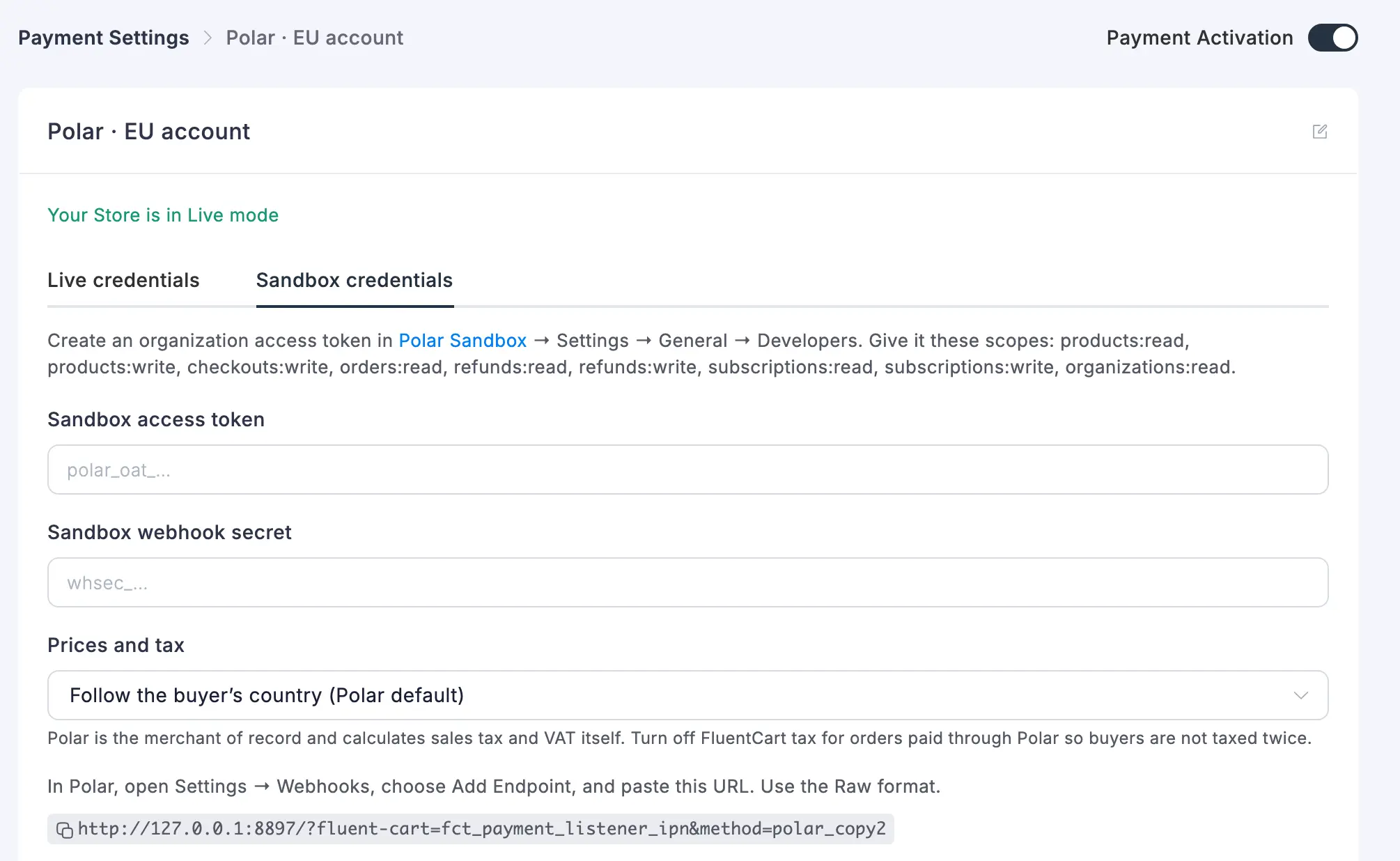
- The copy’s settings open. Connect it the same way as the original: its own API key or access token, its own webhook secret and its own webhook URL. Then turn on Payment Activation.
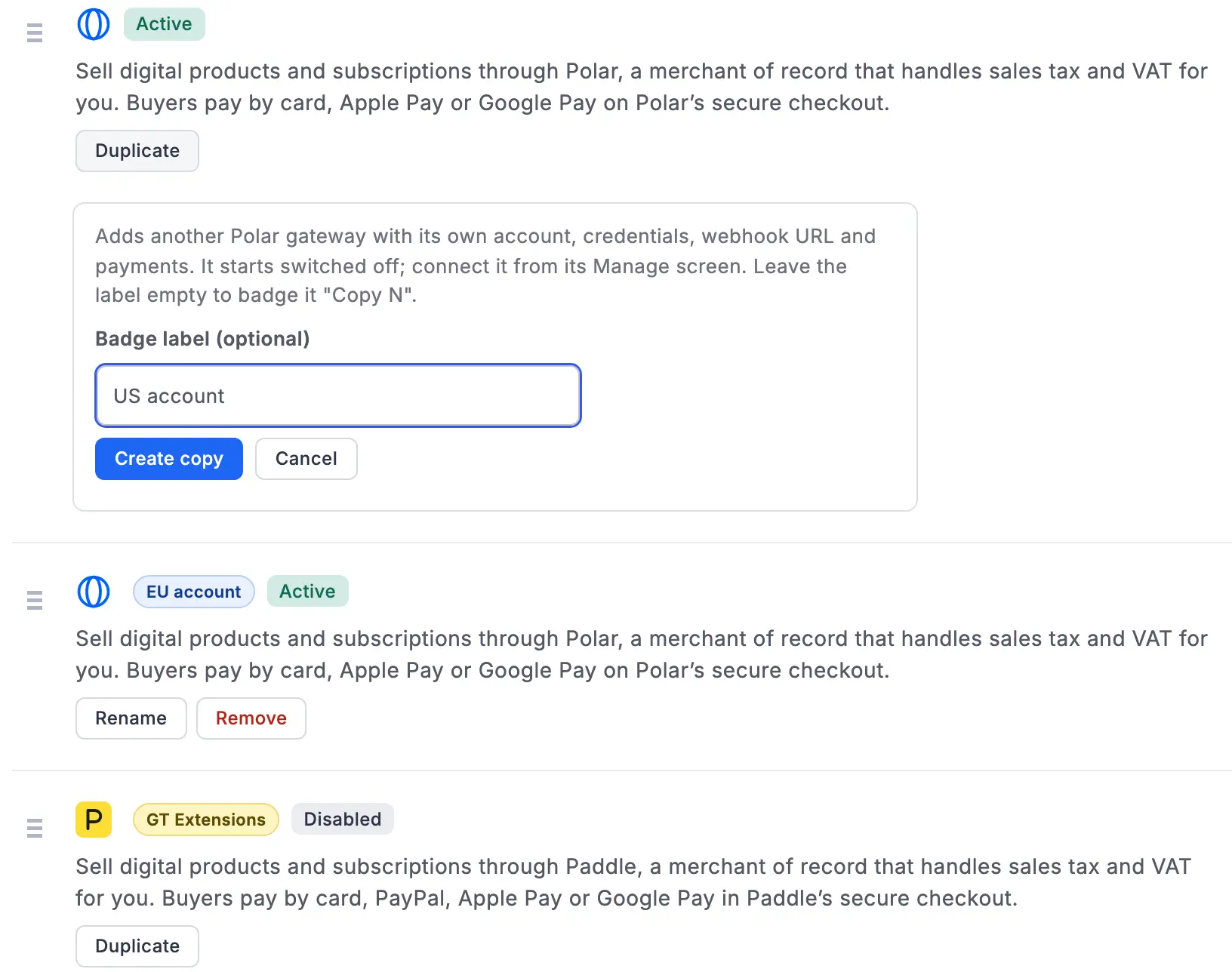
The copy starts switched off, so creating it changes nothing at checkout until you connect it. Its webhook URL names the copy, for example /?fluent-cart=fct_payment_listener_ipn&method=gtfc_paddle_copy2; paste that one into the second Polar or Paddle account, not the original’s URL.
New to the gateways themselves? The Paddle gateway guide walks through credentials, webhooks and how payments work. A copy is set up exactly the same way.
How Copies Stay Separate
- Each copy is its own gateway in FluentCart with its own name:
polar_copy2,gtfc_paddle_copy2and so on. - Orders, refunds, renewals and cancellations stay on the account that took the payment. A copy never touches another copy’s records, even when webhooks from both accounts arrive at the same site.
- With Multi-Currency Checkout on, copies show in Currencies and gateways with the same currencies as their original, so one copy can take EUR and another USD.
- You can have up to nine copies of each gateway.
- Credential constants in
wp-config.phpapply to the original gateway only. Copies keep their credentials in their own settings.
Rename and Remove
- Rename changes a copy’s badge. The copy’s name in FluentCart, its webhook URL and its records stay the same.
- Remove deletes a copy and its saved settings, but only while it has no payments or subscriptions.
- A copy that has taken payments stays, so its refunds and renewals keep working. Switch it off in its settings instead.
Badges on the Payments Screen
With several Polar or Paddle gateways in one list, badges tell them apart:
| Badge | Shows on |
|---|---|
| GT Extensions | Paddle (GT Extensions) and its copies |
| FluentCart | FluentCart Pro’s own Paddle gateway, when Paddle (GT Extensions) is offered too |
| The copy’s label, or “Copy N” | Each copy |
Badges show in the Payments list and in the gateway’s settings header.
Send a Button to One Account
With Modal Checkout, a button can offer one gateway only, copies included. Each copy gets its own payment method class from its name, so gtfc-modal-checkout pay-via-polar_copy2 opens a checkout that only pays into that Polar organization. pay-via-polar means the original Polar, not its copies.
Good to Know
- Only GT Extensions’ own gateways can be duplicated. FluentCart’s gateways (Stripe, PayPal, FluentCart Pro’s Paddle and others) write their fixed name into orders, subscriptions and webhook lookups, so a copy of them couldn’t keep refunds and renewals on the right account.
- At checkout a copy shows the same name and logo as the original. If both are switched on at once, buyers can’t tell them apart, so keep one of them on for the regular checkout, or pick one per button with Modal Checkout.