
How to Run a Launch Sale That Starts at Midnight
You announce a launch sale for midnight, set the coupon’s start date in FluentCart and go to bed. At 12:05 the first buyer types the code and gets “This coupon is not yet active.” The sale is live in your announcement and dead at your checkout.
That happens because FluentCart saves a future coupon as Scheduled and switches it to Active only when someone opens FluentCart → Coupons in the dashboard. You can run a launch sale that starts at midnight without being awake for it. One setting makes the code work for the first buyer after the start time.
GT Extensions for FluentCart is my add-on plugin for FluentCart, and its Extra Enhancements module holds that setting along with coupon links. I’ll set up a full launch: the coupon, the switch, the links you share and how to test it all before the night.
Before You Start
You need 3 things in place:
- Extra Enhancements switched on. Go to FluentCart → GT Extensions, enable Extra Enhancements and click Save Settings. The module starts switched off.
- The sale’s start and end time decided, in your own timezone.
- The discount you’re giving, such as 30% off every product.
Create the Coupon With Its Dates
Create the coupon in FluentCart → Coupons as you normally would, with a code such as LAUNCH30 and the discount. Then set its start date and time to midnight on launch day, and its end date and time to when the sale closes.
FluentCart stores both times in UTC and compares them with the current UTC time. After saving, open the coupon again and check that the start shows the midnight you meant. A sale for buyers in India that starts at midnight IST begins at 18:30 UTC the day before.
Usage limits, minimum spend, product rules and the end date all still apply once the coupon goes live.
Switch On the On-Time Start
- On the Extra Enhancements row, click Configure.
- Under Scheduled coupons, keep Start scheduled coupons on time switched on. It’s on by default once the module is on.
- Under Coupon links, keep Apply a coupon from a link switched on.
- Click Save settings.
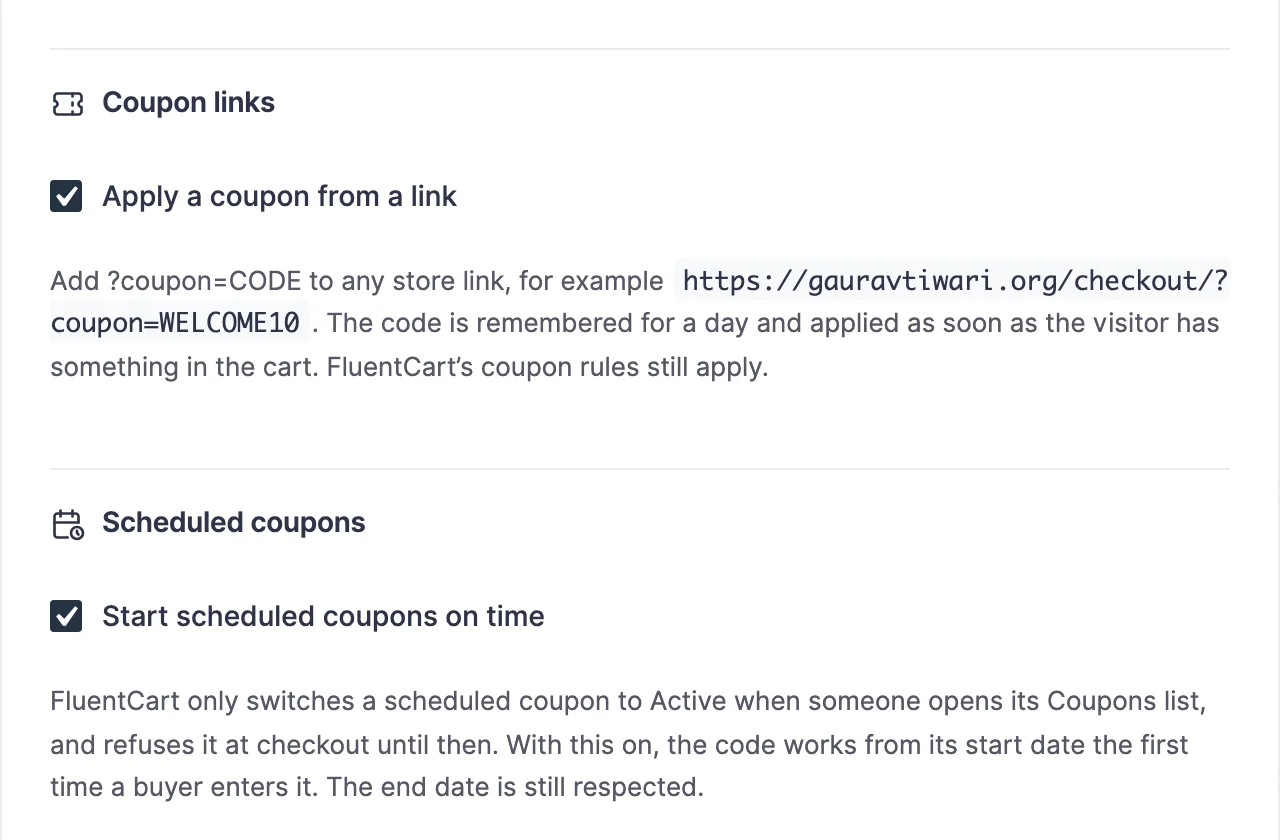
Here is what happens on the night:
- Before midnight, nothing changes. The coupon stays Scheduled and buyers see “This coupon is not yet active.”
- From midnight, the first buyer who enters the code makes it Active, and their discount applies in the same step. Everyone after them finds it already Active.
- After the end time, the code is refused with “This coupon has expired.”
Nothing runs in the background, so the coupon still says Scheduled in your Coupons list until someone uses it. That’s normal.
Share Links That Apply the Code
With coupon links on, ?coupon= added to any store link applies the code for the buyer:
https://example.com/shop/?coupon=LAUNCH30
https://example.com/pricing/?coupon=LAUNCH30
The link remembers the code for 1 day on that browser and applies it as soon as the visitor has something in their cart. A visitor who opens the link from your email at 6 a.m. and adds a product at lunch still gets the discount.
There is one timing trap. If a visitor already has items in their cart and opens the link before midnight, FluentCart refuses the code and the link forgets it. They would need to open the link again, or type the code, after the sale starts. So it is wise to send the email with the link at or after the start time, and to put the exact start time in any teaser you send earlier.
A pricing page built with On-page Checkout reads ?coupon= from its own address too, so the same link works there.
Add Urgency That Stays Truthful
A launch often has a limited number of seats or copies. If the product has stock tracking on in FluentCart, Stock Urgency Labels shows “Only {count} left!” at 5 or fewer and “Almost gone! Only {count} left!” at 2 or fewer by default. Sold Count Display shows “{count} sold” once a product has sales. Both read real numbers from FluentCart, and both have their own Configure dialog for the wording and thresholds.
Check It Works
Test with a throwaway coupon before launch night, because opening the Coupons list switches due coupons on and spoils the test:
- Create a test coupon that starts 10 minutes from now and ends an hour later.
- Before the start, enter the code at checkout. You should see “This coupon is not yet active.”
- After the start, enter it again without opening the Coupons list. The discount should apply.
- Open FluentCart → Coupons. The test coupon should now show as Active. Delete it when you’re done.
When Something Goes Wrong
These are the coupon messages buyers see at checkout:
| Message | What it means | Fix |
|---|---|---|
| This coupon is not yet active. | The start time hasn’t passed in UTC | Check the coupon’s start time against UTC. Before the start, this is expected |
| This coupon has expired. | The end time has passed | Extend the end date in FluentCart if the sale should still run |
| This coupon is not currently available. | The coupon is disabled | Enable it in FluentCart. Disabled coupons stay disabled until you change them |
If the code works when typed but not from a link, check that Apply a coupon from a link is on and that the buyer opened the link after the start time.
What It Won’t Do
The sale runs on the coupon, so a few things sit outside it:
- It doesn’t schedule sale prices. The product price stays the same, and the discount comes from the code.
- It doesn’t start a coupon nobody uses. The status changes on the first use after the start time.
- A refused link isn’t retried. A code from a link that FluentCart refuses before the start is dropped.
Start Scheduled FluentCart Coupons on Time covers the setting on its own. For a pricing page buyers can pay on directly, see How to Sell a Plan from Your Pricing Page Without a Cart.