
Bill Clients on a Schedule with Recurring Invoices
Retainers, care plans and monthly services mean sending the same invoice again and again. Doing it by hand is easy to forget, and a late invoice usually means a late payment. Recurring invoices create that invoice for you on a schedule, each with its own number and payment link.
This works for customers who pay each invoice from its link. Card payments that renew on their own belong to FluentCart subscriptions instead.
Start a Schedule
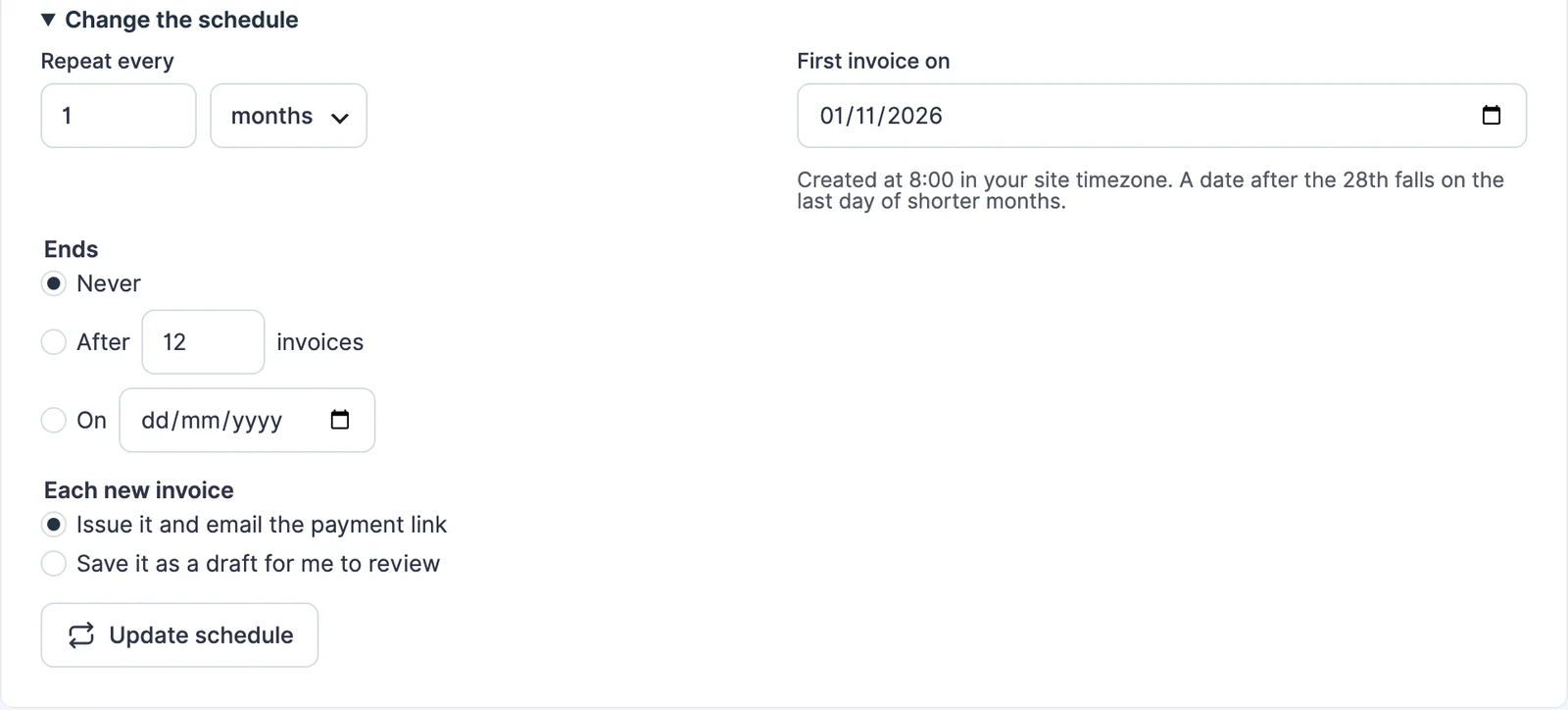
Create and issue the invoice the way you normally would. This first invoice becomes the template. Open it, scroll to Repeat this invoice and set:
- Repeat every: 1 to 12 weeks, months or years.
- First invoice on: the date of the first new invoice. It must be after today.
- Ends: never, after a number of invoices, or on a date.
- Each new invoice: issue it and email the payment link, or save it as a draft for you to review.
Click Start repeating. The panel then shows the schedule, the next date and how many invoices it has created so far.
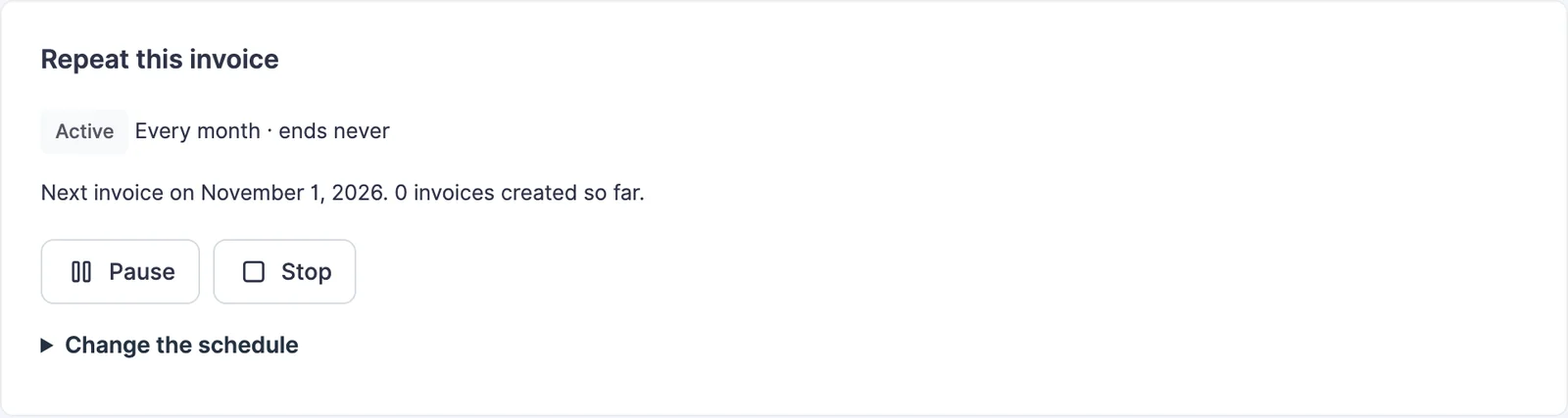
What Each New Invoice Contains
New invoices are created at 8:00 in your site timezone. Each one copies the template as it is at that moment:
- customer, items, prices, currency and tax settings
- seller details from Invoice appearance
- the invoice title, or a fresh automatic title with its own number
If the template has a due date, each new invoice keeps the same gap. A template issued on the 1st and due on the 15th gives every copy a due date 14 days after its own date. Invoices already created never change when you edit the template later.
Dates at the End of the Month
A schedule that starts on the 29th, 30th or 31st falls on the last day of shorter months and goes back to the original day when the month allows it. A monthly schedule starting January 31 runs on February 28, then March 31.
Change, Pause or Stop
Open Change the schedule on the template to set a new interval, first date, end or delivery mode. The count of invoices created so far carries over.
Pause stops new invoices until you resume. Resuming continues from the next date ahead and doesn’t bill the paused periods. Stop ends the schedule for good, and invoices it already created stay as they are. Cancelling the template invoice also ends its schedule.
See Every Schedule
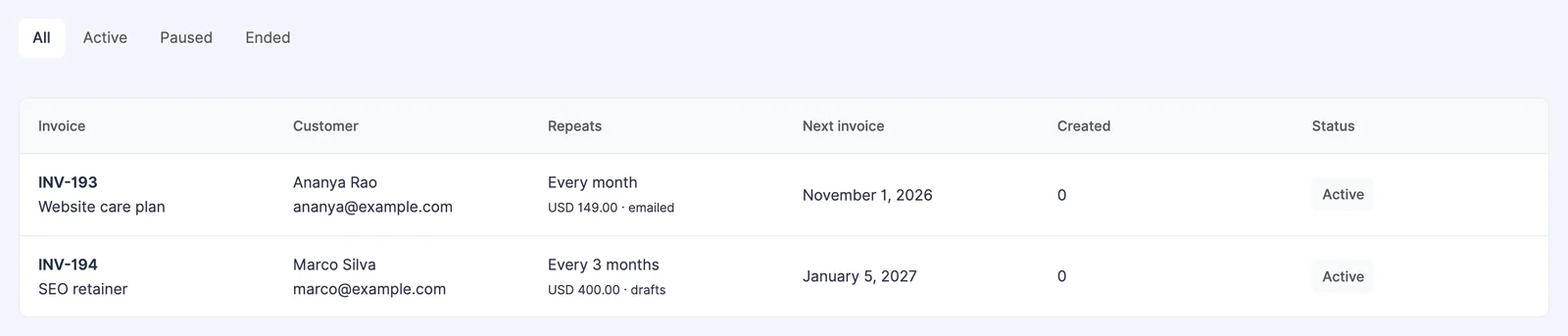
FluentCart → Invoices → Recurring lists every schedule with the template, customer, interval, amount, next date, invoices created and status. Filter by active, paused or ended. A schedule whose last run failed says so here and on the template, with the reason in its activity log.
When the Site Misses a Date
Recurring invoices run from WordPress scheduled tasks. If those don’t run for a while, the next run creates one invoice for the current period and logs the periods it skipped. It doesn’t send a pile of catch-up invoices to your customer at once. On a site with few visitors, a real server cron keeps the dates exact.
Things to Keep in Mind
- Only issued invoices can repeat. Recurring copies, deposit invoices and balance invoices can’t start their own schedule.
- Drafts mode is useful while you’re still settling the price. Each draft waits in the invoice list for you to issue.
- Automatic reminders apply to every issued copy the same way they apply to any other invoice.