
How to Take Orders for Future Delivery and Pickup Slots
You bake to order, run a weekend meal prep or sell flowers for local pickup. Customers order through the week for Saturday, and every Saturday you either turn people away at the counter or bake for 40 when you have room for 25.
Delivery and pickup slots fix the planning. You open dated time windows, such as Saturday 10 a.m. to noon, decide how many orders each one takes and when bookings close. Customers order ahead, pick a window at checkout and pay, and a full window disappears from the list on its own.
GT Extensions for FluentCart is my add-on plugin for FluentCart, and its Delivery & Pickup Scheduling module does this. I’ll set up a weekend pickup and a weekday delivery from scratch.
Before You Start
You need 4 things in place:
- FluentCart 1.6.4 or newer with Delivery & Pickup Scheduling enabled under FluentCart → GT Extensions.
- Physical, one-time products. Slots appear only on orders that need shipping. Digital products, services and subscriptions never show them.
- A FluentCart shipping method for each way you hand over orders, such as “Local delivery” and “Store pickup”. Slots are tied to these methods, and the methods still set the charge.
- Your WordPress timezone set correctly under Settings → General. Every slot time uses it.
Customers pay at checkout, the same as any order. The slot reserves their time; it doesn’t hold the payment for later.
Open Your First Slots
Go to FluentCart → Delivery scheduling and fill in Add a time slot:
| Field | Saturday pickup example |
|---|---|
| Location / slot name | Studio pickup |
| Starts | Saturday, 10:00 |
| Ends | Saturday, 12:00 |
| Orders per slot | 25 |
| Close bookings this many hours before start | 48 |
| Shipping method | Store pickup |
Click Add slot. With a 48-hour cutoff, customers can book this window until Thursday at 10:00, as long as places remain.
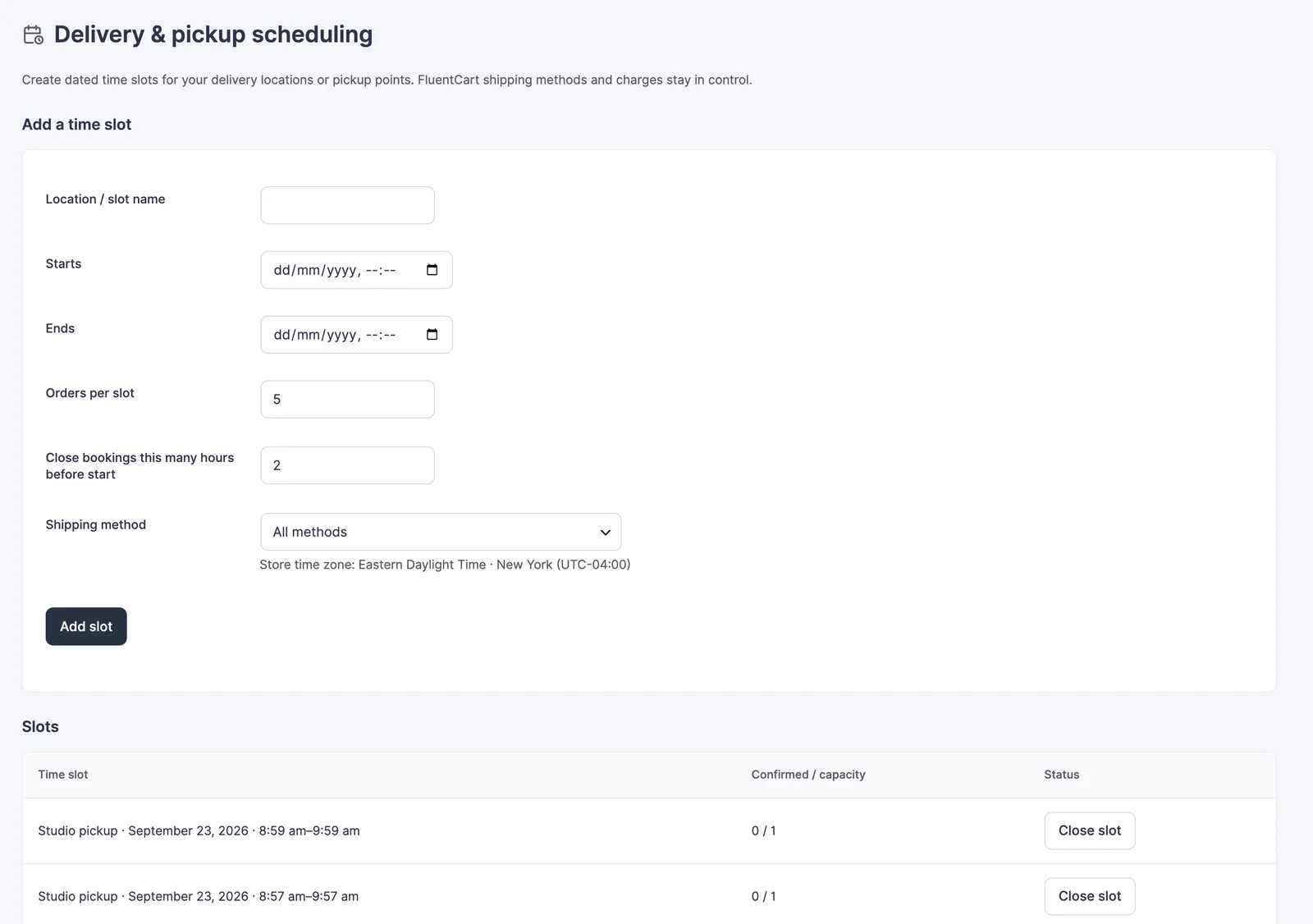
Add your delivery windows the same way, tied to your delivery method. A customer who picks “Local delivery” at checkout sees only delivery windows, and one who picks “Store pickup” sees only pickup windows. A slot set to All methods shows for both.
Each slot is one dated window, so you add next week’s windows one at a time. Adding the coming week every Monday is a simple routine, and slots can be opened as far ahead as you like.
Set the Scheduling Rules
Below the slots, Scheduling rules holds 2 settings:
- Require a delivery or pickup time. When on, a customer can’t finish checkout without choosing a slot. Turn it on only after you’ve added upcoming slots, or nobody can check out. It applies to one-time physical orders only.
- Closed dates. Pick each holiday or day off with the date picker and click Add closed date. Any slot that starts on a closed date stops taking bookings.
Click Save scheduling rules.
What Customers See at Checkout
Above the payment methods, checkout shows Delivery or pickup time with a list of open windows. Each one reads as the slot name, the date and the time, such as “Studio pickup · October 24 · 10:00 am–12:00 pm”. The first option is Choose a time when a slot is required, or No time preference when it’s optional.
Choosing a window holds a place for 15 minutes while the customer pays. A note under the list says so: “A selection is held for 15 minutes and confirmed after payment.” If they leave without paying, the place goes back.
A window drops out of the list when it’s full, past its cutoff, closed, on a closed date or tied to a different shipping method.
Show the Time After Purchase
The chosen time is always saved on the FluentCart order and shown in its activity log. To show it to the customer too, turn on the Checkout Enhancements module and open FluentCart → Checkout enhancements. Under Checkout details after purchase, keep these on:
- Thank-you page
- Order page in the customer account
- Order screen in FluentCart
The time then appears as Delivery time in the order details. To put it in your order emails, add {{order.gtfc_checkout_details}} to the FluentCart email template.
Check It Works
Run one test order with a physical product and your gateway in test mode:
- Add the product and open checkout. Pick Store pickup as the shipping method. Only pickup windows should appear.
- Switch to Local delivery. The list should change to delivery windows.
- Pick a window and pay. The order’s activity log should say “Delivery slot confirmed”.
- Back in FluentCart → Delivery scheduling, the slot’s Confirmed / capacity count should go up by 1.
When Something Goes Wrong
| Message | What it means | Fix |
|---|---|---|
| This delivery slot is no longer available for your shipping method. Choose another. | The window filled up, passed its cutoff or doesn’t match the chosen method | The customer picks another time |
| Someone just reserved the last place in this slot. Choose another time. | 2 customers went for the last place at once | The customer picks another time |
| Delivery slots are available for one-time physical orders. | The cart is digital, a service or a subscription | Expected. Those orders don’t need a time |
| Choose a name and a future time range. | A slot is missing its name, or its times are in the past or reversed | Fill in the name and pick a future start before the end |
| Delivery needs attention | Payment arrived after the window became unavailable | Contact the customer to agree on another time |
What It Won’t Do
A few limits are worth knowing before you promise anything to customers:
- It doesn’t take pre-orders with later payment. Customers pay at checkout, and stock works as it normally does in FluentCart.
- Slots don’t repeat on their own. Each window is added once, with no weekly pattern.
- Slots can’t be edited or deleted. Use Close slot and add a corrected one.
- Capacity counts orders, not items. An order of 6 loaves takes 1 place.
- It doesn’t email anyone itself. Use the email placeholder above to put the time in FluentCart’s emails.
Delivery and Pickup Scheduling covers the slot list and holds in more detail.