
Show Product Details and Specifications
Shoppers look for the plain facts before they buy: the size of a bag, the weight of a parcel, the file format of a template pack or the ISBN of a book. FluentCart has no place for those facts, so they end up scattered through the product description where nobody can scan them. Product Enhancements adds a Product details card to the product editor and prints the details as a clean table on the product page.
Many values fill themselves in from what FluentCart already knows, such as the weight and dimensions you entered for shipping or the size of your download files. The same details also go into the product data that search engines read.
Nothing appears on a product page until you save that product’s details, so turning the module on changes none of your existing pages.
Turn It On
Enable Product Enhancements under FluentCart → GT Extensions. Configure has 3 settings:
- Where details appear: After the product description, or Only where I add the block or shortcode.
- Heading: the title above the table. Specifications is used when this is empty.
- Add details to the product data search engines read: on by default.
Fill In the Details
The details live on each product, next to everything else you edit there.
- Open FluentCart → Products and open the product.
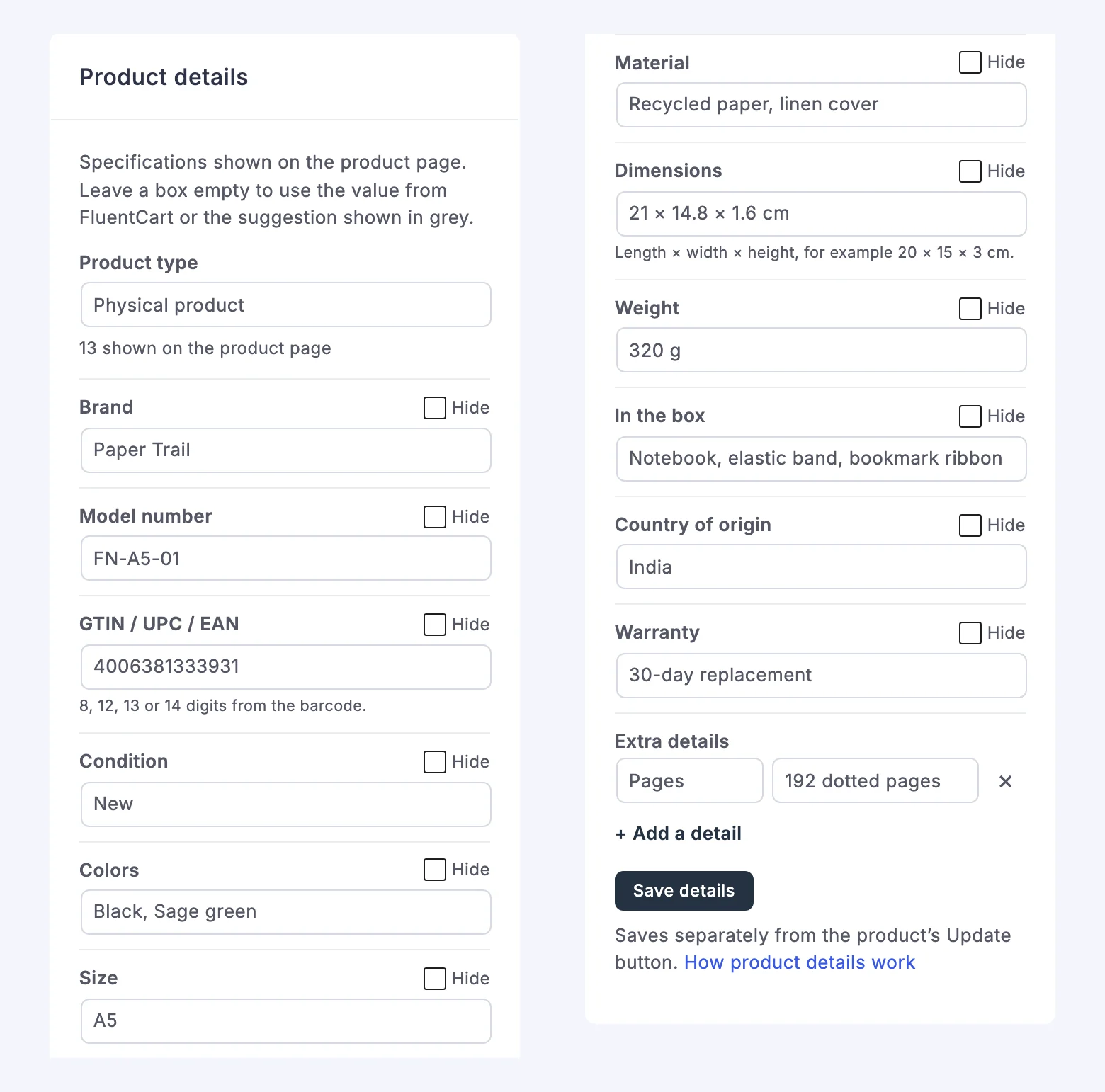
- Find the Product details card in the product editor.
- Choose the Product type. The card suggests one from the product: Physical product for a physical item, Digital download for a download and Course or service for a service product.
- Fill in the details that apply. Empty boxes show the value from FluentCart or a grey suggestion.
- Choose Save details.
The card saves on its own. The product’s Update button does not save it, and the card shows Unsaved changes until you choose Save details. Until a product’s details are saved for the first time, the card says they are not on the product page yet, which gives you a chance to check the filled-in values before customers see them.
Details for Each Product Type
Each product type shows the fields that make sense for it. You can switch the type at any time. Saving keeps only the fields of the chosen type, so details that belong to the old type are cleared when you save.
- Physical product: brand, model number, GTIN / UPC / EAN, condition, colors, size, material, dimensions, weight, what is in the box, country of origin and warranty.
- Digital download: file type, file size, files included, pages, version, last updated, requirements, license and delivery.
- Book or ebook: author, publisher, publication date, edition, language, pages, format, ISBN-13, ISBN-10, file type, file size, dimensions and weight.
- Software or plugin: version, last updated, requirements, works with, file type, file size, license, sites or devices, support, updates, documentation and live demo.
- Course or service: duration, format, level, language, includes, access, delivery time and location.
- Custom details only: no fields of its own, just the extra details you add.
Values Filled In for You
Fields marked From FluentCart already show a value without any typing:
- Brand: the product’s brand in FluentCart.
- Weight: the weight and unit from the option’s shipping details.
- Dimensions: length × width × height from the option’s shipping details, in your store’s dimension unit.
- File type, file size, files included and last updated: from the product’s downloadable files.
- Format: Ebook for a digital book.
- Language: your site language.
Typing in a box replaces the filled-in value on the page. Delivery on a digital download suggests “Instant download after payment”, and that suggestion shows on the page until you type your own or hide it. If a filled-in value is wrong, it is better to fix it in FluentCart, because shipping and download settings use the same data.
Barcodes and ISBNs
GTINs and ISBNs are checked before they are saved, so a mistyped digit never reaches your product page or search engines:
- GTIN / UPC / EAN takes the 8, 12, 13 or 14 digits printed under the barcode, and its check digit must be correct.
- Enter either ISBN-13 or ISBN-10. The other one is worked out for you.
- ISBNs that start with 979 have no ISBN-10, so the ISBN-10 stays empty for them.
If any value fails a check, the message appears under that field and nothing is saved until you correct it.
Different Details for Each Option
A T-shirt sold in 3 sizes or a template pack with Basic and Plus options often has details that change with the option. Tick Different for each option under a field, and a box appears for each option.
The product page shows the value for the option FluentCart selects when the page opens, and the table switches when the customer picks another option. Per-option values stay on the page only and do not go into search engine data, because that data holds one value per product.
Hide a Detail or Add Your Own
Hide, on the right of each field name, keeps a detail off the product page while keeping it saved. It also works on a filled-in value you do not want to show.
Under Extra details, Add a detail creates a row with your own name and value, up to 20 per product. Empty details never show, so you only fill in what matters for that product.
Where the Table Appears
By default, the table appears after the product description, on both classic and block themes.
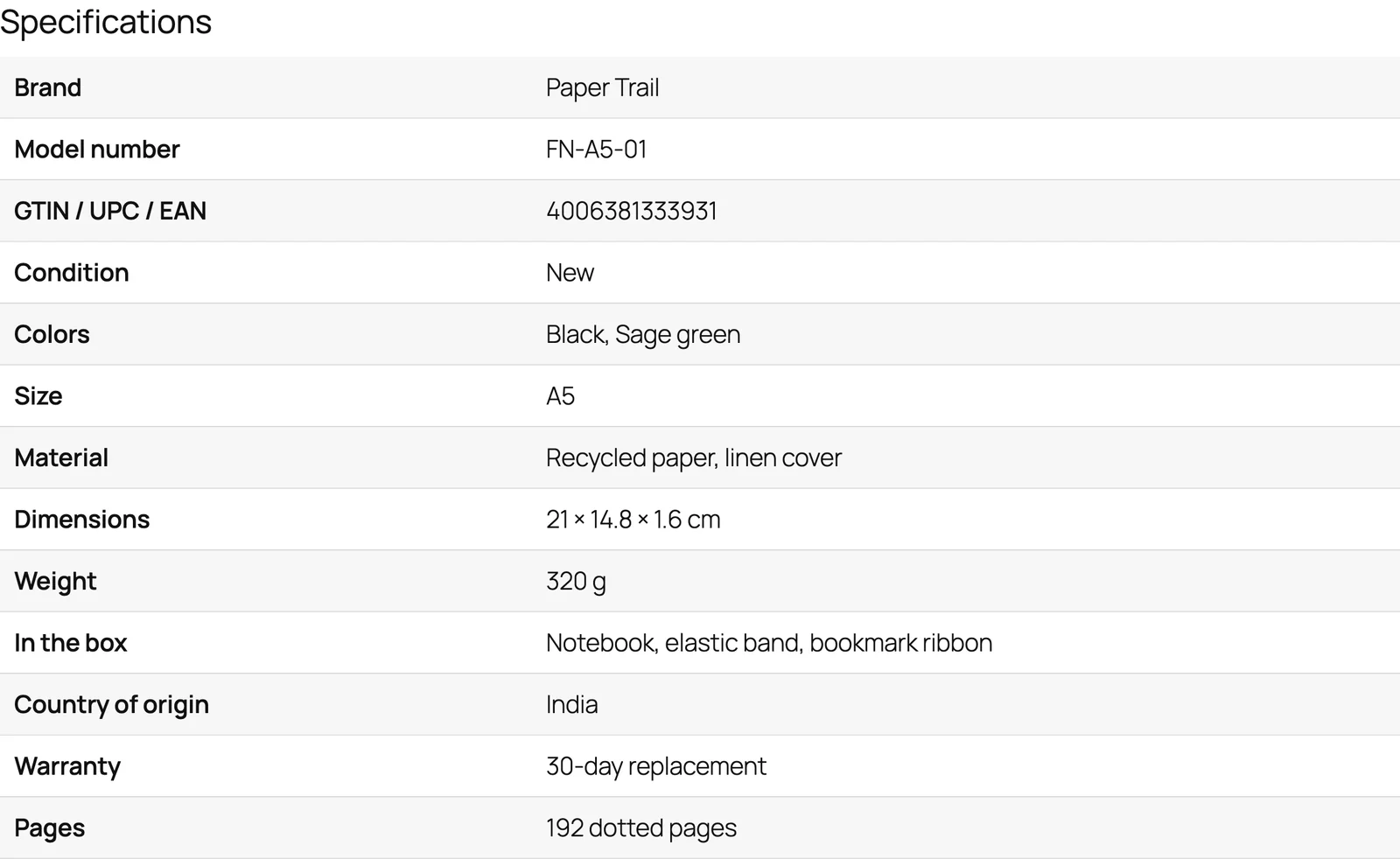
If you choose Only where I add the block or shortcode, place it yourself:
- The Product Details block, in a product template or a page. It has a product setting and an optional heading.
- The shortcode in a product’s content:
[gtfc_product_details]Outside the product page, name the product and optionally the heading:
[gtfc_product_details id="123" title="Tech specs"]The table never shows twice on one page. On phones, each detail stacks under its name so long values stay readable.
Search Engine Data
FluentCart already describes each product to search engines with its price and availability. With the setting on, the details are added to that same description:
- Brand, GTIN, model number, color, material, size, country of origin, weight and dimensions use their own product properties.
- ISBN-13 is added as the product’s 13-digit GTIN.
- Condition is added to each offer.
- Every other detail is added as a named product property.
Hidden details and per-option values are left out. Weight and dimensions are added as numbers when they use a common unit such as kg, g, lb, oz, cm, mm, in or m. After filling in a product, it is a good idea to check its URL in Google’s Rich Results Test.
Duplicating a Product
Duplicating a product in FluentCart copies its details. Per-option values move to the matching option of the copy by position, so the first option’s values go to the first option.
Common Problems
- The table does not appear: the product’s details have not been saved yet, no detail has a value, the placement is set to the block or shortcode or your theme builds the product page without FluentCart’s product content. Use the block or shortcode in that last case.
- The card is missing from the product editor: Product Enhancements is off, or your account cannot edit FluentCart products.
- A value from FluentCart looks wrong: correct it in FluentCart’s shipping or download settings, or type your own value in the card.
Turning the module off removes the table and the extra search engine data. The details stay saved on each product and come back when you turn it on again.