
Checkout Consents, Wording and Order Details
FluentCart’s checkout asks a download buyer for the same street address as someone ordering a parcel, offers one terms checkbox and keeps custom checkout answers out of sight once the order is placed. Checkout Enhancements fixes these gaps from one screen without replacing FluentCart’s checkout.
The module adds 5 things, and each one can be used on its own:
- Consent checkboxes with the wording stored on every order.
- A shorter checkout for orders that do not ship.
- Your own names for checkout fields, headings and the Place order button.
- A trust block below the payment methods.
- Checkout answers shown again on the receipt, in the customer account, on the admin order screen and in emails.
Everything works on FluentCart’s own checkout and on every Checkout Builder design.
Turn It On
Enable Checkout Enhancements under FluentCart → GT Extensions, then open FluentCart → Checkout enhancements. Checkout details after purchase are on from the start. The other sections stay off or empty until you set them up, and Save checkout settings saves all of them at once.
Add Consent Checkboxes
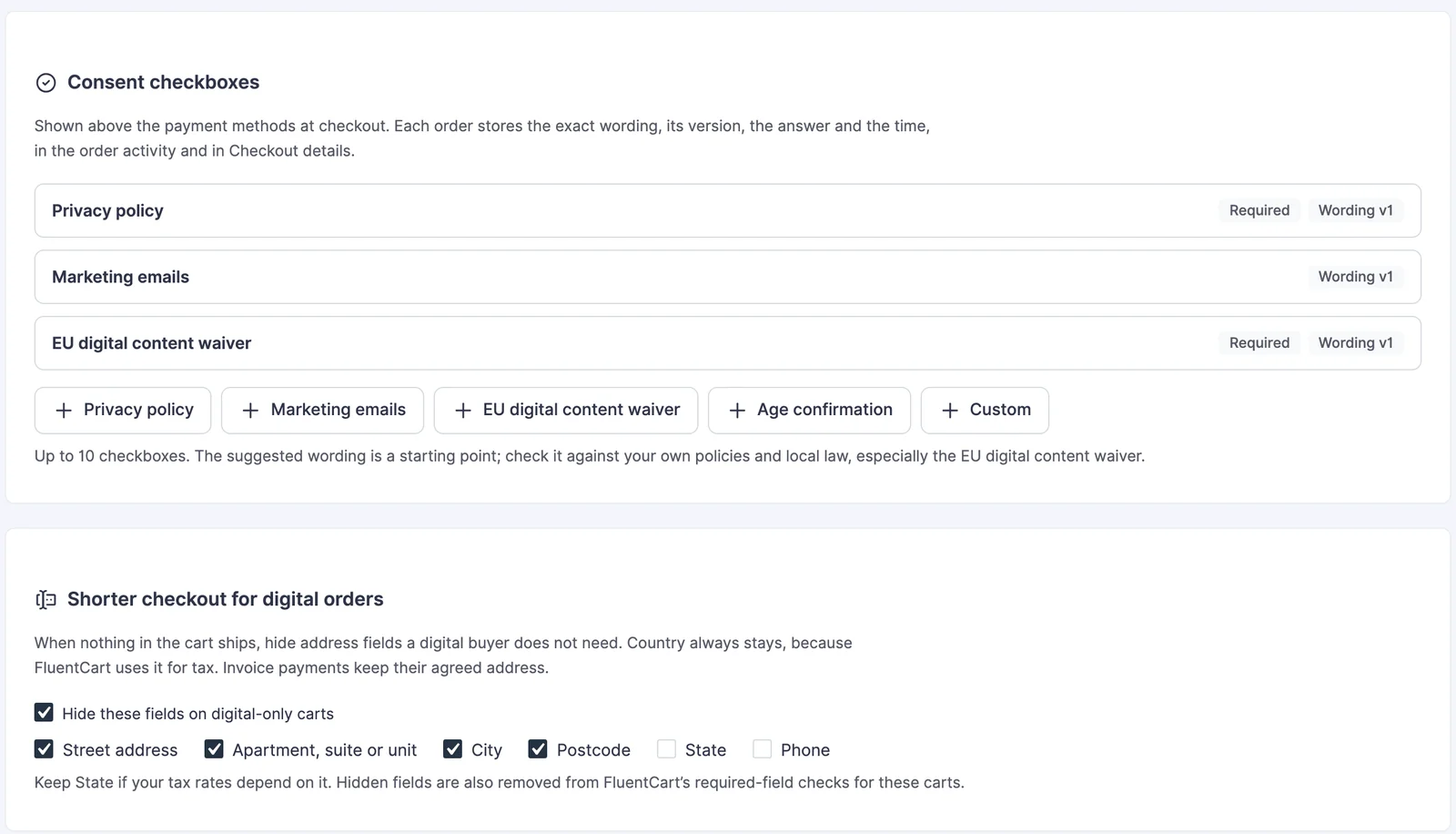
Consent checkboxes appear above the payment methods. Add one from the buttons under Consent checkboxes, up to 10 in total. Each type starts with suggested wording you can edit:
- Privacy policy: “I have read the privacy policy.” Required.
- Marketing emails: an offer to receive product updates. Optional and never ticked in advance.
- EU digital content waiver: the buyer agrees that the download starts now and that they lose the right of withdrawal. Required, and shown on digital-only carts.
- Age confirmation: “I confirm that I am 18 or older.” Required.
- Custom: your own wording.
Every consent has 3 settings:
- Checkbox text: links, bold and italic are allowed, so you can link the words privacy policy to your policy page.
- Required: when ticked, the customer must tick the box to place the order.
- Show for: all carts, carts with physical items, digital-only carts or carts with a specific product.
If a customer misses a required box, the message “Please tick this box to continue.” appears under it and the order is not placed. The server checks the same thing, so a required consent cannot be skipped by a browser that ignores the page’s script.
Each order keeps a record of what the customer saw and chose: the exact wording, its version, whether the box was ticked and the time. You find it in the order activity and in Checkout details on the order screen. Changing a consent’s wording starts a new version, so older orders keep the wording their customers actually agreed to.
The marketing checkbox records the answer but subscribes nobody. To send opted-in customers to your email tool, a developer can use the gtfc/checkout_consents action, which receives the order and its consent records. If FluentCRM already adds its own opt-in to your checkout, it is wise to keep only one of them.
The suggested wording is only a starting point. EU rules give online buyers 14 days to withdraw from a purchase. For downloads, that right ends when delivery starts, but only when the buyer has agreed to immediate delivery and acknowledged losing the right. The waiver checkbox records that agreement on the order. Have the waiver and privacy wording checked for your store.
Shorten the Checkout for Downloads
A customer buying an ebook has no reason to type a street address. Under Shorter checkout for digital orders, tick Hide these fields on digital-only carts and choose the fields to hide:
- Street address
- Apartment, suite or unit
- City
- Postcode
- State
- Phone
Street, apartment, city and postcode are selected by default. The hidden fields leave the checkout only when nothing in the cart ships. Physical carts keep every field and follow FluentCart’s own field settings.
- Country, name and email always stay. FluentCart uses the country for tax.
- Keep State visible if your tax rates depend on it.
- Hidden fields are also removed from FluentCart’s required-field checks for these carts, so a field marked required in FluentCart does not block a download order.
- Invoice payments always show every field, because an invoice can carry an agreed address.
Change the Checkout Wording
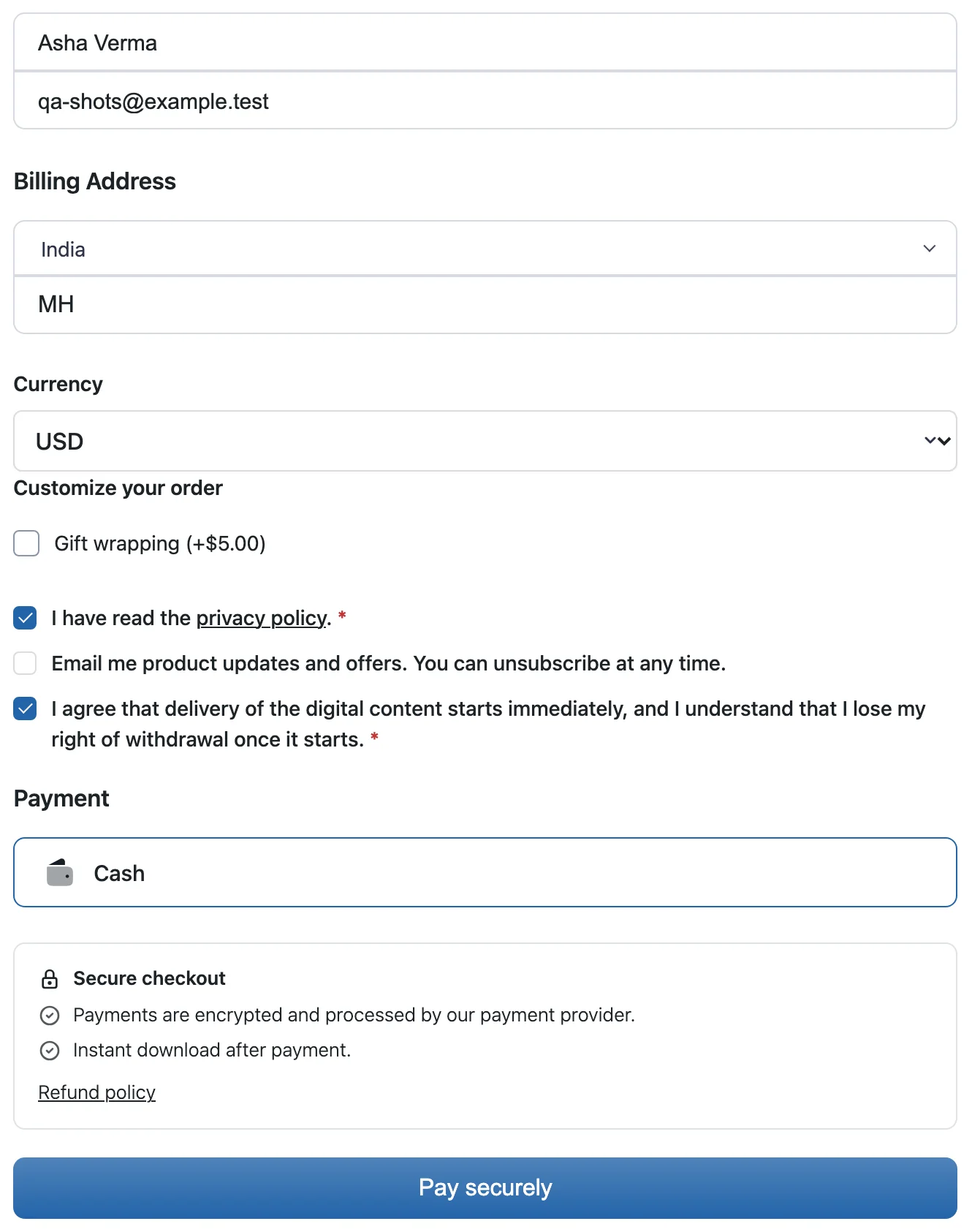
The Checkout wording section renames FluentCart’s checkout text. Leave a box empty to keep FluentCart’s text.
- Checkout fields: full name, first name, last name, email, country, state, street address, apartment, city, postcode, phone and company.
- Checkbox and heading text: the billing address heading, the shipping address heading, the different shipping address checkbox, the create account checkbox, the order note heading and the order note placeholder.
- Place order button: for example Pay securely or Get instant access.
A renamed field keeps its new name in FluentCart’s required-field message too. An Indian store that renames Postcode to PIN code sees “PIN code” in the error a customer gets for leaving it empty.
The heading and checkbox text change wherever FluentCart shows that exact text on your storefront, so a renamed Billing Address heading also appears that way on the receipt.
Add a Trust Block
The trust block sits below the payment methods, where a customer decides whether to pay. Turn on Show the trust block at checkout and fill in what applies:
- Heading: Secure checkout by default.
- Reassurance lines: up to 6, one per line, such as your refund window or support hours.
- Payment methods image: an image from the media library. Its alt text from the media library is used at checkout.
- Refund policy page and Link text: a link to a published page.
Keep every line true for your store. A payment logo for a gateway you do not offer, or a refund promise your policy does not make, misleads the customer at the moment they decide to pay.
Show Checkout Answers After Purchase
Without this section, answers from custom checkout fields and the chosen delivery time stay in the order activity, where customers never see them again. Checkout details shows them in one table:
- The order note.
- Answers from Fields & add-ons.
- The delivery or pickup time from Delivery scheduling.
- Consents, shown as Accepted or Not accepted.
Under Where to show checkout details, tick the places that should show the table:
- Thank-you page: the receipt the customer sees after paying.
- Order page in the customer account.
- Order screen in FluentCart: a Checkout details panel for your team.
The heading defaults to Order details.
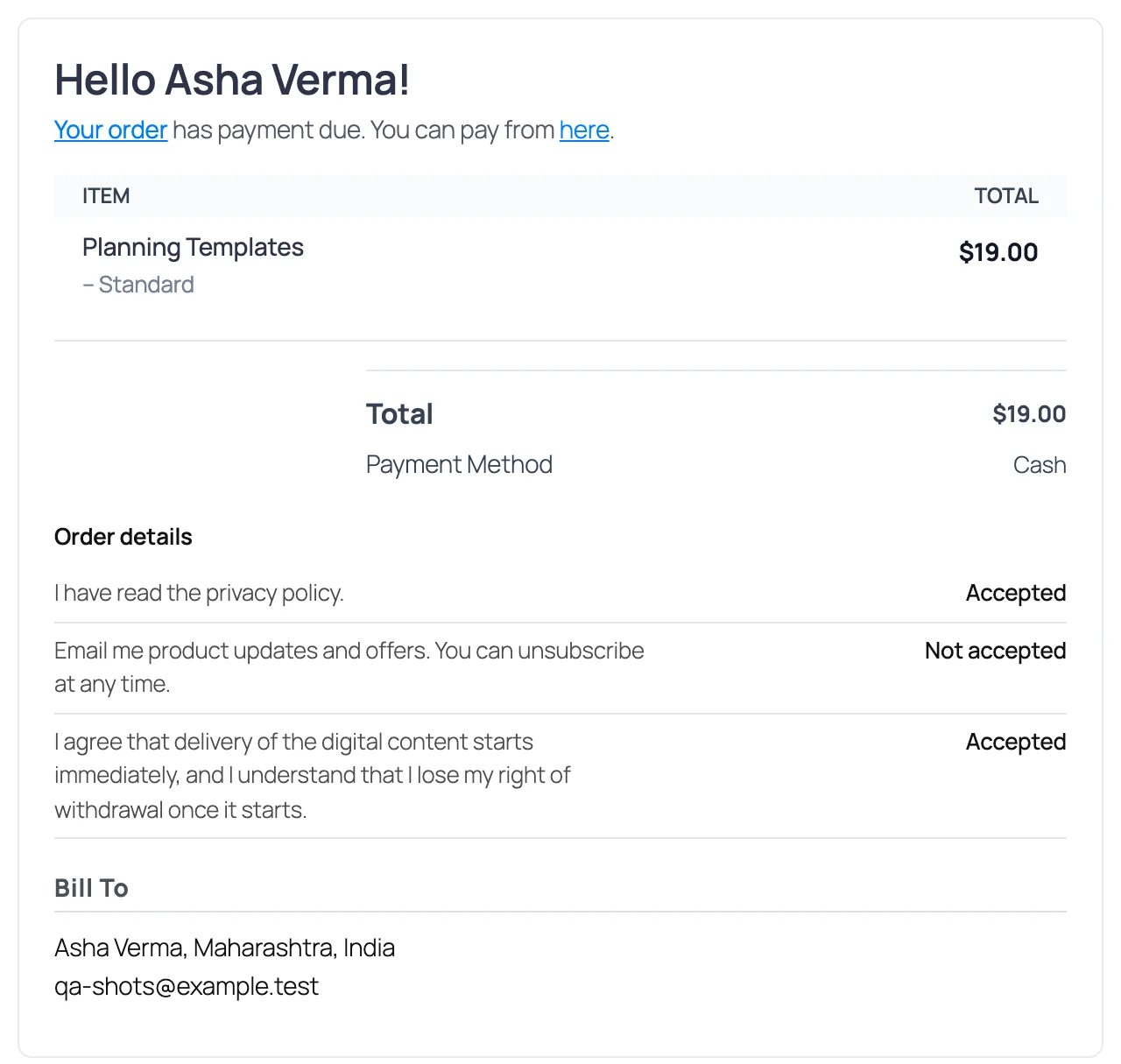
For emails, add this smartcode to a FluentCart email template, such as the order confirmation:
{{order.gtfc_checkout_details}}It is listed under Order in the email editor and prints nothing for an order without checkout answers. Existing templates do not change until you add it. Invoice payments leave out the order note, because the invoice carries its own.
Common Problems
If something does not appear where you expect it, these are the usual reasons:
- A consent is missing: check its Show for setting against the cart. The EU waiver shows only on digital-only carts by default.
- A download checkout still asks for an address: the cart contains a physical item, the order is an invoice payment or the field is not selected under Fields to hide.
- New wording does not show: your page cache may be serving an old copy of the checkout. Cart and checkout pages should always be excluded from page caching.
- An email has no checkout details: the smartcode has not been added to that email template.
Turning the module off removes the consents, the trust block and the renamed text from the checkout. The settings stay saved, and orders keep their consent records.