Stackless for FluentCart
Multi-currency, invoices, checkout layouts and more for FluentCart.
 Gaurav TiwariDocs
Product Add-ons and Checkout Fields lets you collect information or charge for selected extras. A free text field can collect a gift message; a paid checkbox can add gift wrapping to the order.
The module has two parts. Product add-ons sit on the product page: extras such as engraving, a size upgrade or a gift box, priced per item, once per cart line or per unit entered, with a live total. Checkout fields sit on the checkout page and apply to the whole order. Product add-ons need FluentCart 2.3 or newer; checkout fields work on older versions too.
A paid checkout field adds one fee per order when the customer selects or completes it. It is not automatically multiplied by the number of products in the cart.

Switch on Product Add-ons & Checkout Fields on the Stackless Dashboard (FluentCart → Stackless) and open FluentCart → Fields & add-ons. The Checkout fields tab holds these fields. Expand a field to edit it, or choose Add another field.
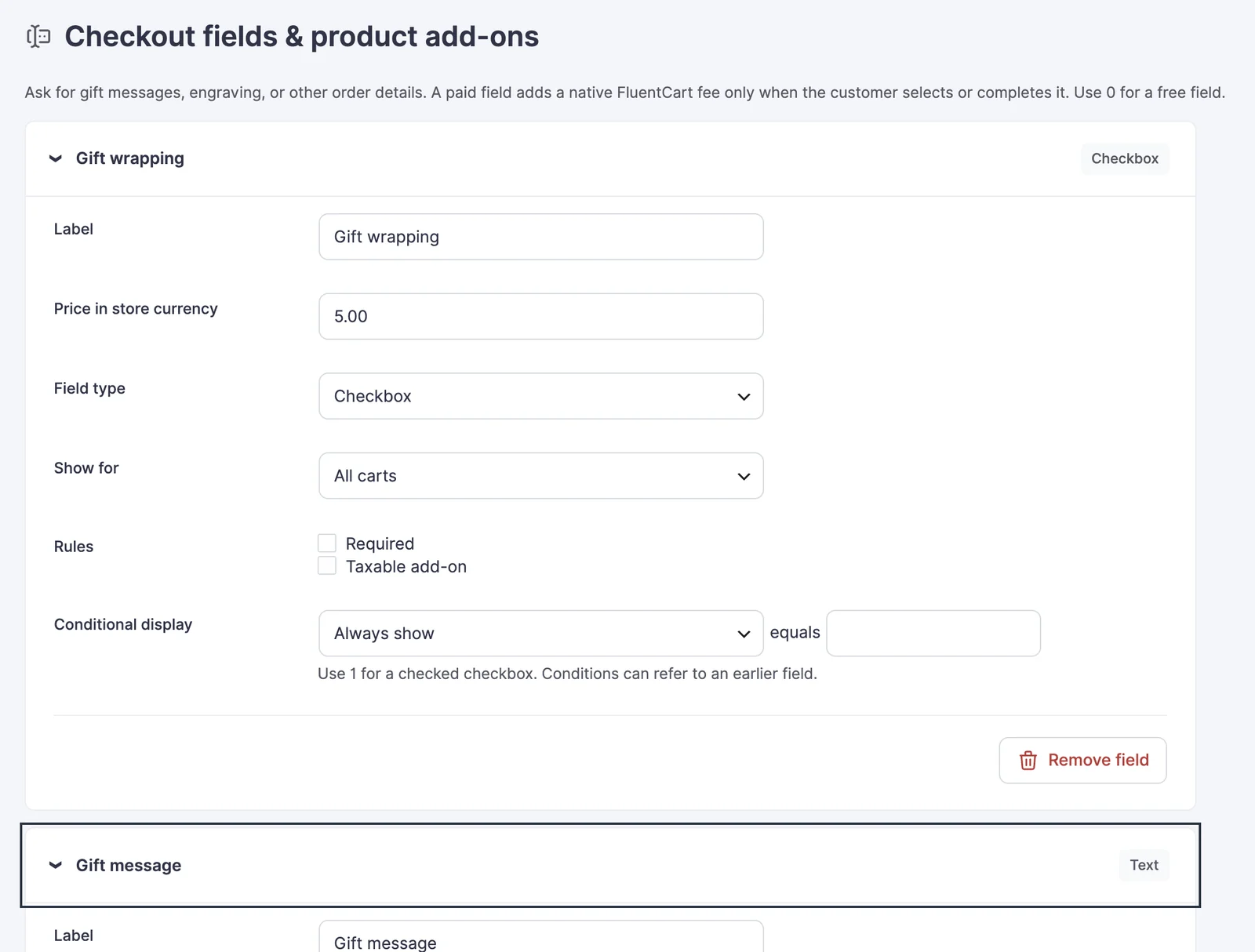
Collapsed fields show their type and a Conditional badge when another field controls their visibility. The badge identifies its dependency. You can keep up to 30 fields.
Add demo fields inserts editable examples for gift wrapping, a dependent gift message and packaging choices. Review the labels, prices and eligibility before saving. The button does not immediately change checkout, and repeated clicks do not add duplicate demo fields.
Create the parent checkbox before the dependent text field.
Checking wrapping adds the fee and reveals the message field. Clearing it hides the dependent field; hidden values and their fees are not applied. Use 1 for a checked checkbox in a condition.
For engraving, choose A specific product and select the item you can engrave. A paid text field charges when the customer enters the engraving request; a dropdown is better when the customer must choose from a controlled set of options.
Save fields publishes the form changes to checkout. Remove field asks for confirmation and takes effect when you save. Remove dependent conditions before deleting a field that other fields reference.
Checkout saves selected options and updates the native order total. Paid fields are hidden on subscription checkouts, and invoice and other locked checkouts show no checkout fields at all. Test both visible and hidden states, the final fee and any tax before offering a paid extra to customers.
A paid option is charged only after the buyer has had the chance to see it in the total. If it isn’t there yet when they place the order, because the choice wasn’t saved first or its price changed:
Product add-ons let the buyer choose extras before adding the product to the cart. Set them up per product, or once for many products with global groups.
Each add-on has a Label, a Type, a Price in store currency, a Charge, optional Help text and a Required box. Up to 30 add-ons fit in one list.
| Type | What the buyer does | Extra settings |
|---|---|---|
| Checkbox | Ticks it | None |
| Dropdown | Picks one choice | Choices |
| Choice buttons | Picks one choice from buttons | Choices |
| Short text | Types a line, such as an engraving | Character limit (500 at most) |
| Long text | Types a longer note | Character limit (2000 at most) |
| Number | Enters a number | Minimum and Maximum |
Enter Choices one per line. Add a price after a pipe, such as Large | 4.50. A choice’s price is added to the field price, so leave the field price empty to charge only for choices.
Example: a mug at $12 with Engraving (Short text, $5 once per cart line) and Gift box (Checkbox, $2 per item). Two engraved mugs in gift boxes cost $24 + $4 + $5 = $33.
For add-ons many products share, open FluentCart → Fields & add-ons and the Product add-on groups tab. Click Add a group, then set:
Click Save groups. You can keep up to 20 groups. A product shows its own add-ons first, then each matching group in list order. To leave groups off one product, clear Also show the global groups that match this product, after its own add-ons on its Add-ons screen.
Different choices become separate cart lines, and the same choices join their line. Each line lists its choices under the product in the cart, the cart drawer and checkout. In the cart and the drawer, Change options opens the product page with the line’s choices and quantity filled in, and adding to cart there replaces that line.
After purchase, the choices show on the receipt, in the customer’s account and order emails beside the product’s option, and in a Product add-ons panel on the admin order screen. The order also gets a “Product add-ons” note.
{{order.gtfc_checkout_details}} email smartcode, which holds checkout fields only.Still stuck? Open a support ticket