
Sale Campaigns in GT Extensions for FluentCart
Sale Campaigns lets you schedule a sale that starts and ends by itself. You set a start, an end, a discount and what it applies to. Shoppers see sale prices, a badge and a countdown while the campaign runs, and regular prices come back at the end minute.
A campaign lowers the unit price of each item. It doesn’t add a discount line and it never changes the prices stored on your products. That’s why there’s nothing to undo when a sale ends: regular prices were never touched.
Before You Start
- The module starts switched off.
- It needs a FluentCart version that checks cart prices again when an order is placed. If yours doesn’t, the Sale Campaigns screen shows a notice, campaigns don’t change any price and no countdown is shown.
- Campaign times use your site time zone. The screen shows the current site time above the list.
Turn It On
- Go to FluentCart → GT Extensions, turn on Sale Campaigns and click Save Settings.
- Open FluentCart → Sale Campaigns and click Add campaign.
- Fill in the name, start, end, discount and what it applies to.
- Click Preview affected products to check the before and after prices, then Save campaign.
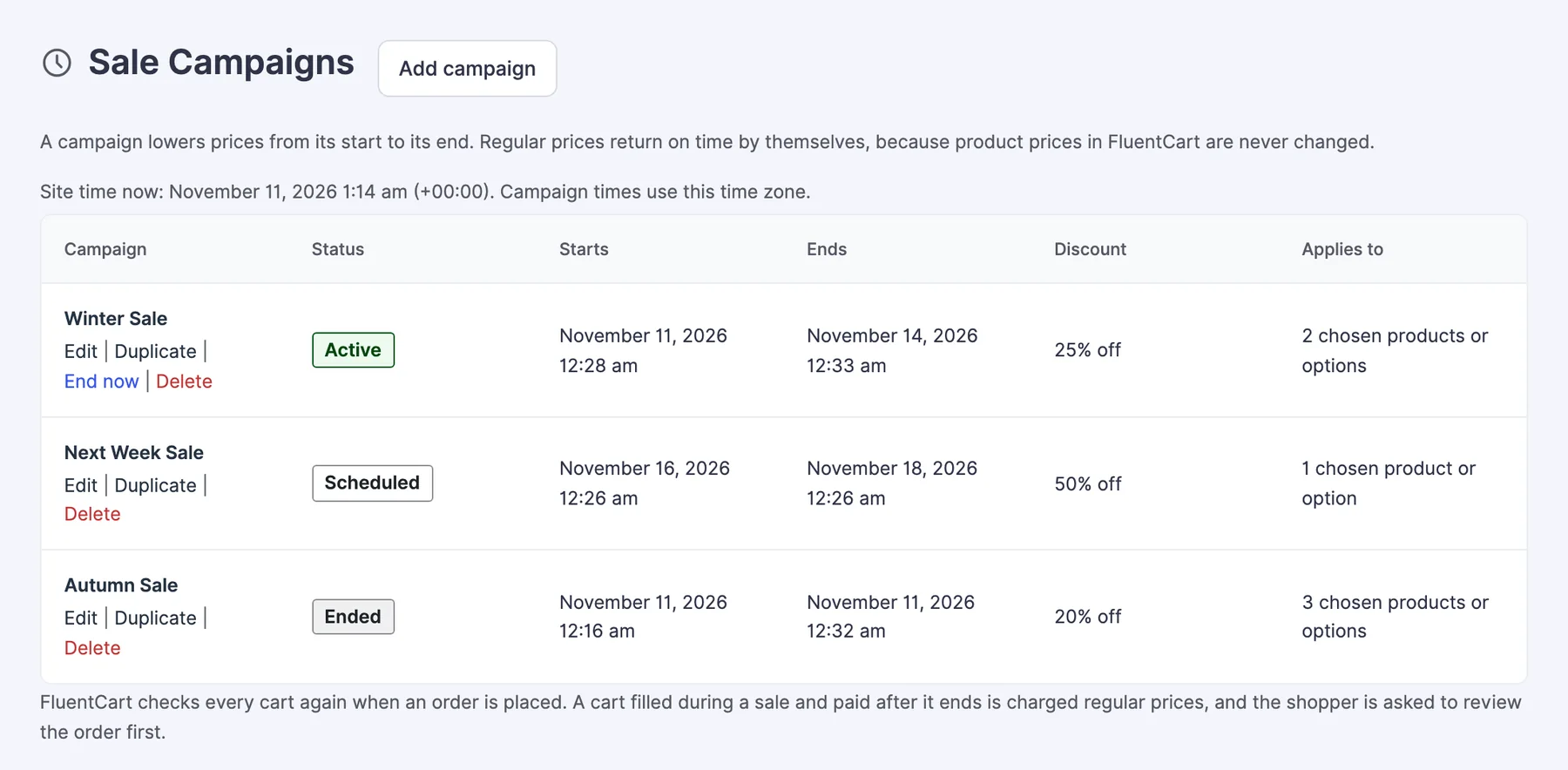
The list shows each campaign as Scheduled, Active or Ended, with Edit, Duplicate and Delete. An active campaign also has End now.
Campaign Settings
- Name: shoppers see this name next to sale prices in their cart, for example Black Friday.
- Starts: the sale price applies from this minute.
- Ends: regular prices apply from this minute, and every countdown runs to it.
- Discount: Percentage off or Fixed amount off each item, in your store currency. For a percentage, type a number up to 100, such as 25 or 12.5. The discount comes off the regular price of each item and a price never goes below 0.
- Applies to: The whole store, Chosen categories or Chosen products. A category covers its subcategories. For products, choose a whole product or single options.
- Leave out categories and Leave out products: anything left out stays at its regular price, whatever the campaign applies to.
- Subscriptions: Include subscription prices is off by default. A subscription bought during the sale keeps renewing at the sale price, because FluentCart renews at the price paid.
- Coupons: Coupons also work on sale items or Coupons skip sale items. A coupon is calculated on the sale price. Skip stops a coupon from lowering a sale item further; it still works on the rest of the cart.
- Badge: shown next to the price of sale items. The default is “Sale”. Leave it empty for no badge.
- Announcement bar: shows a bar with a countdown at the top of every page while the campaign runs. Add a Message and an optional Link. Without a message the bar shows the campaign name.
When Two Campaigns Overlap
One campaign applies to a product option, never two.
- The most specific running campaign wins: a chosen option, then a chosen product, then a chosen category, then the whole store.
- Between equally specific campaigns, the one that gives the lower price wins.
What Shoppers See
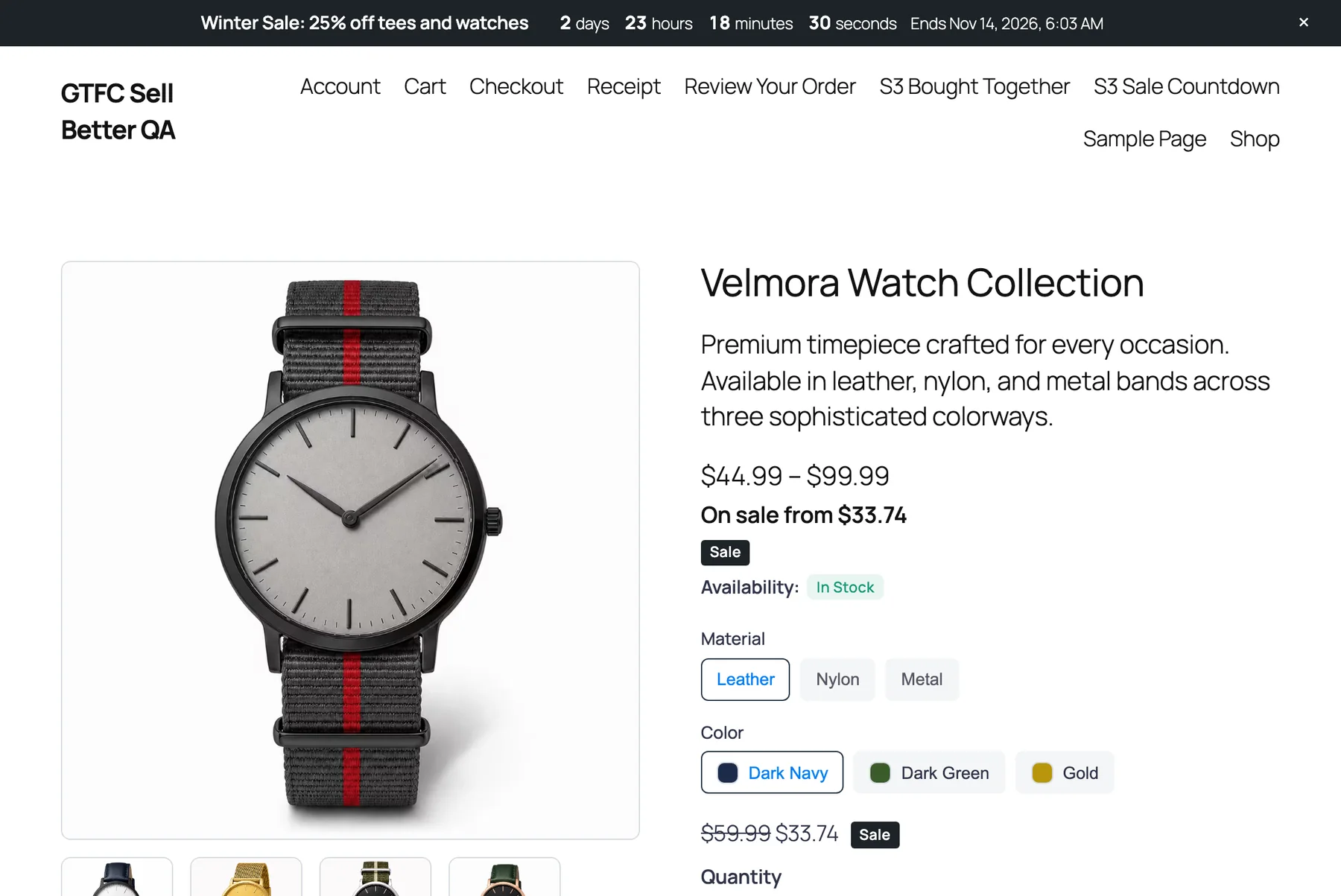
- On product pages and cards: the sale price, the earlier price struck through and the badge. The struck-through price is the product’s compare-at price when it has one, and the regular price otherwise. A product with a price range gets an “On sale from” line under the range.
- In the cart: the lower price, with “Sale price:” and the campaign name under the item.
- The announcement bar, if you turned it on. Shoppers can dismiss it, and it stays dismissed for that campaign only. It isn’t shown on checkout.
FluentCart checks every cart again when an order is placed. A cart filled during a sale and paid after it ends is charged regular prices, and the shopper is asked to review the order first.
Add a Countdown to a Page
Use the Sale countdown block, or this shortcode:
[gtfc_sale_countdown]The shortcode accepts 3 optional attributes:
campaign: a campaign ID. Without it, the countdown follows the running campaign that ends first.label: the text before the timer.ended: the text to show when the sale has ended.
The countdown shows nothing when no campaign is running. It reads the time left from your server, so a wrong clock on the visitor’s device doesn’t change it.
Sale Campaigns or a Coupon
Use a campaign when the price itself should drop for everyone, with no code. Use a FluentCart coupon when buyers should enter a code or follow a coupon link, or when a subscription should be discounted on the first payment only. If you go with a coupon that has a start date, see Start Scheduled FluentCart Coupons on Time.
Page Caching
Cart and checkout prices are never cached and always follow the clock. Cached product pages are different: a page cached before the start still shows the regular price until the cache is cleared, and a page cached during the sale still shows the sale price after the end. Clear your page cache when a campaign starts, ends or is edited while running.
Limits
- The discount isn’t a separate line on the order. The order item carries the lower unit price, and there’s no sales report per campaign.
- Signup fees are never discounted.
- There’s no “first payment only” option for subscriptions. Use a FluentCart coupon for that.
- Order bump items, custom invoice items and Pay What You Like amounts keep their own price.
- With Multi-Currency Checkout and the cart in a currency other than your store currency, product pages show the badge but the regular price. The cart and checkout still charge the sale price.
- The announcement bar needs a theme that supports the standard body-open hook. When two running campaigns have the bar on, the one that ends first is shown.
- The product lists on the form show the first 1,000 product options. For a bigger catalog, use categories, the whole store or the More product IDs field.
- Preview affected products lists up to 50 rows from the first 500 product options. The campaign itself has no such limit.
- The cart drawer can show the old price right after a campaign starts or ends, until the shopper opens the cart or checkout page.
Troubleshooting
A product page still shows the old price. Clear your page cache for that page. The cart and checkout always charge the right price.
The countdown shows only an end date. The timer couldn’t reach your site’s REST API for the server time. Check that a security plugin isn’t blocking the REST API for visitors and that the route isn’t cached.
A product isn’t on sale. Check Leave out categories and Leave out products, then check whether it’s a subscription with Include subscription prices off. A more specific campaign may also be setting its price.
A shopper was asked to review the order at checkout. The sale started or ended after they filled the cart. FluentCart updated the prices and asked them to confirm.