
Post-purchase Offers in GT Extensions for FluentCart
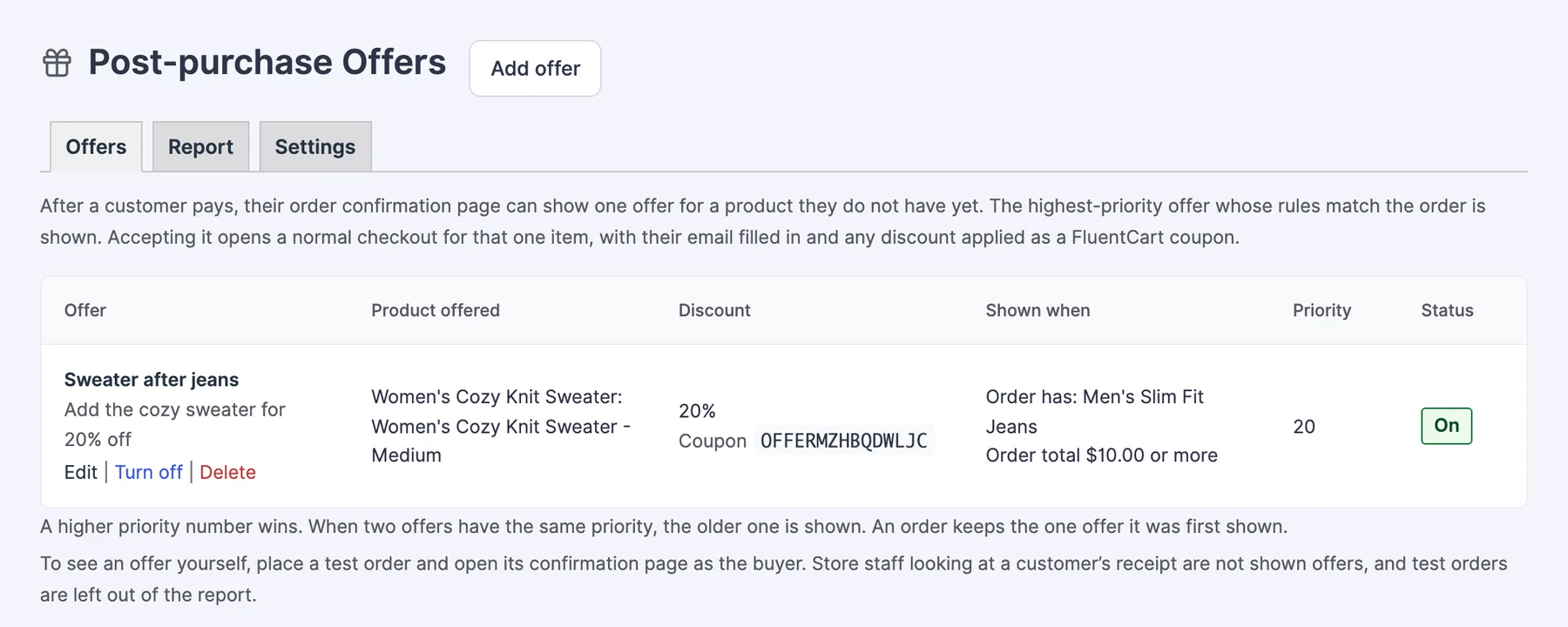
Post-purchase Offers shows one offer on the order confirmation page after a customer pays. The offer is for a product they don’t have yet, picked by rules you set: what was in the order, the order total, or whether it’s their first order.
Accepting an offer opens a normal checkout for that one item, with the customer’s email filled in and any discount already applied. There is no one-click charge. The customer reviews the order and pays through FluentCart’s checkout like any other purchase.
Before You Start
- Post-purchase Offers needs FluentCart 1.6.4 or newer.
- The module starts switched off. Nothing is shown to customers until you add an offer and turn it on.
- Order bumps sell before payment, inside checkout. This module sells after payment, on the confirmation page. The two don’t affect each other.
Turn It On
- Go to FluentCart → GT Extensions, turn on Post-purchase Offers and click Save Settings.
- Open FluentCart → Post-purchase Offers and click Add offer.
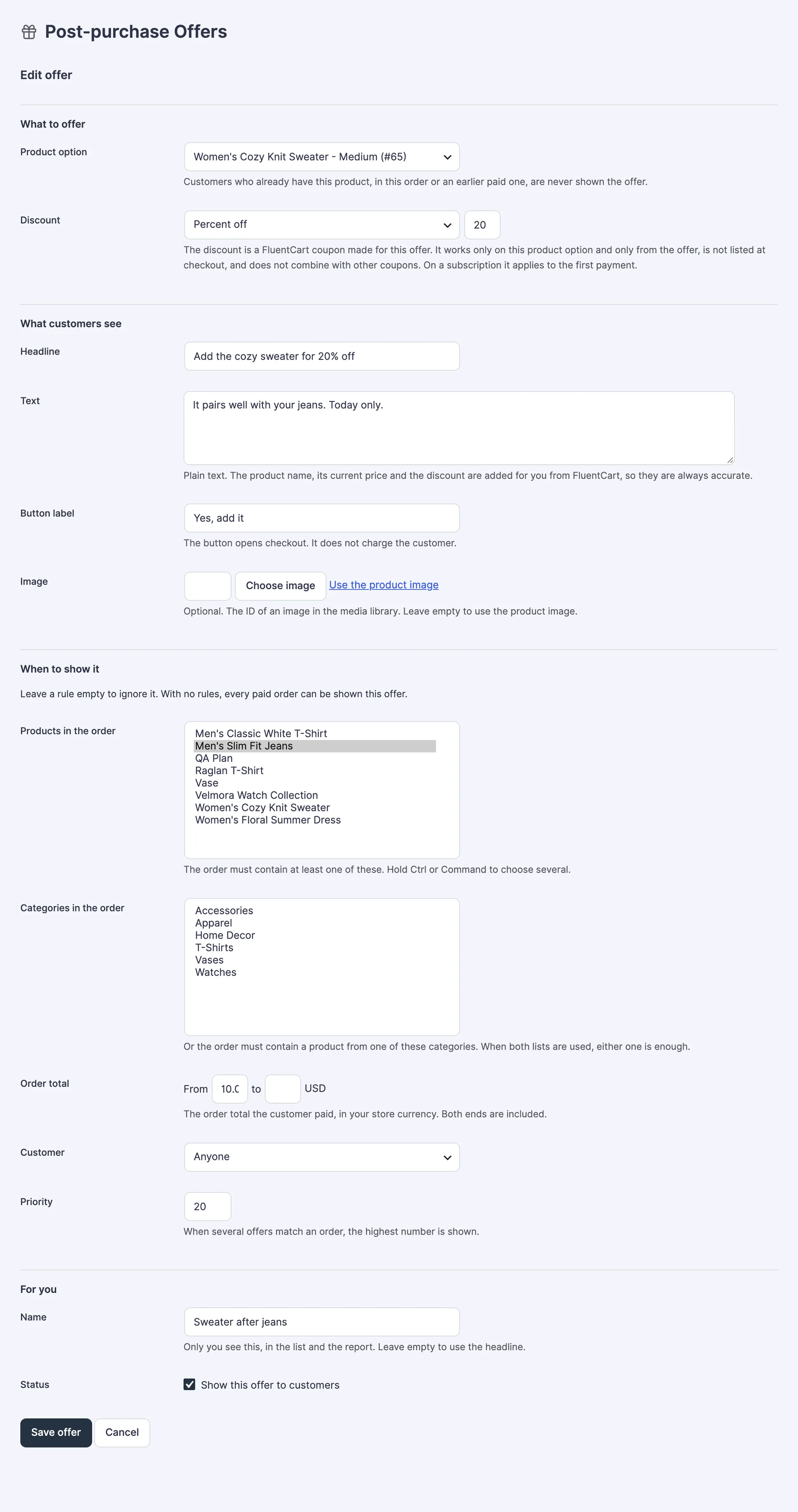
- Choose the product option, an optional discount, the text customers see and the rules.
- Tick Show this offer to customers and click Save offer.
Offer Settings
What to Offer
- Product option: the one product option to offer. Customers who already have this product, in this order or an earlier paid one, are never shown the offer.
- Discount: No discount, Percent off or Amount off in your store currency, with a Discount value.
The discount is a FluentCart coupon made for this offer. It works only on this product option and only from the offer, isn’t listed at checkout and doesn’t combine with other coupons. On a subscription it applies to the first payment.
What Customers See
- Headline and Text: plain text. The product name, its current price and the discount are added for you from FluentCart.
- Button label: the default is “Continue to checkout”. The button opens checkout. It doesn’t charge the customer.
- Image: optional. Leave it empty to use the product image.
When to Show It
Leave a rule empty to ignore it. With no rules, every paid order can be shown the offer.
- Products in the order: the order must contain at least one of these.
- Categories in the order: or the order must contain a product from one of these categories. When both lists are used, either one is enough.
- Order total: a From and to range for the total the customer paid, in your store currency. Both ends are included.
- Customer: Anyone, First-time customers or Returning customers.
- Priority: when several offers match an order, the highest number is shown. On a tie, the older offer wins.
For You
- Name: only you see this, in the list and the report. Leave it empty to use the headline.
- Show this offer to customers: turns the offer on.
You can keep up to 200 offers. Turn off pauses an offer and its discount coupon stops working. Delete removes the offer and its report, and disables its coupon in FluentCart.
Settings Tab
- Offer period: how many days after the order is placed the confirmation page shows the offer and its button works. From 1 to 90 days; the default is 30. Customers aren’t shown a countdown.
- Keep records for: how long the record of which order saw, clicked or bought an offer is kept. From 90 to 730 days; the default is 365. After that only each offer’s totals remain. No names, emails or IP addresses are stored.
What Customers See
- The customer pays. The order confirmation page shows the offer under the order items: your headline, text, the product, its price and the button.
- They press the button. A checkout opens with that one item, their email filled in and the discount applied.
- They review and pay. The new order is a normal FluentCart order.
The checkout is built the same way a Buy Link builds one. If the promised discount can’t be applied, the customer sees an error instead of a full-price checkout.
An order keeps the one offer it was first shown, however often the page is opened.
Who Is Shown an Offer
- The order must be paid. Pending, failed, canceled and refunded orders show nothing.
- Renewal orders and orders that were themselves bought from an offer show nothing, so offers don’t chain.
- Only the buyer sees it. Store staff looking at a customer’s receipt aren’t shown offers.
- The offered product must be published and available to buy.
To see an offer yourself, place a test order and open its confirmation page as the buyer.
Report
The Report tab shows, per offer, for the last 7, 30 or 90 days or all time:
- Shown: paid orders whose confirmation page showed the offer. An order counts once.
- Clicked: orders where the customer pressed the offer button.
- Purchased: paid orders that came from that button.
- Revenue: what those orders paid, less refunds, in your store currency. For a subscription, only the first payment is counted.
Test-mode orders are left out.
Limits
- There’s no one-click charge on a saved payment method. Accepting always opens a checkout.
- One offer per order. There’s no second offer after a decline and no sequence of offers.
- Owning any option of a product blocks offers for every option of that product.
- The offer shows a price only when the paid order was in your store currency and the offered item isn’t a subscription. Otherwise the customer sees the price at checkout.
- The order total rule uses the total the customer paid, tax and shipping included.
- An admin creating an order by hand in FluentCart can still apply an offer’s coupon code.
- Deleting an offer deletes its report.
Troubleshooting
The offer doesn’t show on the confirmation page. Check that the offer’s Status is On, the order is paid, and you’re viewing the page as the buyer, not as store staff. Then check the rules, and whether the customer already has the offered product.
The list says “No coupon yet. Save the offer again.” FluentCart couldn’t create the discount coupon. Open the offer and save it again. The offer isn’t shown until this is fixed.
The button shows an error. The offer period has passed, the product can no longer be bought, or the discount couldn’t be applied. Open the product and the offer’s coupon in FluentCart to check both.
The report is empty. Numbers appear once an offer has been shown on a confirmation page. Test-mode orders don’t count.