
Cart Recovery in GT Extensions for FluentCart
Cart Recovery emails shoppers who entered an email at checkout and left without paying. Each reminder carries a signed link that restores the same cart at current prices, so the shopper lands back on checkout with their items ready.
You can send up to 3 plain-text reminders, each with its own delay, text and optional coupon. Reminders stop when the shopper orders or unsubscribes.
Before You Start
- Cart Recovery needs FluentCart 1.6.4 or newer.
- The module starts switched off, and switching it on shows and saves nothing. Capture and Sending are separate switches under Settings, and both start off.
- By default a cart is saved only when the shopper ticks a consent checkbox. Check the rules that apply to your customers before changing that. Many regions require consent for reminder emails.
- Emails go out through your site’s normal WordPress mail setup. Make sure the store can already send email.
Turn It On
- Go to FluentCart → GT Extensions, turn on Cart Recovery and click Save Settings.
- Open FluentCart → Cart recovery and go to the Settings tab.
- Tick Save the email and cart at checkout next to Capture, choose When to save and review the checkbox text.
- Click Save settings. The Settings and Emails tabs save separately, so save each one before you open another tab.
- Open the Emails tab, edit the reminders and click Save emails. Then use Send a test to me, which sends the saved email.
- Back on Settings, tick Send reminder emails next to Sending, then click Save settings.
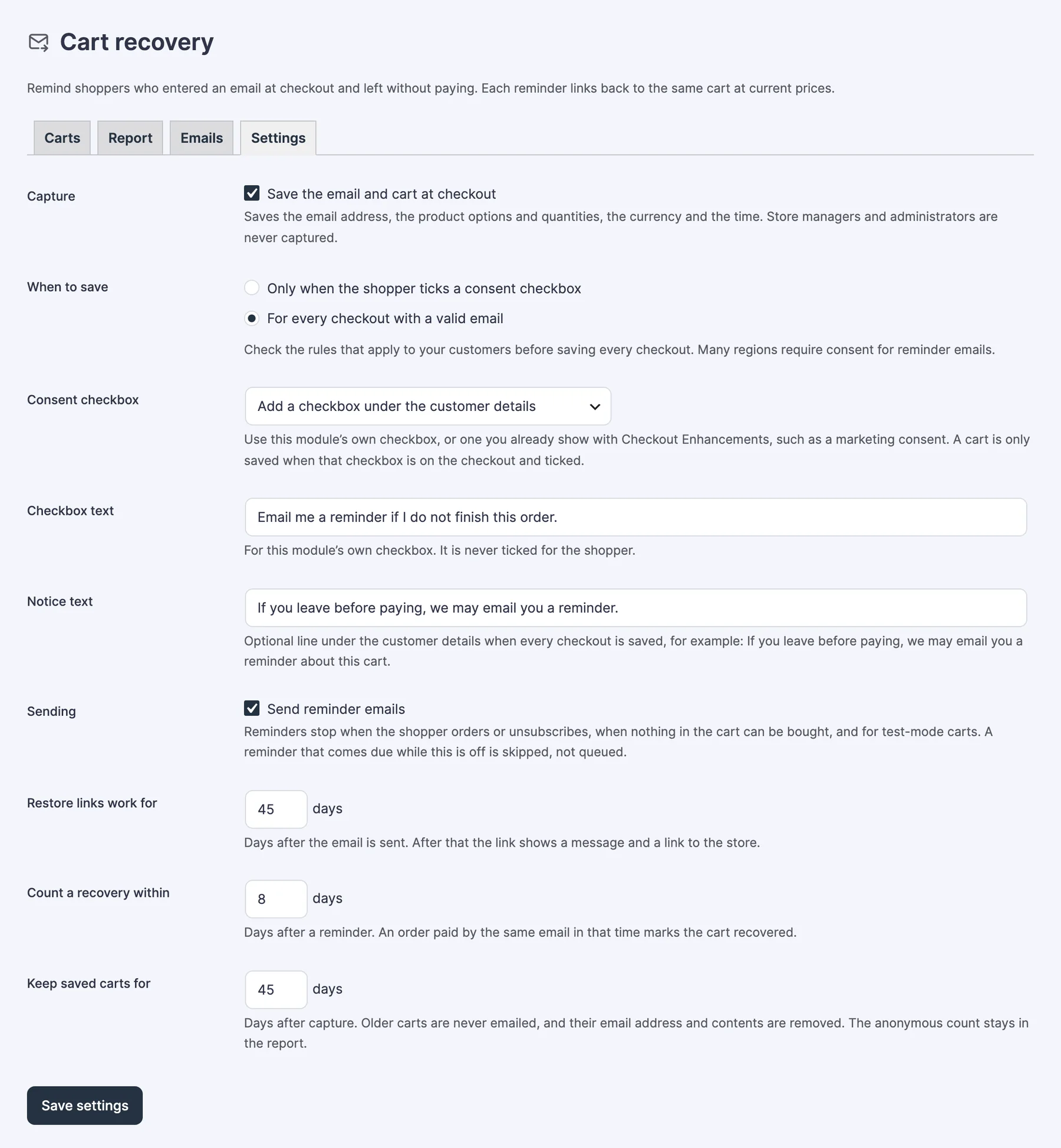
Settings
- Capture: saves the email address, the product options and quantities, the currency and the time. Store managers and administrators are never captured.
- When to save: Only when the shopper ticks a consent checkbox (the default) or For every checkout with a valid email.
- Consent checkbox: use this module’s own checkbox under the customer details, or one you already show with Checkout Enhancements, such as a marketing consent. A cart is saved only when that checkbox is on the checkout and ticked.
- Checkbox text: the label for this module’s own checkbox. The default is “Email me a reminder if I do not finish this order.” It’s never ticked for the shopper.
- Notice text: an optional line under the customer details when every checkout is saved.
- Sending: sends the reminders. A reminder that comes due while this is off is skipped, not queued.
- Restore links work for: days after the email is sent, from 1 to 60. The default is 7. After that the link shows a message and a link to the store.
- Count a recovery within: days after a reminder, from 1 to 90. The default is 7. An order paid by the same email in that time marks the cart recovered.
- Keep saved carts for: days after capture, from 7 to 365. The default is 60. Older carts are never emailed, and their email address and contents are removed. The anonymous count stays in the report.
- Unsubscribe list: shows how many addresses have unsubscribed. The list holds one-way hashes, not addresses. Remove from the list allows reminders again for one address. Only do this when the shopper asked you to.
Emails
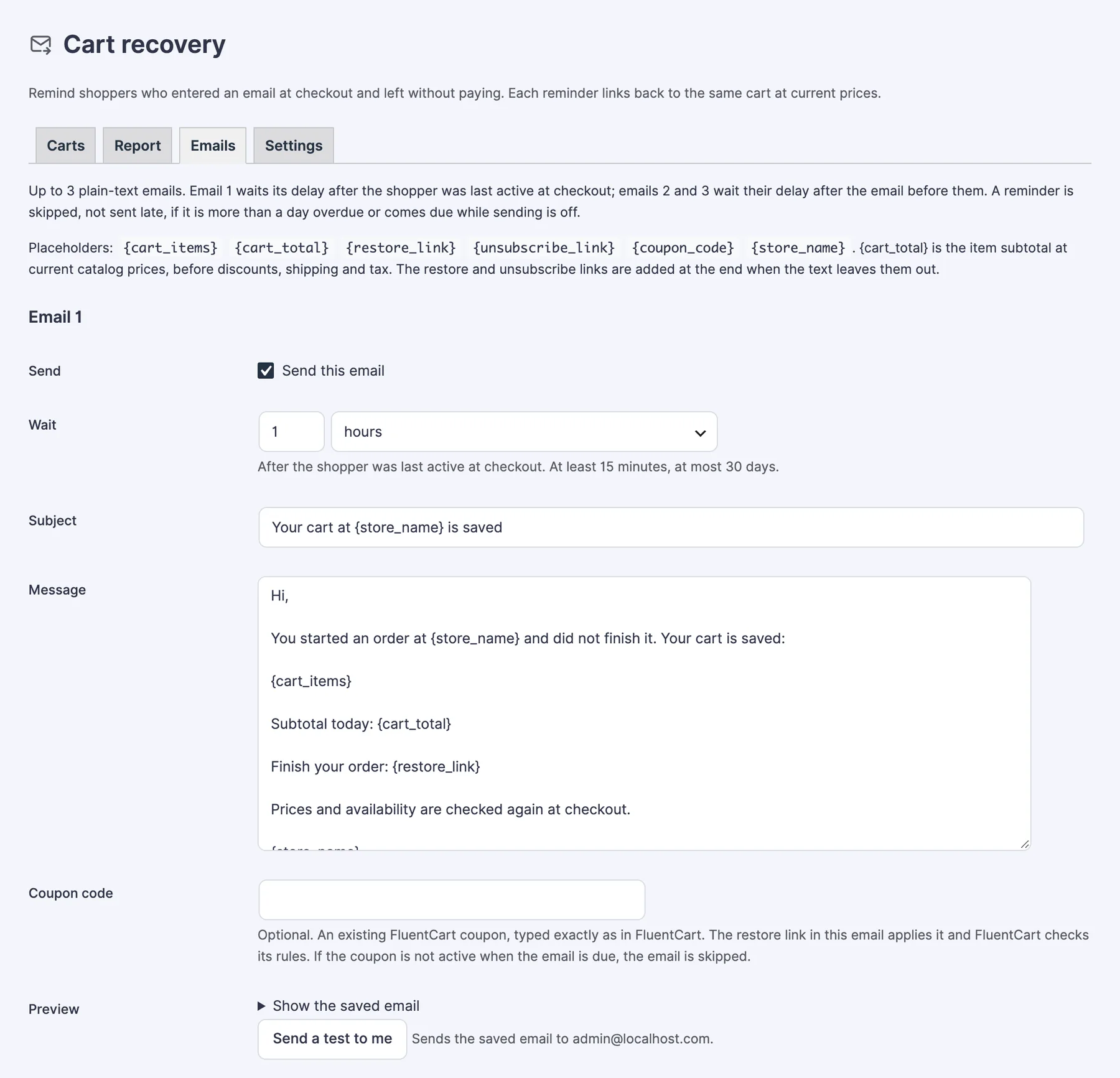
Each of the 3 emails has the same fields:
- Send: turns this email on. Email 1 and Email 2 start on, Email 3 starts off.
- Wait: a number of minutes, hours or days. At least 15 minutes, at most 30 days. Email 1 waits after the shopper was last active at checkout. Emails 2 and 3 wait after the email before them. The defaults are 1 hour, 1 day and 3 days.
- Subject and Message: plain text.
- Coupon code: optional. An existing FluentCart coupon, typed exactly as in FluentCart. The restore link in that email applies it and FluentCart checks its rules.
- Preview and Send a test to me: both use the saved email, so save first.
The placeholders are {cart_items}, {cart_total}, {restore_link}, {unsubscribe_link}, {coupon_code} and {store_name}.
{cart_total}is the item subtotal at current catalog prices, before discounts, shipping and tax.- The restore and unsubscribe links are added at the end when the text leaves them out.
- Every email also carries one-click unsubscribe headers for mail apps that support them.
What Shoppers See
- At checkout, the consent checkbox or the notice line under the customer details.
- A reminder email listing the items that can still be bought, the subtotal and the restore link.
- The restore link rebuilds the cart with the same products and quantities, fills in their email and opens checkout. It works the same way as a Buy Link.
- The unsubscribe link stops all cart reminders to that address at once.
When a Reminder Is Not Sent
A reminder is skipped, never sent late, when:
- it’s more than a day overdue
- Sending is off when it comes due
- its coupon isn’t active when it comes due
Reminders stop for a cart when:
- the shopper ordered, or FluentCart completed that cart
- the shopper unsubscribed
- nothing in the cart can be bought any more
- the cart is older than Keep saved carts for
- the cart or the store is in test mode
A newer cart from the same email stops the older one, so a shopper gets one sequence at a time. Reminders are also held on a staging or local copy of the store. See Keep Staging and Local Copies From Emailing Customers.
Carts and Report
The Carts tab lists each saved cart with its email, contents, capture time, status, reminders sent and order. Filter by Waiting, Recovered, Ordered, Unsubscribed or Stopped, search by email, or delete a record.
The Report tab shows carts captured, emails sent, carts recovered, the recovery rate and revenue recovered for the last 30, 90 or 365 days, by day, week or month.
- A cart counts as Recovered when its shopper pays for an order within your Count a recovery within period after a reminder.
- A shopper who orders without a reminder having been sent is Ordered, not Recovered.
- Revenue is what that order paid, in the order currency. Test-mode carts are left out.
Limits
- Emails are plain text. There’s no HTML template and no open or click tracking.
- Product add-ons, checkout field answers, delivery slots and shipping choices aren’t restored. The shopper gets the same products and quantities and fills in the rest again.
- A saved cart keeps its first 20 lines.
- Custom line items, invoice payments, locked carts and plan upgrades are never captured.
- Email prices are catalog prices in your store currency, even when the cart used another currency.
- A shopper who pays with a different email than the captured one may still get a reminder, unless they bought through the restored cart.
- A mail scanner that opens every link in an email can unsubscribe a shopper by accident. You can allow reminders again under Unsubscribe list.
- In consent mode, a checkout that doesn’t show the customer details section has no checkbox, so nothing is captured there.
- There are no bulk actions or CSV export on the cart list.
- Report periods use UTC dates and group carts by the day they were captured.
Troubleshooting
No carts appear under Carts. Check that Capture is ticked and saved. In consent mode a cart is saved only when the shopper ticks the checkbox. Carts from store managers and administrators are never captured, so test as a logged-out shopper.
Carts are captured but no email arrives. Check that Sending is ticked and that the email’s Send box is on. Then use Send a test to me to confirm WordPress mail delivery. A reminder that came due while Sending was off was skipped and won’t be sent later.
An email with a coupon was skipped. The coupon wasn’t active in FluentCart when the email came due. Check its status and dates in FluentCart → Coupons.
A restore link shows a message instead of the cart. The link is older than Restore links work for. The shopper can start a new cart from the store link on that page.