
How to Bill a Retainer Client Every Month Automatically
A retainer client pays the same amount every month, and you still have to remember to send the bill. Miss the 1st by a week and the payment slides by a week too, because most clients pay when the invoice lands, not when the work happens.
You can bill retainer clients automatically by issuing one invoice and setting it to repeat. Each month a fresh copy is created with its own number and payment link, it’s emailed to the client, and reminders follow up until it’s paid. You set it up once and the 1st takes care of itself.
GT Extensions for FluentCart is my add-on plugin for FluentCart, and its Custom Invoices module does this job. I’ll walk you through the whole setup in the order that works best, because one setting has to come before the first invoice. Bill Clients on a Schedule with Recurring Invoices has every scheduling detail if you want them in one place.
Before You Start
You need 4 things in place:
- Custom Invoices switched on. Go to FluentCart → GT Extensions, enable Custom Invoices and click Save Settings. It needs FluentCart 1.6.4 or newer.
- Working WordPress email. Every new invoice and reminder goes out through your WordPress mail service. Send one test invoice to your own address first.
- WordPress scheduled tasks running. New invoices and reminders run from them. On a site with few visitors, a real server cron keeps the dates exact.
- The retainer amount agreed. The first invoice becomes the template for every month after it.
The client pays each invoice from its link at your FluentCart checkout. If you want a card charged on its own every month instead, that is a FluentCart subscription product, which is a different setup.
Set Up Reminders First
Reminders are planned for each invoice at the moment it’s issued. Settings you change later apply only to invoices issued after the change. So it is wise to set them up before you issue the first retainer invoice, and every monthly copy then follows the same plan.
- Open FluentCart → Invoices → Email settings and scroll to Automatic reminders.
- Under Invoices with a due date, set up to 4 steps. A good retainer pattern is 3 days before the due date, on the due date and 7 days after it.
- Leave the other rows on Off.
- Click Save email settings.
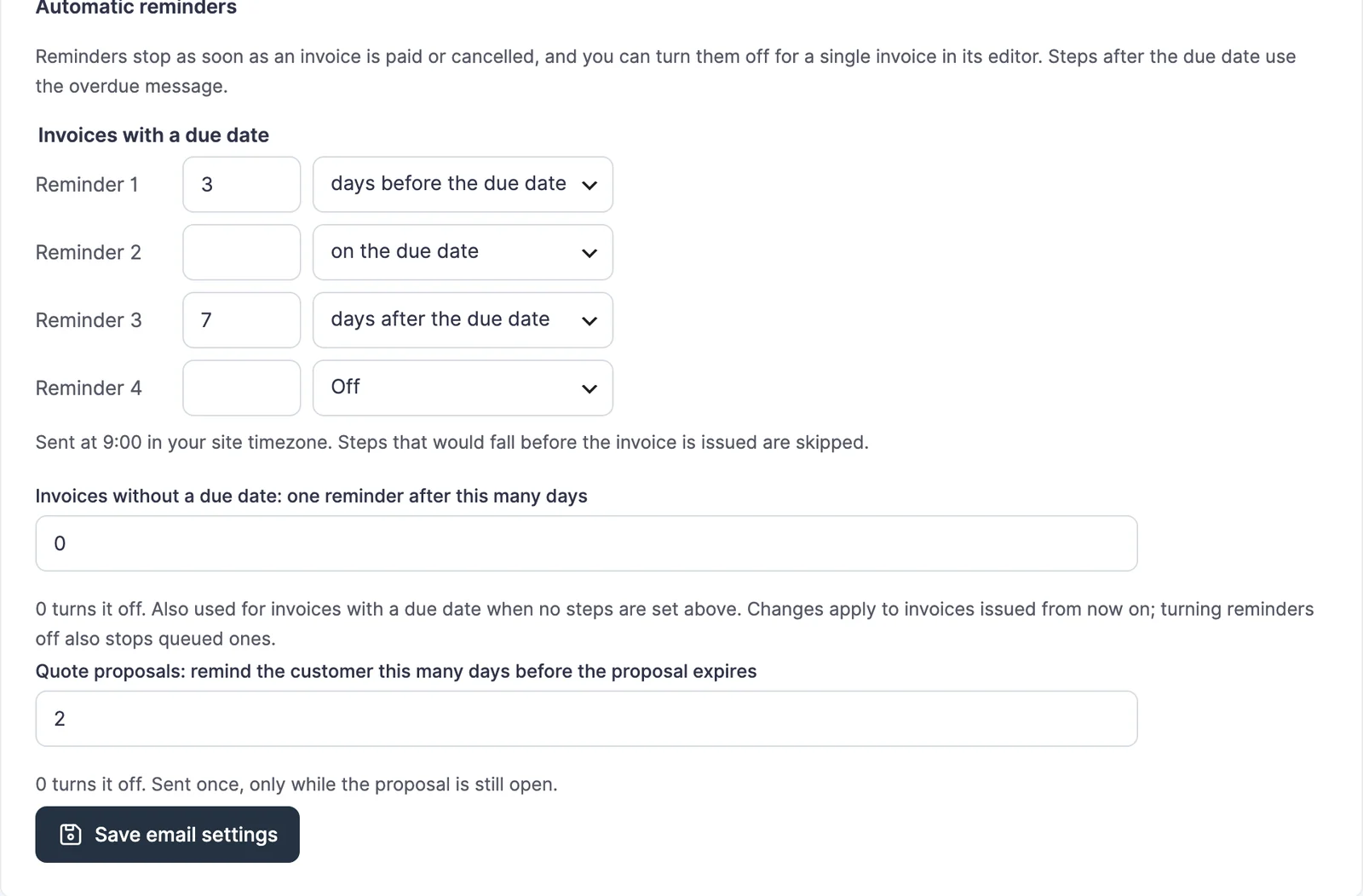
Reminders go out at 9:00 in your site timezone. Steps after the due date use the Overdue reminder message, which tells a client who already paid to ignore it. Send Automatic Invoice Reminders covers both messages and the per-invoice switch.
Issue the First Invoice
The first invoice is a normal invoice. It also becomes the template, so set it up the way you want every month to look.
- Go to FluentCart → Invoices → Add invoice.
- Find the client under Find an existing customer, or enter their name and email.
- Add the retainer as a custom item with Add custom item, set Delivery to Digital / service and enter the monthly price.
- Set a Due date. The gap between the issue date and the due date carries over to every copy.
- Click Save draft, check the total and click Issue invoice.
- Click Email payment link to send this first one.
Issuing doesn’t send anything by itself. The confirmation says so: “No email is sent.” So the first month needs that one manual click, and the schedule handles the emails after it.
Leave the invoice title blank if you like. Each copy then gets a fresh automatic title with its own number, such as “Invoice INV-12”.
Make It Repeat Every Month
Open the issued invoice and scroll to Repeat this invoice. These are the 4 choices:
| Setting | What to pick for a monthly retainer |
|---|---|
| Repeat every | 1, months |
| First invoice on | The date of next month’s invoice. It must be after today |
| Ends | Never, or After 12 invoices for a 1-year contract |
| Each new invoice | Issue it and email the payment link |
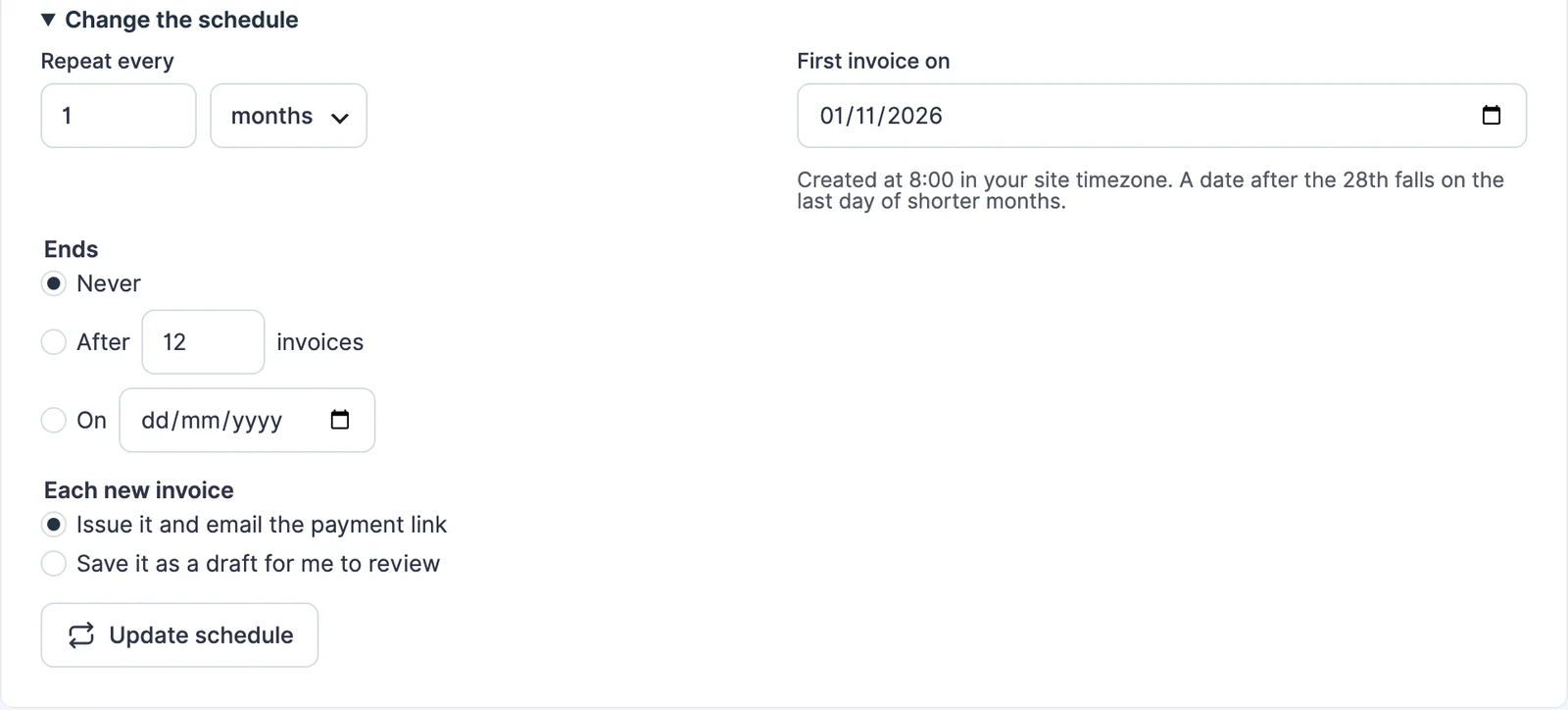
Click Start repeating. The panel now shows the schedule, the next invoice date and how many invoices it has created.
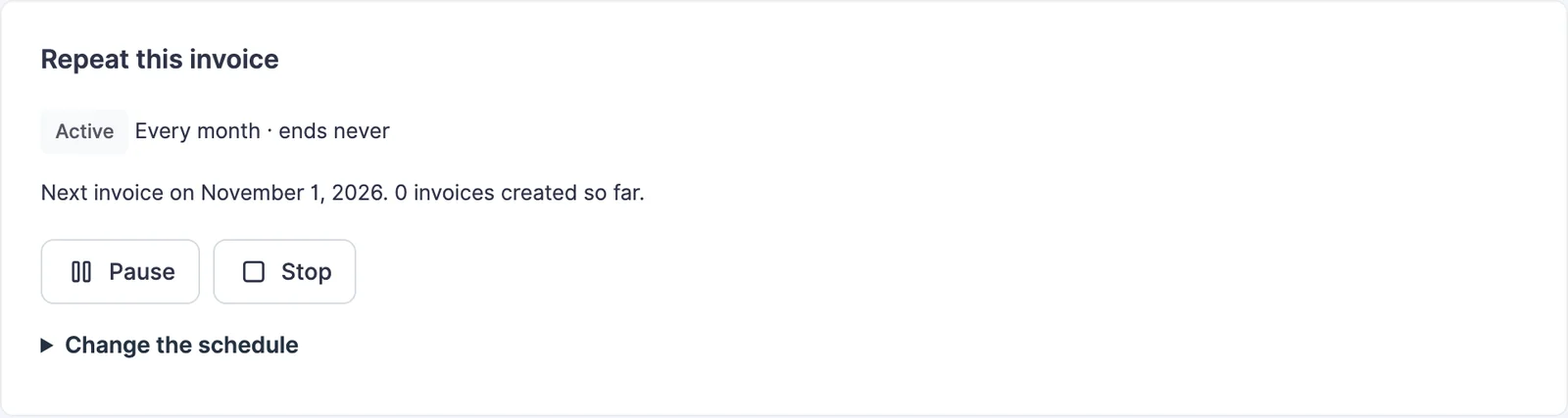
If the price still moves from month to month, pick Save it as a draft for me to review instead. Each copy then waits in your invoice list until you check it and issue it yourself.
What Happens Each Month
On each date, the schedule creates the new invoice at 8:00 in your site timezone. It copies the template as it is at that moment: the client, items, prices, currency, tax settings and your seller details.
Here is an example. You issue the template on November 1 with a due date of November 15, and set the first invoice on December 1. Each copy is then created on the 1st and due on the 15th. With the reminders above, the December client gets:
- the invoice on December 1 at 8:00
- a reminder on December 12 at 9:00
- a reminder on December 15 at 9:00
- an overdue reminder on December 22 at 9:00, only if it’s still unpaid
The moment FluentCart records the payment, the remaining reminders for that invoice are removed. A schedule that starts on the 29th, 30th or 31st runs on the last day of shorter months and returns to the original day when the month allows it.
Invoices already created never change. When the fee goes up, Stop the schedule before its next date. Then use Duplicate as draft on the template, set the new price and issue it as that month’s invoice. Start a new schedule from it, with the first date one month later.
Check It Works
Open FluentCart → Invoices → Recurring. Your schedule should show as Active with the client, the interval, the amount and the next invoice date.
After the first run, look for these signs:
- The template’s activity log says “Recurring invoice INV-… created for …”.
- The new invoice’s log says “Created by the recurring schedule of invoice …”.
- The new invoice lists its queued reminders under the payment link, as “Automatic reminders:” followed by the dates.
When Something Goes Wrong
The schedule and the invoice screens explain problems in plain words. These are the ones you’re most likely to see:
| Message | What it means | Fix |
|---|---|---|
| Choose a first invoice date after today. | The first copy’s date is today or earlier | Pick a date from tomorrow onward |
| Only an issued invoice that is not a recurring copy or deposit can repeat. | You opened a draft, a monthly copy or a deposit invoice | Start the schedule from the issued template invoice |
| The last run failed: … | That month’s invoice couldn’t be created | Read the reason in the activity log, fix it, then use Duplicate as draft on the template to bill that month by hand |
| The payment request email was not sent: … | The invoice was created but WordPress mail failed | Fix mail delivery, then click Email payment link on that invoice |
| This schedule has ended. Start a new one from the invoice. | The count or end date passed, or you clicked Stop | Set up a new schedule on the template |
| Choose a one-time product variation. Recurring and bundle invoices are not supported in this release. | A subscription or bundle product is on the invoice | Use a custom item or a one-time product for the retainer fee |
If WordPress scheduled tasks stop for a while, the next run creates one invoice for the current period and logs the periods it skipped. Your client never gets a pile of catch-up invoices at once.
What It Won’t Do
A few limits follow from how the schedule works:
- It doesn’t charge a card on its own. Each month the client pays from the invoice link at your checkout. Automatic card renewals belong to FluentCart subscriptions.
- Paused months aren’t billed. Pause stops new invoices, and Resume continues from the next date ahead.
- Deposit and balance invoices can’t repeat, and neither can a monthly copy. The schedule always lives on the template.
- Stop is final. Cancelling the template invoice also ends its schedule, and invoices already created stay as they are.
If a new client should pay part of the first project up front before the retainer starts, How to Take a 50% Deposit Before You Start Client Work sets that up.