
How to Sell a Plan from Your Pricing Page Without a Cart
A buyer decides on the yearly plan, clicks the button and lands on a cart page with one item in it. Then comes a checkout page that looks nothing like your pricing page. Every extra page between the plan and the payment is a chance for them to stop and think again.
You can sell a plan from your pricing page with no cart in the way. The buyer picks the plan, fills in their details and pays on the same page, and only leaves for the receipt. There are two ways to do it, and the right one depends on whether your pricing page already exists.
GT Extensions for FluentCart is my add-on plugin for FluentCart. Its On-page Checkout and Modal Checkout modules both use FluentCart’s own checkout form, so taxes, coupons and payment methods work the same as on your checkout page.
Pick Your Route
The two routes solve the same problem from different ends:
| On-page Checkout | Modal Checkout | |
|---|---|---|
| What the buyer sees | Plan cards with the checkout form right below them | Your own buttons, which open checkout in a panel over the page |
| Best for | A new pricing page, or one you’re happy to rebuild | A designed pricing table you want to keep |
| Setup | One block or shortcode | A class on each button |
| Plan picker | Built in, with a “Save N%” badge on longer plans | Your page’s own design |
I’d pick On-page Checkout for a simple membership or software plan page, because the plan cards and savings badge come ready. Modal Checkout fits better when a designer has already built the pricing table and you just want the buttons to stop leaving the page.
Before You Start
You need 3 things in place:
- FluentCart 1.6.4 or newer. Both modules need it.
- One product with a variation for each plan, such as Monthly and Yearly. Subscriptions work, and so do one-time plans.
- The pricing page on the same site. The checkout form only loads inside pages on your own domain.
Route 1: Put the Checkout on the Page
- Go to FluentCart → GT Extensions, enable On-page Checkout and click Save Settings.
- Edit your pricing page and insert the On-page Checkout block.
- Under Product and plans, choose the product. Every active variation becomes a plan card, in the product’s own order.
- Set Preselected plan (variation ID) to the plan you want selected first, such as the yearly one.
- Publish the page.
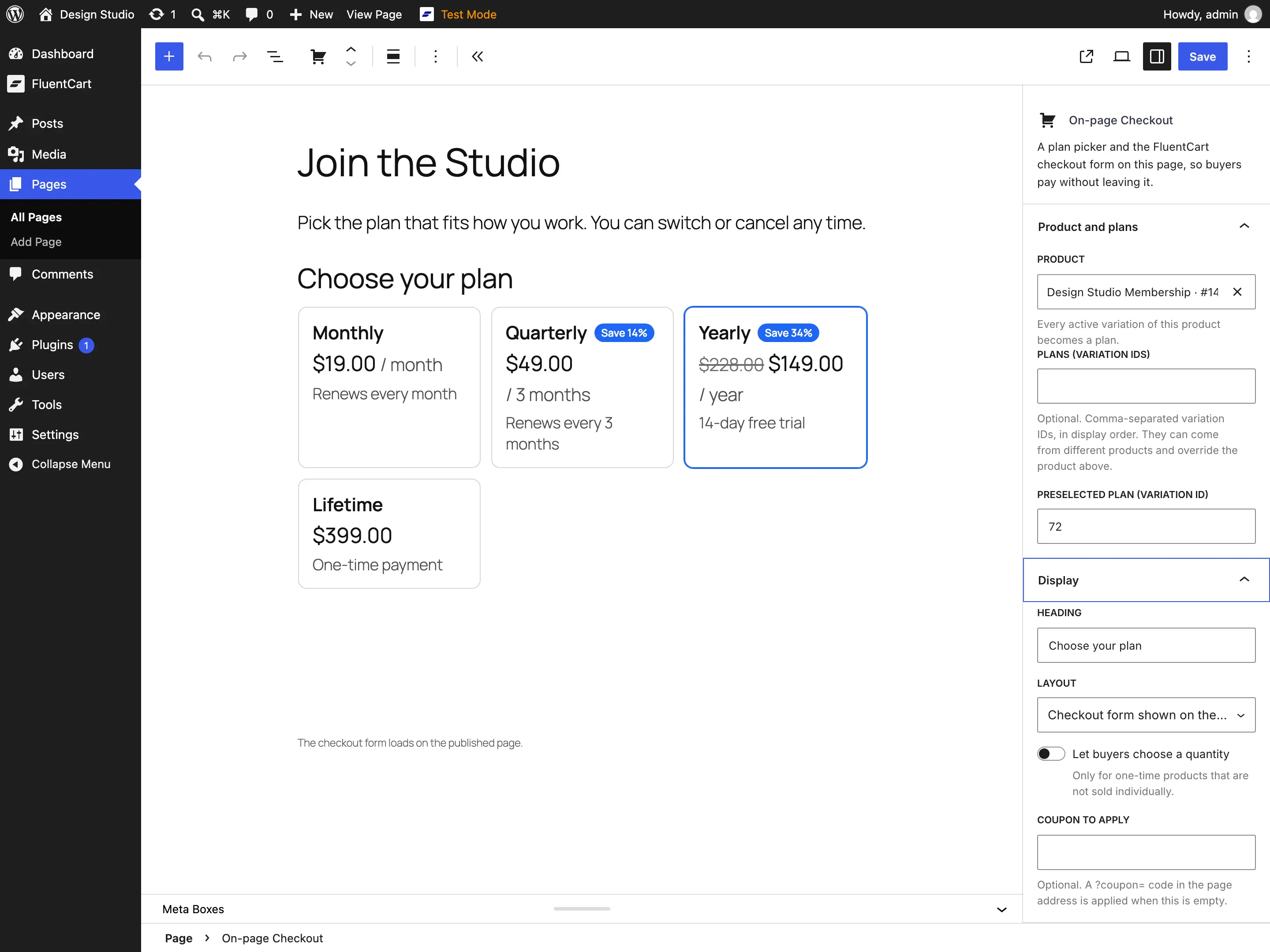
The Display panel holds the rest. Layout shows the form on the page, or a button that opens it in place. Coupon to apply adds a launch discount. Let buyers choose a quantity works only for one-time plans.
The shortcode does the same job in a page builder:
[gtfc_checkout product="12" default="35" title="Choose your plan"]Here is what buyers see with 4 plans and the yearly one preselected:
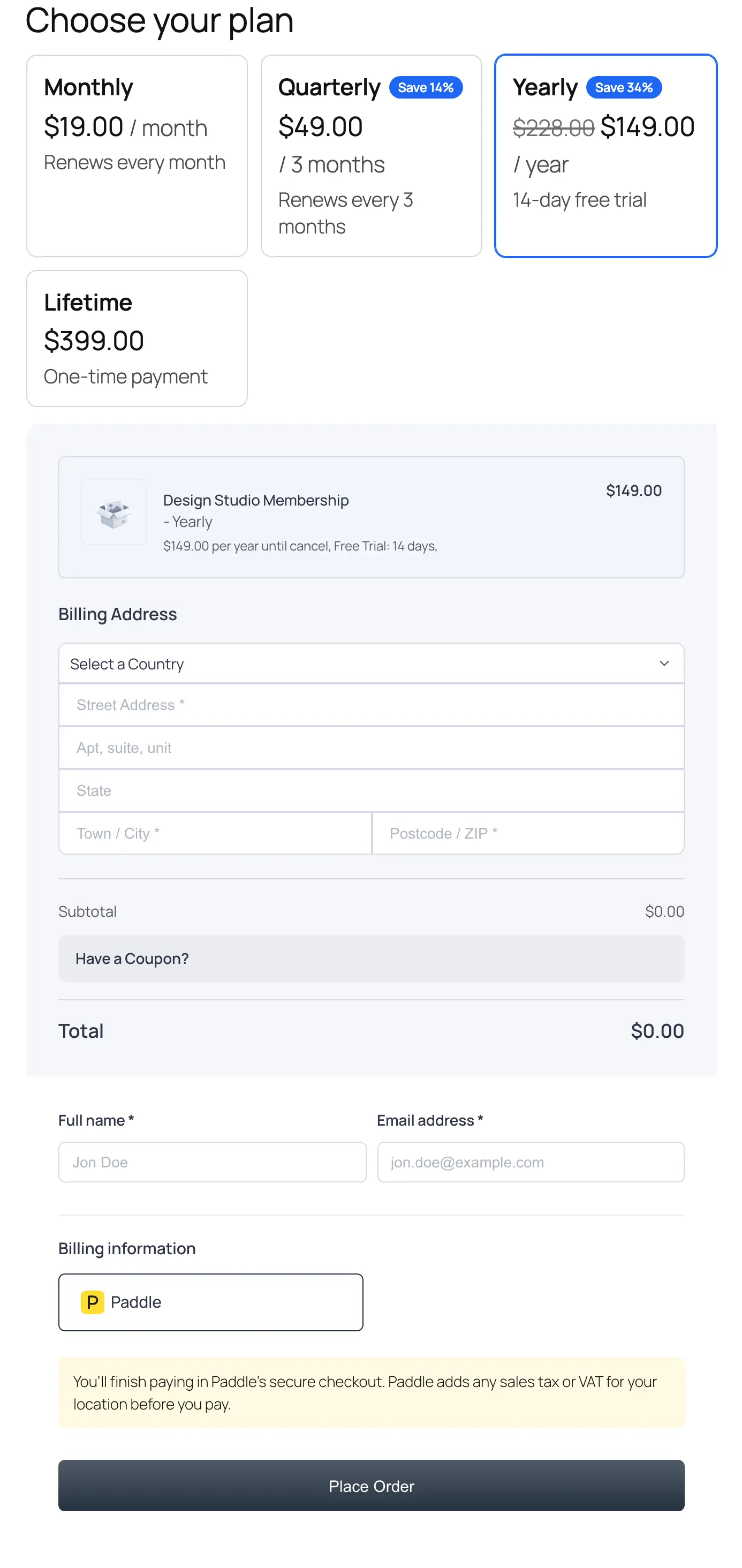
Each card shows the price, the billing period, any trial or signup fee and “One-time payment” for plans that don’t renew. A quarterly, half-yearly or yearly plan priced below the same months of the monthly plan gets a “Save N%” badge on its own.
Route 2: Open Checkout From Your Buttons
- Go to FluentCart → GT Extensions, enable Modal Checkout and click Save Settings.
- Find each plan’s variation ID in FluentCart → Products, under the product’s Pricing.
- Link each pricing button to its plan with
#gtfc-checkout=and the ID, such as#gtfc-checkout=34. - Add the class
gtfc-modal-checkoutto the button. In the block editor it goes in Advanced → Additional CSS class(es).
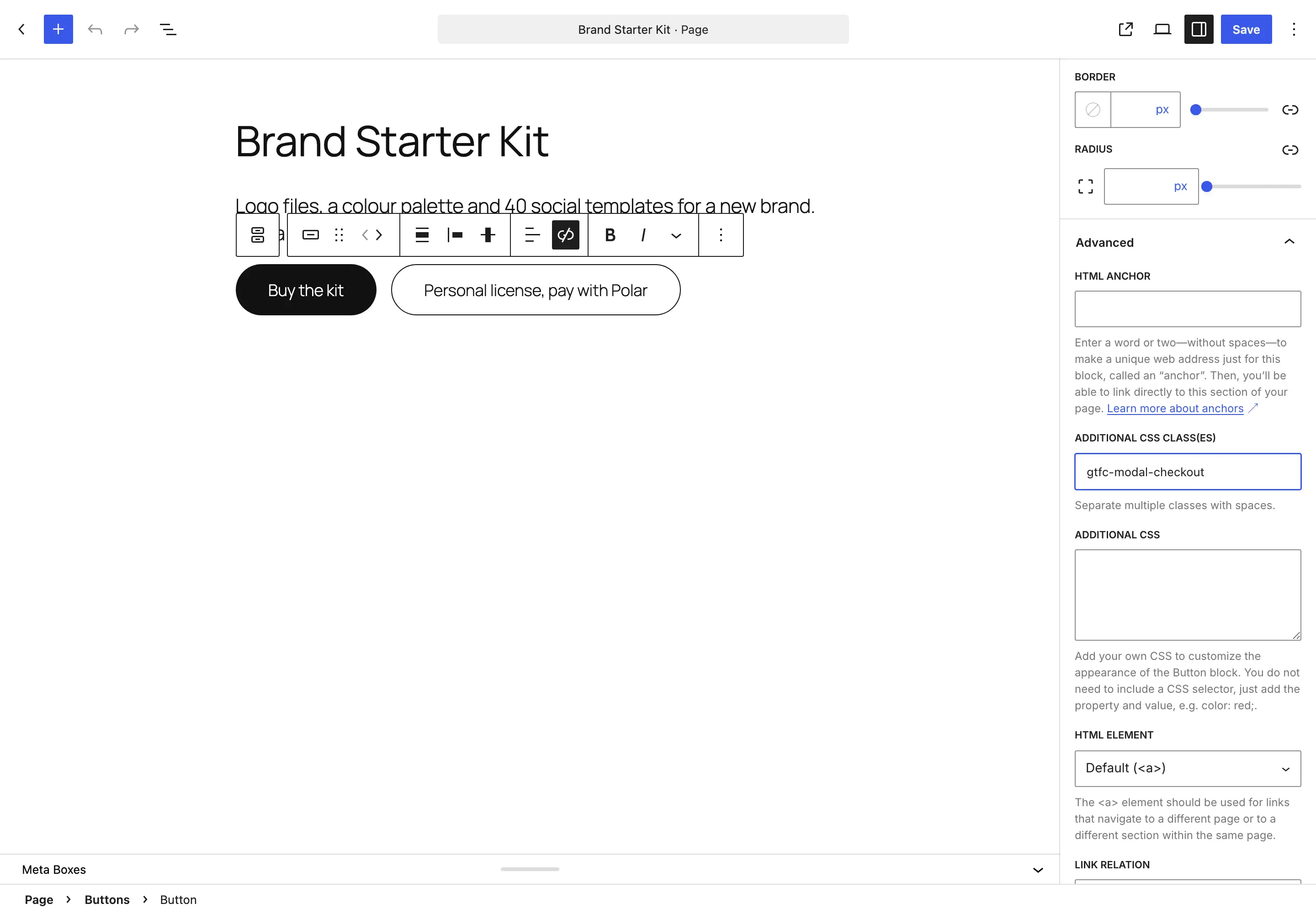
A FluentCart Buy Now link works as the button’s address too, such as /?fluent-cart=instant_checkout&item_id=34&quantity=1. The button keeps its look. The class only changes what a click does.
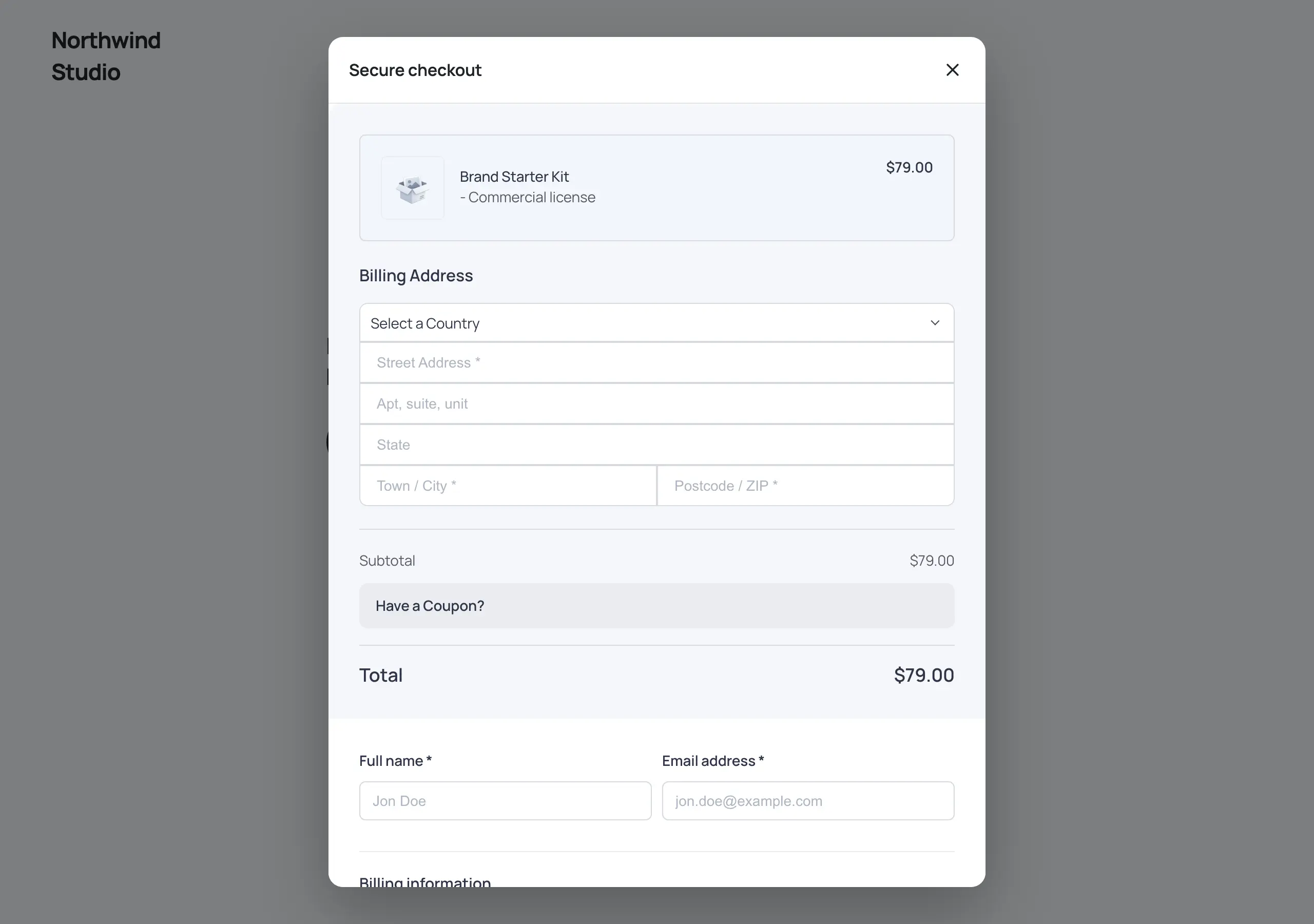
The modal is a centered panel up to 640px wide on a computer and a full-screen sheet on a phone. If a buyer closes it by mistake, opening the same plan again in that tab brings back what they typed.
What Happens to the Cart
Neither route touches the buyer’s store cart. Each visitor gets a separate cart for the plan they pick, so a product they added somewhere else stays where it was. The checkout form also loads only when it’s needed: when it scrolls near the screen, or when a button is clicked. A visitor who reads your pricing and leaves creates nothing.
That makes both routes safe on a cached pricing page. Nothing on the page itself depends on the visitor.
Send Buyers Somewhere After They Pay
After Place order, the whole page moves to FluentCart’s receipt, or to the gateway’s own payment page for gateways that take payment on their site. To send buyers to a welcome or onboarding page instead, switch on Extra Enhancements and open the product’s Checkout options card. Fill in After payment, send buyers to with a page such as /welcome/. Renewals always show the receipt.
Check It Works
Open the pricing page in a private window and run one test purchase with your gateway in test mode:
- Pick a plan. The form should show that plan in its order summary.
- Switch to another plan and back. What you typed should still be there.
- Place the order. The page should move to the receipt or your welcome page.
- Open your store cart in the same window. It should be empty, or hold only what you added before.
When Something Goes Wrong
These messages show on the page or inside the checkout form:
| Message | What it means | Fix |
|---|---|---|
| On-page checkout: choose a published FluentCart product or list its variation IDs. | The block has no product, or the product isn’t published. Only editors see this | Pick a published product in the block, or list variation IDs |
| This product is not available right now. | No plan on the block can be bought | Check that the variations are active and the product is published |
| Too many checkouts were opened from this connection. Wait a few minutes and reload the page. | One connection opened more than 30 carts in 10 minutes | Usually a bot. A real buyer can reload after a few minutes |
| Checkout is taking too long to load. | The modal waited 20 seconds | The modal offers Open the checkout page instead. Check the page for a script conflict |
| This payment method is not offered for this purchase. Choose one of the payment methods shown. | The button limits methods with a pay-via- class | Expected behavior. Remove the class to offer every method |
What It Won’t Do
A few limits come with the embedded form:
- It only works on your own site. The form can’t be embedded on another domain.
- Quantity stops at 100, and subscriptions are always bought one at a time.
- The page address coupon option is shortcode-only.
url_coupon="no"stops a?coupon=code in the address from being applied, and the block has no switch for it.
Sell Plans on Any Page with On-page Checkout and Open Checkout in a Modal from Any Button list every attribute and setting. To open the pricing page with a discount at a set time, How to Run a Launch Sale That Starts at Midnight covers the coupon side.