Stackless for FluentCart
Multi-currency, invoices, checkout layouts and more for FluentCart.
 Gaurav TiwariDocs
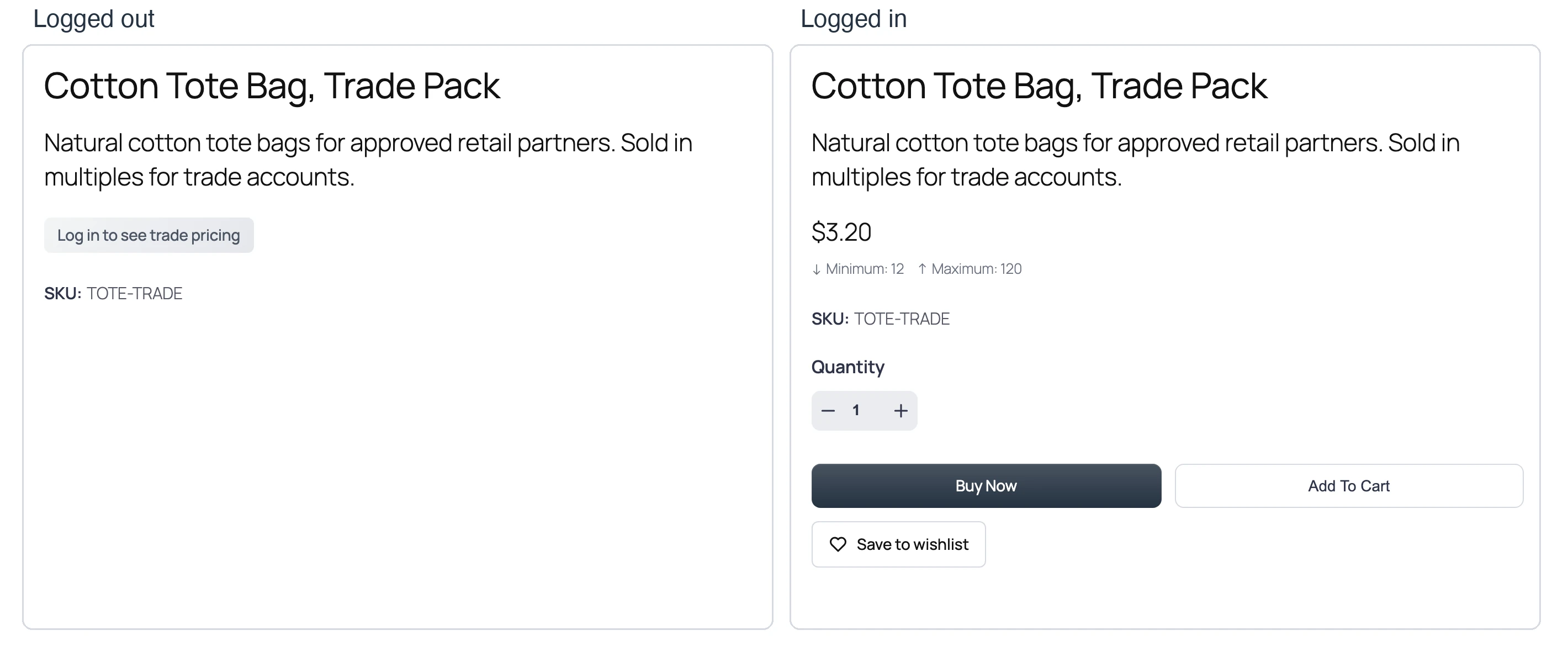
Hide Price Until Login replaces a price with a sign-in message and takes the purchase controls off the page for visitors who aren’t allowed to buy. It can cover the whole store or only the products you mark with Login to purchase, so a shop can keep its retail range public and put a trade range behind login.
This is a visibility and purchase-access rule. It does not create a wholesale pricing tier, approve customer accounts or assign roles for you. For role prices and quantity breaks, use Wholesale Pricing.

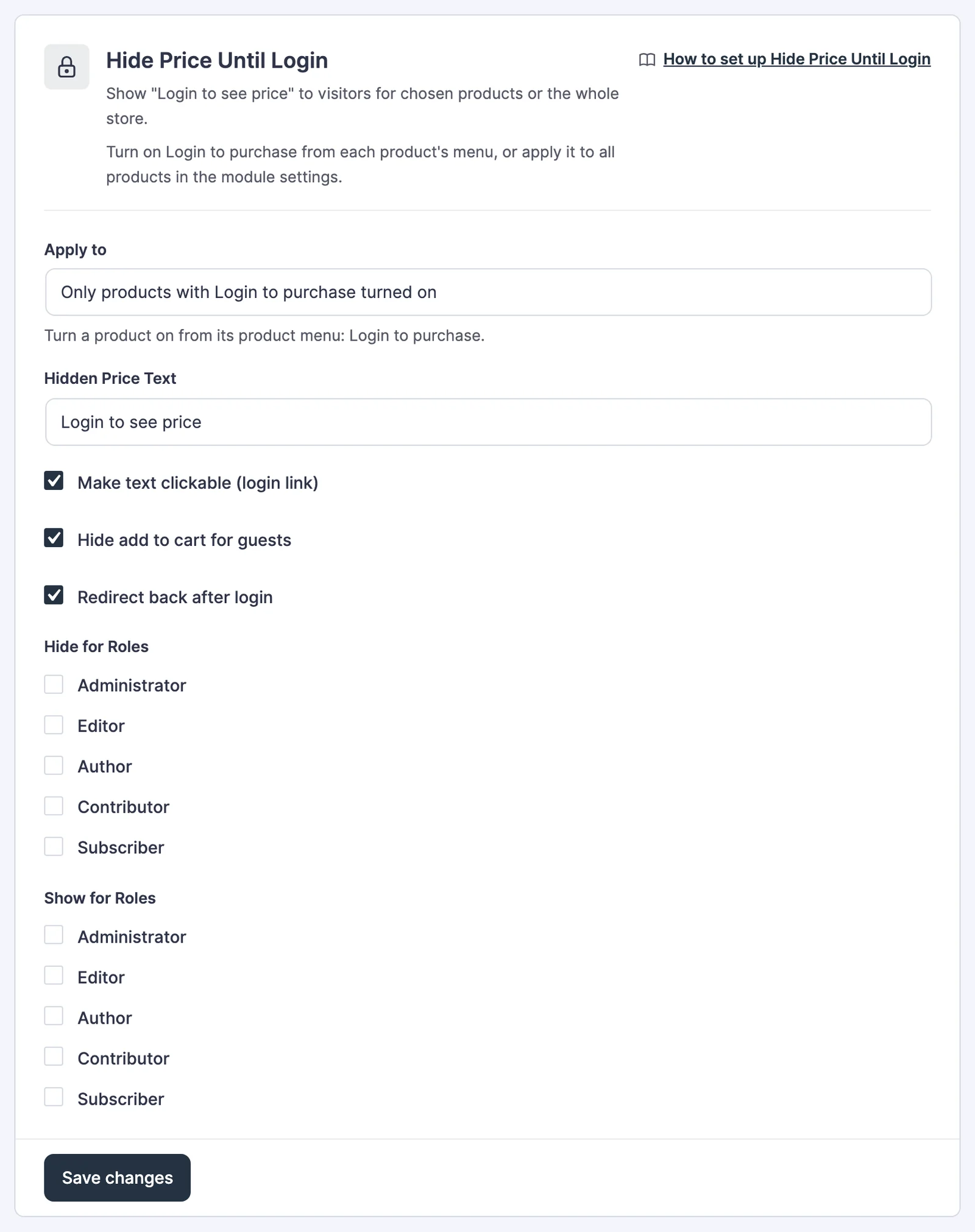
Switch on Hide Price Until Login on the Stackless Dashboard, open Settings on its card and set Apply to first.
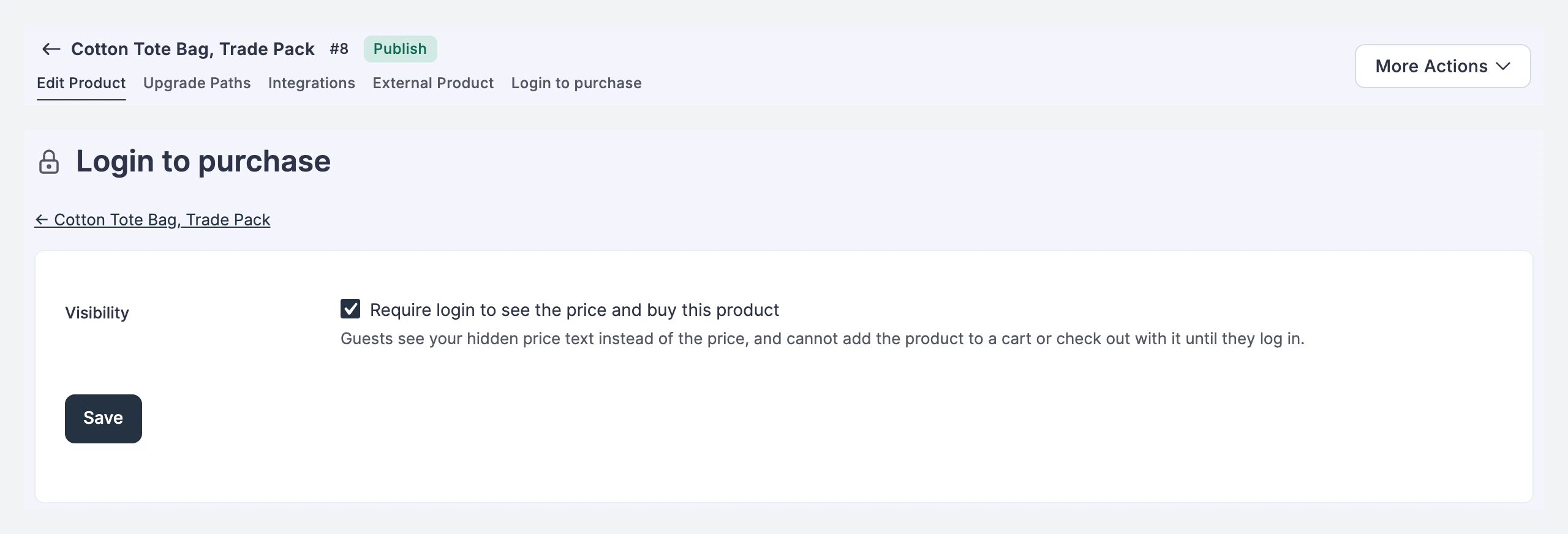
To mark a product, open it in FluentCart and choose Login to purchase from the product menu, next to Edit Product and Integrations. Tick Require login to see the price and buy this product, then save.
Review the remaining settings before saving.
With both role lists empty, signed-in users can see prices and guests cannot. A matching Hide for Roles rule takes priority over an allow list.
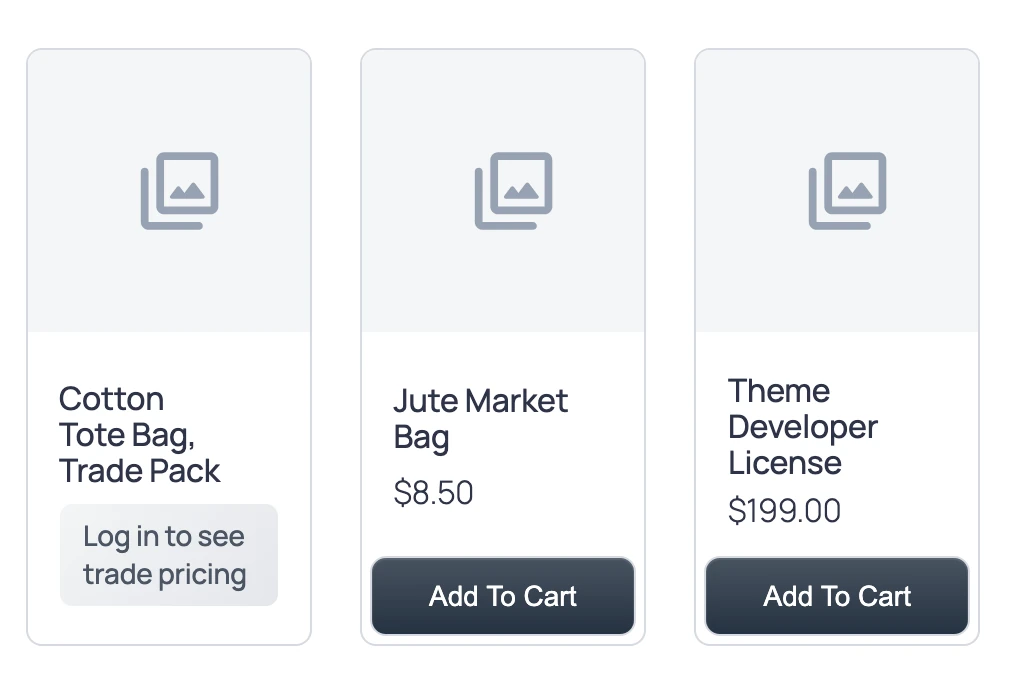
The price is removed before the page leaves the server, so it isn’t in the page source either. The same applies to shop grids, product cards, variant data, pricing tables, search results and FluentCart’s public product API. Pages built with FluentCart’s product shortcodes, such as [fluent_cart_products], get the same treatment. Sold count, stock urgency and quantity limits that sit inside the hidden price block are removed with it.
Purchasing is refused at every entry point:
The rule also holds on stores using Multi-Currency Checkout, where the login prompt stays in place of the converted price.
A buyer who must log in can’t place their unpaid order again from their own cart, for example after a failed payment. That cart is checked like a new purchase, and so is a plan upgrade.
These still go through, because your store or FluentCart issued them:
A payment link works for any unpaid order with an amount due, including one placed before you put a product behind login, so look through your unpaid orders when you do. To stop a link, cancel the order and then delete it, which can’t be undone. Canceling alone doesn’t close the link.
Give approved buyers an appropriate WordPress role through your account-management process. Mark the trade products with Login to purchase, select that role in Show for Roles, then compare a trade product and a retail product as a guest, an ordinary subscriber and an approved buyer.
Check purchasing as well as appearance, and view the page source of one trade product as a guest. The trade price should not appear anywhere in it.
For a custom page, add this shortcode in a Shortcode block or another shortcode-capable area.
[gtfc_login_to_see_price text="Sign in to view pricing"]If a product still shows its price to guests, check Apply to and that product’s Login to purchase setting. If a signed-in customer still cannot see prices, check both role lists and the roles assigned to that account.
Keep restricted-price pages out of shared page caches, because a page cached for a signed-in buyer carries the price. Test the wishlist too, because saved items should respect the same visibility rule, and use Min/Max Quantity when trade orders need a minimum.
Still stuck? Open a support ticket