
Take Payments with GT Stripe
FluentCart’s own Stripe connects through FluentCart’s Connect relay. That works, but some stores want their own API keys: an agency running a client’s account, a store that already has restricted keys, or one that wants every webhook under its own control.
GT Stripe is Stripe with your own keys. Buyers pay in Stripe’s Payment Element at checkout, with Apple Pay, Google Pay and Link as one-tap buttons, and saved cards renew subscriptions through FluentCart’s own billing, without FluentCart Pro. It sits in FluentCart’s Payments list next to FluentCart’s Stripe, and the two never share a webhook.
Turn It On
- Go to FluentCart → GT Extensions, enable Payment Gateways and save.
- Click Configure on Payment Gateways and tick GT Stripe under Gateways to add to FluentCart. Clearing it later hides it from checkout and keeps its settings.
- Open FluentCart → Settings → Payments and choose Manage on GT Stripe.
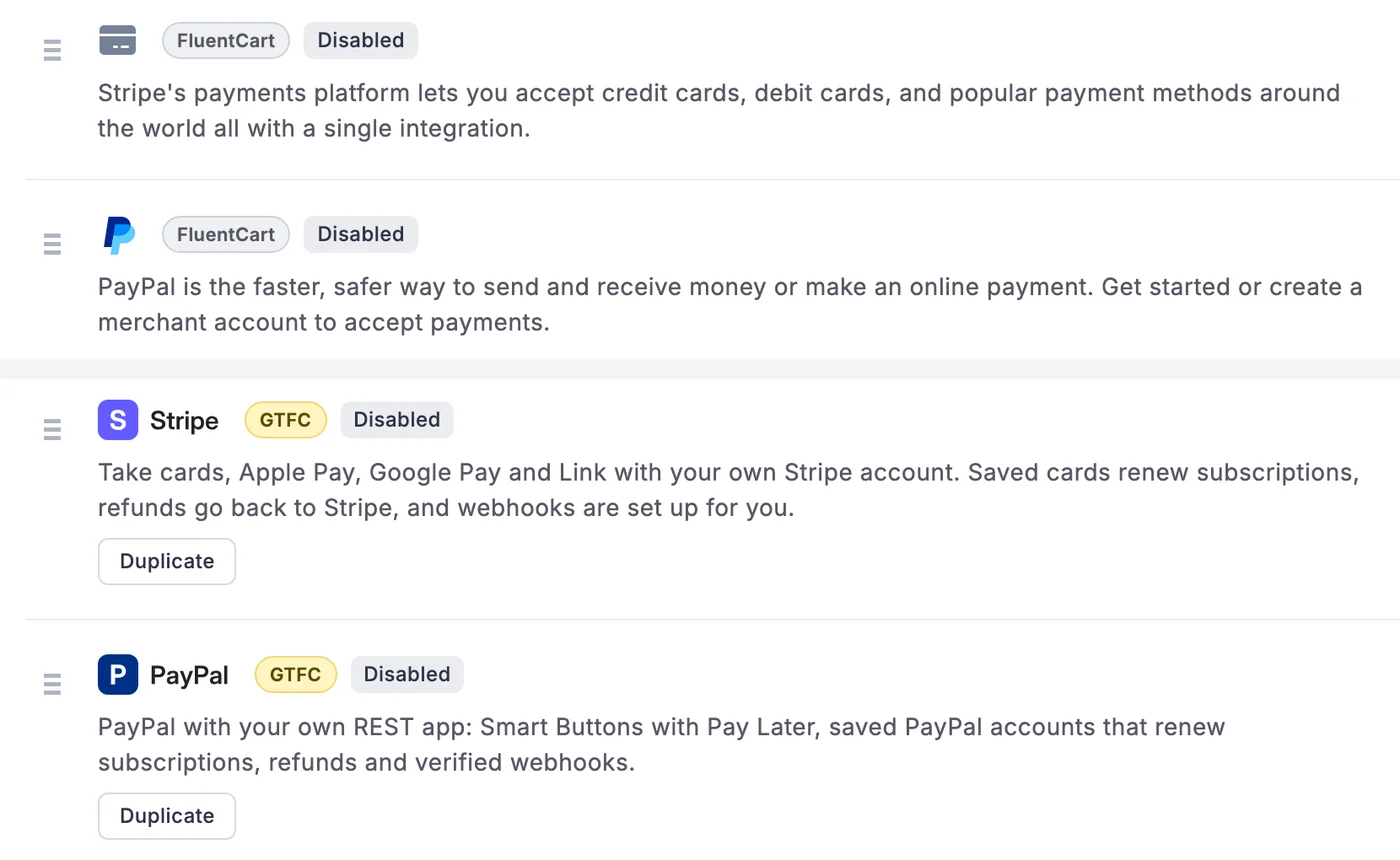
GT Stripe carries a yellow GTFC badge. While it is on, FluentCart’s own Stripe and PayPal are badged FluentCart, so the two are easy to tell apart:
Connect Your Stripe Account
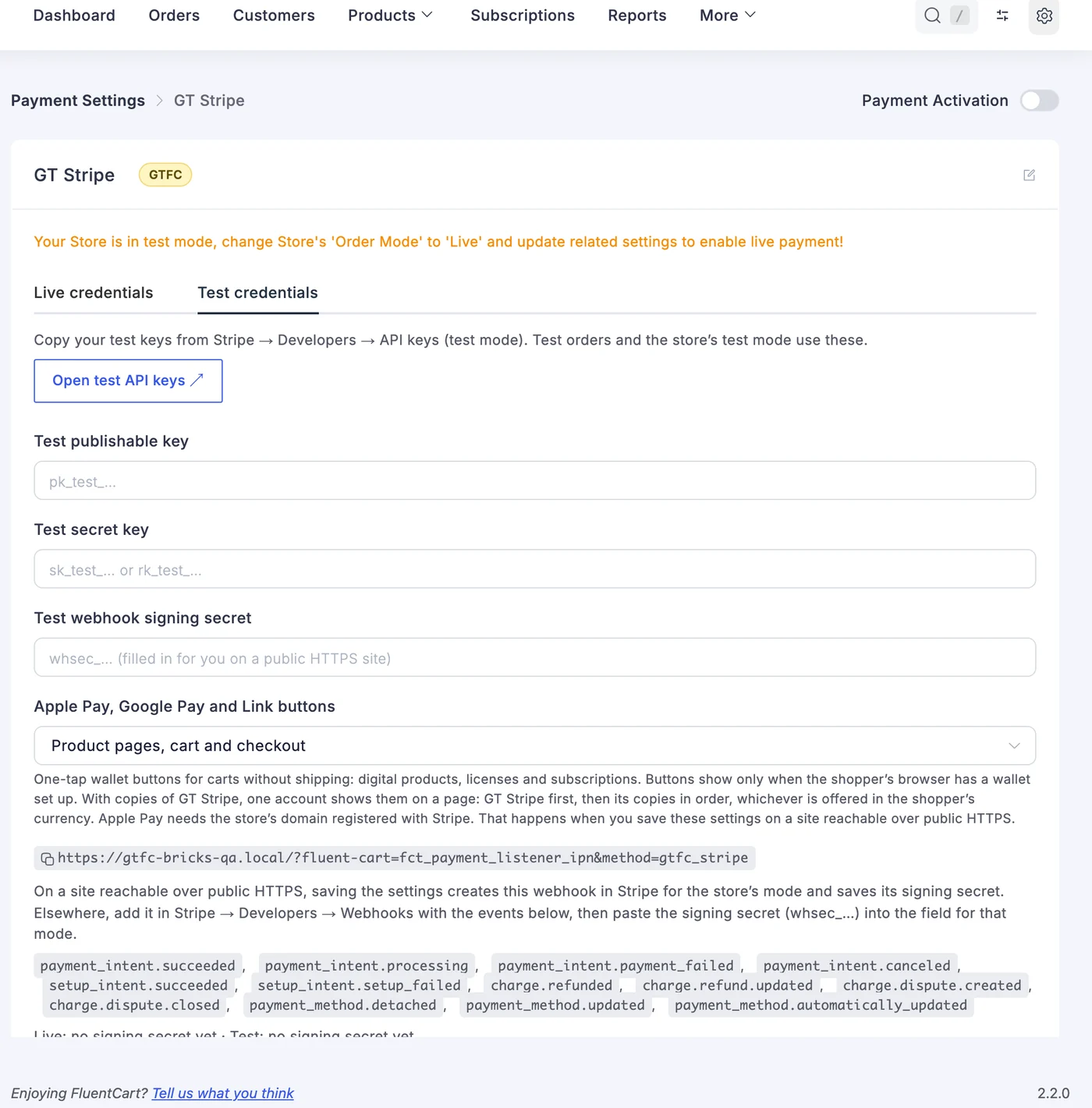
Stripe has separate live and test keys, and GT Stripe has a tab for each: Live credentials and Test credentials. Fill in the tab for the mode you are setting up:
- Click Open live API keys or Open test API keys. Stripe’s API keys page opens in a new tab.
- Copy the publishable key (
pk_live_…orpk_test_…) and the secret key (sk_…, or a restrictedrk_…key) into the matching fields. - Save. GT Stripe checks the key with Stripe and says Stripe connected.
A restricted key needs write access to PaymentIntents, SetupIntents, Customers, PaymentMethods, Refunds, Webhook Endpoints and Payment Method Domains. Which keys checkout uses follows FluentCart’s store mode: test orders use the test keys, live orders the live ones.
Secret keys and webhook secrets are stored encrypted. To keep them out of the database, define them in wp-config.php; a defined key hides its field:
define('GTFC_STRIPE_LIVE_PUBLISHABLE_KEY', 'pk_live_...');
define('GTFC_STRIPE_LIVE_SECRET_KEY', 'sk_live_...');
define('GTFC_STRIPE_LIVE_WEBHOOK_SECRET', 'whsec_...');
define('GTFC_STRIPE_TEST_PUBLISHABLE_KEY', 'pk_test_...');
define('GTFC_STRIPE_TEST_SECRET_KEY', 'sk_test_...');
define('GTFC_STRIPE_TEST_WEBHOOK_SECRET', 'whsec_...');
The Webhook Sets Itself Up
On a site reachable over public HTTPS, saving the settings creates the webhook in Stripe and saves its signing secret, so there is nothing to copy. On a local or staging site, add it by hand in Stripe → Developers → Webhooks with the URL and events the settings show, then paste the whsec_… signing secret into the field for that mode. The webhook URL is:
https://your-site.com/?fluent-cart=fct_payment_listener_ipn&method=gtfc_stripeEvery delivery is signature-checked, applied once, and re-read from Stripe before it changes an order. A payment for a different amount or currency than the order is not confirmed: the order log gets a “Stripe amount mismatch” warning for you to check.
Run FluentCart’s own Stripe on a different Stripe account, or not at all. Its webhook must not point at the account GT Stripe uses.
Apple Pay, Google Pay and Link
The Apple Pay, Google Pay and Link buttons setting puts one-tap wallet buttons on product pages, the cart and checkout (all three, product pages and checkout, checkout only, or off). Saving the settings registers your domain for Apple Pay with Stripe, which hosts the verification file for you.
- The buttons show only when the shopper’s browser has a wallet set up.
- They are for carts that need no shipping and have something to pay now: digital products, licenses and subscriptions. Shipping orders use the card form.
- On product pages they also need store tax off, and they skip subscriptions and physical products. A product-page purchase uses its own cart, so the shopper’s cart stays as it was.
- Turning the buttons off keeps wallets inside the card form.
Subscriptions and Renewals
GT Stripe renews subscriptions through FluentCart’s store-managed billing, not Stripe Billing. Turn on Store-managed renewals with Automatic charge in FluentCart’s subscription settings:
- The first payment saves the card for renewals.
- A free trial saves the card without charging. The buyer ticks a consent box first.
- On each renewal date FluentCart asks GT Stripe to charge the saved card. FluentCart Pro is not needed.
- If the bank asks for 3D Secure, FluentCart emails the buyer a link to confirm the payment.
- A renewal paid by hand with a new card makes that card the one used from then on.
If no card was saved on the first order, the subscription moves to manual renewal invoices.
Refunds and Disputes
- Refund all or part of a payment from the FluentCart order screen, and it goes back to Stripe.
- Refunds made in the Stripe Dashboard come back into FluentCart.
- A dispute is marked on the payment, with a reminder to respond in Stripe before the deadline. Won or lost, the outcome comes back too.
- A free-trial payment only saved a card, so there is nothing to refund.
Good to Know
- GT Stripe can’t charge three-decimal currencies (BHD, JOD, KWD, OMR, TND) or totals below Stripe’s minimum for the currency.
- Need a second Stripe account? Duplicate GT Stripe. Only one account shows wallet buttons on a page: GT Stripe first, then its copies in order.
- Multi-Currency Checkout knows which currencies GT Stripe takes, so it is offered for them without extra setup. Routing you save still decides.
- Payment failure emails in Extra Enhancements watch GT Stripe and its copies. Tick GT Stripe under Watch these payment methods.
- On a staging or local copy of the store, renewals, refunds and accepting disputes are refused, and the live webhook is left alone. Checkout payments still work.
Developers can adjust the PaymentIntent and the wallet buttons with the gtfc/stripe/payment_intent_args and gtfc/stripe/express_options filters, and listen to verified events with the gtfc/stripe/webhook action. See the hooks reference.