
Stripe Managed Payments
You sell software, courses or downloads, and every buyer in another country brings a sales tax or VAT rule you’re meant to register for, charge and file. Taking cards with Stripe doesn’t change that. Your business is still the seller on every one of those sales.
Stripe Managed Payments makes Stripe the merchant of record. Stripe works out sales tax and VAT, collects and remits it, handles fraud and disputes, and bills subscriptions on Stripe Billing. Buyers pay in Stripe Checkout, embedded on a page of your own store, and Stackless keeps FluentCart orders, renewals, refunds and cancellations in step through the webhook Stripe (Stackless) already uses.
When to Use It
Use it for digital products when you’d rather Stripe carry the tax work. Keep Stripe (Stackless) for everything else. Both can be on at once: Managed Payments hides itself for carts it can’t take, and buyers pick Stripe (Stackless) instead.
| Stripe (Stackless) | Stripe Managed Payments | |
|---|---|---|
| Seller of record | Your business | Stripe |
| Sales tax and VAT | You, with FluentCart tax | Stripe calculates, collects and remits it |
| What you can sell | Anything Stripe allows | Digital products only |
| Where buyers pay | Payment form on your checkout | Stripe Checkout on a pay page of your store |
| Subscription renewals | Stackless charges the saved card | Stripe Billing charges and retries |
| Disputes | You respond in Stripe | Stripe handles them |
Turn On Managed Payments at Stripe
Stripe has to approve your account first. In the Stripe Dashboard, open Settings → Managed Payments and activate it. Stripe reviews each account before it can take payments this way, and only direct Stripe accounts in the countries Stripe supports qualify.
If you sell subscriptions, also save your customer portal settings under Settings → Billing → Customer portal in Stripe. Customers update their card there.
Turn On the Gateway
- Set up Stripe (Stackless) first: its API keys and webhook. Managed Payments uses the same keys, the same webhook and the same test mode, so there are no separate keys to enter.
- Go to FluentCart → Stackless, switch on Payment Gateways, open its Settings and tick Stripe Managed Payments under Gateways to add to FluentCart. Save.
- Open FluentCart → Settings → Payments and choose Manage on Stripe Managed Payments (Stackless).
- Turn on Payment Activation, pick the Stripe tax code and Prices and tax (next section), and save.
Saving checks that Stripe (Stackless) has API keys for the store’s current mode. If it doesn’t, you’ll see Connect Stripe (Stackless) with test API keys first (or live), and nothing is saved. When it works, the screen says Stripe Managed Payments is ready. Saving also adds the Managed Payments events to the Stripe (Stackless) webhook, so renewals, refunds and subscription changes made in Stripe reach FluentCart.
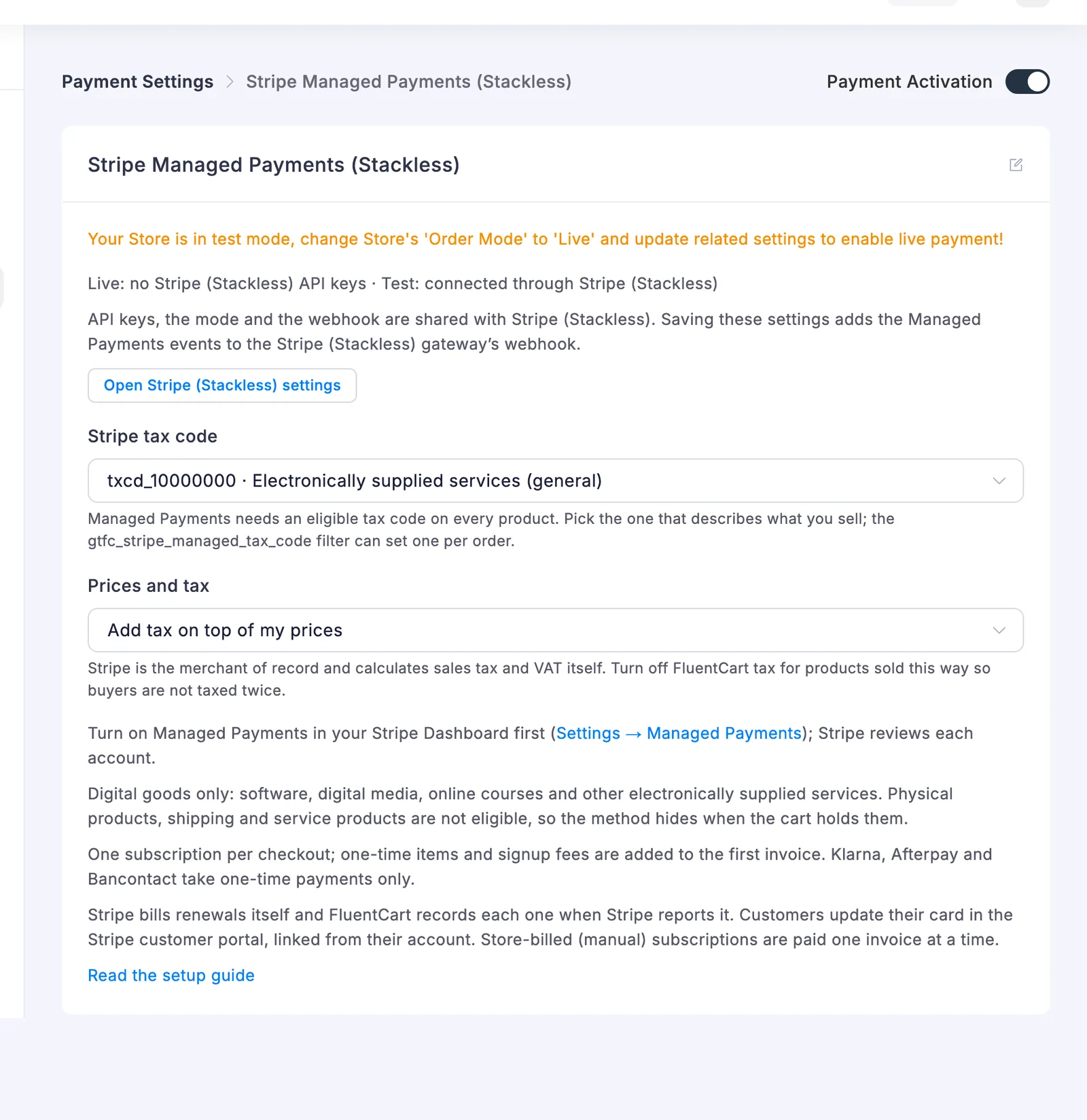
The Connection line shows each mode’s state: no Stripe (Stackless) API keys, API keys saved, no webhook signing secret yet or connected through Stripe (Stackless). Test orders use the test keys and live orders the live ones, following FluentCart’s store mode.
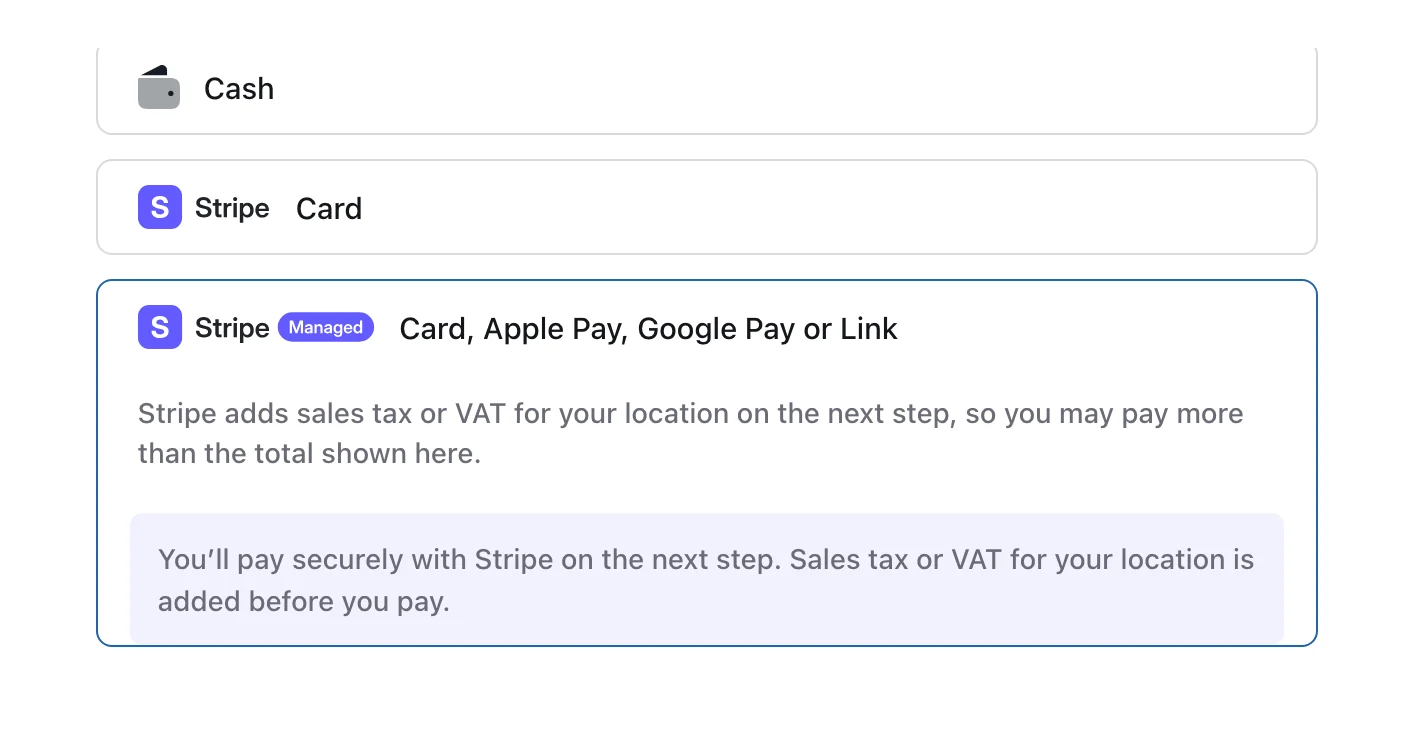
In FluentCart’s Payments list the gateway shows as Stripe Managed Payments (Stackless). Buyers never see that name. At checkout it reads Card, Apple Pay, Google Pay or Link.
Set the Tax Code and Prices
Managed Payments needs an eligible Stripe tax code on everything it sells. Stripe tax code applies one code to every product, so pick the one that best describes what you sell:
| Code | What it covers |
|---|---|
txcd_10000000 | Electronically supplied services (general), the default |
txcd_10103000 | SaaS, personal use |
txcd_10103001 | SaaS, business use |
txcd_10103100 | SaaS, electronic download, personal use |
txcd_10103101 | SaaS, electronic download, business use |
txcd_10202000 | Downloadable software, personal use |
txcd_10202003 | Downloadable software, business use |
txcd_10701100 | Website hosting |
txcd_20060058 | Training, self-study web-based |
Prices and tax tells Stripe how to read your FluentCart prices:
- Add tax on top of my prices (default): the buyer pays your price plus tax.
- My prices already include tax: Stripe works the tax out of your price.
Turn off FluentCart tax for products you sell this way, or buyers are taxed twice. Stackless doesn’t block it, so check your tax settings before you go live.
Which Carts Can Use It
Managed Payments shows at checkout only when Stripe can be the seller for everything in the cart. It hides itself when:
- a product in the cart isn’t a digital product, or is a Service Product;
- the cart needs shipping;
- the cart holds more than one subscription;
- Stripe can’t charge the store currency;
- Stripe (Stackless) has no API keys for the current mode.
While it’s hidden, store admins see a note on the checkout that only they can read, starting Only you see this: Stripe Managed Payments is hidden for this cart. with the reason. Buyers just see the other payment methods.
Being digital isn’t enough on its own. Stripe’s rules leave out professional services such as consulting or design work, and live in-person events, even when you sell them as digital products. Keep those on Stripe (Stackless).
What Buyers See
At checkout the method reads Card, Apple Pay, Google Pay or Link and tells the buyer, before they pay, that Stripe adds sales tax or VAT for their location on the next step:
Placing the order takes the buyer to a pay page on your own store. It shows your logo, Secure checkout, the order summary and Stripe Checkout:
- The summary lists the items, subtotal, discounts and fees, and a Sales tax or VAT: Added by Stripe row.
- With tax added on top, the total reads Total before tax, with the note that Stripe shows the total with tax at the top of the payment form before the buyer pays.
- For a subscription it shows the free trial and the renewal line, such as Then $19.00 every month, plus tax.
- Choose another payment method goes back to the order’s payment page.
- In test mode it says to use a Stripe test card and that no real payment will be taken.
- It follows the buyer’s light or dark setting.
Stripe Checkout collects the billing details, adds the tax, and offers cards, Apple Pay, Google Pay, Link and the local methods Stripe picks for that buyer. Once Stripe confirms the payment, the buyer lands on your order confirmation page. Stripe emails its own receipt as the merchant of record.
A bank payment that’s still processing leaves the order unpaid with the note Stripe is processing the payment. It updates when the bank confirms. Prices always come from FluentCart, and nothing is added to your Stripe product catalog.
Tax on Receipts and in the Order Log
The buyer pays more than your order total when tax is added on top, so Stackless says so everywhere the total appears:
- The FluentCart receipt and order email add a line such as: You paid $2.39 through Stripe: $1.99 for this order plus $0.40 sales tax or VAT, which Stripe collects as the merchant of record.
- The order log records the same split under Stripe payment confirmed. The order keeps $1.99, which is what your store earns before Stripe’s fees. Stripe keeps the tax and files it.
So a $1.99 order that shows $2.39 in Stripe isn’t a mismatch. It’s your price plus the tax Stripe collected for the buyer’s location.
If the amount Stripe charged before tax doesn’t match the order total, or the currency differs, the payment is held instead of confirmed. The order log says Stripe payment held with both amounts. Check it in Stripe before you fulfill the order. A payment that arrives after the order was cancelled is held the same way.
Subscriptions
Stripe Billing runs the schedule for subscriptions bought this way:
- One subscription per checkout. One-time items and a signup fee in the same cart are charged on the first invoice.
- Free trials work. Nothing is charged until the trial ends.
- Each renewal Stripe charges becomes a FluentCart renewal, with the Stripe invoice ID. If the amount differs from FluentCart’s, it’s still recorded and the subscription log notes the difference.
- When a renewal charge fails, Stripe retries it on its own schedule. The subscription log notes each failed attempt.
- Billing intervals from daily to yearly work. The longest schedule Stripe can bill is three years.
Stripe statuses map to FluentCart ones:
| Stripe | FluentCart |
|---|---|
| active, trialing | Active, Trialing |
| active with collection paused | Paused |
| past_due | Expiring |
| unpaid | Expired |
| canceled | Canceled (Expired when Stripe cancelled it for failed payments) |
Cancelling from FluentCart cancels at Stripe too, at the end of the paid period unless you cancel immediately. Pausing pauses collection at Stripe, so invoices made while it’s paused aren’t charged, and resuming starts billing again.
Stripe keeps the card for these subscriptions. Customers update it in Stripe’s customer portal, linked from their FluentCart account. FluentCart’s own card form doesn’t apply.
Some things Stripe Billing can’t do here:
- A first-payment discount. Stripe charges at least one full billing cycle on the first payment, so remove the discount or use another payment method.
- Klarna, Afterpay and Bancontact take one-time payments only.
- Subscriptions FluentCart bills itself (manual renewals) are paid one invoice at a time, each as its own Stripe payment.
Refunds and Disputes
Refund from the FluentCart order screen, in full or in part. Stripe refunds the tax it collected in proportion, so a full refund returns the tax too. Refunds made in the Stripe Dashboard are recorded on the order through the webhook, as Recorded refund … made in Stripe.
Stripe handles disputes as the merchant of record. When one opens, the order log notes the reason and the payment shows as disputed. Follow it in the Stripe Dashboard. A lost dispute is marked on the payment, and a won one returns it to a normal charge.
On a staging or local copy of your store, refunds and subscription changes aren’t sent to Stripe until an admin confirms the site is the live store.
Messages Buyers Can See
- Stripe Managed Payments sells digital products only. The cart changed after checkout loaded, and it now holds a physical product or a service.
- Stripe Managed Payments can bill one subscription per checkout. The cart holds two or more subscriptions.
- Stripe needs an amount greater than zero to start a checkout. The order is free. Use another method for free orders.
- Stripe Managed Payments is not available on this Stripe account yet. Stripe hasn’t approved the account for Managed Payments.
- This payment was already submitted to Stripe and is being confirmed. The buyer went back after paying. They’re sent to their receipt.
Good to Know
- Managed Payments always uses the main Stripe (Stackless) gateway’s account, never a gateway copy.
- There’s no separate webhook URL. Everything goes to the Stripe (Stackless) webhook, and the settings warn when Stripe has no webhook for the current mode.
- The Stripe API version is fixed by Stackless, so a newer default in your Stripe account doesn’t change behavior.
For Developers
These filters change how Managed Payments works. The full list is in the hooks reference.
| Hook | What it does |
|---|---|
gtfc_stripe_managed_tax_code | Set the tax code per order (txcd_ plus 8 digits). |
gtfc_stripe_managed_is_digital | Decide which products count as digital. |
gtfc_stripe_managed_cart_reason | Change why a cart is refused, or allow it. |
gtfc_stripe_managed_billing_intervals | Map extra FluentCart billing intervals to Stripe. |
gtfc_stripe_managed_session_args | Change the Stripe Checkout Session before it’s created. |
gtfc_stripe_managed_pay_page_config | Change the pay page settings, such as the accent color. |
gtfc_stripe_managed_hidden | Action that runs when the method is hidden for a cart. |
gtfc_stripe_managed_subscription_synced | Action that runs after a subscription syncs from Stripe. |