
Multi-Currency Checkout in GT Extensions for FluentCart
Multi-Currency Checkout lets customers pay in an enabled currency using converted prices or fixed local prices. Each cart and order uses one settlement currency, so the price, gateway and payment record stay aligned.
Start with a small set of currencies your products and payment accounts can support. A displayed currency option is useful only when a customer can complete the purchase in it.
Store Currencies and Automatic Selection
Enable Multi-Currency Checkout, then open Currencies and gateways in GT Extensions.
- Confirm the accounting base currency configured in FluentCart Store Setup.
- Choose the default storefront currency used as the fallback.
- Search and enable the checkout currencies you want to offer.
- Enable Local currency, automatically if you want checkout to choose an eligible local currency.
- Save Settings to make the selected currencies available in the remaining controls.
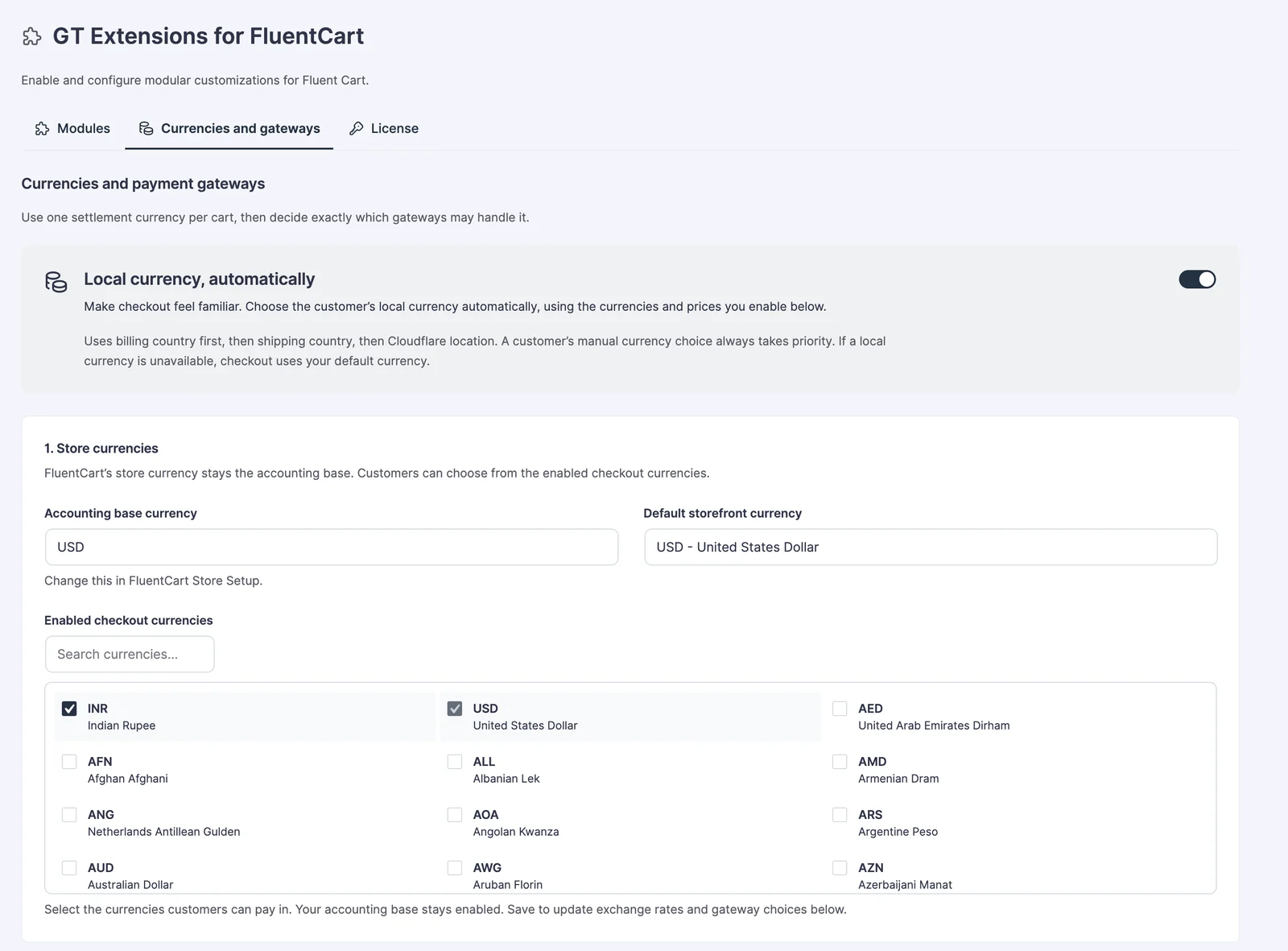
Automatic selection uses billing country first, shipping country next and Cloudflare location when available. A customer’s manual currency choice wins. If a local currency is disabled or the cart cannot be priced in it, checkout uses the default storefront currency.
Set Rates and Missing-Price Behavior
The Prices and exchange rates section controls the fallback when a product has no fixed price for a currency.
- Rate source: enter manual rates or use the automatic reference-rate provider.
- Manual rate: the target-currency amount for 1 unit of the base currency.
- Missing manual price: convert the base price or prevent purchase in that currency.
- Rate markup: add a percentage to the conversion rate.
- Converted-price rounding: choose the available rounding rule.
- Refresh rates now: fetch rates when an automatic provider is enabled; scheduled refreshes depend on WordPress scheduled tasks.
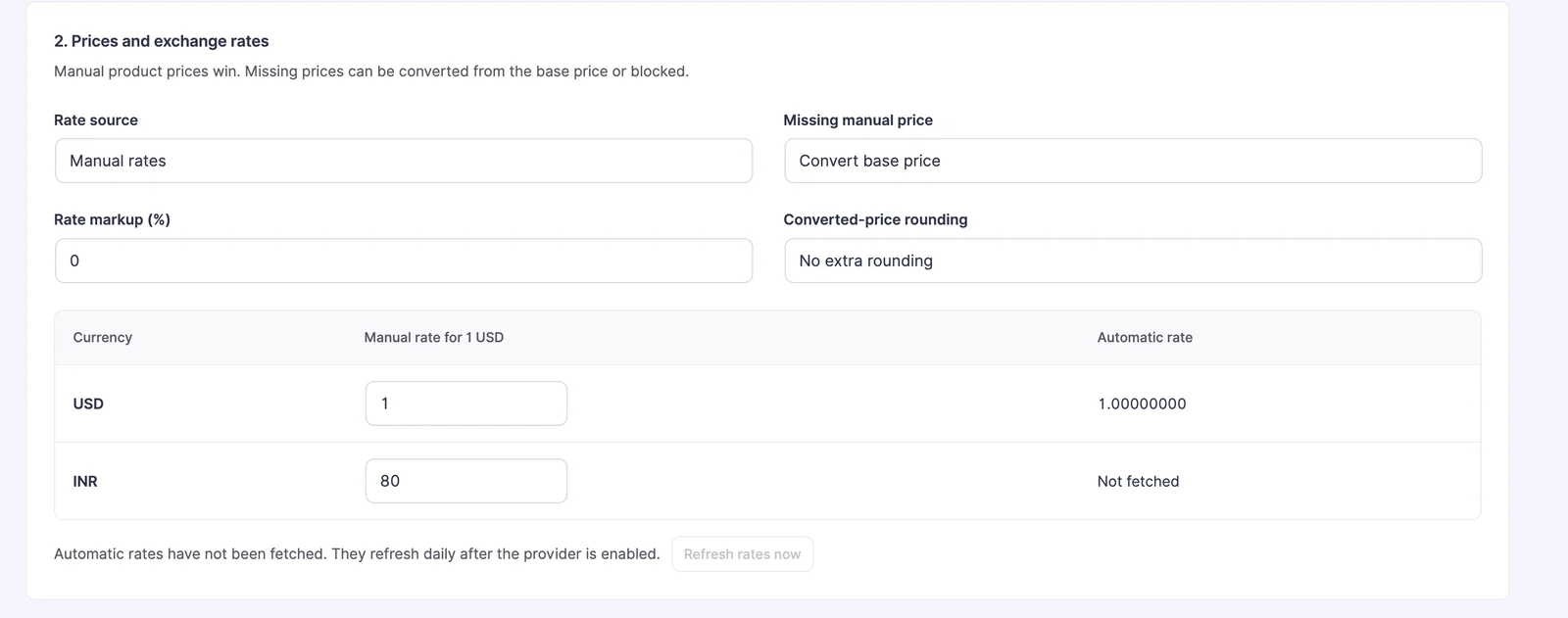
For a worked example, suppose a USD 10 product uses a manually entered INR rate of 80. With no markup or extra rounding, the converted amount is INR 800. These are example values, not a current market rate.
Use Fixed Product Prices
Open the product in FluentCart and find Currency price book. Choose the product option if it has several variations, then choose a pricing method for each non-base currency.
- Select Set a fixed price.
- Enter the local selling price.
- Expand Compare price and fees if you need a compare-at price or an applicable subscription sign-up fee.
- Click Save price. Currency prices save separately from the main product form.
For the example above, a fixed INR 799 price takes priority over the INR 800 conversion. Choose Convert store price and save the change to remove the fixed override. A fixed price is entered in the chosen currency, not in the base currency.
Route Payments by Currency
Assign one or more gateways to each enabled currency and choose a preferred gateway if needed.
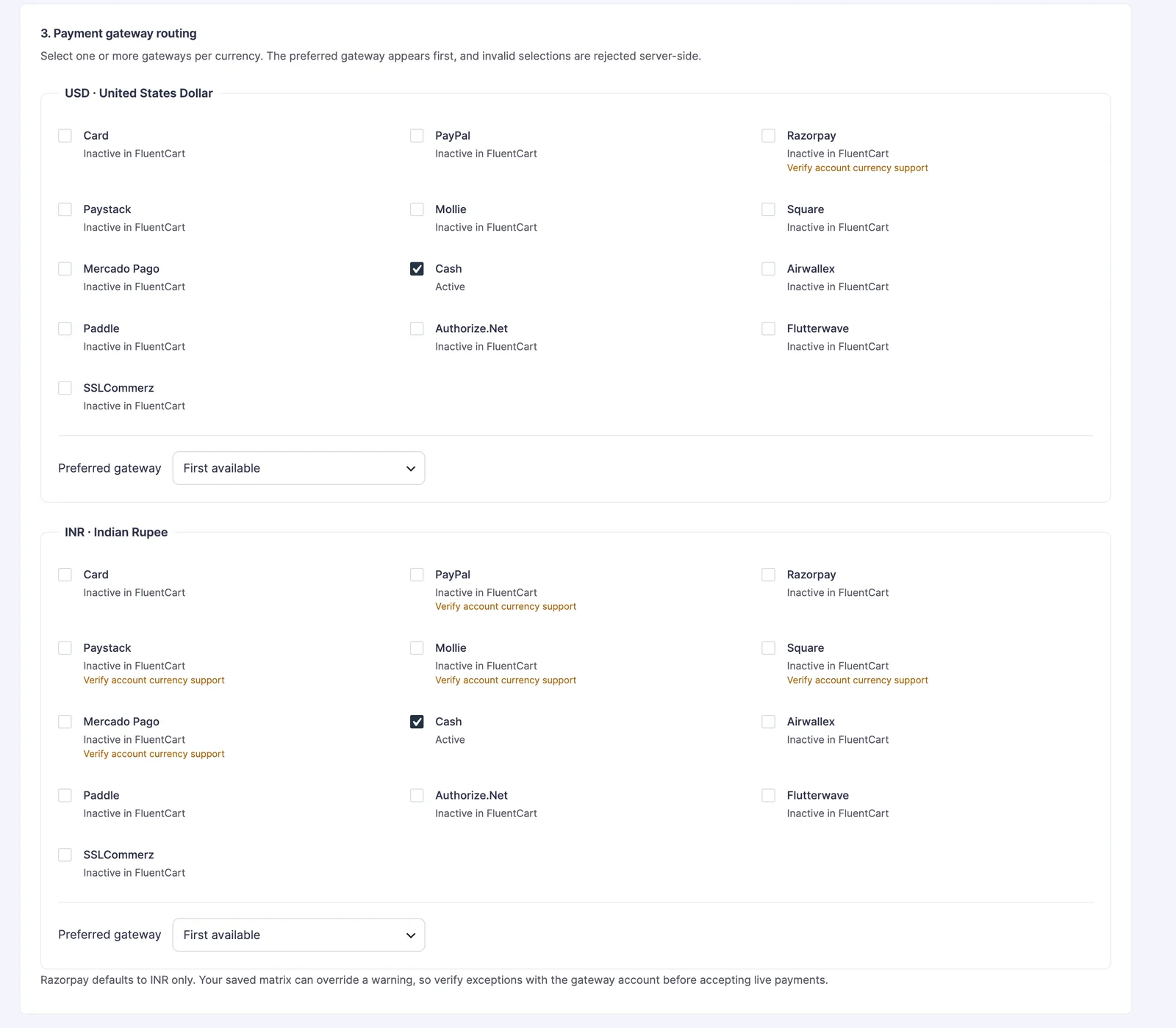
- A gateway must also be active in FluentCart before customers can use it.
- The preferred eligible gateway appears first.
- Currency-support hints are guidance; verify support with the actual gateway account.
- Checkout validates the submitted gateway again on the server.
- Test each currency/gateway combination in the gateway’s test mode before using it for live payments.
Place the Currency Selector
Use Show above checkout payment methods for the checkout placement. To place it on another page or in a shortcode-capable header, enable the shortcode option and add:
[gtfc_currency_selector]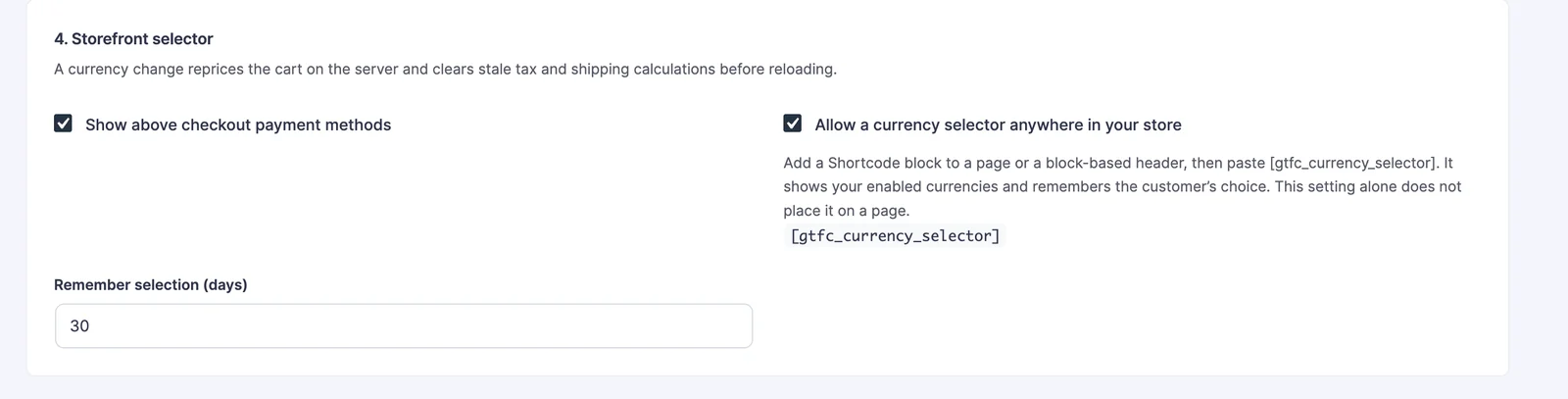
The shortcode setting permits the selector; it does not insert one automatically. Options use short codes such as USD and INR. Remember selection controls how long the choice is retained. The selector is omitted when there is no alternative enabled currency.
Changing currency reprices the cart and refreshes relevant checkout calculations. An issued invoice keeps its agreed currency and prices. The pricing implementation uses two-decimal amounts; assess zero-decimal currency behavior separately before offering one.
See the REST reference for currency context and price-book endpoints.