
How to Sell Services with Quotes, Deposits and Invoices
Custom work doesn’t fit a price tag. A client asks for a website audit or a brand kit, and you need the details before you can quote. The job turns into a long email thread: requirements, a PDF quote, a “looks good”, an invoice, a reminder and a second invoice at the end.
You can sell services with quotes and invoices from your own store instead. The client fills in a request form, you price it as a proposal with a deposit, and accepting the proposal takes them straight to paying the deposit. When the deposit lands, the balance invoice goes out on its own.
GT Extensions for FluentCart is my add-on plugin for FluentCart. Its Request a Quote and Custom Invoices modules share one editor, so the proposal you send is the invoice the client pays. I’ll take one project through every step, from the empty form to the paid balance.
Before You Start
You need 3 things in place:
- Request a Quote switched on. Go to FluentCart → GT Extensions, enable Request a Quote and click Save Settings. Custom Invoices switches on with it. Both need FluentCart 1.6.4 or newer.
- Working WordPress email. Proposals, invoices and reminders all go through your WordPress mail service.
- A page for the form, such as “Request a quote” or your services page.
A service product is optional. If you sell a fixed service with variable scope, such as an audit, you can tie the form to that product.
Put the Request Form on a Page
- Edit the page and add the Request a Quote block.
- In the block sidebar, leave Product empty for an open form, or search for one product to tie the form to it.
- Publish the page.
The shortcode does the same job in a page builder or a widget area:
[gtfc_request_quote]
[gtfc_request_quote product="123"]
Use the product ID, not a variation ID. A product-specific form lets the client pick one of its options.
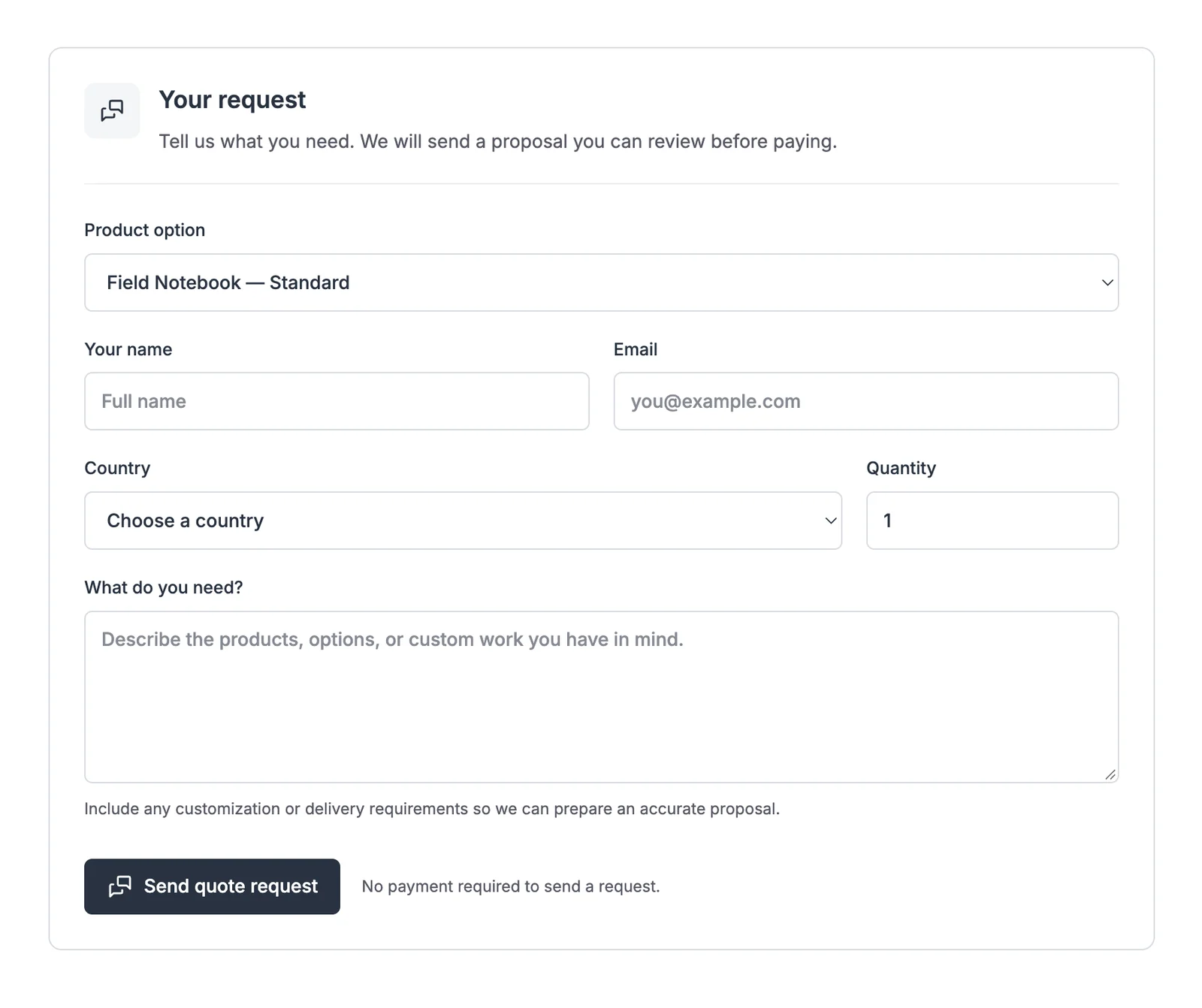
The form asks for a name, email, country, quantity and “What do you need?”. Its note tells the client “No payment required to send a request.” Request a Quote Forms and Proposals covers the block settings in more detail.
New requests wait under FluentCart → Quote requests with the status New request. You don’t get an email for each one, so it’s a good habit to check that screen daily, or connect the gtfc.quote_requested event to an automation that pings you.
Price It as a Proposal
- Open the request and read the client’s requirements.
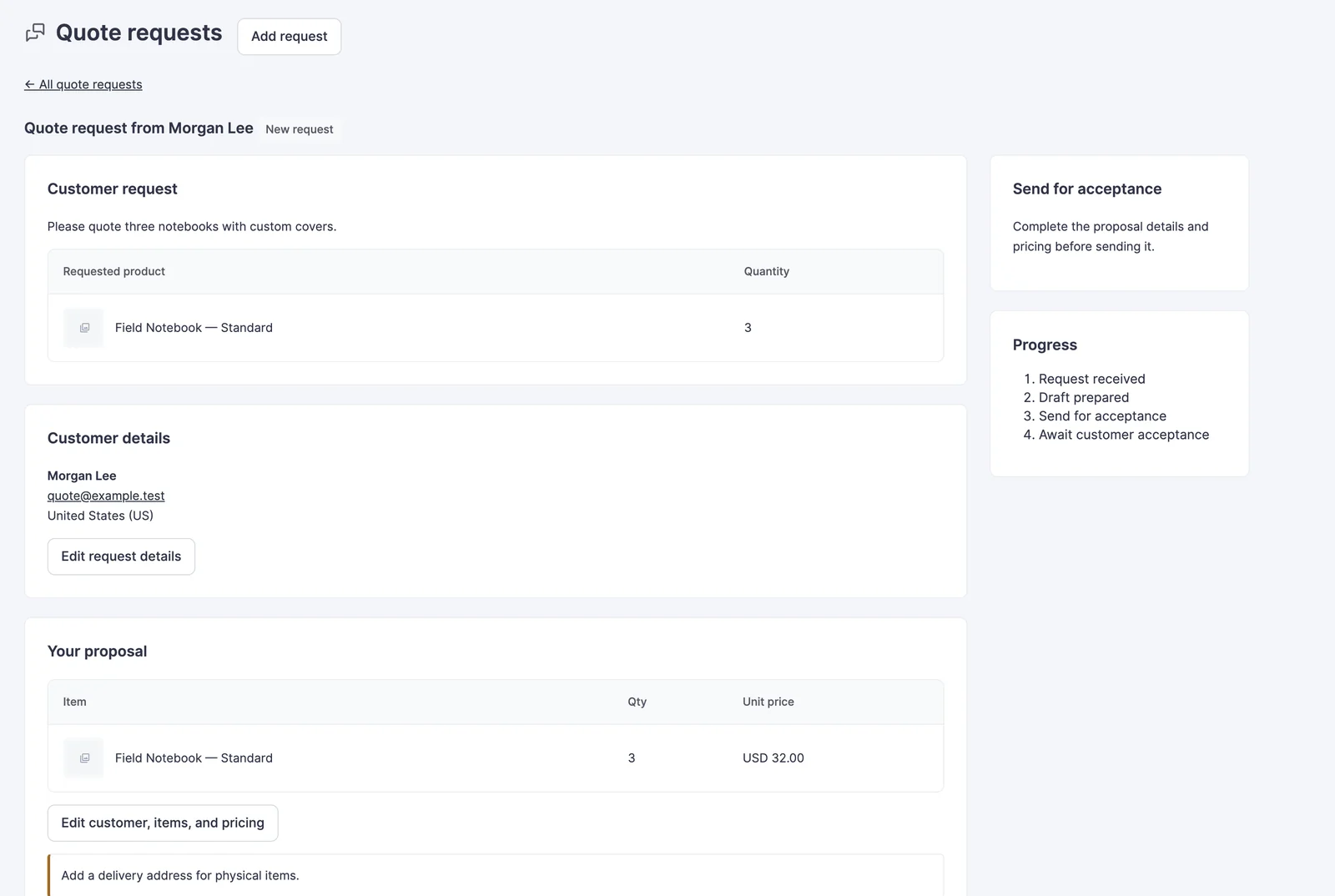
- Click Prepare proposal. This creates a draft invoice linked to the request, with the client’s name, email and country filled in and their request copied into the private note.
- Replace the starting line with your real pricing. An open form starts with one “Custom work” line at 0, and a product form starts with the chosen option at its price.
- Add the rest of the work with Add custom item, each line set to Digital / service.
This is the same editor you use for any invoice, so discounts, tax mode and the layouts all work here.
Add a 50% Deposit
Still in the draft, tick Ask for a deposit first under Invoice details, enter 50 and keep % of the total. Set Balance due after (days) to the time you give the client after the deposit.
The proposal then shows the full total and the deposit, and the proposal email mentions both. How to Take a 50% Deposit Before You Start Client Work explains how the deposit and tax split work.
Send the Proposal
The panel beside the editor turns into Send proposal for a draft linked to a request.
- Set Valid through. It defaults to 7 days from today.
- Click Save and email proposal.
The client gets an email titled “Your proposal from” and your site name, with the total, the expiry date and a review link. You can open the same page yourself with View customer proposal on the request.
A reminder before the proposal expires helps a busy client. In FluentCart → Invoices → Email settings, set Quote proposals: remind the customer this many days before the proposal expires to 2. It goes out once, only while the proposal is still open.
The Client Accepts and Pays
The client’s proposal page lists the work, the totals, the deposit and the expiry date. It has one button, Accept proposal and continue.
Accepting does 3 things in one step:
- It issues the deposit invoice and creates its FluentCart order.
- It marks the request Accepted.
- It takes the client straight to the invoice payment page, where Pay opens your checkout for the deposit.
Once FluentCart records the deposit payment, the balance invoice is issued and emailed automatically. You start the work, and the balance waits on its own due date with your normal reminders behind it.
Check It Works
Open the request in FluentCart → Quote requests. Its Progress list should run through all 4 stages:
- Request received
- Draft prepared
- Proposal sent
- Customer accepted
After acceptance, the request says “The customer accepted this proposal. Continue with its linked invoice and FluentCart order.” The deposit invoice links to its balance invoice once the deposit is paid.
When Something Goes Wrong
These messages come up most often on this route:
| Message | Where | Fix |
|---|---|---|
| Add your name, email, country, and a short description. | The public form | The client left a required field empty |
| Too many requests. Please try again later. | The public form | More than 5 requests came from one connection in an hour. The client can try again later |
| Save the customer name, email, and country first. | Prepare proposal | Complete the request details, then prepare the proposal |
| Send the linked proposal for customer acceptance before issuing its invoice. | The invoice editor | A linked draft can’t be issued directly. Send the proposal instead |
| Choose a future proposal expiry date. | Send proposal | Pick a Valid through date from today onward |
| The proposal was saved but email failed. Check mail delivery before resending. | Send proposal | Fix WordPress mail, then send again |
| This proposal expired or was updated. Ask the store for the latest proposal. | The client’s proposal page | You changed the draft after sending, or it expired. Click Send updated proposal |
| This proposal has expired. Contact the store for a new one. | The client’s proposal page | Set a new Valid through date and send the proposal again |
What It Won’t Do
The flow is built around one proposal per request, and a few limits follow from that:
- The client can accept or let it expire. There is no decline button. If the client says no by email, use Withdraw proposal, which also stops the old link working.
- One request holds one proposal. To offer 2 options, put both on separate requests, or price the preferred one and mention the other in the message.
- Changing a sent proposal needs a resend. Edit the draft and click Send updated proposal; the old link stops being accepted.
- A deposit proposal can’t turn into a recurring bill. Ongoing work after the project needs its own invoice.
When the project ends and the client stays on a monthly plan, How to Bill a Retainer Client Every Month Automatically sets up that ongoing invoice.