
Frequently Bought Together in GT Extensions for FluentCart
Frequently Bought Together shows the product a shopper is viewing with up to 3 companions, a combined total and one button that adds the checked items to the cart. It raises the order value on the product page, before the shopper reaches the cart.
Companions come from two places. Your own picks on each product come first. Products that were bought in the same paid orders fill the remaining places. You can also give a discount when a shopper adds the whole set from the box.
Before You Start
- Frequently Bought Together needs FluentCart 1.6.4 or newer. The set discount needs FluentCart 2.3.1 or newer.
- The module starts switched off. Nothing shows to shoppers until you choose a placement, add the block or use the shortcode.
- A product shows the box only when it has at least one companion to offer.
Turn It On
- Go to FluentCart → GT Extensions, turn on Frequently Bought Together and click Save Settings.
- Open FluentCart → Bought Together.
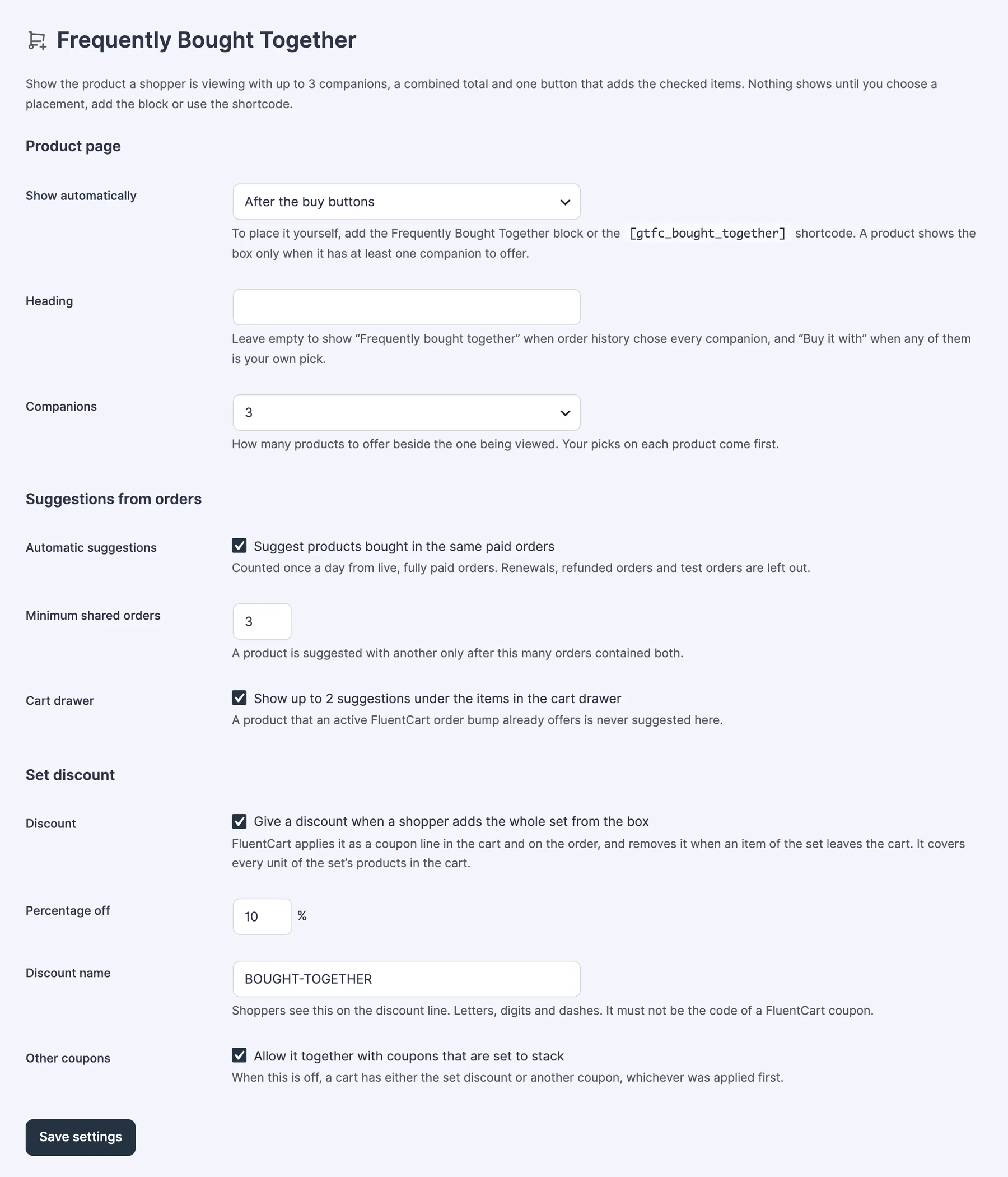
- Under Product page, set Show automatically to After the buy buttons or After the product description.
- Click Save settings.
Pick Companions for a Product
Open a product in FluentCart and find the Bought together card.
- Type at least 2 letters of a product name under Find a product and choose a product option.
- Use the ↑ and ↓ arrow buttons to set the order, and the × button to remove a pick.
- Click Save picks. Picks save separately from the product’s Update button.
- A product keeps up to 6 picks. The box shows as many as your Companions setting allows.
- Picks are specific product options, and only one-time products can be picked.
- The card also lists what order history suggests for that product, with the number of shared orders.
Settings
Product Page
- Show automatically: Off, After the buy buttons or After the product description.
- Heading: leave it empty to show “Frequently bought together” when order history chose every companion, and “Buy it with” when any of them is your own pick.
- Companions: 1, 2 or 3 products beside the one being viewed. Your picks come first.
Suggestions from Orders
- Automatic suggestions: suggests products bought in the same paid orders. It’s counted once a day from live, fully paid orders. Renewals, refunded orders and test orders are left out.
- Minimum shared orders: a product is suggested with another only after this many orders contained both. The default is 3 and the lowest is 2.
- Cart drawer: shows up to 2 suggestions under the items in the cart drawer. A product that an active FluentCart order bump already offers is never suggested here.
Set Discount
- Discount: gives a discount when a shopper adds the whole set from the box.
- Percentage off: from 1 to 90.
- Discount name: shoppers see this on the discount line. Use letters, digits and dashes. It must not be the code of a FluentCart coupon.
- Other coupons: allows the set discount together with a shopper’s coupon codes that are set to stack. When this is off, a cart has either the set discount or a shopper’s coupon code, whichever was applied first. A Cart Goals reward coupon combines with the set discount whatever this setting says.
Order History Data
This part shows when suggestions were last rebuilt, how many product pairs were found and the Top pairs. Order history covers paid orders of the last 365 days. Click Rebuild suggestions now to recount without waiting for the daily run.
Place the Box Yourself
Add the Frequently Bought Together block to a product template, or use the shortcode:
[gtfc_bought_together]The shortcode shows the box for the current product. Add id with a product ID to show another product’s box, and heading to set a heading for that one box.
What Shoppers See
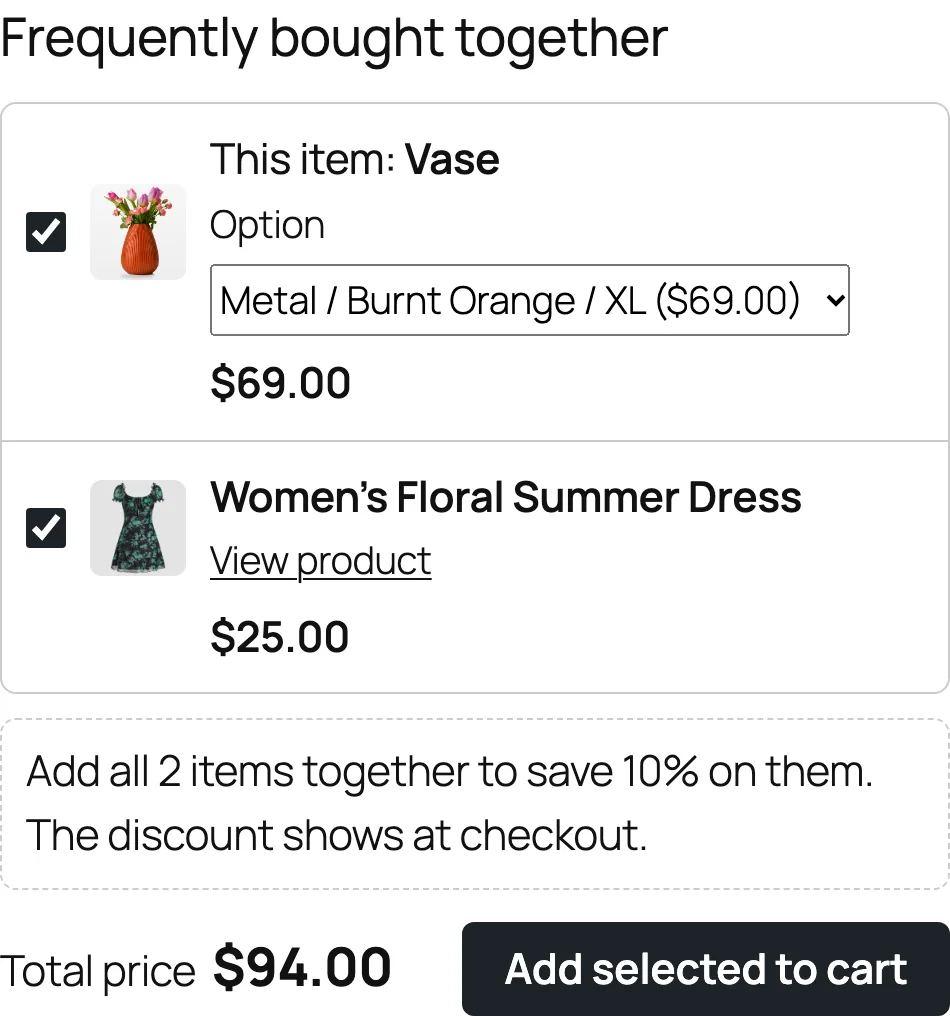
- The current product is listed first as “This item”, with an option picker when it has more than one option.
- Each companion has a checkbox, its price and a View product link.
- Total price updates as boxes are ticked. Add selected to cart adds every checked item in one step.
- If an item can’t be added, the shopper is told which one and why. The rest stay in the cart.
- With the set discount on, the box says how much the set saves and that the discount shows at checkout.
A companion is never shown when it’s unpublished, out of stock, a subscription, an External Product, already in the shopper’s cart, or when its price is hidden from that shopper.
How the Set Discount Works
- The discount applies only when the shopper completes the set through the box: the chosen option and every companion.
- It shows at checkout, not in the cart.
- It’s a percentage off every unit of the set’s products in the cart.
- FluentCart removes it when an item of the set leaves the cart. It doesn’t come back by itself; adding the set from the box again applies it.
- The order records it as a coupon line with your Discount name.
Limits
- A shopper who adds the same products one by one from other pages doesn’t get the set discount.
- A set discount and a Cart Goals reward coupon combine, whichever was added first. A code the shopper enters beside them still follows FluentCart’s normal stacking rule.
- The set discount has no cap on quantity or amount.
- Order history is counted per product, not per option. Orders with more than 25 different products are skipped.
- The 365-day order history window isn’t a setting.
- After the buy buttons depends on FluentCart’s standard buy section. On a product template built from separate button blocks, use the block or After the product description.
- Automatic placement shows on the product’s own page only, with one box per product per page.
- Subscriptions are never offered as companions.
Troubleshooting
The box doesn’t show on a product. The product needs at least one companion that can be bought now. Add a pick in the Bought together card, or check that order history has a pair for it under Top pairs. Also confirm Show automatically isn’t Off.
No suggestions from order history. Pairs need at least the Minimum shared orders number of live, paid orders that contain both products. Click Rebuild suggestions now after lowering it.
The set discount didn’t apply. The shopper has to add the whole set from the box. If a shopper’s coupon code was already on the cart and Other coupons is off, the first coupon stays. If the percentage changed after the page loaded, the items are still added and the shopper is asked to reload.
The discount isn’t visible in the cart. That’s expected. It shows at checkout.
Saving says the set discount stays off. Either FluentCart is older than 2.3.1, or a FluentCart coupon already uses that discount name. Choose another name.