
Badge
Give a short label its own background. The badge stays inline with the surrounding text.

Apply your site’s CSS classes right where you write. Formatting Extender adds class controls to the WordPress Block Editor.
Style a selection or a whole block, with class suggestions from your theme. Badges and highlights are included too.
Free and open source. Install from WordPress.org. No account or license key required.
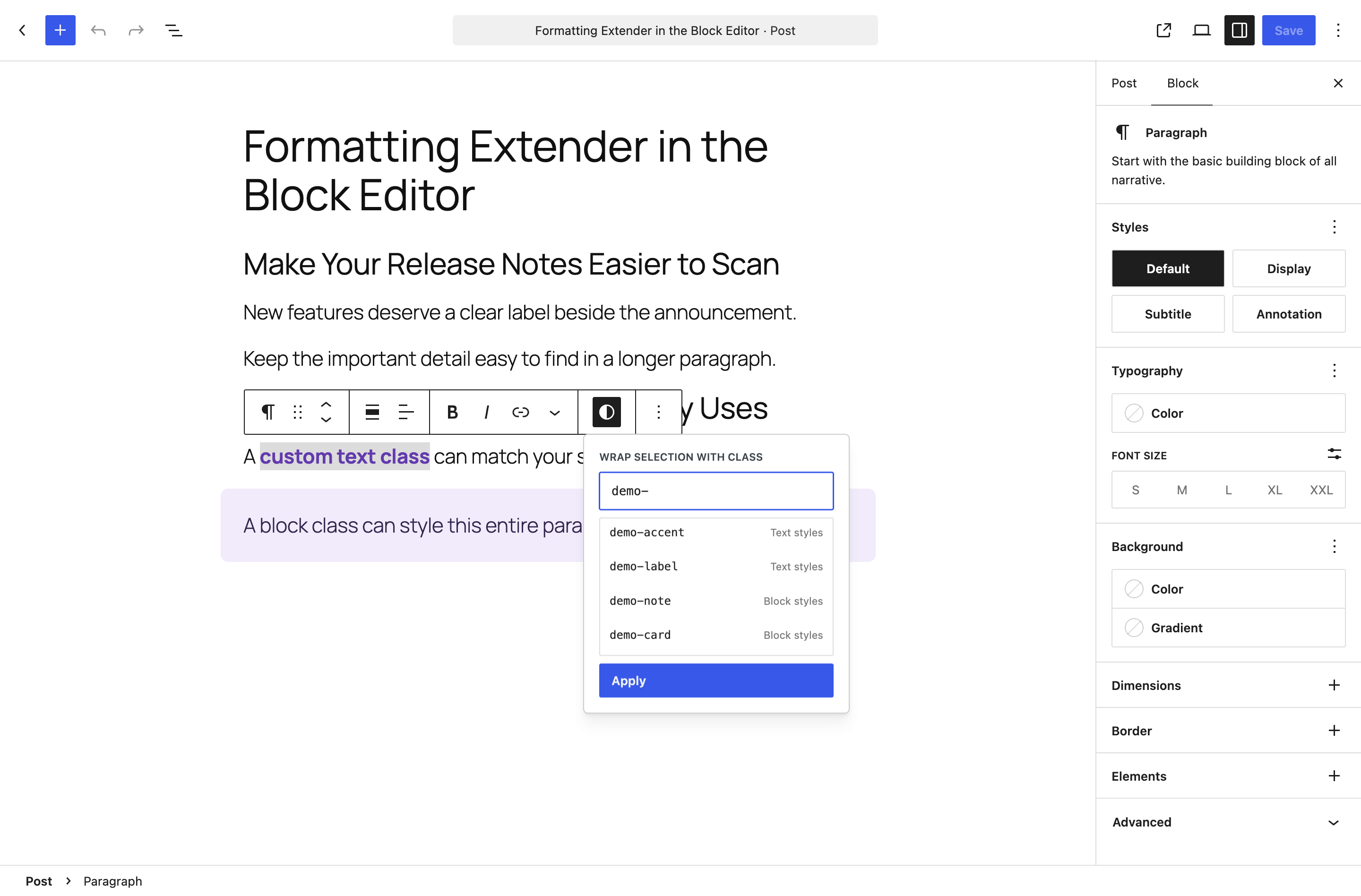
Select a phrase to apply a CSS class just to those words. Leave the cursor in a paragraph without selecting text to add the class to the whole block.
New A label beside your announcement.
Keep the important detail easy to find.
Use emphasis where it helps the reader. Highlighting whole paragraphs makes the useful detail harder to spot.

Use a built-in treatment or apply the CSS classes your site already has.
Give a short label its own background. The badge stays inline with the surrounding text.
Mark the phrase your reader needs to notice. The plugin supplies the yellow background and dark text.
Apply one or more CSS classes to a selected phrase. Your theme’s styles control how those words look.
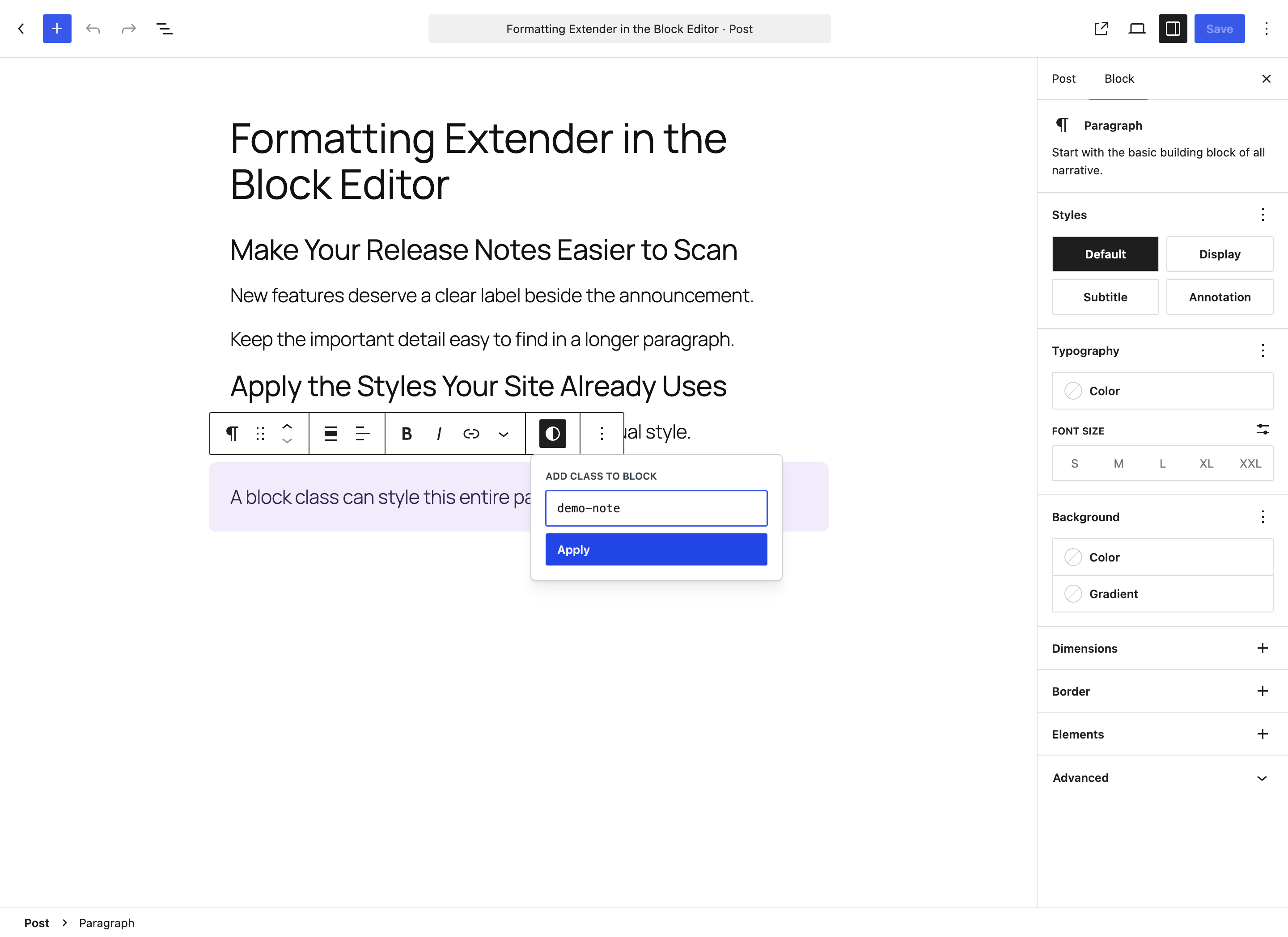
Place the cursor in a block without selecting text, then add a class from the same toolbar control.
Start typing to see matching class suggestions. A theme or plugin can supply that list through the formatting_extender_css_classes filter.
The styles come from your site. Adding a class name does not create CSS. The purple note in this example uses a separately defined theme style.
Formatting Extender works in the WordPress Block Editor. There is no separate settings page.
Open Plugins > Add New, search for Formatting Extender and install it. Then activate it.
Select words for inline formatting, or leave the cursor in a block to style the whole block. Open Add CSS Class in the toolbar.
Enter a class name and choose Apply. For built-in badge or highlight formatting, open the toolbar’s More menu.
Get the plugin from WordPress.org and add the formatting controls to your editor.
Everything here is quick to set up, light on your pages and built to do one real job well. I only charge for the tools that can make you money. The rest are free.

I design, build and support every product on this site myself. When you email me, the person reading it is the one who wrote the code.
I’d rather ship one tool you’d miss if it vanished than ten that sit in your plugin list doing nothing.
18+years building websites, plugins and stores, since 2008
Switch a feature off and it loads nothing. What does load stays small. A tool that replaces a plugin shouldn’t make your pages slower.
Clear screens, sensible defaults and settings written in plain English. If you need a tutorial for the basics, that’s my design mistake, not yours.
Full keyboard support, visible focus, proper labels and text you can actually read. When more people can use your store, more people can buy from it.
My paid tools help you sell, renew, license or convert. If one just sits in your stack, I haven’t done my job.
I won’t charge for anything that can’t make you money. The free tools get the same care as the paid ones, down to the last setting.
The plugin is built for the WordPress Block Editor. It does not add these controls to the Classic Editor toolbar.
No. Activate the plugin and use the controls while editing your content.
No. It adds the class name to your content. Your theme or stylesheet must define what that class does.
The editing JavaScript loads in the Block Editor. A small stylesheet loads on the frontend to display the built-in badge and highlight treatments.
Yes. Click inside the block without selecting text, open Add CSS Class and enter your class name. The control then adds the class to the block.
A theme or plugin supplies them through the formatting_extender_css_classes filter. Suggestions help you find available names; they do not define the CSS itself.
Keep your emphasis close to the text, with controls in the editor you already use.