
How to Add an AI Chat That Answers from Your Docs
Most support questions already have an answer in your docs. The visitor can’t find it, so they open a ticket, and someone on your team spends the morning pasting links to pages that already exist.
An AI chat that answers from your docs closes that gap. Core Support Chat reads your published docs, finds the passages that match a question and writes a short answer with links to the source. It runs on your own API key, it says plainly when the docs don’t cover something, and it hands the conversation to a person when it should.
Core Support is my help desk plugin for WordPress, and Chat is one of its modules. It stays off until you switch it on.
Every setting it has is listed in Set Up Chat: Provider, Models and Placement. Below, I’ll take the shortest safe path to a working chat.
Before You Start
- Published docs. Chat answers only from what it has learned, so a collection with a handful of real docs beats an empty one. Write Product Docs with Collections covers writing them.
- An API key from OpenAI, Anthropic, xAI or DeepSeek.
- A working mailbox, if visitors should be able to turn a chat into a ticket.
Pick the Models
Chat uses 2 models: one writes the answer, and one searches your docs for the passages that match.
| Your key | Model for answers | Search model |
|---|---|---|
| OpenAI only | GPT-6 Luna (the default) | OpenAI text-embedding-3-small (the default) |
| Anthropic, xAI or DeepSeek only | Any model from that provider | Keyword search, which needs no key |
| Anthropic, xAI or DeepSeek, plus OpenAI or Voyage AI | Any model from the first provider | OpenAI or Voyage AI embeddings |
A single OpenAI key covers both jobs, and that’s the simplest start. Keyword search works without a second key, but it matches on shared words instead of meaning, so a visitor who phrases a question differently from your docs gets weaker results. If you use Anthropic for answers, a Voyage AI or OpenAI key for search is worth adding.
Start with a small, fast answer model. Most support answers are short lookups, and a bigger model mostly adds cost and wait time. Keep Thinking for answers on Low, the default.
Turn It On
- Go to Core Support → Chat → Settings.
- Switch on Turn on Chat, and leave Offer “Talk to a person” on.
- Paste your key into the matching field in the AI model card.
- Choose the Model for answers and the Search model.
- Click Test connection. It sends a one-line test to each model and reports whether it answered and how fast, without saving anything.
- Click Save settings.
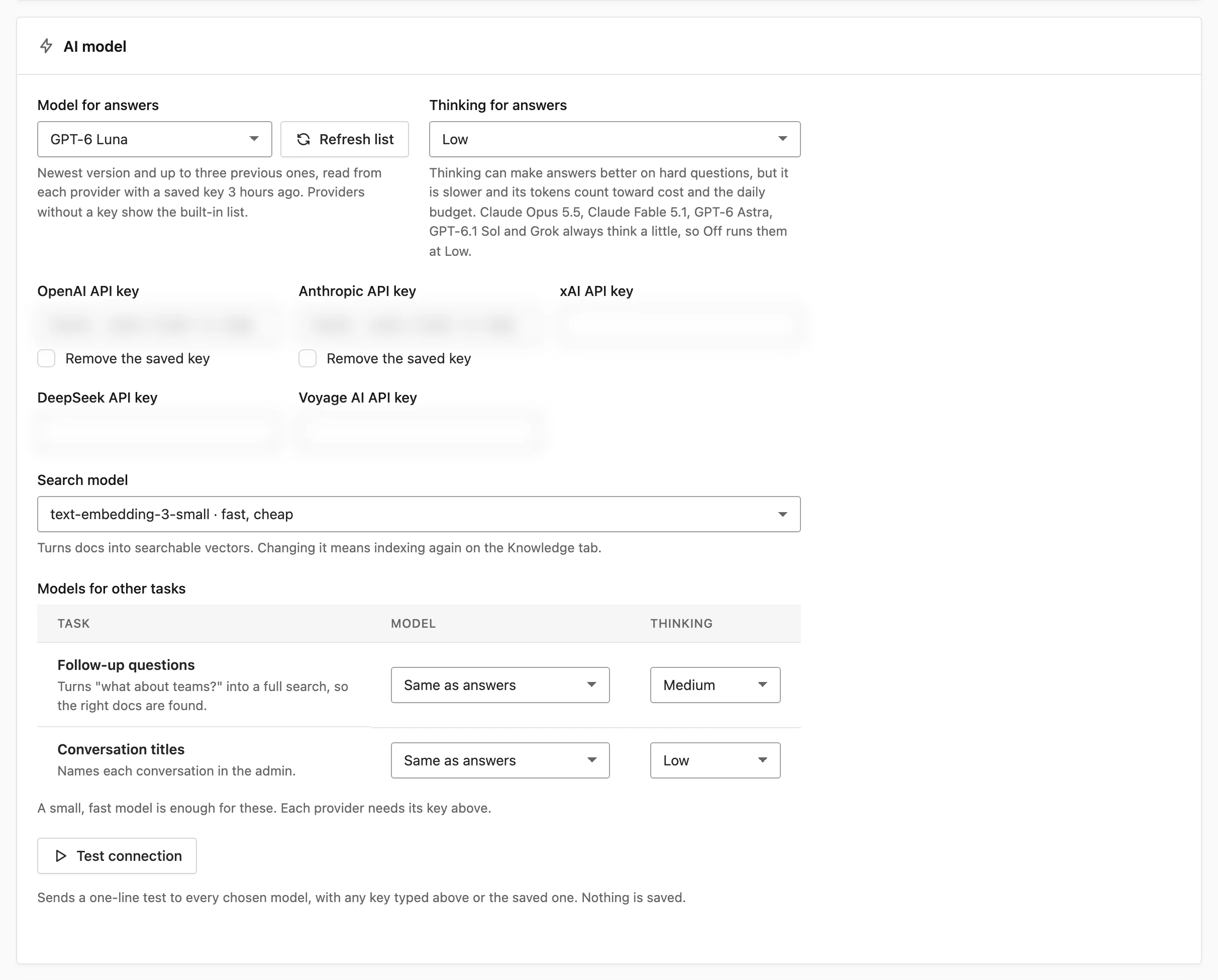
Keys are encrypted before they are saved and never shown again. If you’d rather keep them out of the database, the CORE_SUPPORT_CHAT constant in wp-config.php takes them instead.
Choose What It Learns
Open Core Support → Chat → Knowledge. Docs are ticked by default, and the 30-minute check learns them in the background.
Two more choices are worth a look:
- Changelogs: tick them if visitors ask what the current version is or what changed. Core Support adds the current version to every learned release, so a question about “the latest version” finds the right answer.
- Products: tick your store’s product type if visitors ask about prices or plans. Chat reads prices, options and license terms, and it leaves out offers switched off in a custom field tab.
Click Learn all now on a type to learn it straight away instead of waiting for the next check. Collections set to signed-in visitors and password-protected posts are never learned, because anyone can ask Chat a question.
Set the Limits Before It Goes Live
A public chat can run up a provider bill overnight if a bot finds it. The Limits card on the Settings tab caps that:
- Daily token budget: 500,000 tokens a day by default. When it’s spent, Chat tells visitors it’s resting for the day and offers a ticket.
- Questions per conversation: 30 by default, then the visitor is offered a ticket.
- Longest message: 2,000 characters by default.
- Screen messages for abuse: on by default, using OpenAI’s free moderation check when an OpenAI key is saved.
Rate limits are built in on top of these, such as 20 messages a minute per conversation and 60 messages in 10 minutes per IP address. Lower the daily budget before you put Chat on a busy page, then raise it once you’ve seen a week of real use.
Decide Where the Button Shows
The Where the button shows card ticks Docs pages and Support portal pages by default. That’s the right start: visitors there are already looking for help. Add the Home page or a post type later if you want, and use Never on these addresses for pages such as /checkout/* where a chat button only distracts.
Set a Welcome message and up to 6 Suggested questions in the Conversation card. I’d take them from real tickets, because those use the words your visitors actually type.
Test It with 4 Questions
Ask these yourself before a visitor does:
- A question your docs answer directly. The answer should be short, correct and link to the doc.
- A follow-up, such as “what about on multisite?” Chat should keep the context of the first question.
- A question your docs don’t cover. Chat should say it doesn’t know instead of guessing.
- An account question, such as “why was I charged twice?” Chat should suggest Talk to a person instead of answering.
If the first question fails, the doc probably doesn’t use the words visitors use. Open Core Support → Chat → Conversations to read each answer and the sources it linked.
Keep It Improving
Chat gets better as your docs do. Two screens show you where the gaps are:
- Core Support → Chat → Conversations: the questions visitors actually ask, with the passages Chat used.
- Core Support → Docs insights: searches with no results and docs readers marked unhelpful.
A question that keeps getting a weak answer is a doc waiting to be written. Write it, and Chat learns it on the next check.
What It Won’t Do
- It can’t see or change accounts, orders, licenses or tickets, and it never claims it did.
- It won’t promise refunds, prices, dates or features your docs don’t state. Your own rules can add facts, such as a refund window, and Chat repeats them with confidence, so they must match your checkout.
- It doesn’t learn anything while it’s off, apart from Learn all now.
- It runs on WP-Cron for learning, so a quiet site without a server cron learns changes late.
When Chat should pass a visitor to your team, How to Hand an AI Chat Over to a Person Without Losing Context covers the handover and the agent side.