
How to Automate Your Changelogs from GitHub
You tag a release on GitHub, ship the update and move on. A week later, a customer asks what changed, and your changelog page still shows the version before last because nobody copied the notes over.
To automate a changelog from GitHub, you point Core Support at the repository once. It reads your readme.txt, CHANGELOG.md or GitHub releases on a schedule and publishes each new version on its own changelog page, so the page updates when your repository does.
Core Support is my help desk plugin for WordPress, and changelogs are one of its modules. Every changelog on gauravtiwari.org/changelogs works this way: 25 products, all synced from GitHub.
Below, I walk you through the whole job, from the source to a failed sync. If you want every setting in one place, Publish Changelogs by Hand or from a Repository lists them.
Before You Start
You need 3 things in place:
- A changelog in Core Support. Go to Core Support → Changelogs → Add changelog and give it the product’s name. The slug becomes its address, such as
/changelogs/my-plugin/. - A GitHub repository that holds your release notes, either in a file or as GitHub releases.
- A token, only for a private repository. Public repositories need nothing. The private repository section below shows how to make one.
Pick What Core Support Reads
GitHub can hold your release notes in 3 places, and Core Support reads all of them. The choice decides where you write notes from now on, so it is worth a minute.
| Source | Address to paste | Where dates come from | Good fit when |
|---|---|---|---|
| readme.txt | https://github.com/owner/repo or the file’s /blob/ address | The version headings, or matching GitHub releases | The plugin is on wordpress.org, or you already keep a readme |
| CHANGELOG.md | The file’s /blob/ address | The version headings, or matching GitHub releases | You keep a Keep a Changelog style file |
| GitHub releases | https://github.com/owner/repo/releases | The date each release was published | Your team writes notes on the release page |
I’d keep the notes in a file that ships with the code. The changelog entry then goes into the same commit as the change, it gets reviewed with it, and it can’t drift from the version number. Releases suit a team that writes notes at release time, and that works well too.
One detail catches people. A plain repository address tries the files first, in this order:
readme.txtCHANGELOG.md, thenchangelog.mdchangelog.txt, thenCHANGELOG.txtCHANGES.mdREADME.txt
Only when none of those exists does Core Support fall back to the repository’s releases. So if you write notes on GitHub releases but the repository also has a readme.txt, paste the /releases address, or Core Support reads the readme.
You can also mix the two. When a readme.txt lists a version without a date, Core Support takes the date from the matching GitHub release. Your readme stays short, and every release still shows a date.
Write Release Notes Core Support Can Read
Core Support reads the formats most plugins already use. Newest version goes first, and the date is optional.
A readme.txt in WordPress style reads only its == Changelog == section:
== Changelog ==

= 1.4.0 - 2026-10-18 =
Checkout now opens in a modal.

* [NEW] Modal checkout from any button
* [IMPROVED] Faster cart totals
* [BUG FIX] Coupons apply once
A CHANGELOG.md in Markdown can group changes under headings:
## [1.4.0] - 2026-10-18

### Added
- Modal checkout from any button

### Fixed
- Coupons apply once
A few rules apply to both:
- Labels become badges.
[NEW],[IMPROVED],[BUG FIX],[REMOVED]and[SECURITY]turn into colored badges on the page, and so do group headings such as### Fixed. Badges in Docs and Changelogs lists every label it knows. - Text after the version heading and before the list becomes the release summary.
- Bold, code and links work inside summaries and changes.
- A heading without a version, such as
## Unreleased, ends the release above it, and its items don’t show. You can keep upcoming changes at the top of the file and nothing leaks out early.
With GitHub releases, the tag is the version. Core Support strips a leading v, so v1.4.0 becomes 1.4.0. The publish date becomes the release date and the release notes become the entry. It drops the “What’s Changed” heading and the “Full Changelog” line GitHub adds, and it keeps groups such as “Added” or “Fixed”.
Connect the Repository
Once the notes are in place, the setup is short.
- Open your changelog under Core Support → Changelogs.
- In the Releases box, choose Sync from a repository or a file.
- Paste the address into Repository or file address. These all work:
- a repository:
https://github.com/owner/repo - one file:
https://github.com/owner/repo/blob/main/CHANGELOG.md - a folder, for a theme or plugin inside a larger repository:
https://github.com/owner/repo/tree/HEAD/theme - the releases page:
https://github.com/owner/repo/releases
- a repository:
- Click Check source. It reads the address without saving anything and reports something like “Found 24 releases. Newest: 1.4.0.”
- Pick how often to look for changes under Check for changes. Once a day is the default, and the choices run from every hour to once a week.
- Click Sync now to pull the releases, then Update to save the schedule. A changelog that has never synced also syncs when you save it.
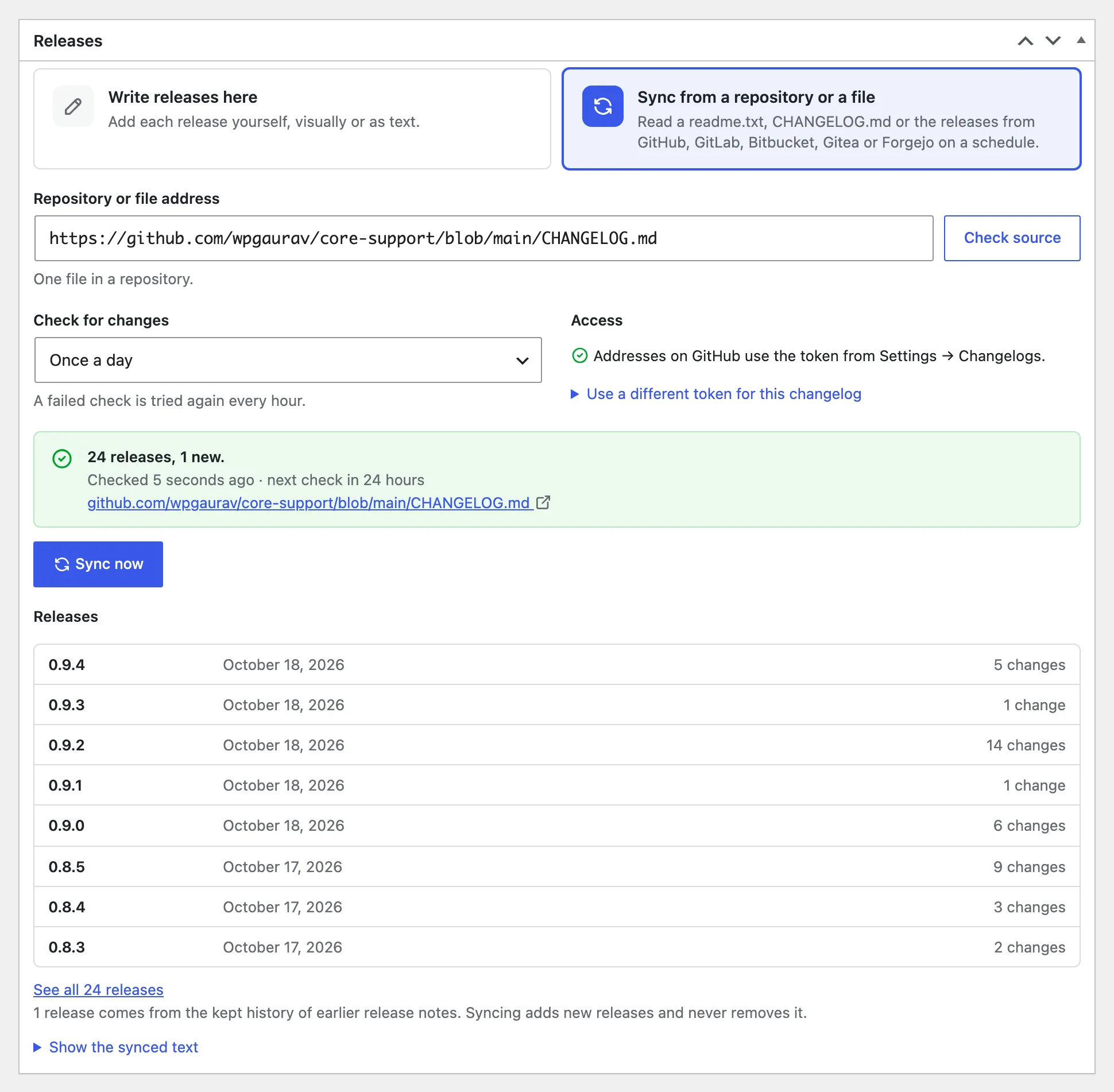
The status card under the settings shows what happened: the result, when the last check ran, when the next one is due and the exact file Core Support read. Below it, the newest 8 releases appear read-only, so you can confirm the versions and dates before anyone else sees them.
Sync a Private Repository
A private repository needs a read-only token from GitHub. A fine-grained personal access token is the safer choice, because you can limit it to the repositories it should read.
- On GitHub, go to Settings → Developer settings → Personal access tokens → Fine-grained tokens and generate a new token.
- Under Repository access, choose only the private repositories whose changelogs you publish.
- Under repository permissions, set Contents to Read-only. GitHub adds Metadata: Read-only on its own, and nothing else is needed.
- Set an expiry you will remember, then copy the token.
- In WordPress, go to Core Support → Settings → Changelogs and paste it into GitHub token under Private repositories.
- Click Save settings. Core Support queues a fresh check of every changelog whose last sync failed, so a changelog that was waiting for the token catches up on its own.
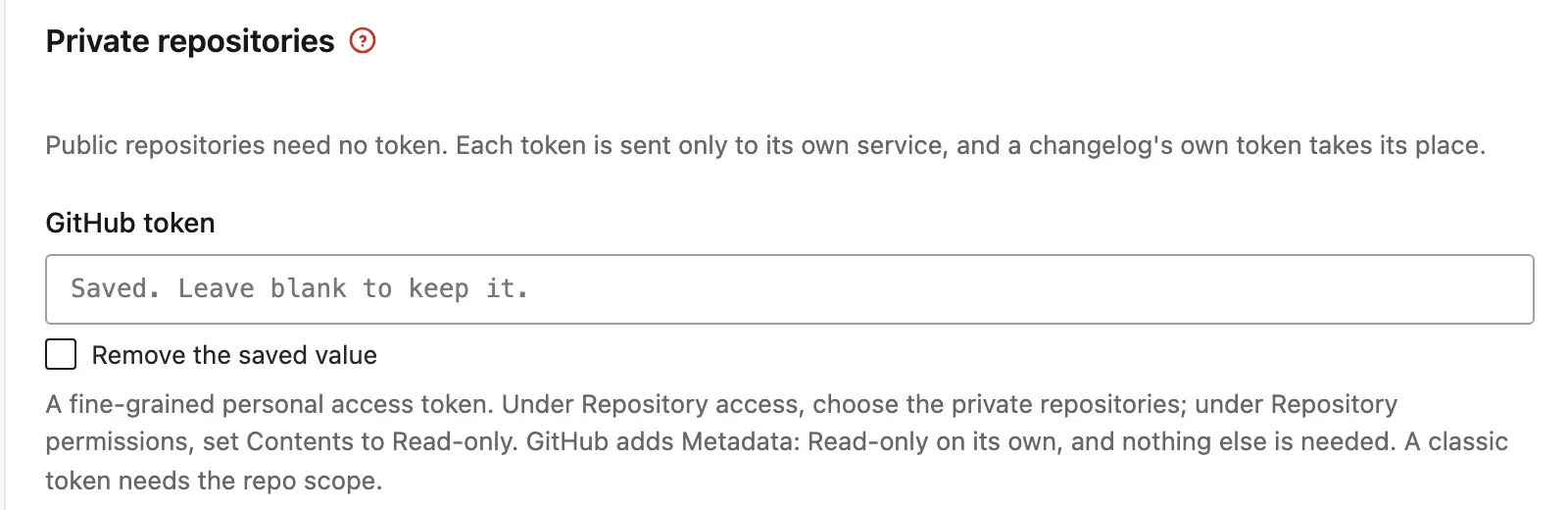
That one token serves every changelog synced from GitHub, and Core Support sends it only to GitHub. If one product lives in another account, open Use a different token for this changelog under Access in that changelog and paste a token there instead. Both are stored encrypted.
A classic token works too, but it needs the full repo scope, which can write to every repository you own. It is wise to use the fine-grained one.
Publish a Release Without Waiting
The schedule is fine for most products. On release day you may want the page updated now, and there are 3 ways to do it:
- Sync now on the changelog’s edit screen runs a check immediately.
- Every hour under Check for changes keeps the delay short for a product you release often.
- WP-CLI suits a deploy script that already runs on the server where Core Support lives:
wp core-support changelog sync my-plugin --force--force reads the file again even when GitHub says it hasn’t changed. Without a slug, the command checks every changelog set to sync.
Checks run on WP-Cron. On a quiet site, WP-Cron fires only when someone visits, so a daily check can run hours late. A real server cron that calls WP-Cron every few minutes fixes that.
Check It Works
Open /changelogs/my-plugin/ on your site after the first sync. You should see the newest version at the top with its date, a Latest version and release count beside the product name, and badges on labeled changes.
Two more things confirm the setup is healthy:
- The changelog list under Core Support → Changelogs shows “Synced from a file” and the time of the last check in the Source column.
- The product’s feed at
/changelogs/my-plugin/feed/lists the latest 20 releases, which is handy for anyone who follows updates in a feed reader.
When the Sync Fails
The status card names the problem in plain words. These are the messages you are most likely to see from GitHub:
| Message | What it means | Fix |
|---|---|---|
| GitHub found nothing at that address. If the repository is private, add a GitHub token in Settings → Changelogs. | The address is wrong, or the repository is private and no token was sent | Check the address. For a private repository, add a token |
| The GitHub token can see the repository but not its files. | The fine-grained token was made without Contents access | Edit the token on GitHub and set Contents to Read-only. The token stays the same, so there is nothing to paste again |
| GitHub refused the token. It needs Contents: Read-only on this repository, and it may have expired. | The token expired or doesn’t cover this repository | Generate a new token, or add the repository to the existing one |
| The repository has no changelog file and no GitHub releases. | Neither a known file nor a release exists | Add a CHANGELOG.md or readme.txt, or publish a release |
| The file has no releases in a format Core Support reads. | The file exists but no heading looks like a version | Use = 1.2.0 = or ## 1.2.0 headings with * list items |
“Checked. The file has not changed.” is not an error. Core Support asks GitHub whether the file changed since the last check, and an unchanged file costs one small response. A failed check is tried again every hour until it works.
What It Won’t Do
Syncing is one way, from GitHub to your site, and a few limits follow from that:
- You edit releases in the repository, not in wp-admin. Switching the changelog to Write releases here makes the synced releases yours to edit, and they stop updating from GitHub.
- Each sync replaces the changelog’s text with the source’s. Releases kept from an older changelog site stay, because Core Support stores that history separately.
- GitHub releases are read 100 at a time. Only the newest 100 come in, and drafts and tags that aren’t version numbers are skipped.
- Core Support doesn’t listen for GitHub webhooks. It checks on its schedule, or when you click Sync now or run the WP-CLI command.
- Size is capped. It reads up to 2 MB from a source and saves up to 500 KB of changelog text, which is a lot of releases.
If your notes live outside GitHub, in a readme.txt on wordpress.org or a CHANGELOG.md on your own server, How to Automate Your Changelogs from a Text File covers that route.