
How to Set Up a Complete Help Desk on a New Site
A help desk has a lot of parts: tickets, a portal, email in and out, docs, a changelog and maybe a chat. Set them up in the wrong order and you redo work, such as testing replies before email can leave the site or writing docs before the branding is in place.
To set up a help desk on WordPress with Core Support, you go in an order where each step builds on the one before. Install and check the server, set up the support page and email, brand it once, then add docs, a changelog, alerts and chat. A short test at the end confirms a customer can write in and get an answer back.
Core Support is my help desk plugin for WordPress. This is the order I’d follow on a fresh install. Each step links to the doc with every setting, so this page stays a checklist you can work through.
1. Install and Check the Server
- Install the release ZIP, activate it and paste your key under Core Support → License, as Install Core Support and Activate Your License shows.
- Open Core Support → Diagnostics. It checks your PHP and WordPress versions, the ticket tables, mail delivery and attachment storage.
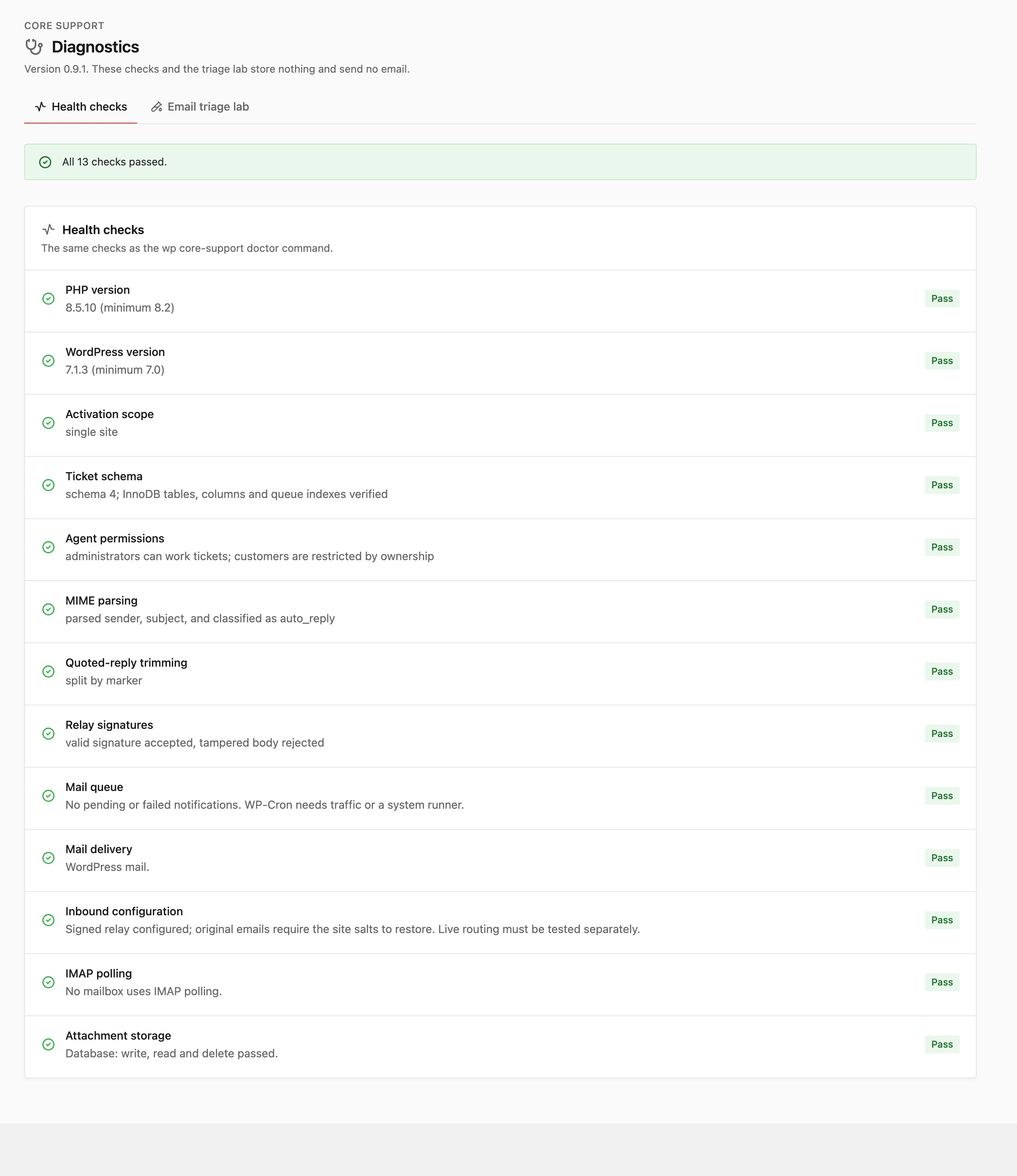
Fix anything Diagnostics flags before going on. A missing PHP sodium extension, for example, stops Core Support from encrypting saved passwords and keys, and every later step depends on that.
2. Check the Support Page
Activation creates a Support page at /support/ holding the customer portal. Customers sign in there, see their tickets and open new ones.
Keep it as it is, or move the portal into a page of your own theme under Core Support → Settings → Page and URL. Set Up the Support Page and Customer Portal explains both. Decide now, because reply emails link to whatever the support URL is.
3. Connect Email In and Out
This is the step that takes the longest, and the one customers notice when it’s wrong.
- Add a mailbox under Core Support → Connections and pick how mail reaches it: the Cloudflare relay, IMAP or an automation tool.
- Set Core Support → Settings → Notifications → Mail delivery to WordPress mail or a provider API. New installs start on Capture only, which sends nothing.
- Choose what email from new senders does under Settings → Tickets.
How to Turn Your Support Email Address into a Help Desk walks through all 3. How to Make Ticket Replies Land in the Inbox covers the DNS side of sending.
4. Brand It Once
Set your brand under Core Support → Settings → Branding:
- Brand name and logo, shown on the portal, docs, changelog and chat
- Accent color, palette, corner radius and font
- Color mode for the public pages: Light, Dark or Automatic
Then add the header links and footer text under Settings → Header and footer. Doing this before docs and the changelog means every page you publish next already looks right. Brand the Help Desk: Logo, Colors, Font and Dark Mode lists every setting.
5. Add Your Agents
Give each teammate the Support Agent or Support Manager role instead of making them administrators. Agents work tickets, and managers also change Core Support settings. Agents, Roles and Permissions shows exactly what each role can do.
6. Publish Your First Docs
- Create a collection for your product under Core Support → Collections, with an icon and a short description.
- Write docs under Core Support → Docs → Add doc, or import what you already have with one WP-CLI command.
- Publish at least one doc. A collection stays off
/docs/until it has one.
Your docs may already live on another site, a GitHub wiki or a wordpress.org readme. How to Move Your Plugin Docs from a GitHub Wiki to WordPress and Import Existing Documentation cover the import.
7. Add a Changelog
Create a changelog under Core Support → Changelogs and link it to the collection under Product details → Docs collection. The changelog gets a Docs link and the collection page gets a Changelog button.
If your release notes live in a repository, sync them instead of writing them twice. How to Automate Your Changelogs from GitHub covers that.
8. Turn On Team Alerts
A new ticket helps nobody while it sits unread in wp-admin. Send alerts to Telegram, Pushover, Discord, Slack or a webhook under Core Support → Settings → Team alerts. How to Get New Ticket Alerts on Your Phone is the short version.
9. Add Chat Last
Chat answers questions from your docs, so it should come after the docs exist. It needs an AI provider key and stays off until you switch it on under Core Support → Chat. How to Add an AI Chat That Answers from Your Docs covers the setup and the limits to set before it goes on a busy page.
Chat is the one part of this list I’d happily leave for a second week. A help desk with good docs and fast replies works without it, and Chat is only as useful as the docs behind it.
Test the Whole Loop
Before you announce the help desk, run one ticket through every part as a customer would:
- Email the support address from a personal account, and accept the email in Incoming mail if review is on.
- Check that the team alert arrived.
- Reply from the agent workspace, then answer that reply from the personal account. It should join the same ticket.
- Sign in to the portal with an account that uses the same email address, and check the ticket shows there.
- Open
/docs/and/changelogs/signed out, and search the docs for a word you know is in them.
If all 5 work, the help desk is ready for real customers.
What to Leave for Later
Some parts only matter once the basics run, and none of them blocks a launch:
- Connected sites, for contact forms, portals and docs on your other websites
- Customer details beside each ticket, from WooCommerce, FluentCart or Easy Digital Downloads
- Contact form integrations and the FluentCRM sync
- External attachment storage on R2, S3 or Bunny, once tickets carry a lot of files
Add them one at a time, and test each with the same loop above.