
Set Up Chat: Provider, Models and Placement
Most support questions already have an answer somewhere in your docs. The visitor just can’t find it, so they open a ticket, and your team spends the morning pasting links to pages that already exist.
Chat answers those questions from your own docs, on your help desk and on your connected websites. When a person should step in, it turns the conversation into a ticket. It runs on your own API key with OpenAI, Anthropic, xAI or DeepSeek, and it stays off until you switch it on under Core Support → Chat.
What You Need
Chat needs 2 models, and each one needs its provider’s key:
- Model for answers: writes the reply. OpenAI, Anthropic, xAI (Grok) or DeepSeek.
- Search model: finds the passages in your docs that match the question. OpenAI or Voyage AI embeddings, or Keyword search, which needs no key at all.
The defaults are GPT-6 Luna for answers and OpenAI’s text-embedding-3-small for search, so 1 OpenAI key covers both. With Anthropic, xAI or DeepSeek for answers, you either add an OpenAI or Voyage AI key for search, or choose Keyword search. Keyword search matches on shared words instead of meaning, so the way a visitor phrases the question matters more.
Turn On Chat and Add Your Keys
- Go to Core Support → Chat → Settings.
- In the Chat card, switch on Turn on Chat.
- Leave Offer “Talk to a person” on if visitors should be able to open a ticket from the chat.
- In the AI model card, paste your key into the matching field: OpenAI API key, Anthropic API key, xAI API key, DeepSeek API key or Voyage AI API key.
- Choose the Model for answers and the Search model.
- Click Test connection, then Save settings.
Keys are encrypted before they’re saved and never shown again. A saved key field reads “Saved. Leave blank to keep it.”, and Remove the saved key clears it. A key is one value without spaces.
If Chat is on but the answer model’s provider has no key, the screen warns you. The chat button stays hidden from visitors until you add one.
Chat answers only from what it has learned. Docs are learned by default; other post types are chosen on the Knowledge tab, which What Chat Learns and How It Stays Current covers.
Choose the Answer Model
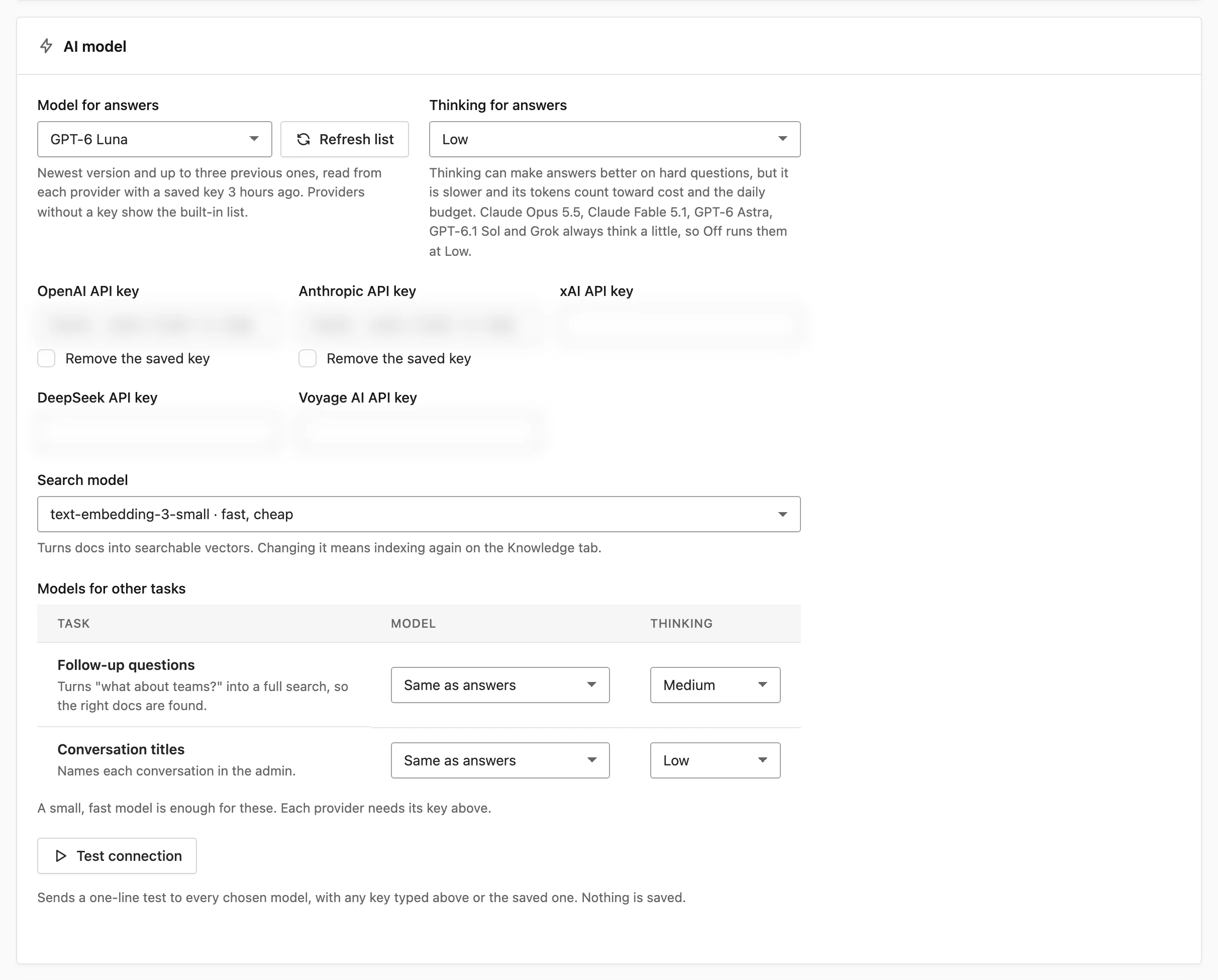
The Model for answers menu groups models by provider. With a key saved, Core Support reads that provider’s model list and shows its newest version with up to 3 previous ones. It reads the list once a day, right after a key changes and when you click Refresh list. Providers without a key show the built-in list:
- OpenAI: GPT-6 Luna (fast, cheap), GPT-6.1 Sol (balanced), GPT-6 Astra (most capable), plus the GPT-5.6 models.
- Anthropic: Claude Haiku 5.5 (fast, cheap), Sonnet 5.5 (balanced), Opus 5.5 (highest quality), Fable 5.1 (deepest reasoning), plus the 4.x models.
- xAI (Grok): Grok 4.6, plus Grok 4.5.
- DeepSeek: DeepSeek V4.1 Flash (fast) and DeepSeek V4 Pro (quality).
A small, fast model is the sensible start for a docs assistant. Most support answers are short lookups, and a larger model mainly adds cost and wait time.
Set the Thinking Level
Thinking is the model working through the question before it writes. Thinking for answers has 4 levels: Off: fastest, Low, Medium and High: slowest. The default is Low.
Thinking can help on hard questions, but it’s slower and its tokens count toward cost and the daily budget. Claude Opus 5.5, Claude Fable 5.1, GPT-6 Astra, GPT-6.1 Sol and Grok always think a little, so Off runs them at Low. Core Support gives each reply extra output room when thinking runs, so a thinking model doesn’t spend its whole allowance before it writes a word.
Models for Other Tasks
Chat gives a model 2 smaller jobs besides answers. The Models for other tasks table sets a model and a thinking level for each:
- Follow-up questions: turns a message like “what about teams?” into a full search, so the right docs are found. Default: Built-in rules, no model, which joins the earlier question and the first sentence of the earlier answer with the follow-up. You can also pick Same as answers or any listed model.
- Conversation titles: names each conversation in the admin. Default: Same as answers. You can pick any listed model, or No model: first words of the question, which keeps the first 8 words of the visitor’s first question as the title.
Both default to thinking Off. A small, fast model is enough for these, and each provider you pick needs its key.
Test the Connection
Test connection sends a one-line test to every chosen model: the answer model, the search model and any task model that differs from it. It uses a key typed into the form, or the saved one, so you can check a new key before saving. Nothing is saved.
Each result says whether the model answered and how fast. When one fails, it gives a plain reason, such as a refused key, an unknown model, a rate limit or a server error.
Choose Where the Chat Button Shows
The Where the button shows card controls the chat button on your help-desk site. Tick any of these under Show the chat button on:
- Every page: overrides the rest.
- Docs pages
- Support portal pages: the portal page and any page holding a Core Support block.
- Changelog pages
- Home page
- one entry per public post type, such as Posts, Pages or Products, for single posts of that type
Docs pages and Support portal pages are ticked by default. You can refine the choice with 2 address lists:
- Also on these addresses: one path per line, up to 50. End a line with
*to include everything under it, as in/support/*. - Never on these addresses: one per line. It wins over everything above, so
/checkout/*keeps the button off checkout.
With nothing ticked, Chat runs only where the embed script is pasted and on the addresses you listed. The button itself has 2 settings:
- Button label: up to 40 characters. Default “Ask a question”.
- Button position: Bottom right (default) or Bottom left.
Set the Opening Messages
The Conversation card sets what visitors see first:
- Welcome message: the first bubble in the panel, up to 300 characters.
- When the docs have no answer: the reply when Chat has nothing to say, up to 300 characters.
- Suggested questions: up to 6, one per line, shown as buttons before the first message.
Add Chat to Another Website
Chat also runs on websites connected to your help desk. The website must be listed under Core Support → Connected sites, with its address allowed. Run One Help Desk for Many Websites explains how to add one.
- Go to Core Support → Chat → Embed.
- Copy the line for that website.
- Paste it before
</body>on every page where Chat should appear.
<script src="https://desk.example.com/wp-content/plugins/core-support/assets/chat.js"
        data-site="abc123def456" data-api="https://desk.example.com/wp-json/core-support/v1/" async></script>
The widget draws itself in its own sealed layer, so the website’s CSS can’t break it. It uses your help desk’s branding. Requests from an address that isn’t listed for that website are refused.
Optional attributes go on the same tag:
data-position="left"puts the button on the left.data-label="Help"changes the button label.data-open="true"starts with the panel open.
Your own buttons can drive it with CoreSupportChat.open(), .close(), .toggle() and .ask("question").
Keep Keys in wp-config.php
Any Chat setting, keys included, can come from the CORE_SUPPORT_CHAT constant instead of the database. Values set there win over the screen and are never saved to the database. Key fields set there show “Saved in wp-config.php”.
define('CORE_SUPPORT_CHAT', [
    'openai_api_key' => 'your-openai-key',
    'voyage_api_key' => 'your-voyage-key',
]);
wp-config Constants lists the other constants Core Support reads.
What Chat Sends to Your Providers
Chat calls the providers directly from your site, with your keys. Here’s exactly what goes where.
To the answer model’s provider, on every question:
- Chat’s instructions: your brand name, the built-in answer rules, your own rules and your tone and extra instructions
- the question and up to the last 12 messages of the conversation
- the matching passages from what Chat learned, up to 5 by default, each with its title and address
- on pages of your help-desk site, that page’s address, title and up to 4,000 characters of its text
Pages on connected websites aren’t described to the model. Chat sends no visitor name, email address, IP address or account details. Anything a visitor types into a message is sent as typed.
To the other providers:
- Search model (OpenAI or Voyage AI): every passage of each post Chat learns, and the search text of each question. With Keyword search, nothing leaves your site.
- Follow-up questions model: the earlier question, the first sentence of the earlier answer and the follow-up, shortened to a few hundred characters each. Chat sends these only when you pick a model and a message reads as a follow-up.
- Conversation titles model: the first question and the first answer, up to 500 characters each. With No model: first words of the question, nothing is sent.
- OpenAI moderation: each visitor message, when Screen messages for abuse is on and an OpenAI key is saved.
Token use, limits and the handover to a ticket are covered in Answer Rules, Limits and Handover to a Ticket. Set the daily token budget there before you put Chat on a busy page.