
How to Connect a Gmail or Google Workspace Support Inbox
Your support address lives in Gmail or Google Workspace, and moving it isn’t on the table. The team still reads it in Gmail, other services send to it, and changing its mail records would break things that have worked for years.
To connect a Gmail support inbox, you let Core Support sign in over IMAP with an app password. It imports each new email as a ticket and leaves every message in Gmail, so the inbox keeps working exactly as before. Google Workspace accounts sometimes block app passwords, and for those this guide gives a route that doesn’t need one.
Core Support is my help desk plugin for WordPress. Its IMAP route works with any provider, and this guide covers what is specific to Google.
Which Google Account You Have
The steps depend on the kind of account behind the support address:
- A personal Gmail account, such as
yourbrand.support@gmail.com. IMAP is always on for these, and an app password works once 2-Step Verification is on. - A Google Workspace account, such as
support@example.com. Your Workspace admin decides whether IMAP is on and whether app passwords are allowed.
Google’s own guidance for Workspace is mixed.
Its help pages say Workspace accounts stopped accepting password-only sign-in from third-party apps on May 1, 2025, and they still describe app passwords for mail clients that don’t support OAuth. In practice, some Workspace accounts can still create an app password and some can’t. The quickest way to find out is to try the first step below.
Before You Start
- Admin access to the Gmail or Workspace account that receives support mail.
- Core Support → Connections open in another tab.
- For Workspace: IMAP turned on for the account. An admin checks this in the Google Admin console under Apps → Google Workspace → Gmail → End User Access.
Create an App Password
- Sign in to the support account and turn on 2-Step Verification under Security in the Google Account settings.
- Open
myaccount.google.com/apppasswords. - Give the app password a name you’ll recognize, such as “Core Support”, and create it.
- Copy the 16-character password. Google shows it once.
Google lists 3 reasons the option can be missing:
- 2-Step Verification uses only security keys.
- The account belongs to a work or school organization that blocks it.
- The account has Advanced Protection.
If you’re on Workspace and the page says app passwords aren’t available, skip to the subdomain route further down.
Google also revokes every app password when the account’s main password changes. If someone resets that password later, Core Support’s IMAP check starts failing, and a new app password fixes it.
Connect the Mailbox in Core Support
- Go to Core Support → Connections and choose Add mailbox, or open the existing mailbox.
- Fill in Key, such as
support, and Support address. - Keep Reply tracking on Plus address. Gmail delivers
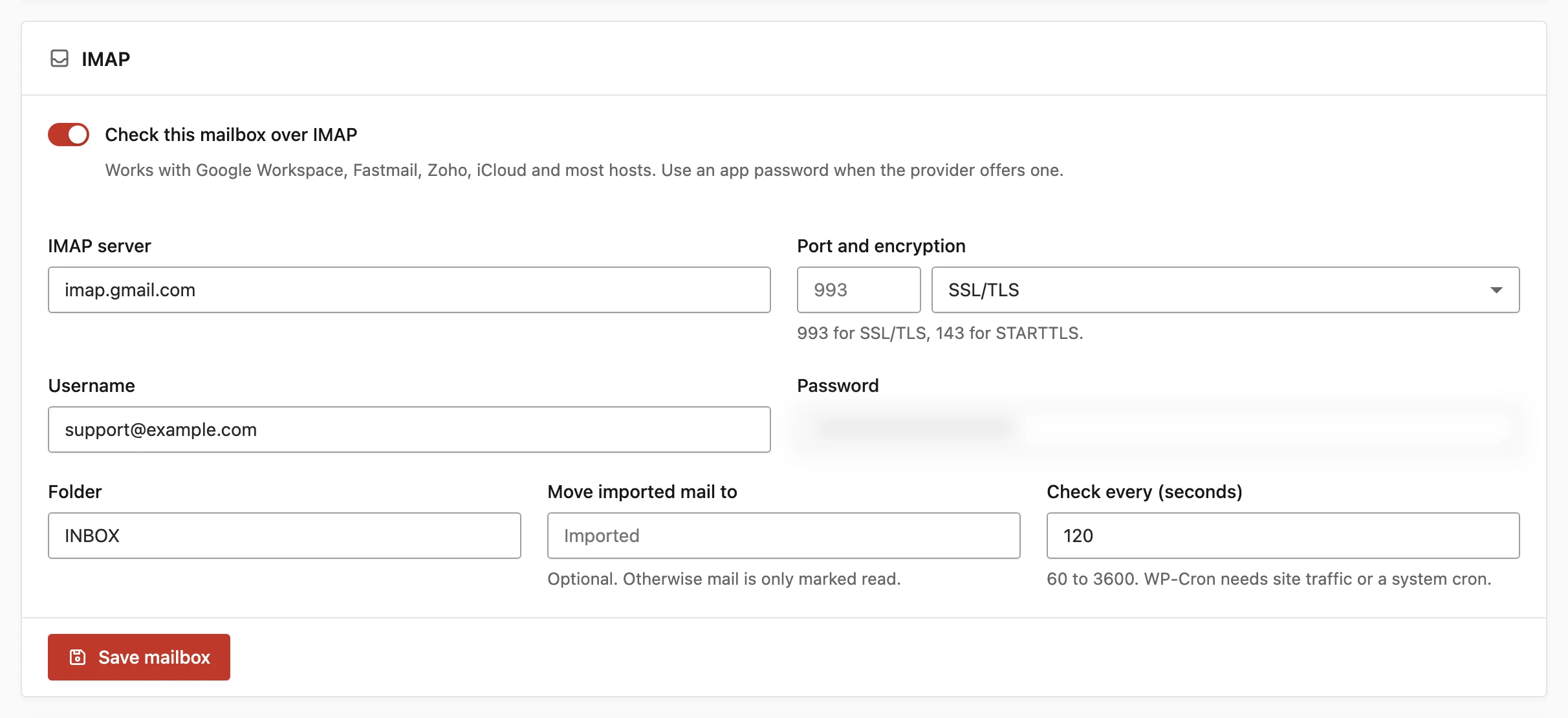
support+anything@to the same inbox, so customer replies find their ticket. - In the IMAP card, switch on Check this mailbox over IMAP.
- Fill in the Google settings:
- IMAP server:
imap.gmail.com - Port and encryption: SSL/TLS on port 993
- Username: the full support address
- Password: the app password
- Folder:
INBOX
- IMAP server:
- Save, then click Check mail now on the mailbox page.
The first check imports only unread mail, so years of old conversations don’t turn into tickets. After that, every new email is imported, including ones a teammate already read in Gmail. Core Support marks a message read only after it has stored its own copy, and it never deletes anything.
Optional: Move Imported Mail to a Label
Gmail shows labels to IMAP as folders. If you set Move imported mail to to a label name such as Imported, each message leaves the inbox and gets that label once Core Support has it. The inbox then holds only mail that hasn’t reached the help desk yet.
Leave it blank if your team still works from the Gmail inbox, and Core Support only marks imported mail as read. Create the label in Gmail first, because a misspelled or missing label stops the move and shows an IMAP error on the mailbox.
When Workspace Blocks App Passwords
If your Workspace account can’t create an app password, keep the main address in Workspace and receive support mail on a subdomain through Cloudflare instead:
- Pick a subdomain with no mail records, such as
help.example.com. - Set up the Cloudflare relay for
support@help.example.com, as Receive Support Email with Cloudflare Email Routing shows. - In Workspace, forward or route the old address to the new one, or start publishing the new address on your contact page.
Your company mail on example.com doesn’t move, because the relay only touches the subdomain’s records. The relay is also faster than IMAP: mail arrives in seconds instead of on the next check.
An automation tool is the other route. If FlowMattic, Zapier, Make or n8n can already read the Workspace inbox through Google’s own sign-in, it can post each email to Core Support. Send Email in from FlowMattic, Zapier, Make or n8n explains how.
Check It Works
Send an email to the support address from a personal account. Within the next IMAP check, 2 minutes by default, it appears under Core Support → Incoming mail. The mailbox page shows the time of the last check and how many messages were imported in total.
Then answer it from the agent workspace and reply to that answer from your personal account. The reply should join the same ticket.
When the Check Fails
The mailbox page shows IMAP check failed with Google’s own error. These are the ones you are most likely to meet:
| What you see | What it means | Fix |
|---|---|---|
| A sign-in or authentication error | The app password is wrong, or it was revoked by a password change | Create a new app password and paste it into Password |
| A sign-in error on a Workspace account with a correct app password | The admin turned IMAP off, or the account doesn’t accept password sign-in | Turn IMAP on in the Admin console, or use the subdomain route |
| Mail arrives in Gmail but never in Core Support | The mail was filtered into a label other than the watched folder | Point Folder at that label, or change the Gmail filter |
| The check runs late | WP-Cron fires only on site visits | Add a server cron that runs wp cron event run --due-now every minute |
What It Won’t Do
- It reads one folder per mailbox. Mail that Gmail filters into other labels stays out unless you point the mailbox at that label.
- The shortest interval is 60 seconds, and WP-Cron can add more on a quiet site.
- Each check imports up to 25 messages, so a big backlog clears over a few checks.
- It doesn’t use Google’s OAuth sign-in yet, so a Workspace policy that blocks app passwords blocks IMAP too.
Once mail flows in, How to Make Ticket Replies Land in the Inbox covers the other direction.