
How to Publish Release Notes Customers Actually Read
You ship a release with 14 changes, and the notes read like a commit log. Customers skim the first 2 lines, miss the fix they were waiting for, and open a ticket asking whether it’s fixed yet.
To publish release notes customers actually read, you lead each release with one plain sentence about what it means for them. Then you label every change so it gets a colored badge. Core Support handles the rest: a timeline of releases, a stable-only view, RSS feeds, share links and an address for every single release.
Core Support is my help desk plugin for WordPress, and its changelogs live at /changelogs/. All 25 product changelogs on this site publish there.
Before You Start
- A changelog under Core Support → Changelogs, written there or synced from a repository. How to Automate Your Changelogs from GitHub covers syncing.
Lead with a One-Line Summary
The text between a version heading and its list of changes becomes the release summary. On the changelog page, readers see the summary first, then a Read full notes link with the number of changes.
That makes the summary the only part most people read, so write it for the customer:
= 2.4.0 - 2026-10-18 =
Checkout opens in a modal now, so customers never leave the page they were on.

* [NEW] Modal checkout from any button
* [IMPROVED] Cart totals update without a reload
* [BUG FIX] Coupons apply once
A good summary names the change a customer will notice, in their words. “Checkout opens in a modal now” beats “Various improvements and bug fixes”, which tells the reader nothing and reads like nobody looked at the release.
Keep it to one or two sentences. A release with nothing worth a summary, such as a translation update, can skip it.
Label Every Change
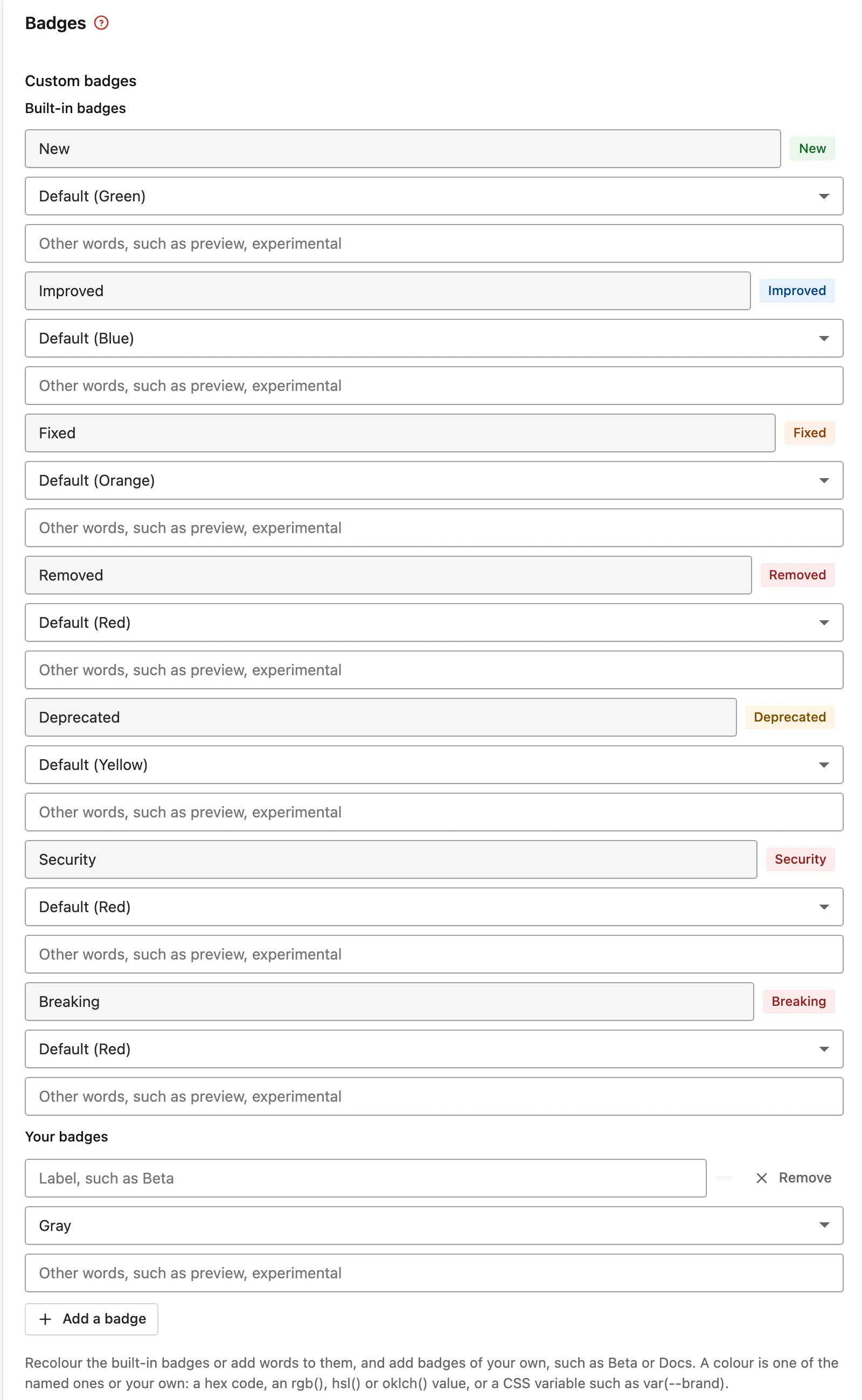
A label at the start of a change becomes a colored badge, so a reader can scan a long release for the one kind of change they care about:
- New (green):
[NEW], or words such as Added and Feature - Improved (blue):
[IMPROVED], Changed, Tweak, Performance - Fixed (orange):
[BUG FIX], Fix, Hotfix - Removed and Security (red), Deprecated (yellow) and Breaking (red)
Labels work 3 ways: in square brackets, as a known word before a colon such as Fix:, or as a group heading such as ### Fixed above the changes. Badges in Docs and Changelogs lists every word.
Mark breaking changes and security fixes every time. Those are the 2 badges a customer must not miss, and a red badge in a list of blue and green ones is hard to scroll past.
Add Badges for Your Own Labels
Your products may need labels the built-in set doesn’t have, such as Beta or Docs. Add them under Core Support → Settings → Changelogs → Custom badges, one per line:
Beta | yellow | preview, experimental
Docs | blue | documentation
Each line is a label, a color and other words that should show the same badge. You can add up to 20, and a line named after a built-in badge recolors it instead.
Write Changes a Customer Understands
Each change is one line, written for someone who uses the product, not for someone who wrote the code:
- Say what changed for them. “Coupons apply once” beats “Fix duplicate discount in
apply_coupon()“. - Name the setting or screen when a change moves something: “The Brand name setting moved to Settings → Branding.”
- Keep code in backticks when developers need it, such as a renamed hook. Backticks, bold and links all work inside changes.
A developer note can follow the customer-facing part in the same line: “Coupons apply once. Developers: apply_coupon now returns early on repeat calls.” Both readers get what they need from one line.
Let Customers Follow Updates
Core Support gives every changelog several ways to reach customers:
- RSS feeds:
/changelogs/feed/for every product and/changelogs/{product}/feed/for one, each with the latest 20 releases. - An address per release: such as
/changelogs/my-plugin/#v2.4.0, which opens that release’s notes. Use it in emails, tickets and social posts. - Share buttons: turn them on under Settings → Header and footer → Changelog pages → Sharing. They’re plain links, with no scripts from the networks.
- Stable only: a switch on every changelog page that hides betas and release candidates for customers who only run stable versions.
The per-release address is the one I’d use most. When a customer asks whether a bug is fixed, answering with a link to the exact release saves them reading the whole page.
Show What’s New Inside Your Product
A plugin can read its own releases from your help desk and show them on a “What’s new” screen after an update. The endpoint is public:
curl 'https://desk.example.com/wp-json/core-support/v1/changelogs/my-plugin?since=2.3.0&stable=1'since returns only releases newer than the version the customer had, and stable=1 hides pre-releases. Each release comes with its version, date, summary, changes and ready HTML. Your summary line pays off twice here, because it’s exactly what a What’s new screen should show.
Let Chat Answer “What Changed?”
If Core Support Chat is on, tick Changelogs under Core Support → Chat → Knowledge. Chat then knows the current version and can answer “what changed in 2.4?” from your notes, with a link to the release.
Check It Works
- Open
/changelogs/my-plugin/and confirm the newest release shows its summary, with badges on the labeled changes. - Switch to Stable only and confirm pre-releases disappear.
- Open
/changelogs/my-plugin/#v2.4.0and confirm it lands on that release. - Subscribe to the product’s feed in a feed reader.
What It Won’t Do
- It won’t write the notes for you. The summary and the plain change lines are the part only you can write.
- It doesn’t email customers about releases. Use the RSS feed with your newsletter tool, or the API in your product.
- Unlabeled changes get no badge. They still show, just without a color.
If release dates matter, keep them in the version headings. How to Keep Your Docs Version in Sync with Your Latest Release then carries the same version onto your docs.