
Portal Settings and Wording
The portal’s default text is written for any business, so it may not sound like yours. “How can we help?” works fine as a heading. Your opening hours, a holiday notice or a warning about passwords still need a place where customers will see them.
Core Support → Settings → Portal holds every line customers read on the support page and in the Customer Portal, New Ticket and My Tickets blocks. You change it once and every block follows.
Open the Portal Settings
- Go to Core Support → Settings. The Portal tab opens first.
- Change any field.
- Choose Save settings.
Settings is open to administrators and the Support Manager role. Agents, Roles and Permissions explains who gets which access.
The portal loads its wording fresh each time the page opens, so customers see a change even when a caching plugin serves the page itself.
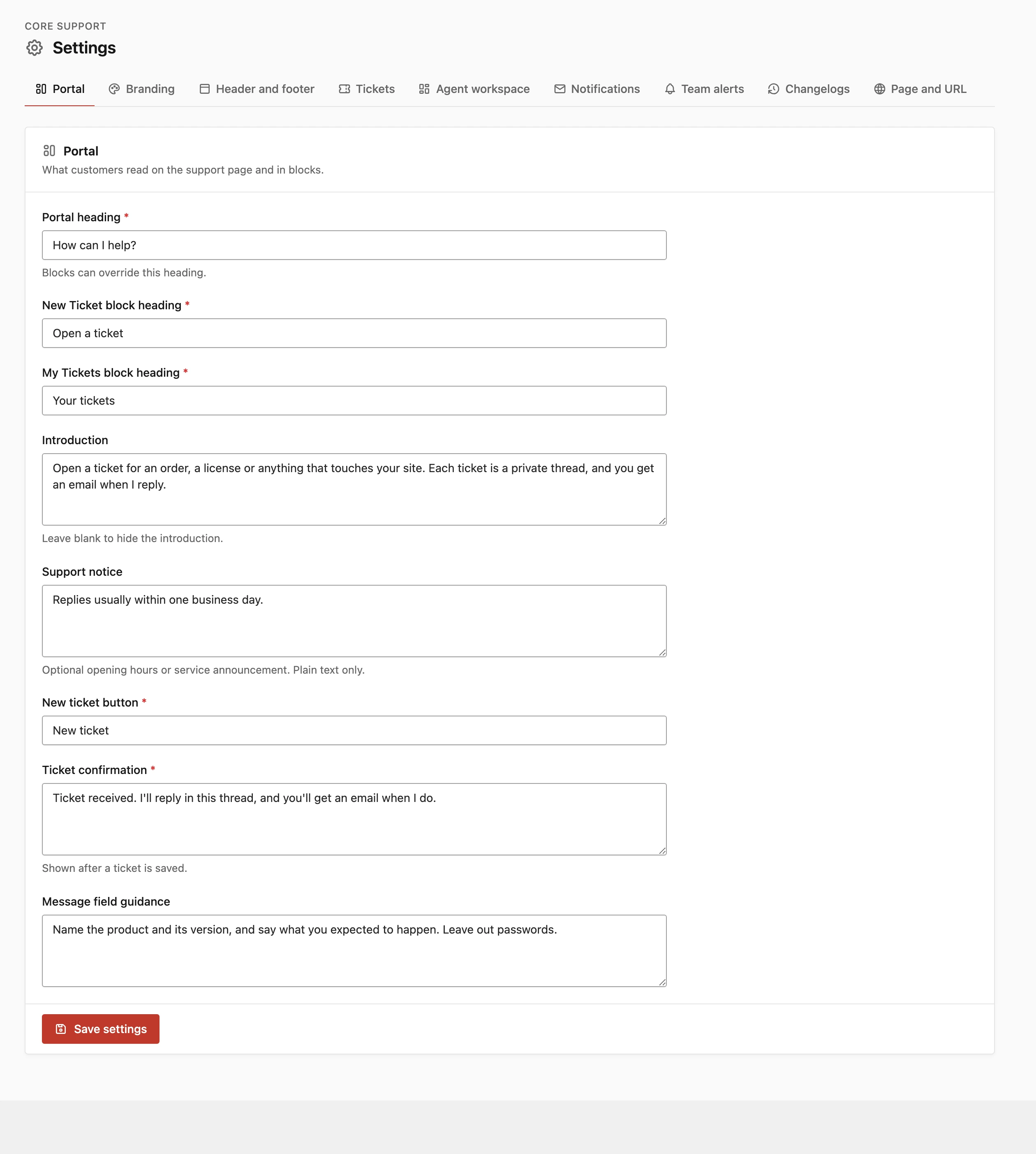
Headings
- Portal heading: the heading on the support page and in the Customer Portal block. Default: “How can we help?” Required, up to 120 characters.
- New Ticket block heading: the heading of the New Ticket block. Default: “Open a ticket” Required, up to 120 characters.
- My Tickets block heading: the heading of the My Tickets block. Default: “Your tickets” Required, up to 120 characters.
A heading typed into a block’s own Heading field wins over these, for that block only. The Support tabs in WooCommerce My Account and the FluentCart customer dashboard always use the heading “Support”.
Introduction and Support Notice
- Introduction: the line under the heading. Default: “Start a conversation, follow a reply, and keep everything in one place.” Up to 500 characters. Leave it blank to hide the introduction.
- Support notice: an optional note for opening hours or a service announcement, shown in a box above the ticket list. Plain text only, up to 500 characters. Empty by default, so nothing shows.
Both appear in every block and on the support page, for signed-in and signed-out visitors alike. Agents don’t see the notice in their workspace.
An example notice for a holiday week:
Our team is away from 24 to 26 December. Tickets opened during this time will be answered on 27 December.Buttons and Messages
- New ticket button: the label of the button that opens the ticket form. Default: “New ticket” Required, up to 40 characters.
- Ticket confirmation: shown after a ticket is saved. Default: “Ticket created. Your conversation is saved.” Required, up to 300 characters.
- Message field guidance: the hint under the message box. Default: “Leave out passwords and other sensitive information.” Up to 300 characters.
Core Support puts the character limit in front of the guidance, so customers read something like “Up to 10,000 characters. Leave out passwords and other sensitive information.” The number comes from Maximum message length under Settings → Tickets.
A required field can’t be saved empty. If one is blank or too long, the save stops with “Complete required fields within their displayed length limits.” and nothing changes.
Settings That Live on Other Tabs
A few things customers see in the portal are set elsewhere:
- Settings → Tickets: Accept new customer tickets, the Intake paused message, Maximum message length, Customers can resolve tickets and Customers can reopen resolved tickets. Ticket Intake, Priorities and New Senders covers each one.
- Settings → Agent workspace: Tickets per page, 10 to 50 with a default of 25, sets the length of the customer’s list as well as the inbox.
- Settings → Notifications: Email footer, the text above the portal link in reply emails.
- Settings → Branding: the name, logo, colors and font around the text.
- Settings → Page and URL: which page is the support page and its address.
Some lines are fixed in 0.9.2 and have no setting. These include the ticket form’s heading Let's work through it. and its Subject and “How can we help?” field labels. When the portal’s wording feels off, I’d go through the Portal tab first and then Settings → Tickets for what customers are allowed to do.